
4. Setup

Part of the BSM manual — see also 1. Introduction, 2. What's New, 3. Scope, 5.1 How to use, 5.2 Business Services, 5.3 Application Services, 5.4 Service Map, 5.5 RACI Matrix, 5.6 RACI summaries, 6. Troubleshooting.
4.1 Installation
Install and activate BSM from Setup > Plugins, the same as any other GLPI plugin.
4.2 Configuration
BSM's settings live under Setup > General > BSM:
- Item types — which kinds of GLPI assets are eligible to appear on the Service Map and be linked to an Application Service.
- Tiers — how those item types are grouped into ranks (for example, separating network equipment from servers) so the map can lay them out sensibly.
- Tracked software — which software installations are followed on the map, since software is usually too numerous to include by default.
- Canvas settings — the Service Map's layout style, zoom sensitivity, and the thresholds at which a group of items collapses into a summary badge instead of being drawn individually.
4.2.1 Automatic actions
None.
4.3 Permissions
BSM adds its own rights, set per profile under the plugin's tab on Administration > Profiles:
- Business Service and Application Service — the usual Read/Create/Update/Delete/Purge rights, plus the two notes rights, control who can see and manage each tier's records.
- Configuration — Read/Create/Update/Delete/Purge on the Setup > General > BSM screen.
- RACI Matrix — Read to view the matrix page, and to view another user's, group's or supplier's "RACI (as actor)" tab. The matrix itself is read-only; actors are assigned from each service's own form, so the Update right on this screen has no effect. A user always sees their own "My RACI" tab regardless of this right.
4.4 BSM settings
BSM's own settings live under Setup → General → BSM. They control which GLPI item types the plugin can link to an Application Service, how those item types are ranked on the Service Map, and how the Service Map itself behaves.
4.4.1 Open the BSM settings
Choose Setup → General, then the BSM tab. Changing any setting here requires the Configuration Update right on the plugin.
4.4.2 Configuration items
- Item types that can be linked to an Application Service — every GLPI asset type checked here gets a Services tab and can be linked from the Service Map. Disabling a type hides its Services tab and blocks new links; links already recorded are kept and shown greyed out.
- Tracked software categories — only software in the selected categories (and their subcategories) appears in Software Versions tabs and lists.
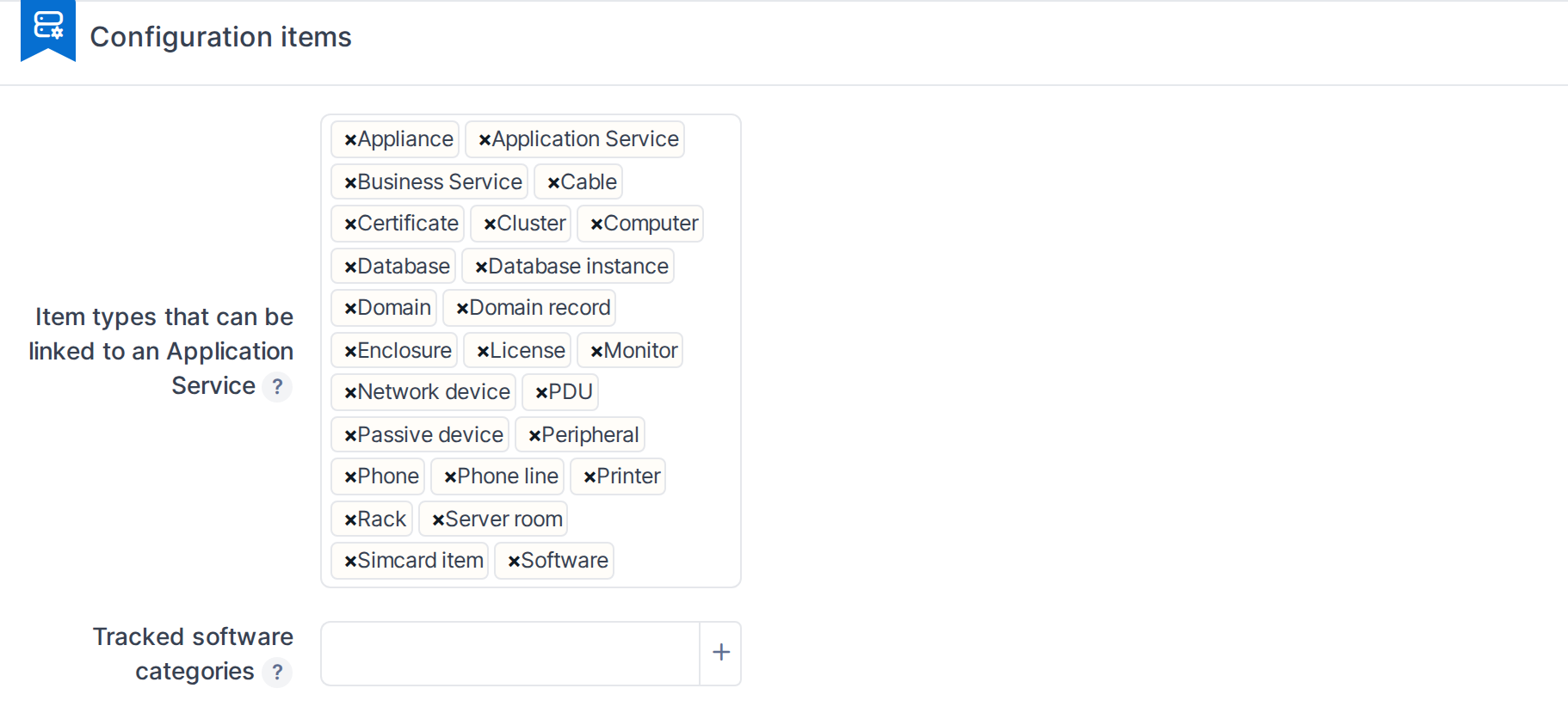
Configuration items
4.4.3 Service map levels
Each linkable item type is assigned to one of four levels, lowest first, which sets its row on the Service Map. Picking a type into one level removes it from the others — a type cannot belong to two levels at once. An unassigned type still renders, at a default middle level. Network equipment always renders in its own side lane regardless of level, and is not offered here.
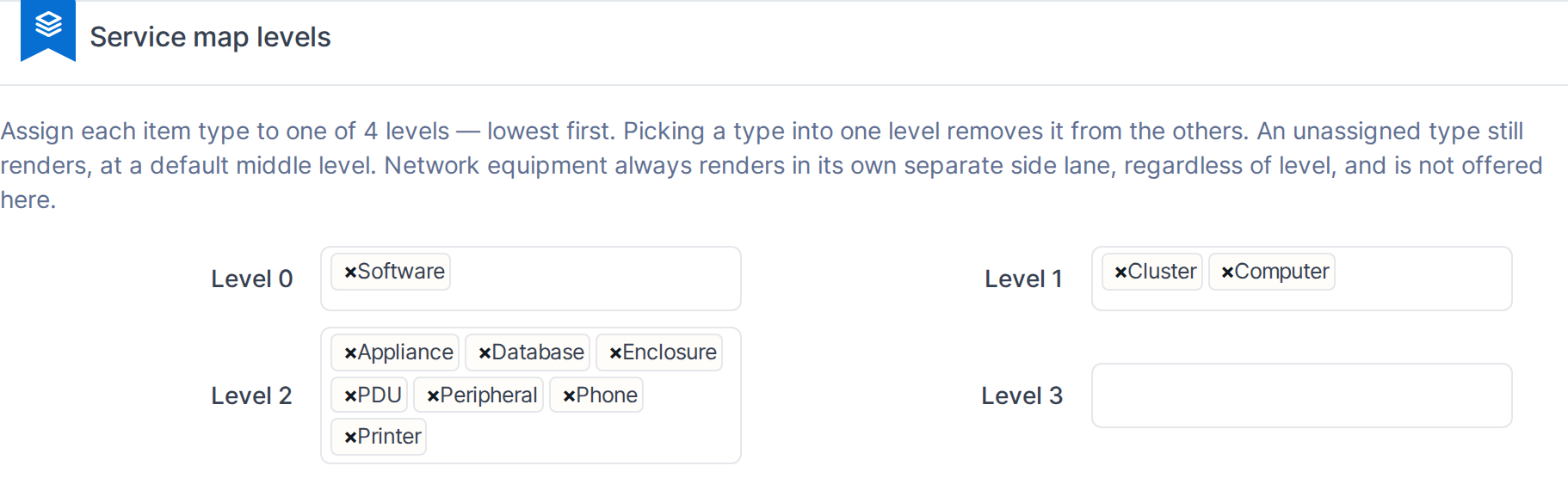
Service map levels
4.4.4 Service map canvas settings
- Layout engine — the algorithm used to lay out the diagram.
- Node threshold — how many children a group can hold before the map collapses it into a summary badge instead of drawing every item.
- Children per node — how many items a summary badge shows at a time when expanded.
- Zoom step — how much each scroll/pinch changes the zoom level (1-200).

Service map canvas settings
Note: Rights for Business Service, Application Service, RACI Matrix and this Configuration screen are set per profile under Administration → Profiles → BSM, not on this page.
Generated for BSM 0.21.0-beta.1 on GLPI 11.0.8 — 2026-09-13.