
5.5 Labels


Part of the Agile Project Management manual — see also 1. Introduction, 2. What's New, 3. Scope, 4.1 General setup, 4.2 Labels, 4.3 Project task templates and checklists, 4.4 Notifications, 5.1 The board, 5.2 Working with cards, 5.3 Project task cards, 5.4 Ticket cards, 6. Troubleshooting.
5.5.1 Labels on task and ticket cards
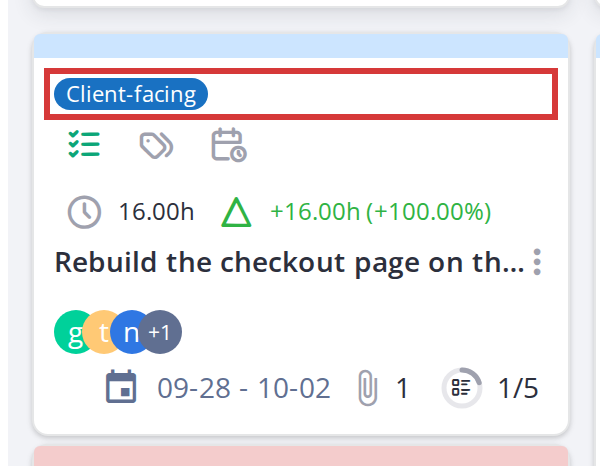
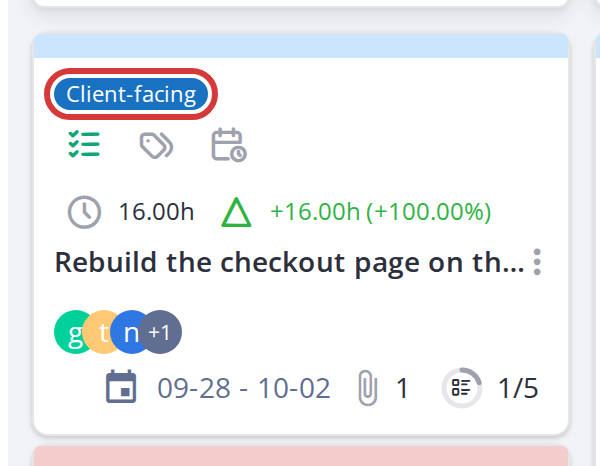
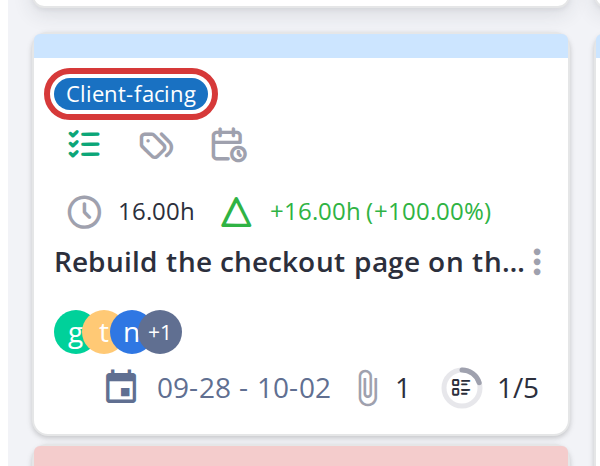
Labels let you tag cards with custom metadata — e.g., "urgent", "in review", "customer feedback". They appear as colored chips on both the card front and in the detail modal.
5.5.1.1 View labels on a card
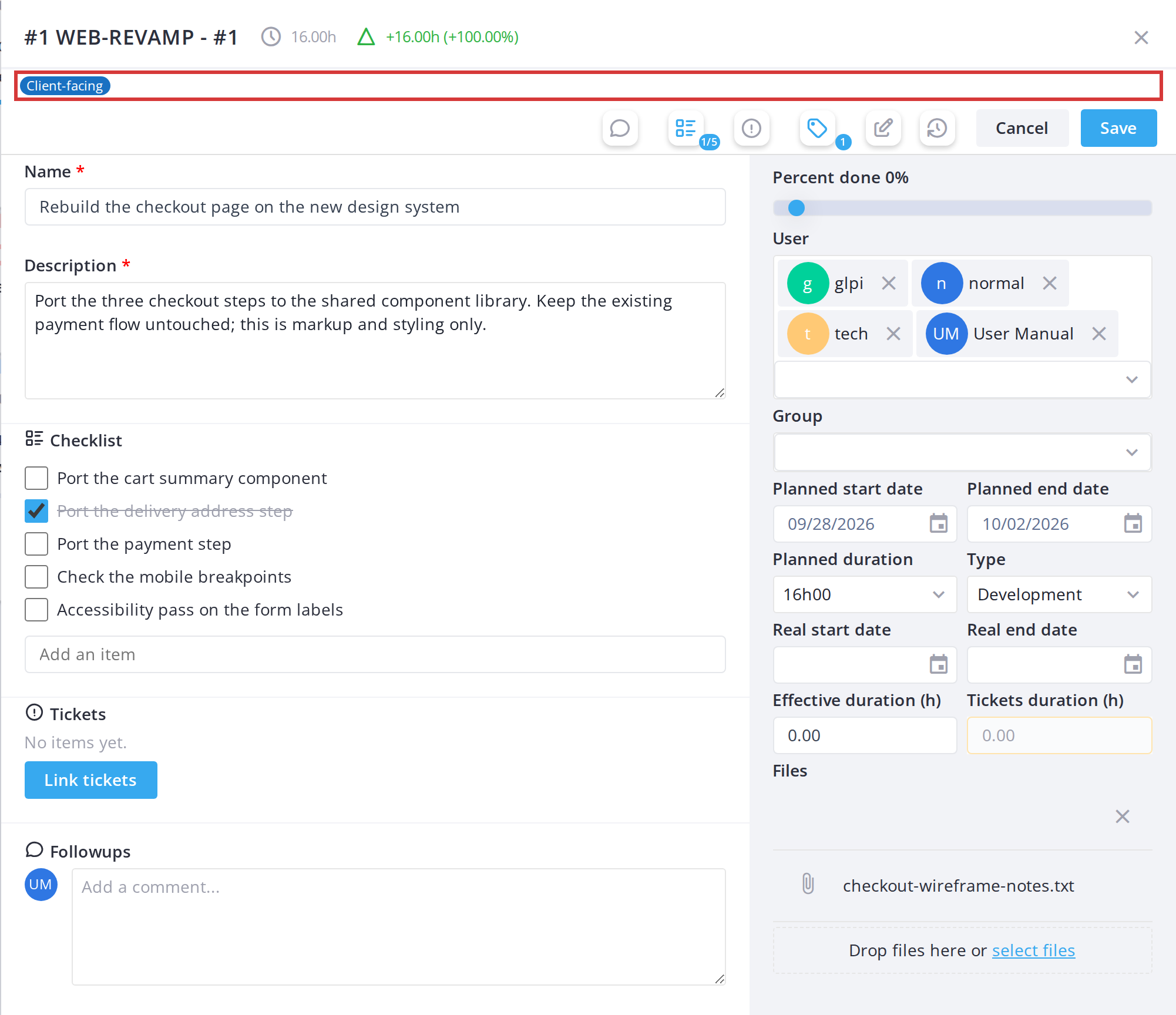
Open a card. If it has labels, they appear as colored chips in the modal. Each chip shows the label name; if there are many labels, extra ones collapse into a "+N" badge.
5.5.1.2 Assign a label to a card
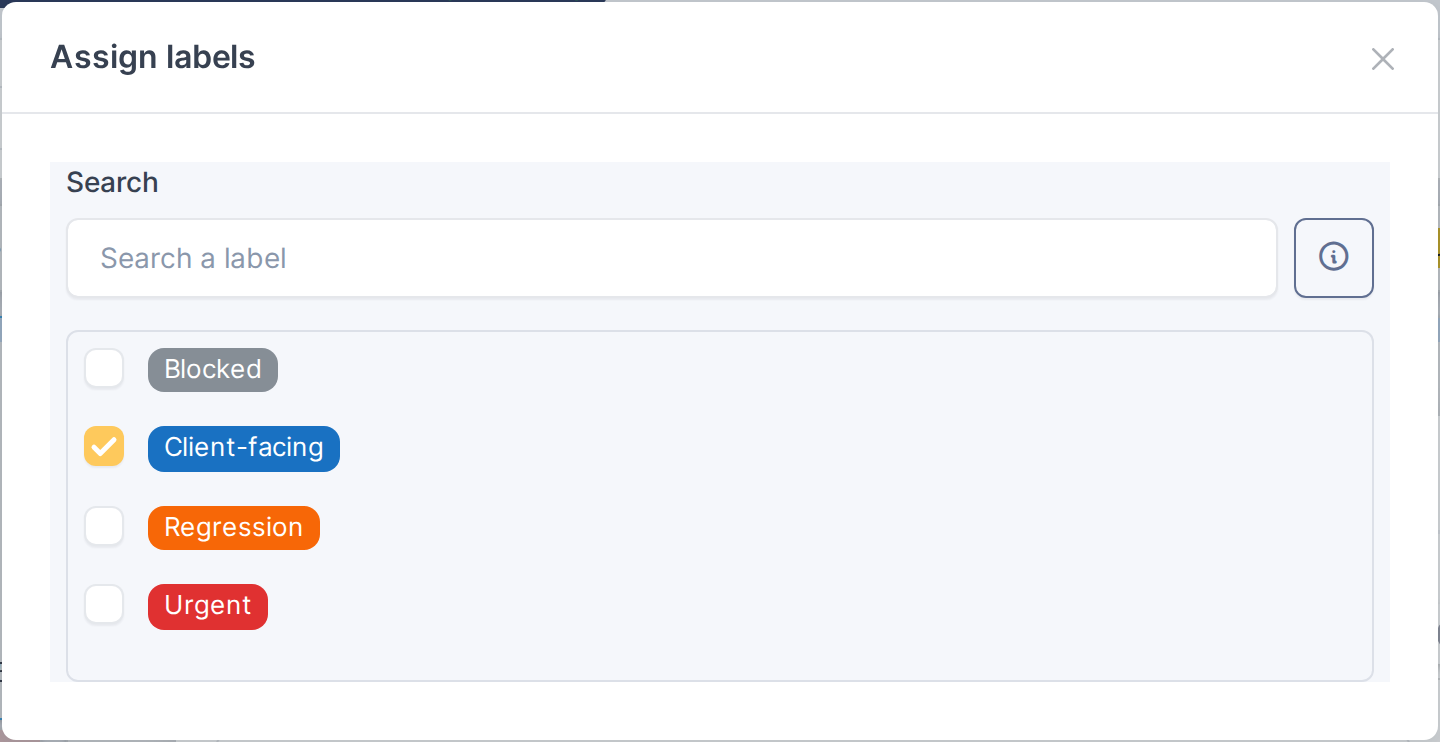
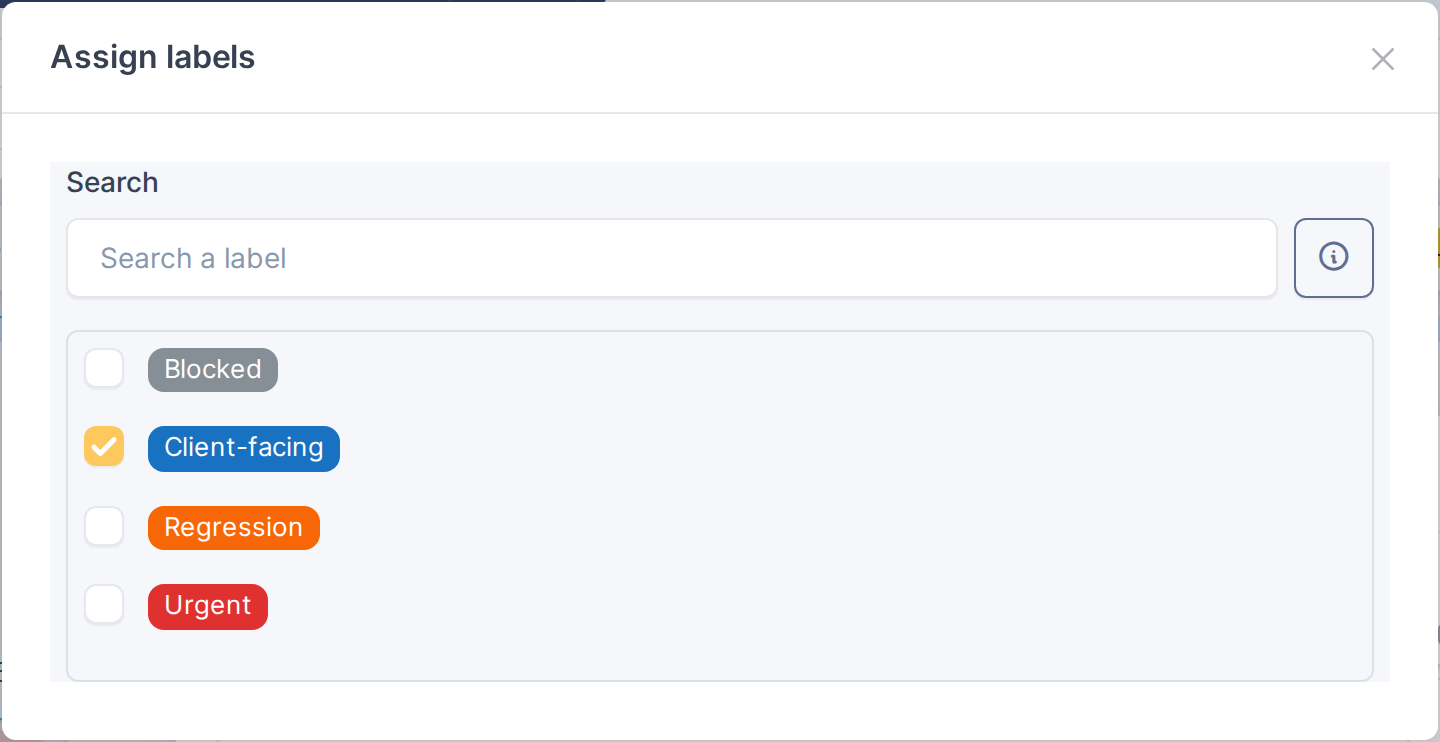
Open the card and click the tag icon in the action bar at the top (if Assign labels permission is granted). A dialog appears with available labels. Check the box next to each label to assign it; uncheck to remove. Click Save to apply the changes.
5.5.1.3 Remove a label from a card
Open the card and click the tag icon to open the label assignment dialog. Uncheck the box next to a label to remove it. Click Save.
Note: Labels are project-wide (or global on the Kanban global view). They are not created per card — you can only assign existing labels. New labels are created in Setup by administrators.
Note: Only users with the Assign labels right can modify a card's labels. The tag icon is hidden for users without this right.
5.5.2 Label colors and appearance
5.5.2.1 Label color
Each label has a background color set by the administrator. The label name is written in black or white, whichever reads better on that colour. On the card front, labels are shown as chips; in the modal, they appear in two places: a row at the top of the action bar (capped at a few visible chips, with extras in a "+N" badge), and again in the full-width list in the label assignment dialog.
5.5.2.2 Labels in the dialogs
The Assign labels window and the global board's Filter by label window list each label as a chip in its own colour, the same chip as on the cards, so a label is recognised the same way everywhere.
Note: Label colors are chosen by administrators when creating a label in Setup. Colors are consistent across the board and all views.
5.5.3 Filtering the board by labels
On the Global Kanban view (when viewing all projects at once), you can filter cards to show only those with specific labels.
5.5.3.1 Open the label filter
Click the tag icon in the toolbar above the board (only visible when viewing the Global Kanban and labels are configured). A dialog opens showing all available labels.
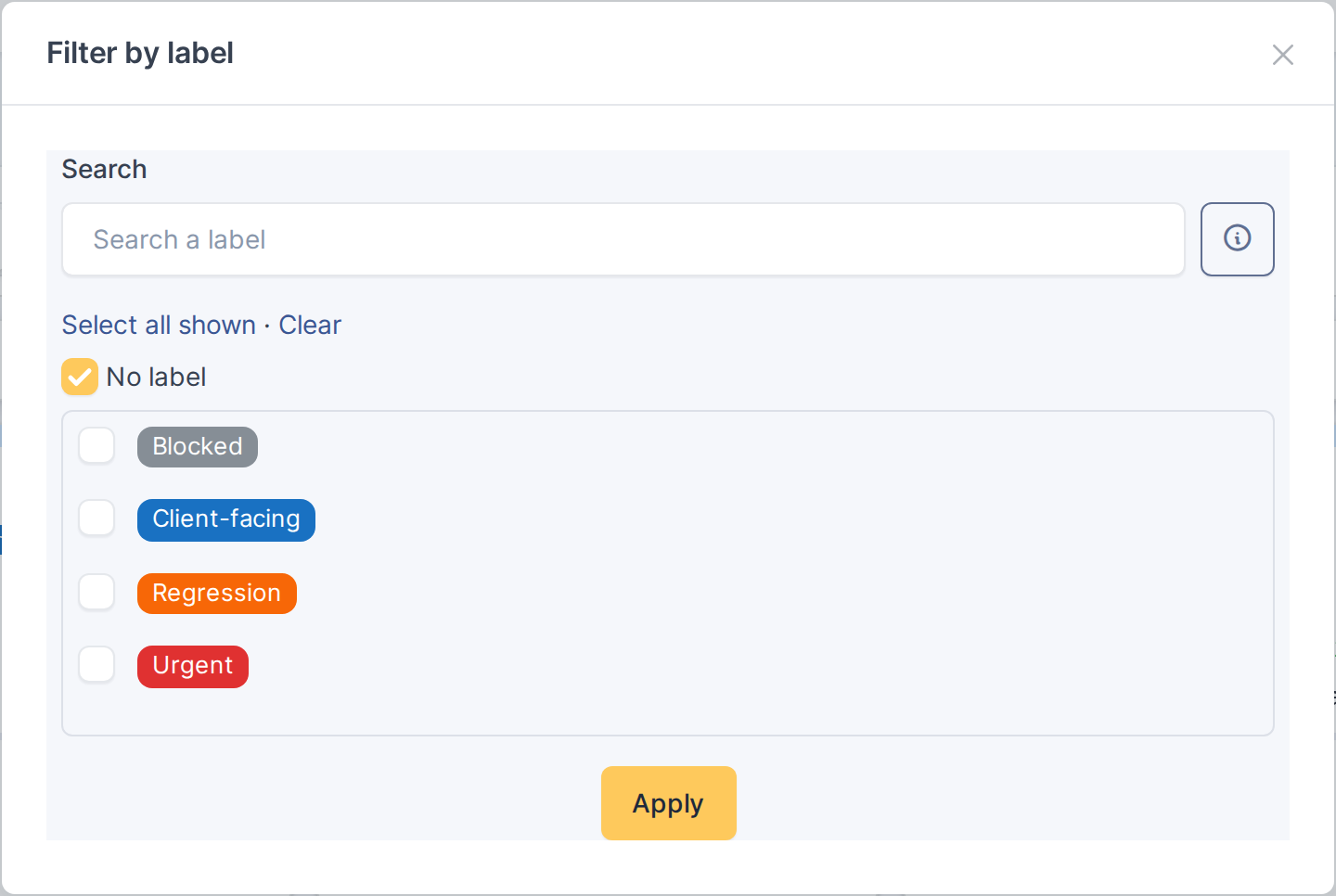
5.5.3.2 Filter by one or more labels
Check the boxes next to the labels you want to see. The board immediately updates to show only cards with at least one of those labels. Click the filter icon again or a checkbox to change the filter.
5.5.3.3 Clear the label filter
Uncheck all labels to show all cards again, regardless of their labels.
Note: Label filtering is available only in the Global Kanban view. In single-project Kanban, labels are displayed but there is no separate filter UI for them.
Note: The label filter is saved per user, like other filters (project, user, group, card type). It is remembered across sessions.
Generated for Agile Project Management 2.2.0-beta.2 on GLPI 11.0 — 2026-09-27.