
5.4 Ticket cards


Part of the Agile Project Management manual — see also 1. Introduction, 2. What's New, 3. Scope, 4.1 General setup, 4.2 Labels, 4.3 Project task templates and checklists, 4.4 Notifications, 5.1 The board, 5.2 Working with cards, 5.3 Project task cards, 5.5 Labels, 6. Troubleshooting.
5.4.1 Reading a ticket card
5.4.1.1 Ticket card layout
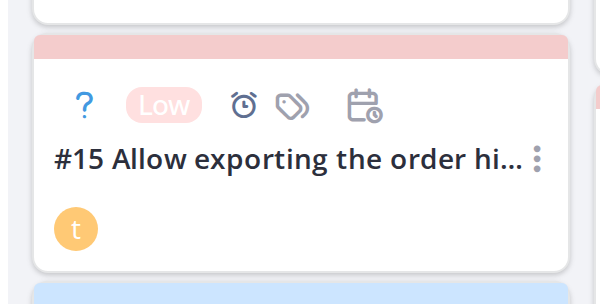
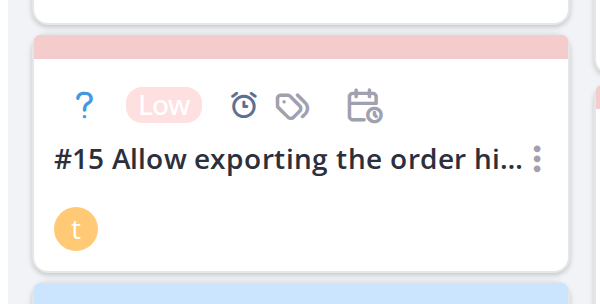
A ticket card has the ticket's own colour and shows, besides what a task card shows:
- The ticket number before the title (for example #15).
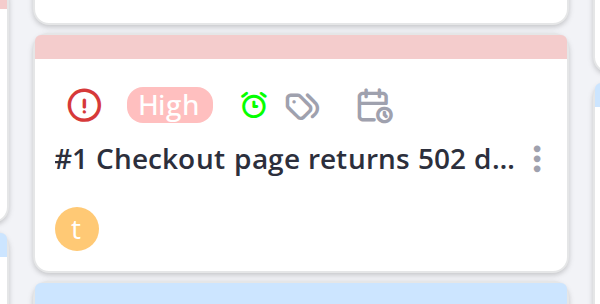
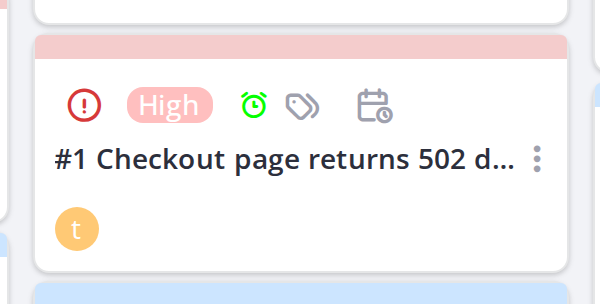
- The ticket type icon: a red exclamation circle for an Incident, a blue question mark for a Request.
- The priority, as a coloured badge.
A ticket linked to one of the project's tasks rather than to the project is shown differently; see Ticket linked to task indicator below.
5.4.1.2 Priority badge
Ticket cards show a colored priority badge (low, medium, high, very high). The color intensity increases with priority. Task cards do not show priority.
5.4.1.3 Time to resolve alarm
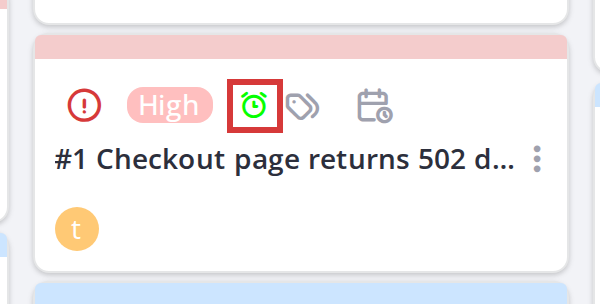
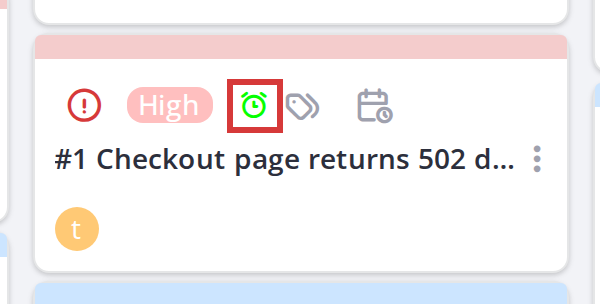
A ticket with a Time to resolve shows an alarm icon next to its priority, on full and compact cards alike. Hover it for the date. Its colour follows GLPI's own Time to resolve colours and thresholds, the same as a task card's date:
- Green: on time; or solved before its Time to resolve.
- Amber: the Time to resolve is approaching.
- Red: the Time to resolve is close (critical).
- Black: overdue; past its Time to resolve, or solved after it.
A ticket without a Time to resolve shows no alarm.
5.4.1.4 Ticket linked to task indicator
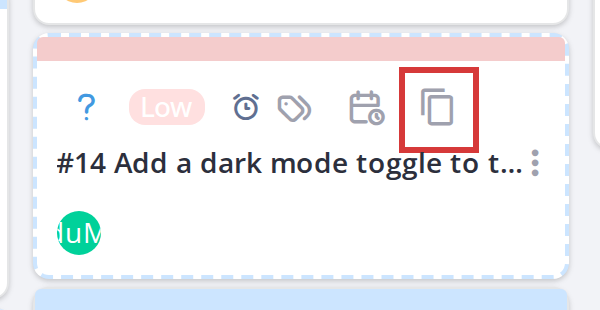
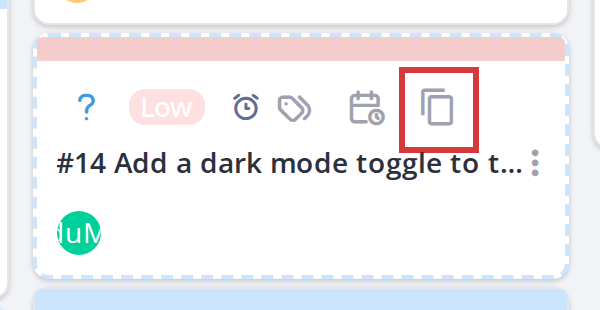
A ticket linked to a task of the project, rather than to the project itself, has no card of its own until Show tickets linked to a task is switched on in the toolbar. Its card then has a dashed border in the task colour, and a small icon next to its date; hover the icon to see which task it belongs to.
5.4.2 The ticket card window
5.4.2.1 Viewing a ticket card
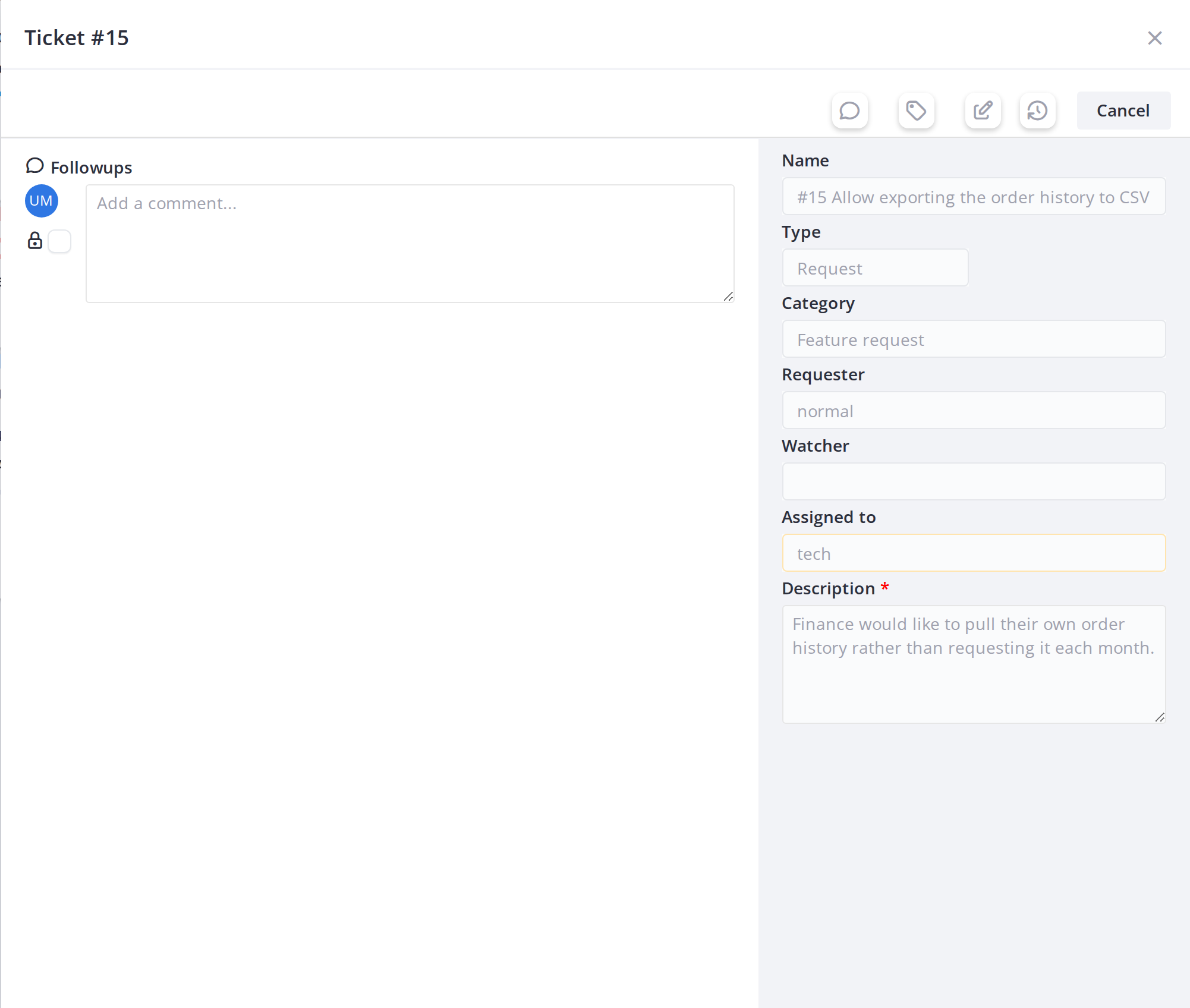
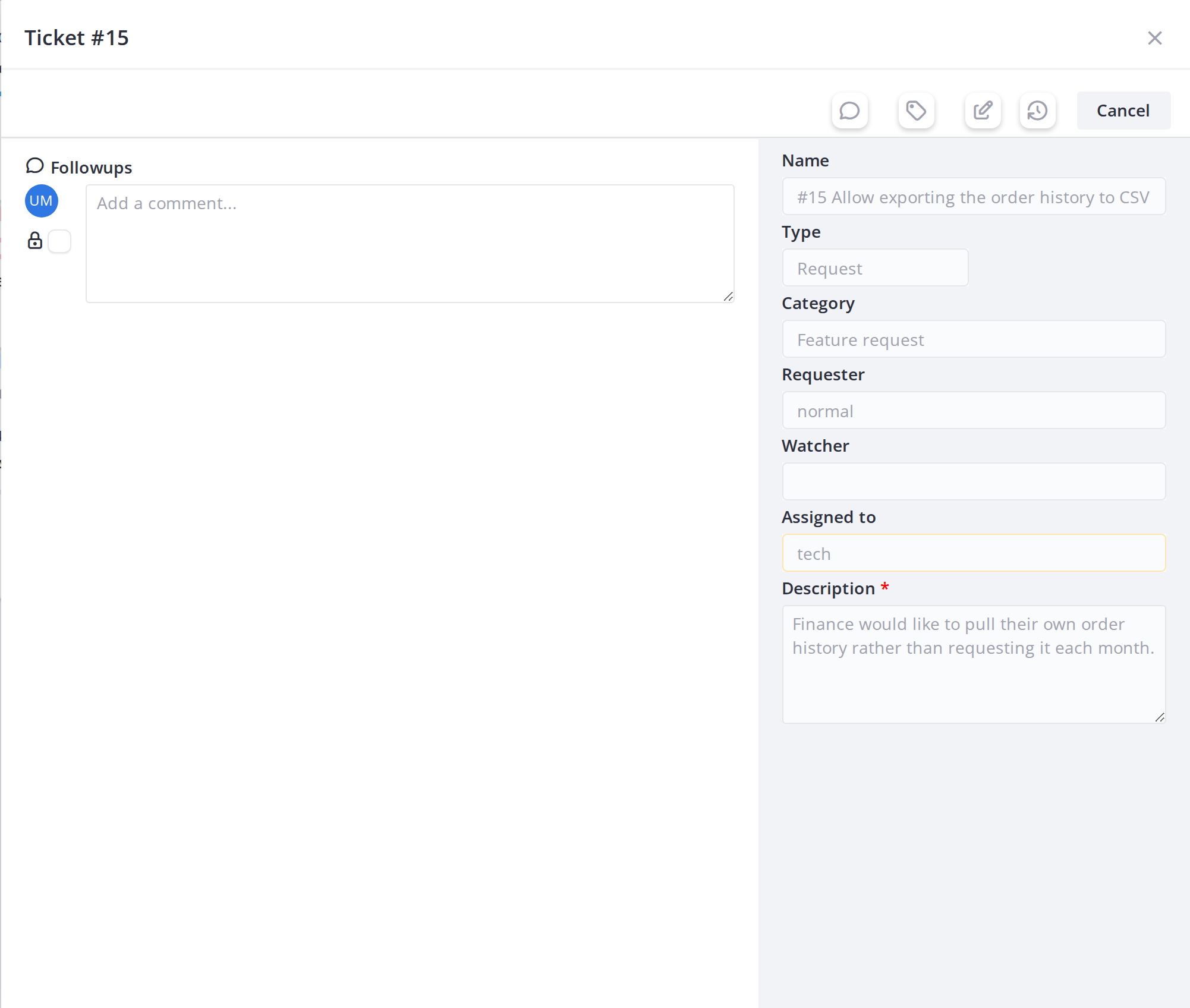
Opening a ticket card shows its name, type, category, requester, watchers, assigned users and groups, and description, all read-only: these are changed in the ticket itself (the Open full form button opens it). From the board you can add a followup, private if you have the right, and assign labels. Files are attached in the ticket form. On the board a ticket card can only be moved to the Pending column (see Moving a card between columns); its other status changes come from the ticket.
5.4.2.2 Add a private comment
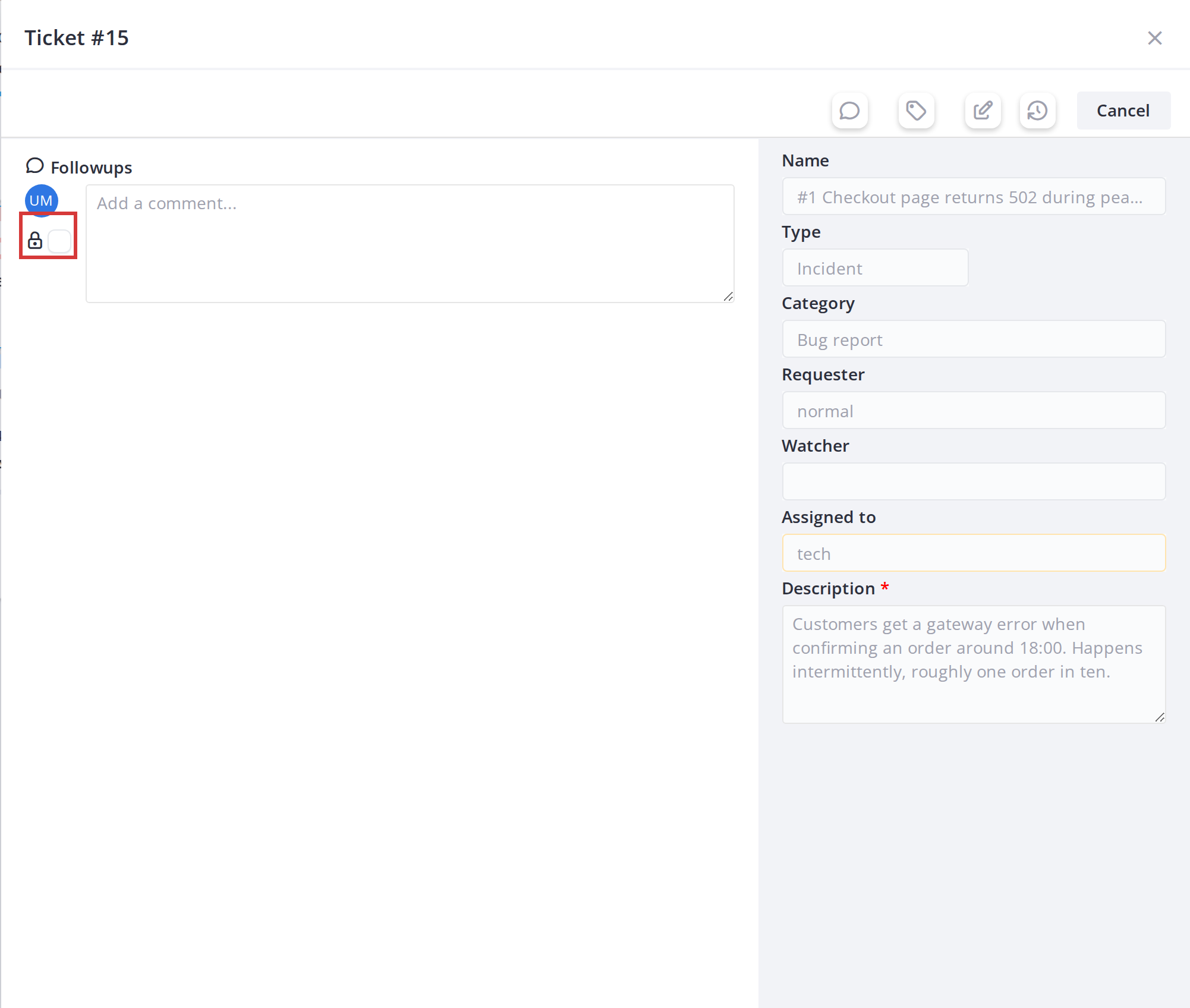
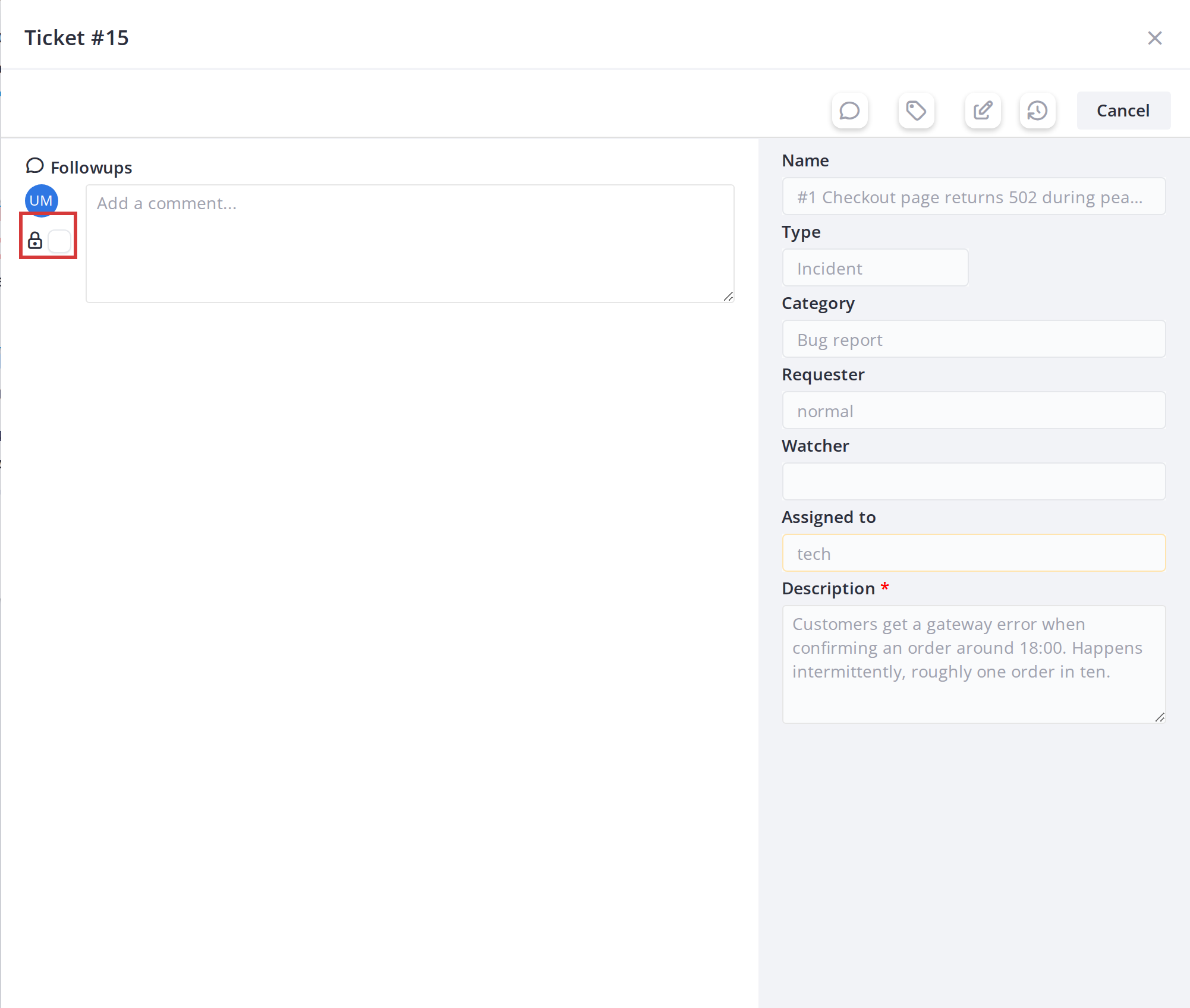
On a ticket card, tick the lock box next to the comment field before sending to make the followup private. It is then shown only to users with GLPI's See private ones right for followups. The box appears only for users who have that right.
5.4.2.3 Unlink a ticket from its task
When a ticket card is linked to a task, its window has an Unlink button. It removes the ticket from the task only: the ticket stays linked to the project, so its card stays on the board, and the ticket itself is untouched. It needs the Delete a card and Link tickets to a task rights and the right to update the project. The same can be done from the task's own window (see Tickets linked to a task).
Note: To edit a ticket's actual details (type, category, etc.), open its full form in GLPI. The detail modal has a button to open the full form in a new tab.
Generated for Agile Project Management 2.2.0-beta.
12 on GLPI 11.0 — 2026-09-27.