
5.1 The board

Part of the Agile Project Management manual — see also 1. Introduction, 2. What's New, 3. Scope, 4.1 General setup, 4.2 Labels and notifications, 5.2 Cards, 5.3 Labels and checklists, 6. Troubleshooting.
5.1.1 Choosing and changing a project type
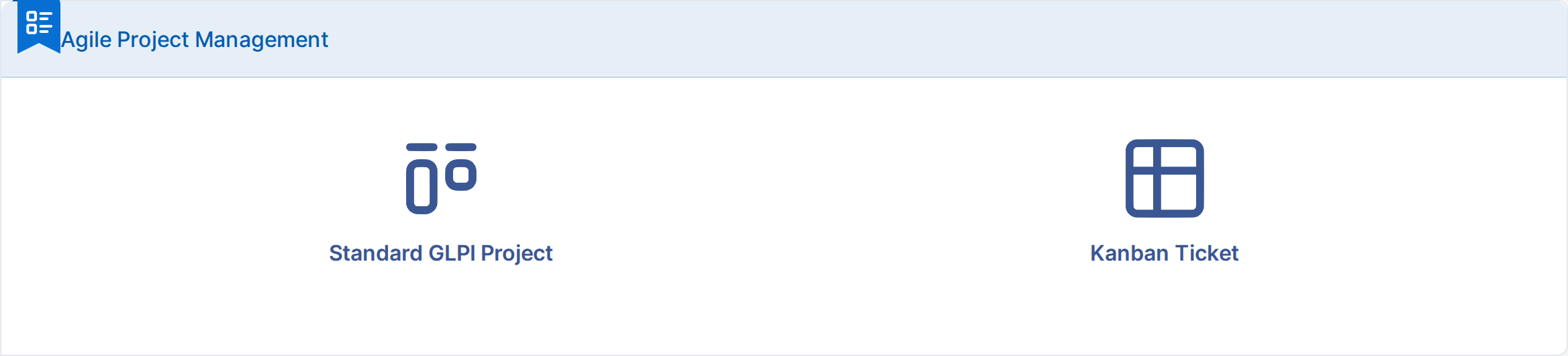
Every project is either a Standard GLPI Project, with GLPI's own project and task screens unchanged, or a Kanban Ticket project, managed from the plugin's board mixing project tasks and linked tickets. The type is chosen when the project is created and can be changed later by a user with the Change type right.
5.1.1.1 Pick the type of a new project
Choose Tools → Projects and click Add. Before the usual project form, the plugin asks which type of project to create. Kanban Ticket opens the project form; once saved, the project opens on its Kanban tab.
5.1.1.2 Change the type of one project
Open the project and choose its Agile Project Management tab. Pick the other Type and click Save. Nothing is deleted: a Kanban Ticket project turned back into a standard project keeps its board data, and returns to it if switched back. The change is written to the project's Historical tab.

5.1.1.3 Change the type of several projects at once
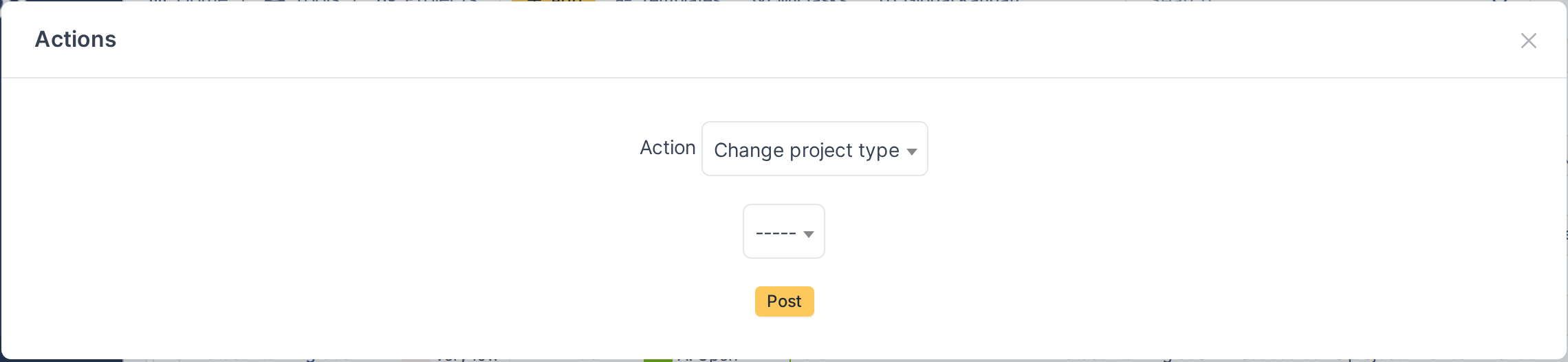
In Tools → Projects, tick the projects, click Actions and choose Change project type. Pick the new type and click Post. Every project changed is logged in its own Historical tab.
5.1.2 The Kanban board
A Kanban Ticket project shows its work as a board instead of the standard project task list. Each column is a project state, and each card is either a project task or a ticket linked to the project. The two are given different background colours, so which kind of work a card represents is obvious without reading it.
5.1.2.1 Open the board
Open the project and choose its Kanban tab. The board replaces the usual task list and fills the width of the page.
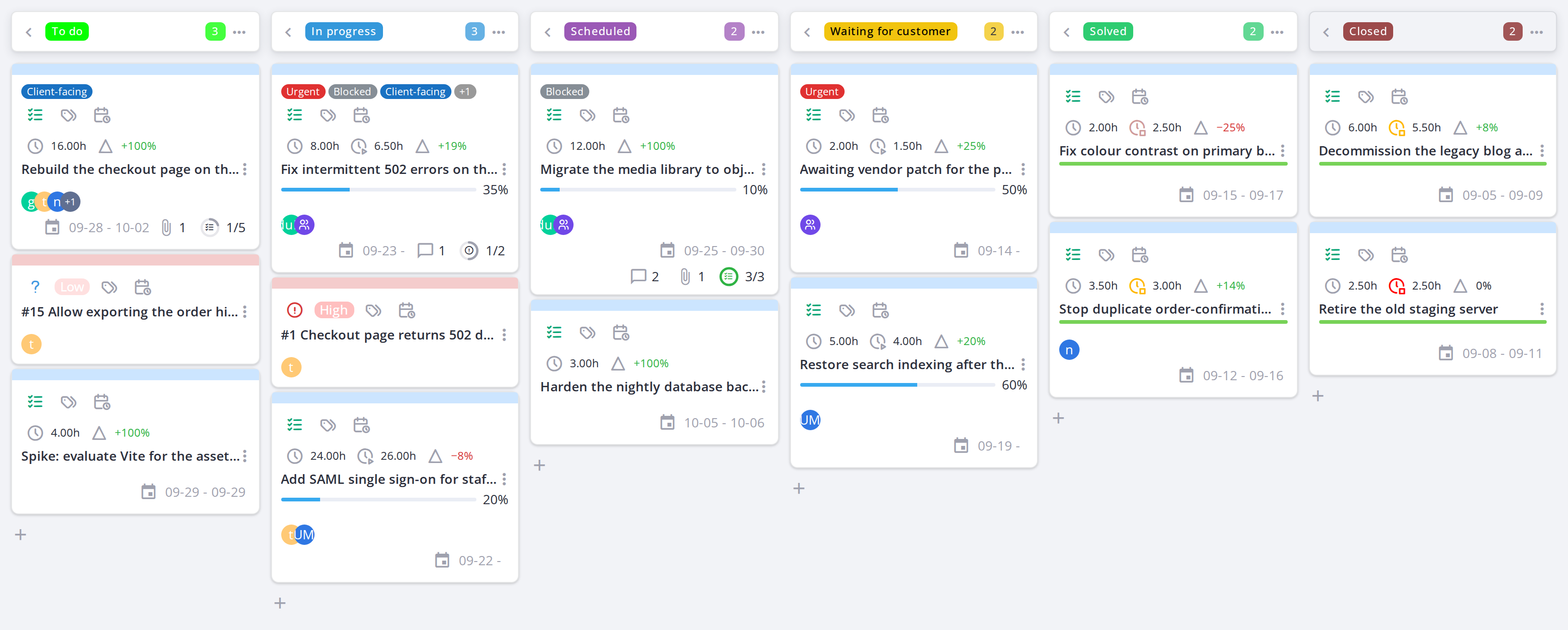
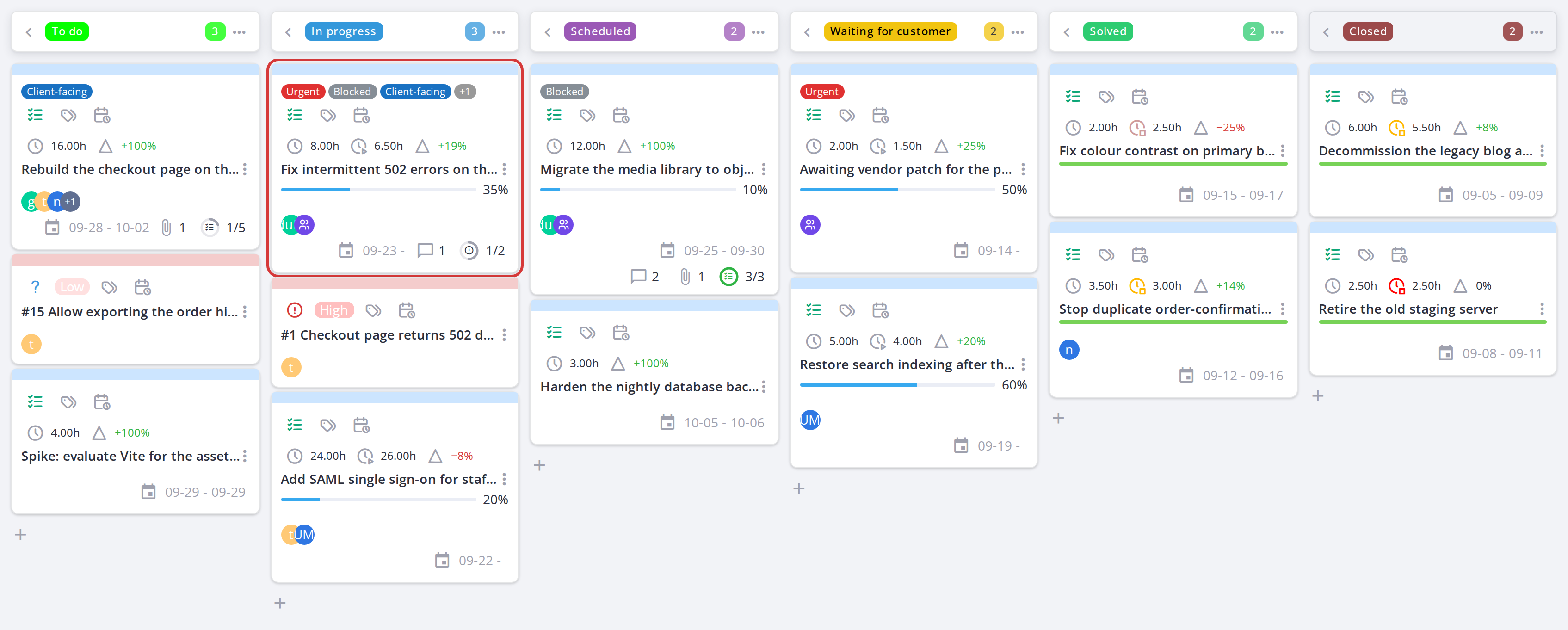
A Kanban Ticket project, one column per project state
5.1.2.2 Columns are project states
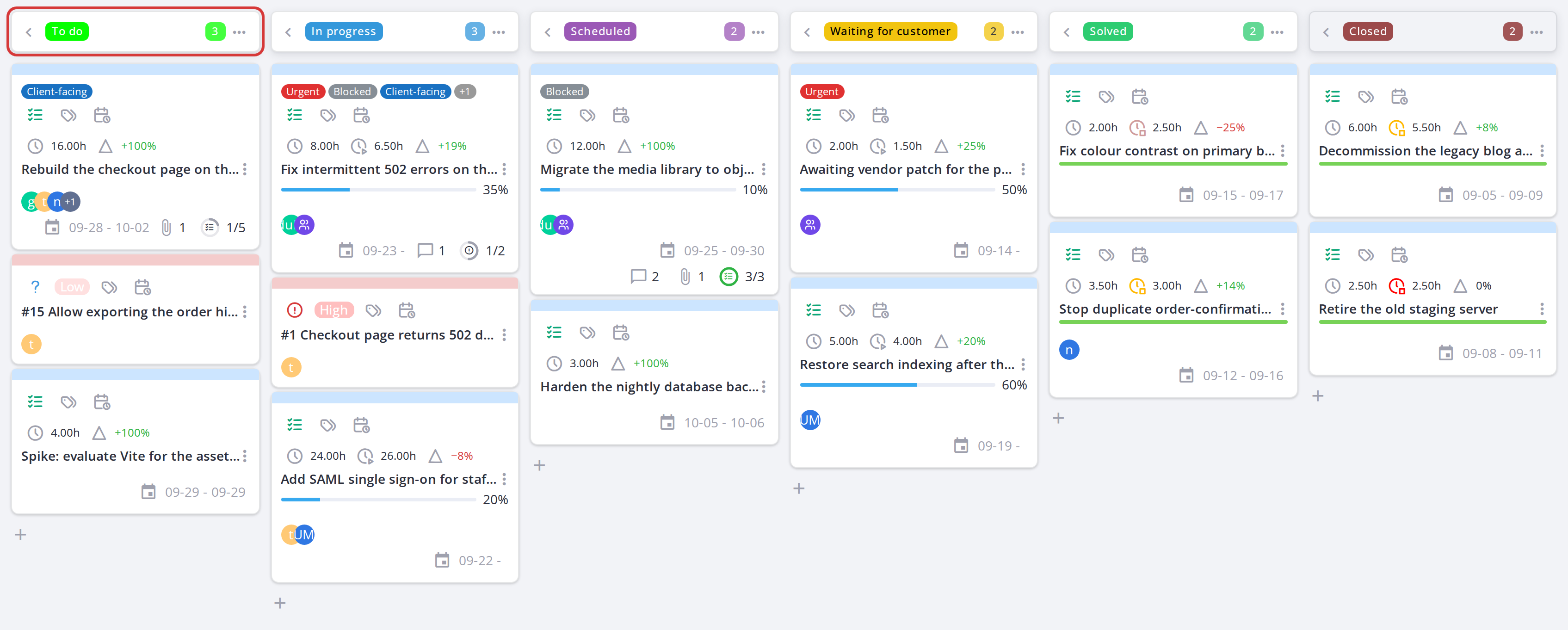
The columns are the project states chosen in the configuration, one per ticket status. In this example they are To do, In progress, Scheduled, Waiting for customer, Solved and Closed, from states named 1. To do, 2. In progress… with the sort prefix removed from the column title. The number beside a column name is how many cards it currently holds, which is the quickest way to spot work piling up in one place.
A column, its name and its card count
5.1.2.3 Read a card at a glance
Without opening anything, a card tells you: its title, the project code it belongs to, its type, who it is assigned to, how far along it is, its planned and spent hours, its dates, and whether it carries labels, a checklist, comments or attachments. Every icon on it is explained in Icon meanings and tooltips, and the hours in Time on a task.
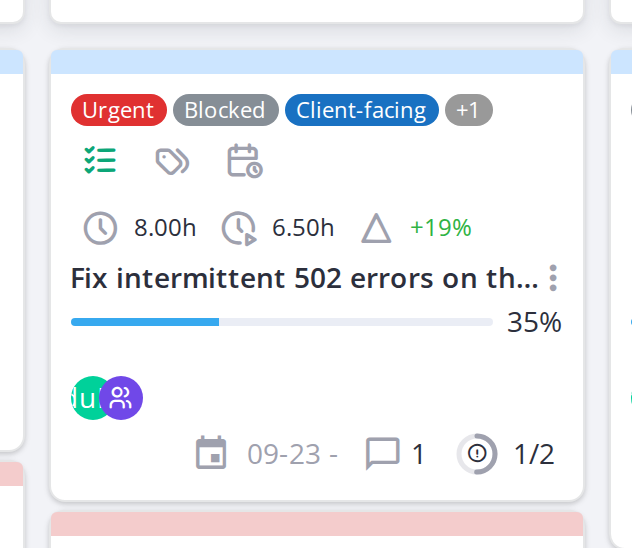
One card, carrying labels, assignees, a comment and linked tickets
5.1.2.4 Open a card
Click a card to open it. Everything about that task or ticket is edited here rather than on the board itself — see The card window.
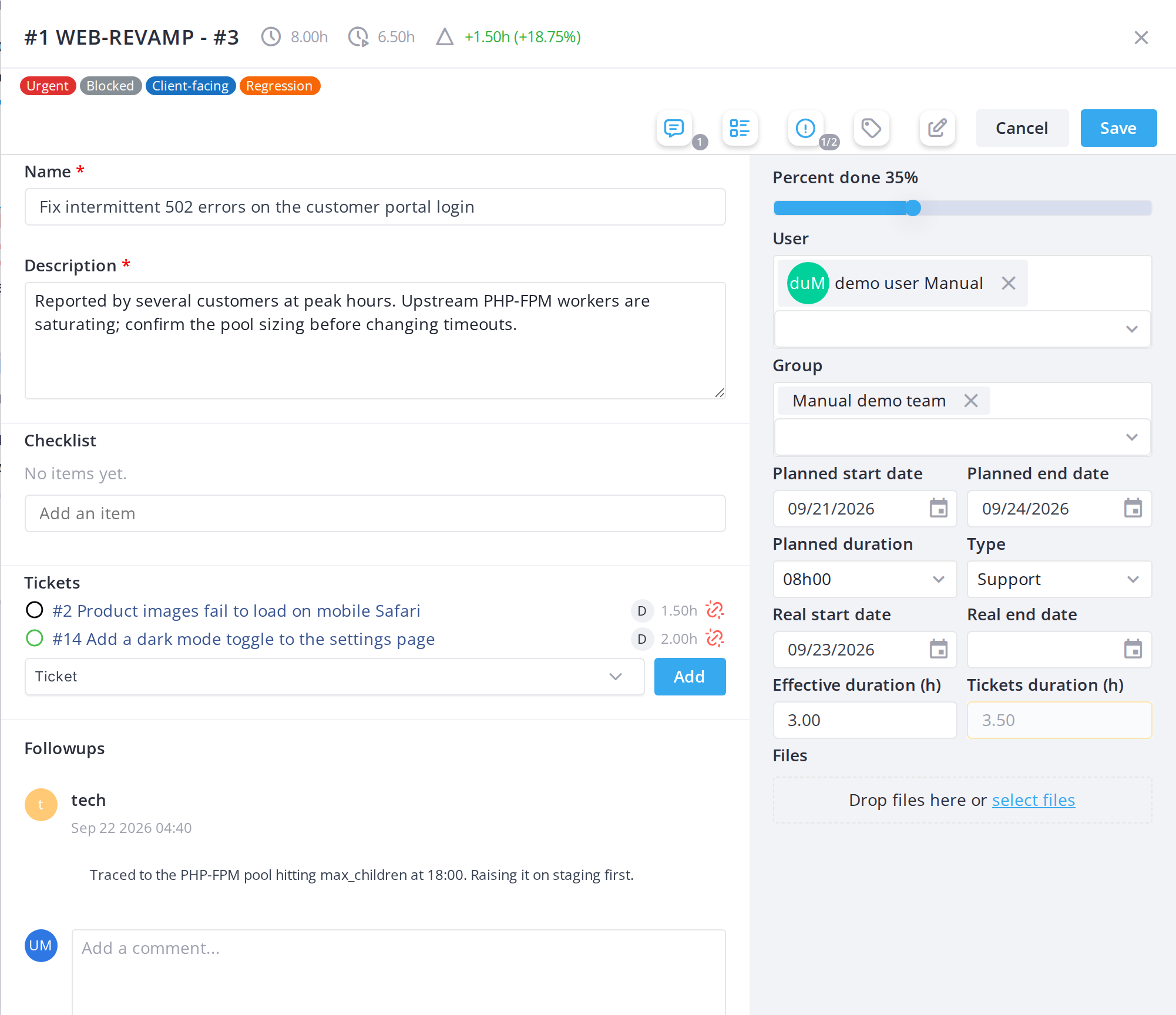
Note: Task cards and ticket cards are given the two background colours set in Setup, so the two kinds of work stay distinguishable even on a full board.
Note: The board only lists projects that are not templates, not deleted, and whose state is not flagged "finished" in Setup > Assistance > Project states — a project can stop appearing here simply because its state changed to a finished one.
5.1.3 The global Kanban view
Instead of opening one project at a time, Kanban in the main menu shows every Kanban Ticket project the user can see on a single aggregated board, with each card labelled with its project name and code.
5.1.3.1 Open the global Kanban view
Choose Kanban from the main menu. The same filters, card actions and drag-and-drop behaviour apply here as on a single project's board — the only difference is that cards from every visible Kanban project are mixed together.
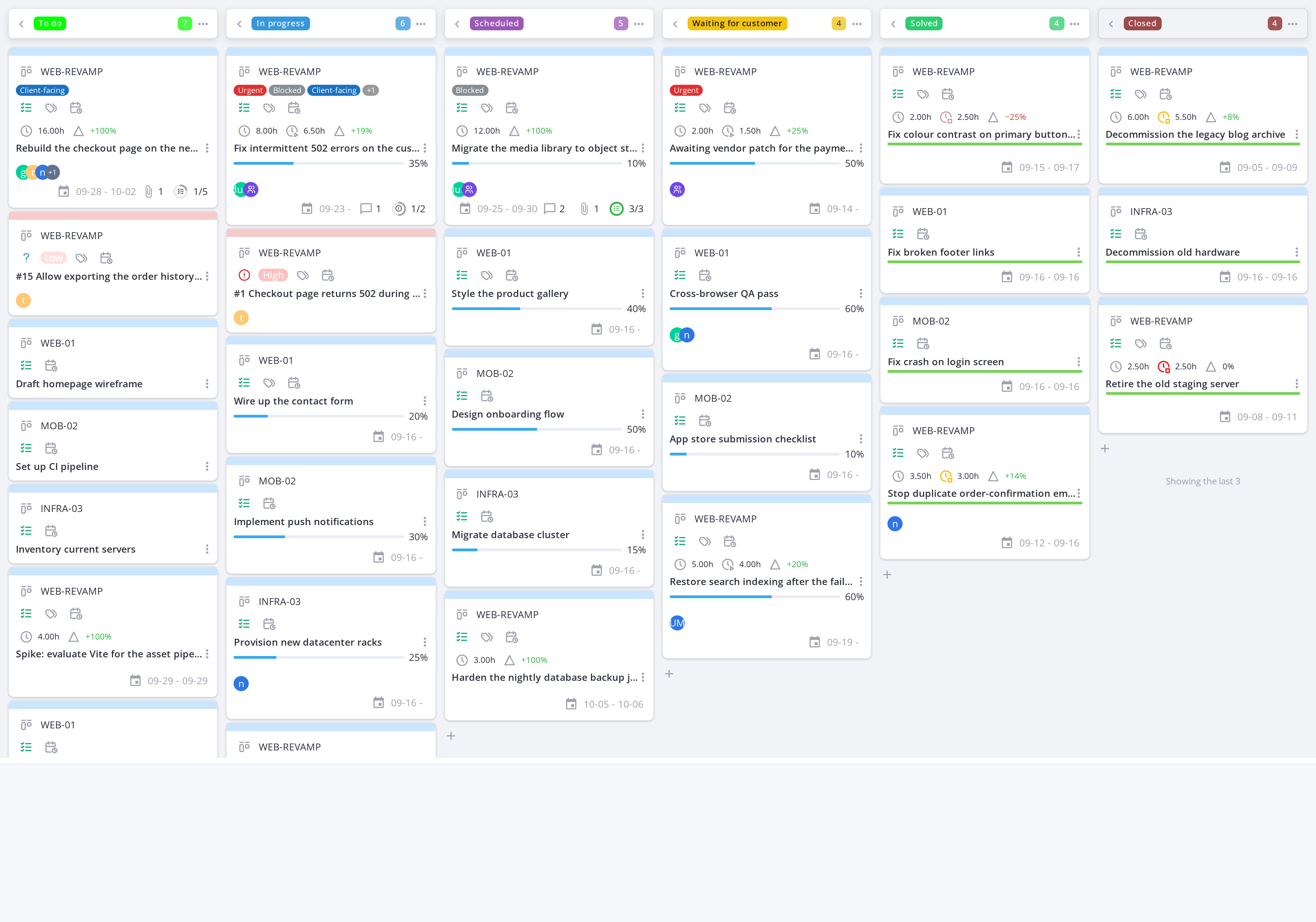
Note: The global board only shows the projects and tickets GLPI already lets you see; it adds no visibility of its own.
Note: Each card displays its project name and code alongside its title, so you can tell which project a task or ticket belongs to at a glance.
5.1.4 Columns and collapsing them
Columns are project states. They are not created, moved or deleted on the board: an administrator chooses them in the configuration (see Configuration, Kanban Ticket block), and the board shows them in that order.
5.1.4.1 Read a column header
Each column header shows the state name, without its sort prefix, and the number of cards in the column. A card whose state is not mapped to any column goes to an extra Unsorted column at the far left, shown only while it has cards.
5.1.4.2 Collapse a column
Click the left-pointing arrow icon at the left of a column header to collapse it, hiding its cards but keeping the column label visible vertically. Click the right-pointing arrow to expand it again.
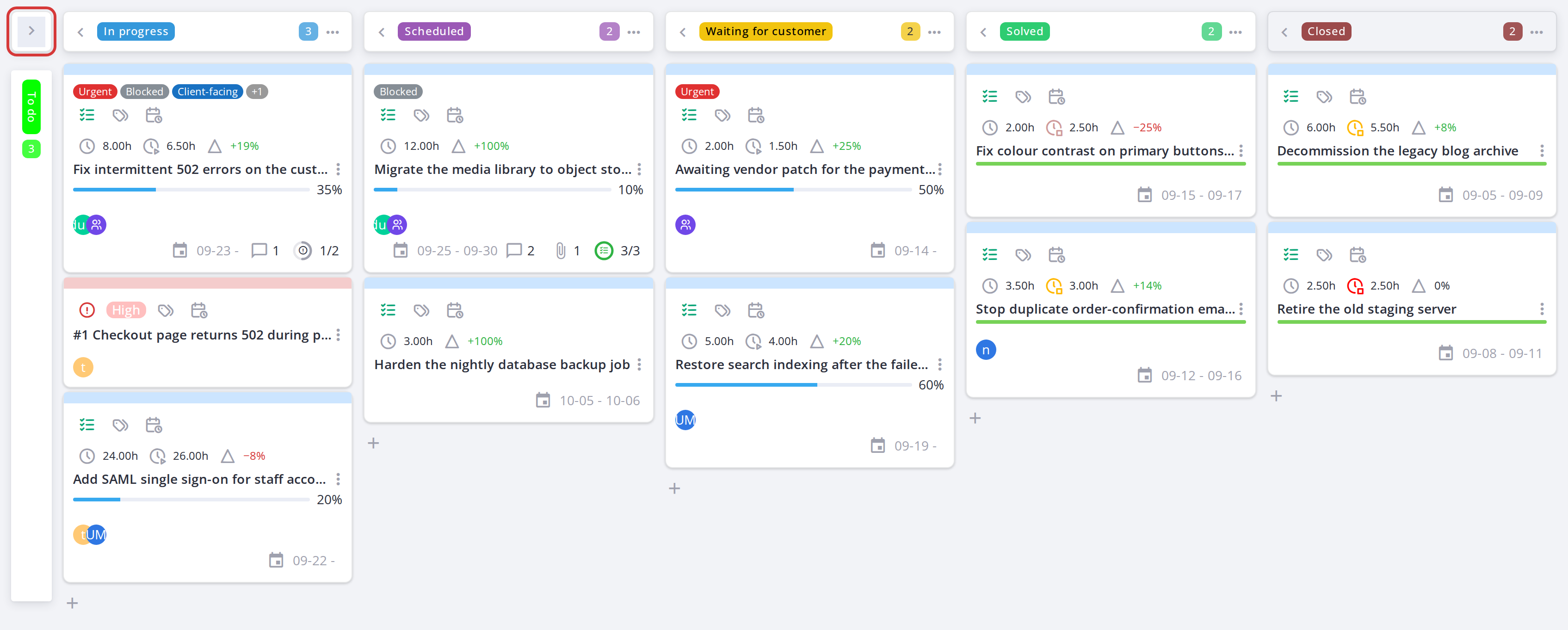
The first column collapsed to a narrow strip
5.1.4.3 The Closed column
The Closed column shows only its most recently closed cards (3 by default, set by Closed cards shown in the configuration) and a "Showing the last 3" note while more are closed; its header counts them all. Older closed cards are not loaded, which keeps a board with a long history fast; they remain in GLPI's own project and ticket lists. Dropping a card into Closed still works: it becomes the newest shown card.
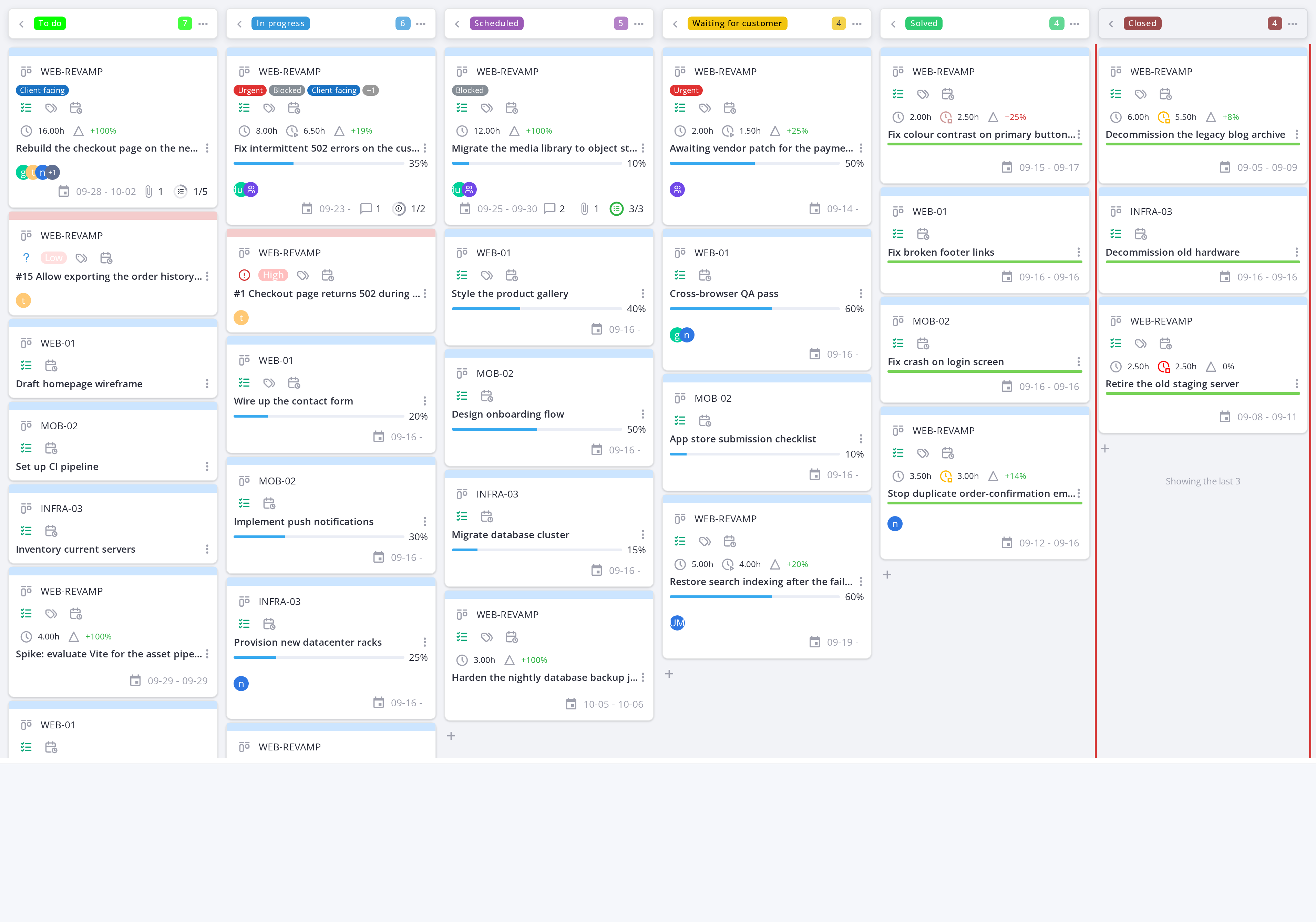
On the global board, the Closed column keeps its last 3 cards and counts the rest
5.1.5 Filtering the board and saving a personal filter
The board can be filtered by project, assigned user, group and card type. A filter is saved per user, not per project — it is remembered the next time you open any Kanban board.
5.1.5.1 Open the filter panel
Click the search icon in the toolbar above the board. The filter inputs appear: project, user, group and card type. Combining several narrows the board to cards matching all of them.

5.1.5.2 Save the filter
Once a combination is useful, it is saved automatically for that user and reapplied on the next visit — there is one saved filter per user, replaced each time a new combination is applied.
5.1.6 Moving a card between columns
Dragging a card to another column changes its underlying status — the project task status for a task card, or the ticket status for a ticket card.
5.1.6.1 Drag a card to another column
Drag the card from its current column and drop it onto the target column. The card's status updates immediately; team members configured to be notified on a status change receive a notification (see Notifications in Setup).
Note: Moving a card requires the Move a card right; without it the card cannot be dragged at all (see Permissions in Setup).
5.1.7 Board toggles, menus and view options
The toolbar above the board offers several toggles and dropdowns to control what you see and how the board behaves.
5.1.7.1 Show only my tasks
Click the checkbox icon to filter the board to show only cards assigned to you. Click again to show all cards.
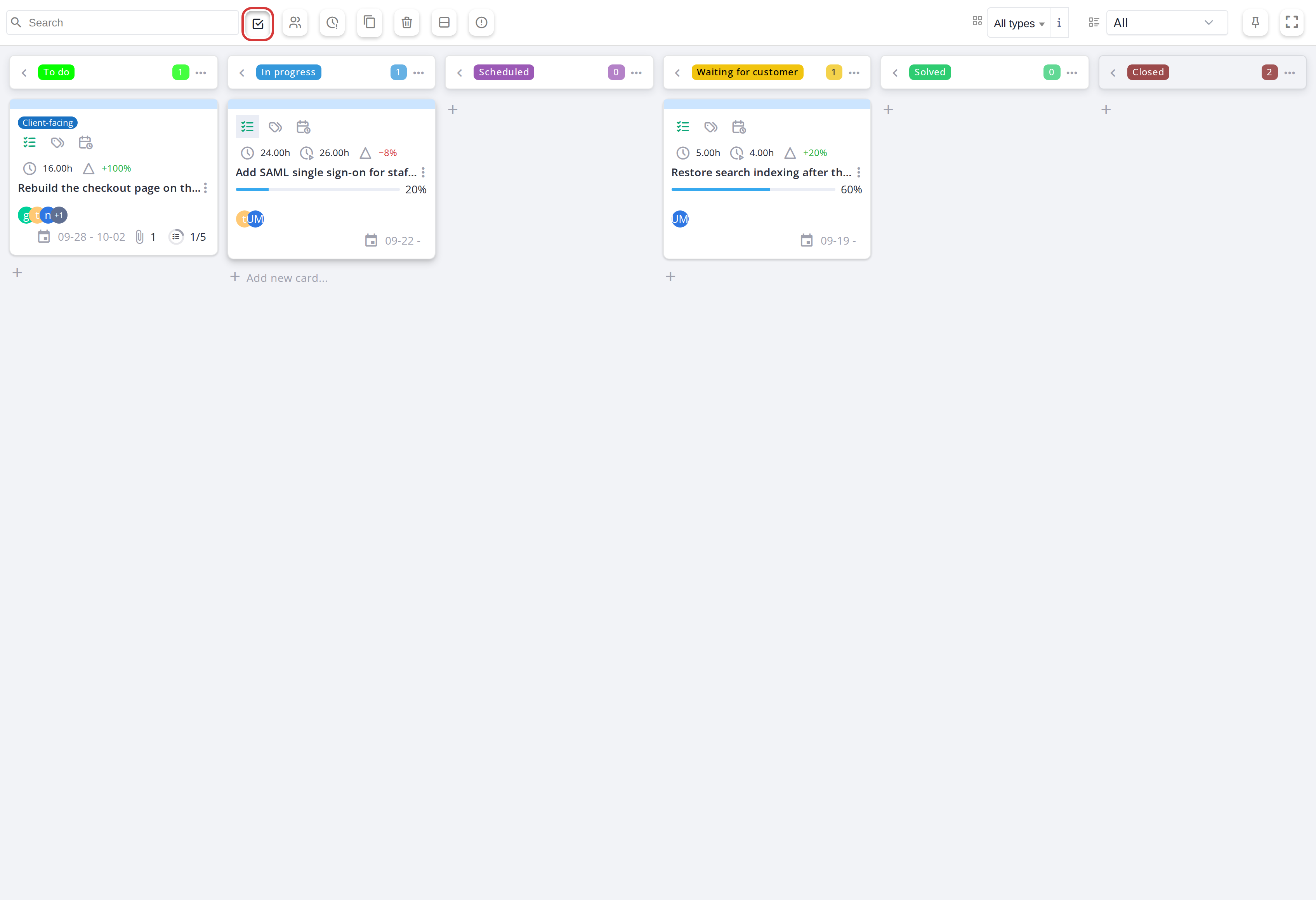
With the toggle on, the board keeps only the cards assigned to you
5.1.7.2 Show only my groups' tasks
Click the users icon to filter the board to show only cards assigned to groups you belong to.
5.1.7.3 Show tickets linked to a task
By default, when a task card is selected, its linked tickets are hidden. Click the copy icon to make those linked ticket cards visible on the board.
5.1.7.4 Show deleted tasks
Click the trash icon to display deleted task cards on the board (grayed out, marked as deleted). Deleted cards can be restored or purged via their detail panel.
5.1.7.5 Group by item type
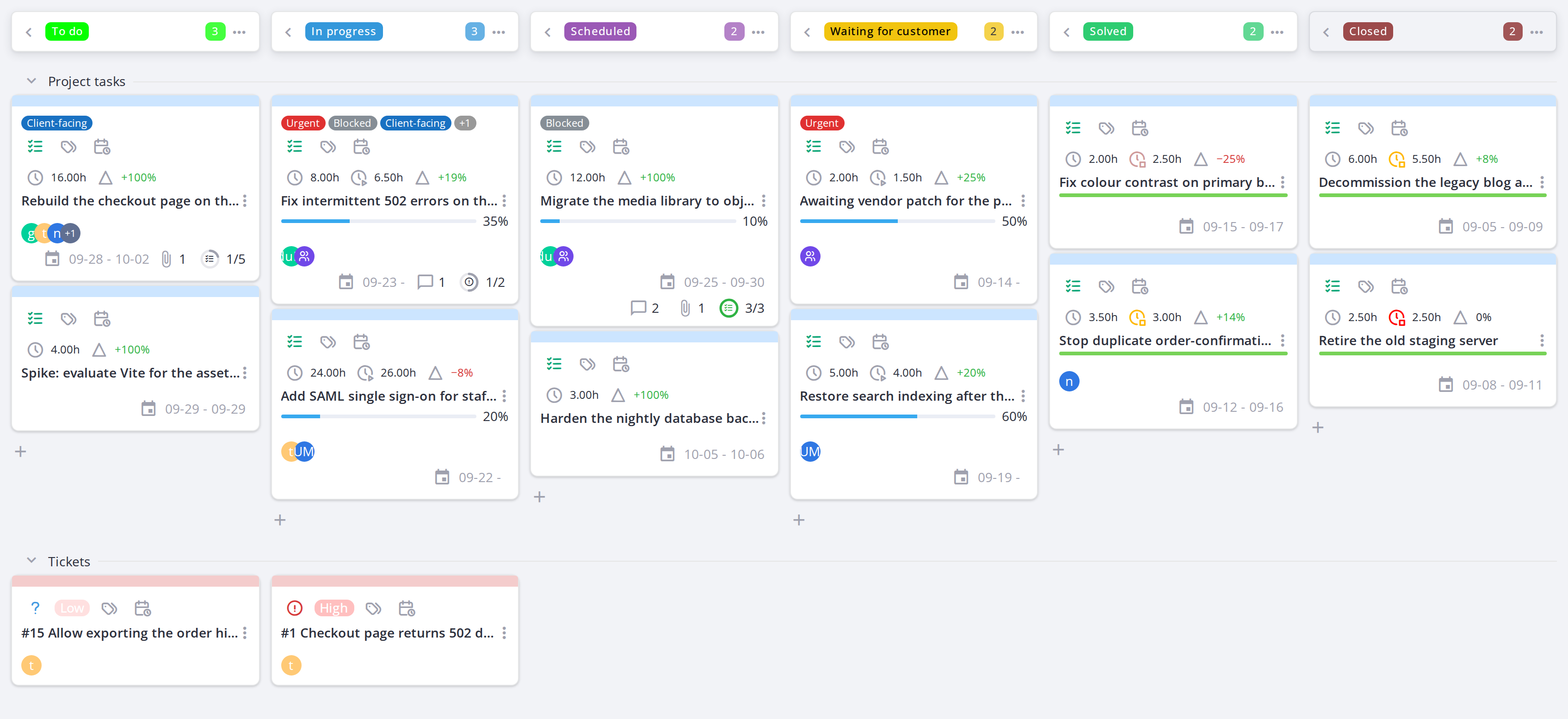
Click the rows icon to organize the board into swimlanes — one for project tasks, one for tickets. Cards stay in their columns but are grouped by type for easier scanning.
5.1.7.6 Show only one person's or group's cards
Click an avatar on a card to keep only the cards of that user or group. A chip with the name appears in the toolbar; click its cross, or the same avatar again, to show every card. This replaces My tasks and My groups tasks while it is on.
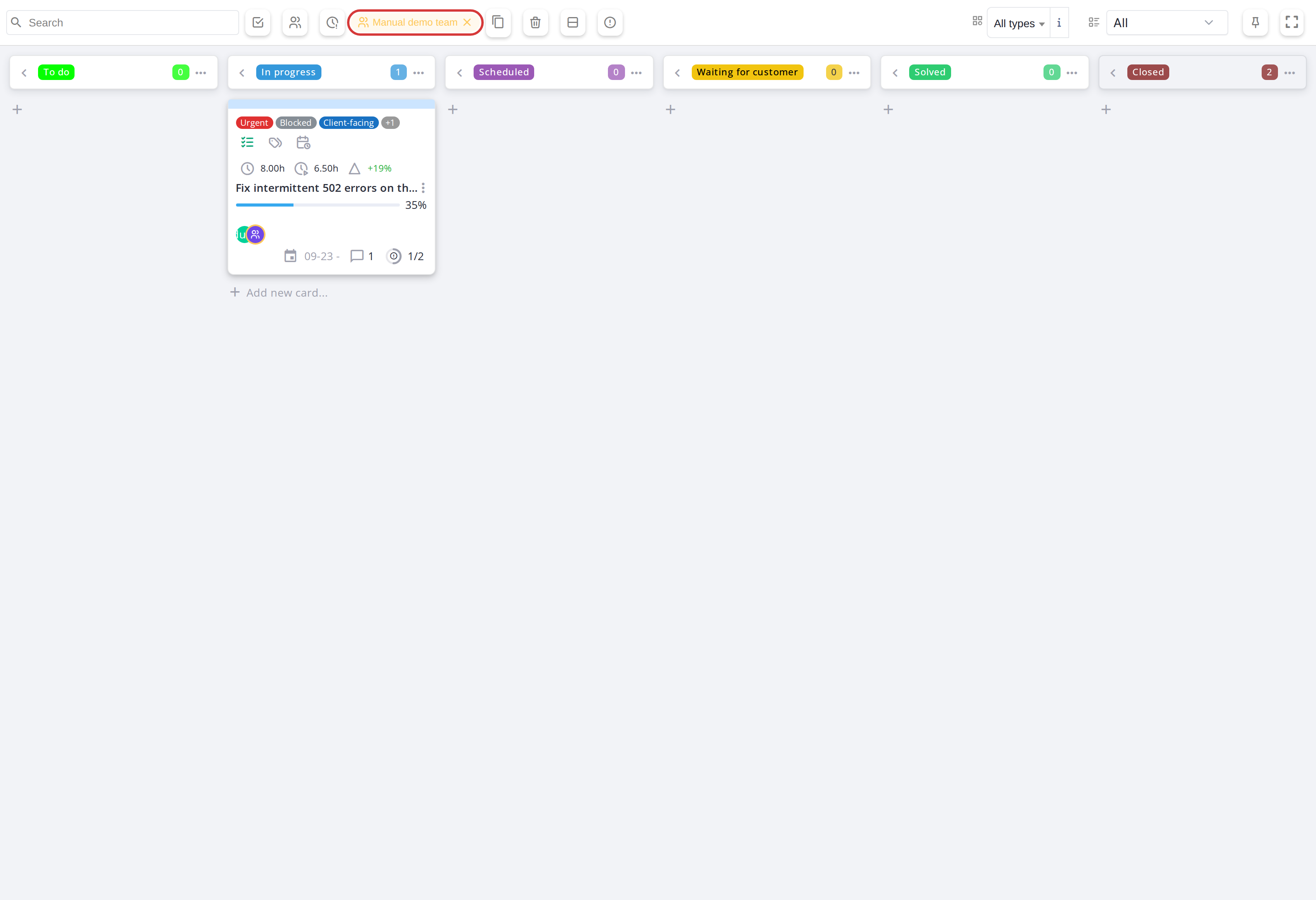
The board filtered on one group; the chip in the toolbar resets it
5.1.7.7 Show only a card type
Use the dropdown next to the eye icon to show all cards, only project tasks, or only tickets.
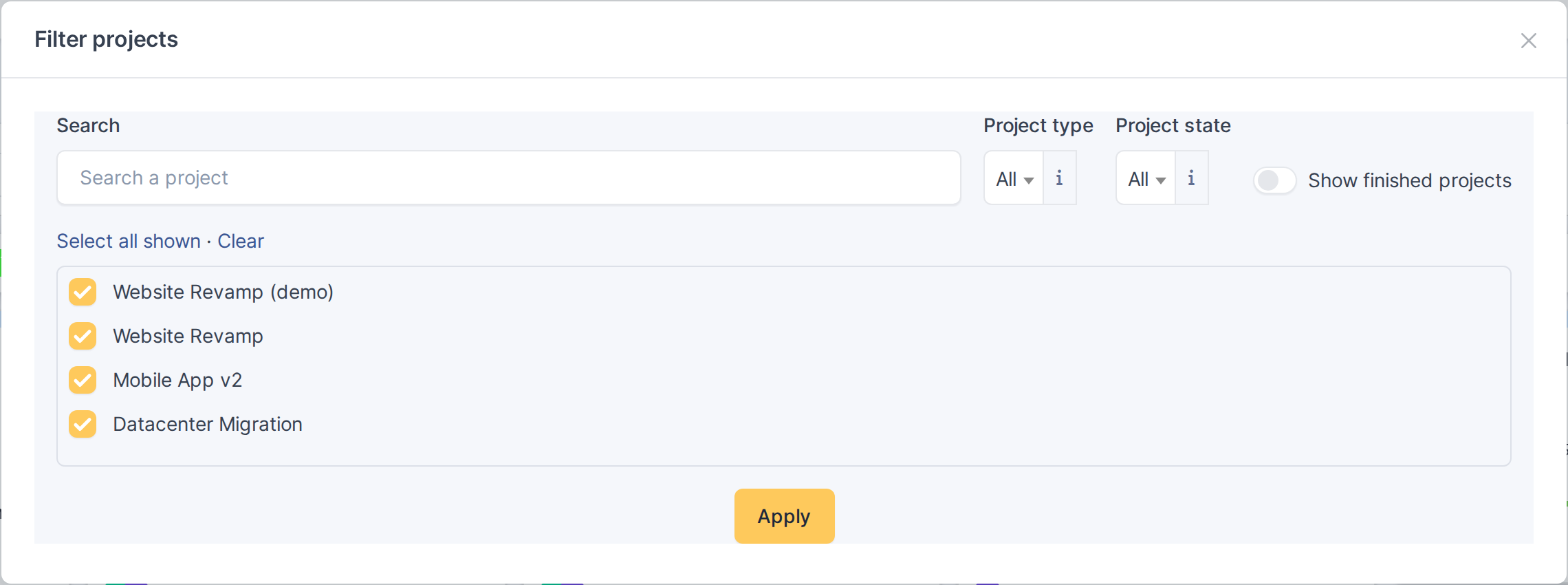
5.1.7.8 Filter by project (global Kanban only)
On the global Kanban, click the filter icon (Filter projects) to choose which projects the board shows. Search by name, narrow the list by Project type and Project state, switch on Show finished projects to include finished ones, and tick the projects to keep (Select all shown / Clear), then click Apply. The badge on the icon shows how many projects are selected. Closing the window applies the choice without reloading the page, and it is saved for your next visit.
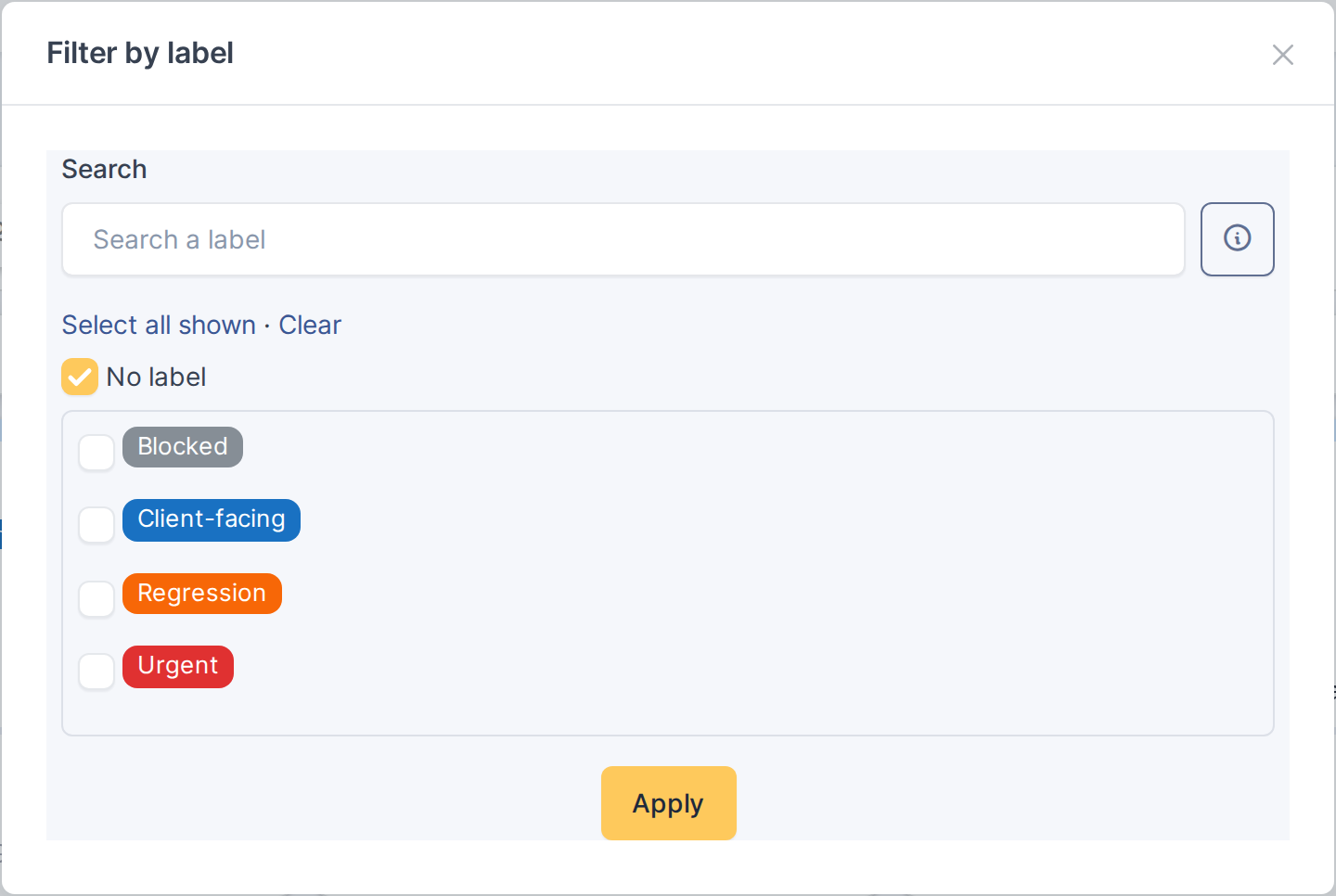
5.1.7.9 Filter by label (global Kanban only)
On the global Kanban, click the tag icon (Filter by label) to show only the cards carrying the ticked labels. No label keeps the cards that have none. See 5.3.1 Filtering the board by labels.
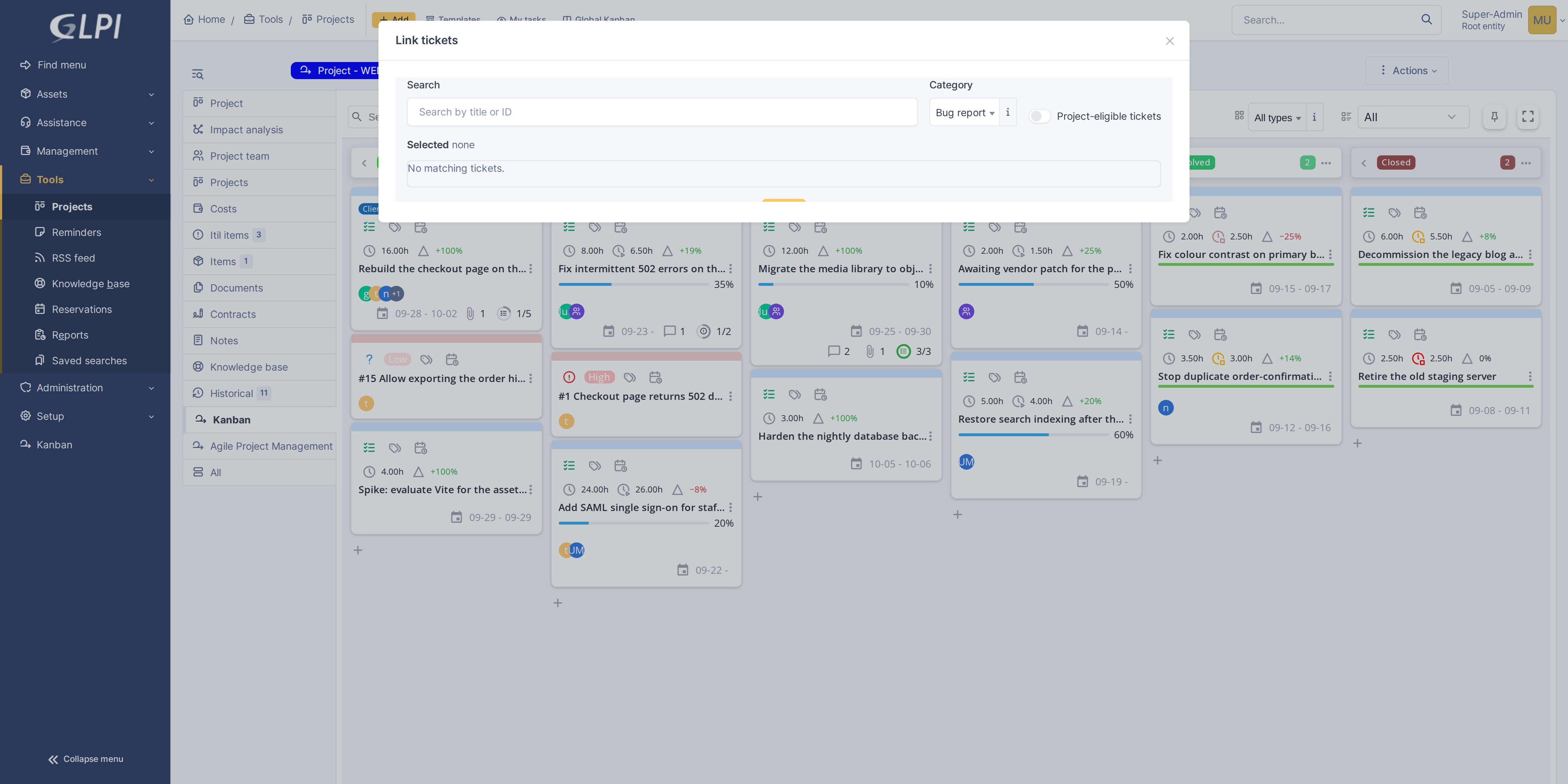
5.1.7.10 Link tickets to a project
Click the alert-circle icon to open a dialog where you can search for and link existing tickets to this project.
5.1.7.11 Expand to fullscreen
Click the expand icon to hide GLPI's sidebar and header, giving the board the entire window. Click again to restore them.

5.1.7.12 Switch to docked editing
Click the pin icon to open cards for editing in a docked sidebar on the right instead of a modal popup. Click again to switch back to modal editing.
Generated for Agile Project Management 2.2.0-alpha.2 on GLPI 11.0 — 2026-09-25.