
4.2 Labels and notifications


Part of the Agile Project Management manual — see also 1. Introduction, 2. What's New, 3. Scope, 4.1 General setup, 5.1 The board, 5.2 Cards, 5.3 Labels and checklists, 6. Troubleshooting.
4.2.1 Setting up labels and checklist templates
Labels and checklist templates are prepared by an administrator before the team uses them on the board.
4.2.1.1 The label list
Go to Setup → Dropdowns and choose Kanban labels, listed under the plugin's name. The list shows every label with its colour.


4.2.1.2 Create or edit a label
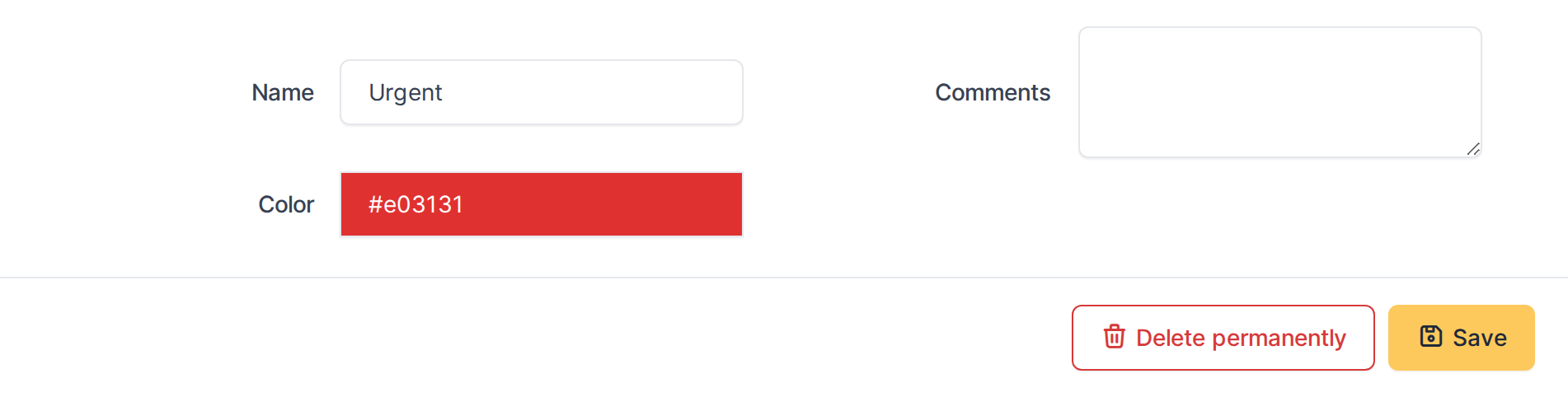
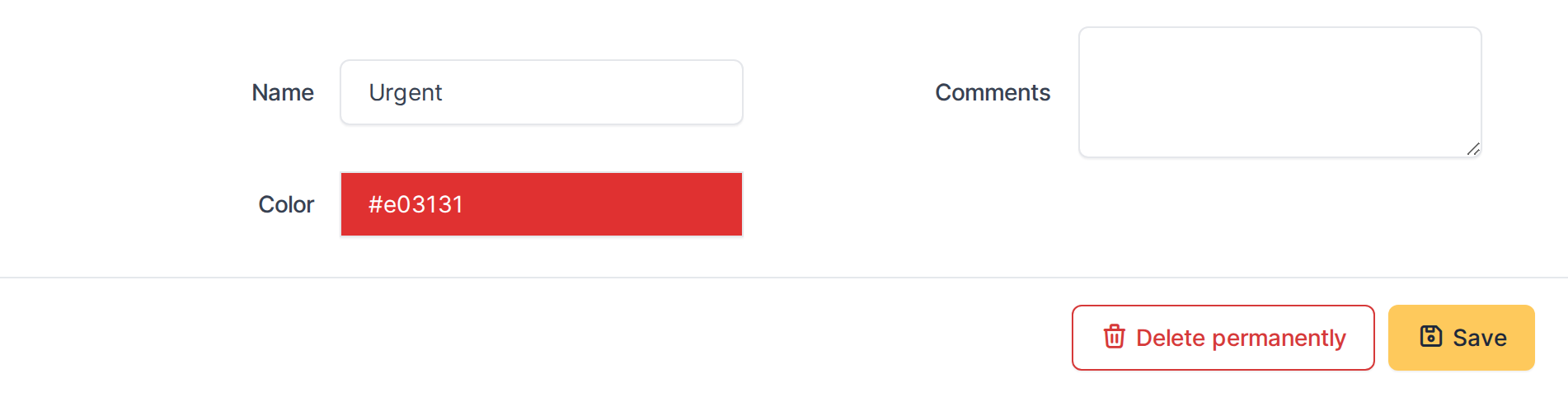
Click Add, or open a label, to set its Name, Color, Entity and Child entities. The fields are described in 4.1.2 Configuration, under Kanban labels.
4.2.1.3 Add a checklist to a task template
Go to Setup → Dropdowns → Project task templates, open a template and choose its Checklist tab. Add the items the task should always start with. A task created on the board from this template (Create from a template) gets these items as its checklist. Maintaining these items needs the Checklist template item rights on the profile.


4.2.2 Configuring Kanban notifications
The plugin's notifications are ordinary GLPI notifications, created active when the plugin is installed. The events and the extra recipients they offer are listed in 3.3 Notifications.
4.2.2.1 Find the plugin's notifications
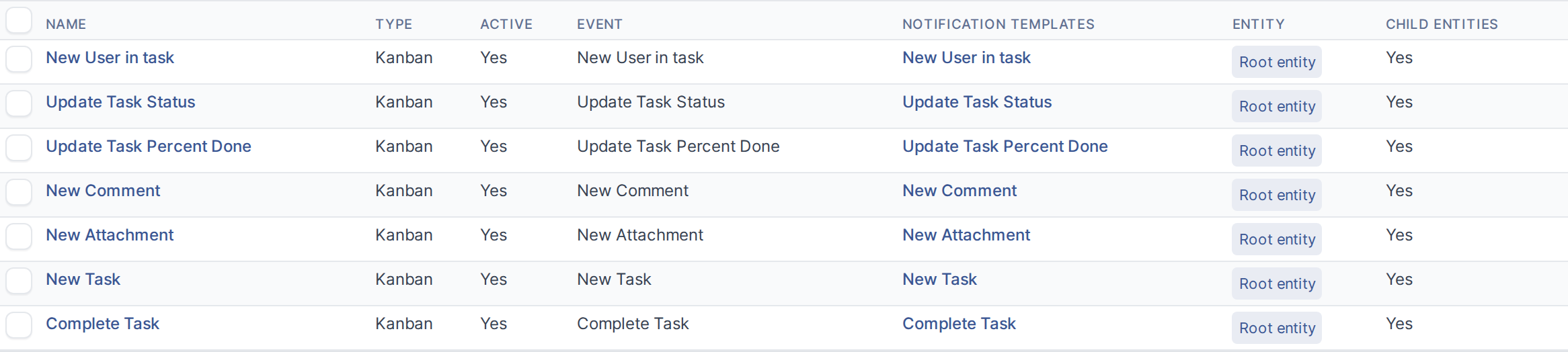
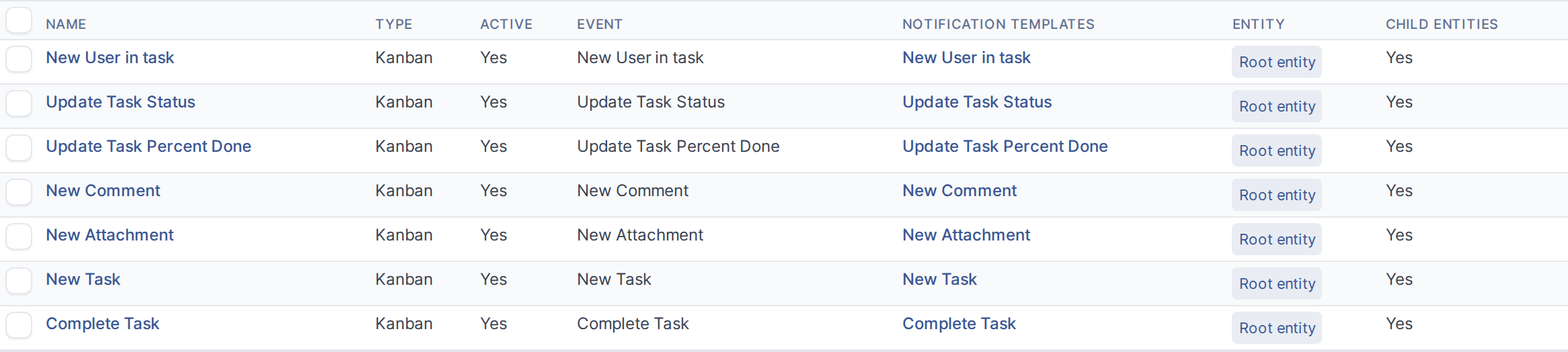
Go to Setup → Notifications → Notifications and search on the item type Kanban. The seven events of the plugin are listed; each can be edited, switched off or given other recipients like any GLPI notification.
4.2.2.2 Choose who is notified
Open a notification and choose its Recipients tab. Besides GLPI's own recipients, the list offers the project task team, the project team's groups, contacts and suppliers, and the project manager. On install, every event notifies only the Manager.


Generated for Agile Project Management 2.2.0-alpha.2 on GLPI 11.0 — 2026-09-25.