
4.1 General setup

Part of the Agile Project Management manual — see also 1. Introduction, 2. What's New, 3. Scope, 4.2 Labels and notifications, 5.1 The board, 5.2 Cards, 5.3 Labels and checklists, 6. Troubleshooting.
4.1.1 Installation
Copy the plugin folder into GLPI's plugins/ directory, then install and activate it from Setup → Plugins. Installing creates the configuration with sensible defaults, grants the Kanban rights (every one except Permanently delete a card), the label rights and the checklist template rights to the profiles that can already update projects, and registers the notification events described below.
4.1.2 Configuration
Open Setup → General and choose the Agile Project Management tab. This is one global configuration for the whole GLPI instance: it does not change per entity or per project. The screen has three blocks. For each option below: what it does, where you see the effect, and an example of when it helps.
General options
- Task background — the background colour of every task card.
- Where: the card front on a project's Kanban tab and on the global Kanban board (main menu), and the outline of the placeholder shown while a task card is being dragged.
- Example: set it to a pale green so task cards stand apart from tickets on a busy board.
- Ticket background — the background colour of every ticket card.
- Where: the same two boards.
- Example: a pale orange makes customer tickets stand out from internal task work at a glance.
- Request sources by default — the request source written on the followups the board adds to a ticket on your behalf. Empty means GLPI's own default request source.
- Where: a comment posted on a ticket card from the card window, and the followup created by the Set the status to pending dialog when a ticket card is moved to the Pending column. The value shows in that followup's details in the ticket timeline.
- Example: choose a request source called Kanban, so a supervisor reading a ticket can tell which followups came from the board rather than from a phone call or an e-mail.
- Default ticket category filter — the category already selected in the Category filter when the Link tickets dialog opens.
- Where: board toolbar → Link tickets button → the dialog's Category filter. The user can change or clear it every time.
- Example: a hardware team that almost always links Hardware > Printers tickets set it to that category, so the list opens already narrowed to the tickets they want.
- Closed cards shown — how many of the most recently closed cards the Closed column keeps visible, from 0 to 50; default 3. Older closed cards are not loaded, only counted in the column header, which keeps a board with a long history fast. At 0 the column shows only its count.
- Where: the Closed column of every board, whose note reads "Showing the last 3" while more cards are closed than shown. On the global board the number applies to the whole column, not to each project.
- Example: a team that often reopens a task it closed that morning raises it to 10, so the task is still on the board to drag back.
- Project-eligible tickets by default — whether the Project-eligible tickets switch in the Link tickets dialog starts switched on. That switch lists only open tickets (neither solved nor closed), not yet linked to this project, that concern one of the items (computers, printers, software…) attached to the project.
- Where: board toolbar → Link tickets → Project-eligible tickets switch. The user can switch it off or on every time.
- Example: in an instance with thousands of tickets, a project that replaces the printers of one office lists that office's printers as its items; with this on, the dialog opens showing only the open tickets about those printers.
State labels
Teams often put a sort prefix in state names so GLPI lists them in a useful order, such as A. Open, B. In progress for project states and 1. To do, 2. Doing for task states. This block keeps those prefixes off the board.
- Strip sort prefix from state labels — the master switch for the two patterns below. Off, both patterns are ignored and states appear exactly as named.
- Where: board column titles and the global board's project picker (see below).
- Example: switch it off while testing new state names, to see the raw names on the board.
- Task state prefix regex — the pattern removed from the start of a state name when it is shown as a column title. The default
/^\d+[-.]\s*/removes a number followed by a dot or a dash and any spaces. If removing it would leave nothing, the full name is kept.- Where: the column titles on every board.
- Example: the state
1. To doappears as the column To do, while GLPI's own state lists keep the order 1, 2, 3.
- Project state prefix regex — the pattern that marks a state as a project state rather than a task state. The default
/^[A-Za-z][-.]\s*/matches one letter followed by a dot or a dash, as inA. Open.- Where: global Kanban board → Filter projects → the Project state drop-down, which only offers the states matching this pattern.
- Example: when project and task states share GLPI's single state list, this keeps task states such as
2. Doingout of the project picker, so filtering projects by state only shows states a project can actually be in.
Both patterns are full PHP regular expressions, including the /.../ delimiters. An invalid pattern is refused on save with an error message, and the previous value is kept.
Kanban Ticket
- New, Processing (assigned), Processing (planned), Pending, Solved, Closed — each picks the project state behind that column. Moving a ticket card into a column sets the ticket to that GLPI status, and a ticket whose status changes elsewhere moves to the matching column. Only states chosen here become columns, always in this order. A card whose state is not mapped to any column is not lost: it goes to an extra Unsorted column, shown collapsed at the far left, which only appears while at least one card needs it.
- Where: the columns of every Kanban Ticket board and the status of the linked tickets.
- Example: map Pending to your Waiting for customer state: dragging a ticket card there puts the ticket on hold and opens the Set the status to pending dialog for the followup and the pending reason.
- Hide native project tasks tabs on Kanban Tickets — on by default. Removes two of GLPI's own tabs from a Kanban Ticket project: GLPI's native Kanban tab and the Project tasks tab, so the plugin's board is the only place tasks are managed.
- Where: the tab list of a Kanban Ticket project (Tools → Projects → a project).
- Example: leave it on so the team is not tempted to edit tasks in two places; switch it off if someone still needs GLPI's task list, for example to export it.
Kanban labels
Labels are managed under Setup → Dropdowns → Kanban labels (listed under the plugin's name). Each label has:
- Name — the text on the chip. Example:
Urgent,Waiting for supplier. - Color — the chip background. The chip text switches between black and white automatically, whichever reads better on the colour chosen. Default grey. Example: red for
Urgent, so it catches the eye among other labels. - Entity and Child entities — where the label can be used. A label belongs to an entity, not to one project, so it is shared by every project of that entity, and of its sub-entities when Child entities is on. Example: create
Urgentonce in the root entity with Child entities on, and every team can use it and filter the global board by it. - Comments — notes for administrators; not shown on the board.
Where labels appear: as chips on the card front and in the card window (Assign labels), and in the global board's Filter by label dialog. Purging a label removes it from every card that carried it.
4.1.3 The configuration screen
The configuration is one screen with three blocks. The screenshots below show each block with its default values; what every option does is explained in 4.1.2 Configuration.
4.1.3.1 General options
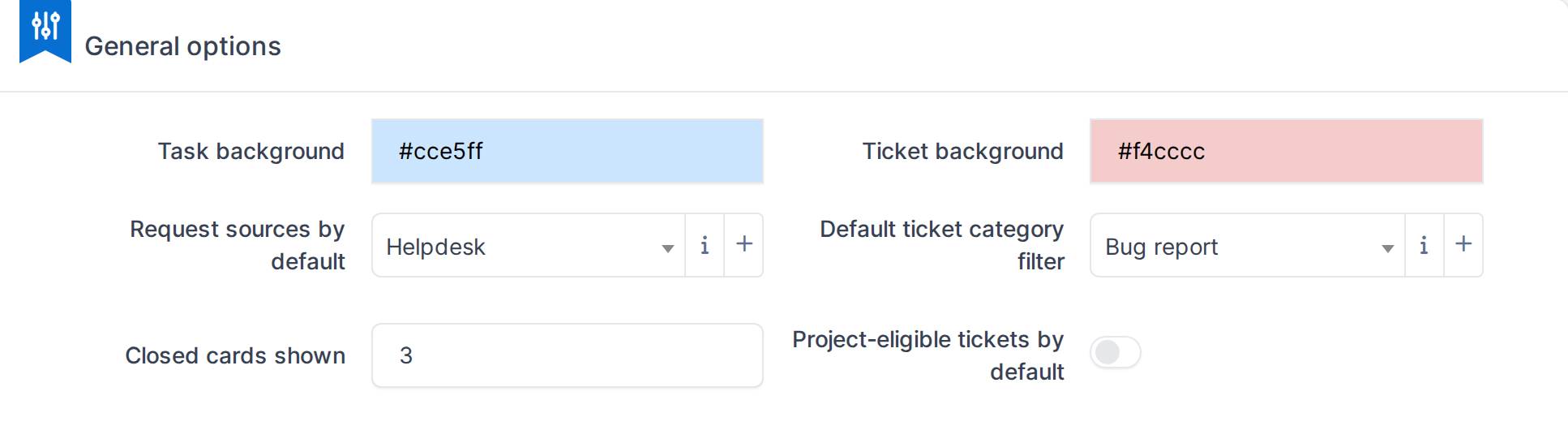
Open Setup → General and choose the Agile Project Management tab. The first block sets the two card colours, the request source used for followups the board writes, and the two defaults of the Link tickets dialog. Here the dialog opens already filtered on the Bug report category.
4.1.3.2 State labels
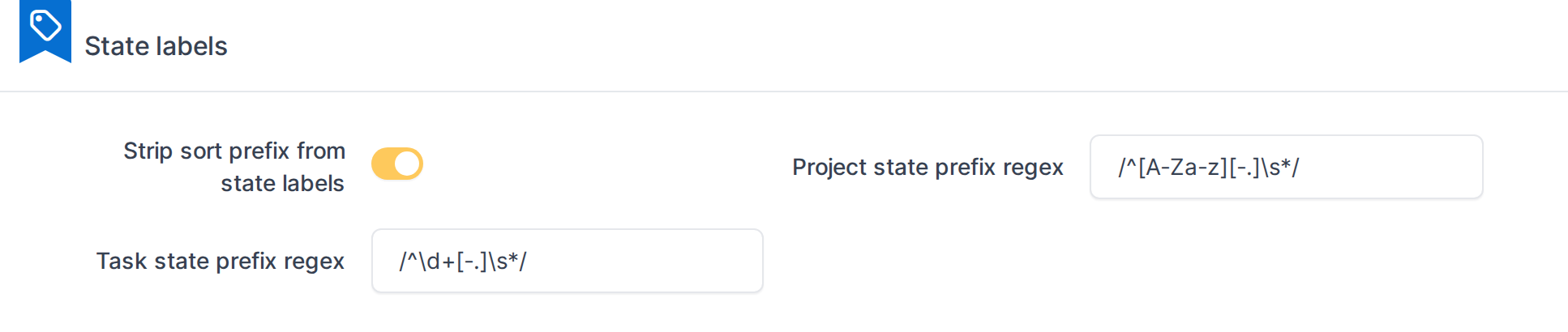
The second block controls how sort prefixes are removed from state names on the board. With the defaults shown, the task state 1. To do becomes the column To do, and states starting with a letter, such as A. Open, are the ones offered as project states in the global board's Filter projects window.
4.1.3.3 Kanban Ticket
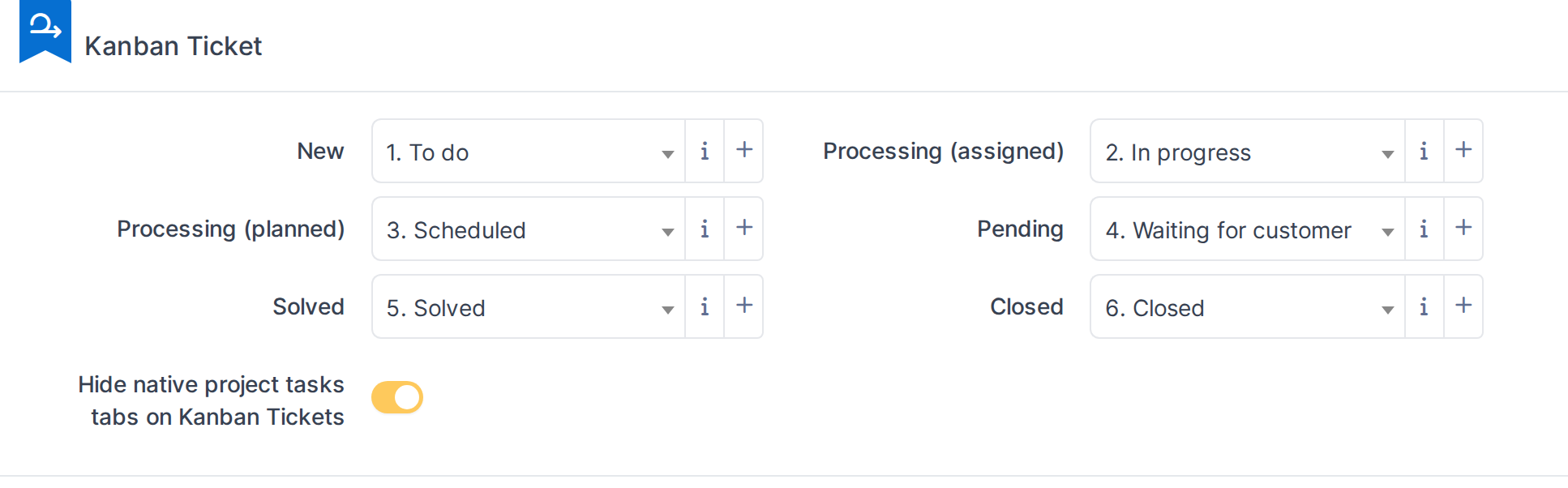
The third block maps each ticket status to the project state behind its column, and hides GLPI's own task tabs on Kanban Ticket projects. In this example the team's own states are used: Pending maps to 4. Waiting for customer, so dragging a ticket card into that column puts the ticket on hold. Click Save at the bottom of the screen to apply any change.
4.1.4 Permissions
Rights are set per profile under Administration → Profiles → a profile → Agile Project Management tab. The tab has four rows. Every box on it is listed below, exactly as labelled. None of the boxes implies another: ticking one does not tick any other.
Kanban row — what a user can do on a board (a project's Kanban tab and the global Kanban board):
- Add a card — create a new card (always a project task) from a column's menu or the Add a card button.
- Move a card — drag a card to another column, which changes the task's state or the ticket's status.
- Edit title — change a card's title in the card window.
- Edit description — change a card's description in the card window.
- Delete a card — on a task card, deletes the task: it stays on the board greyed out and can be brought back. On a ticket card that is linked to a task, the Unlink button removes the ticket from that task only; the ticket stays linked to the project and its card stays on the board. Unlinking also needs Link tickets to a task and the right to update the project.
- Restore a card — bring a deleted task card back to normal.
- Permanently delete a card — remove a deleted task card for good. Not granted on install; give it deliberately, because it cannot be undone.
- Assign user to a card — add or remove the users assigned to a card.
- Assign a label to a card — put labels on a card or take them off (Assign labels in the card window). Creating and editing the labels themselves is the Kanban labels row below.
- Edit a card checklist — add, edit, reorder, tick or delete the checklist items of a task card. Without it the checklist is read-only.
- Add comment to a card — post a comment from the card window. For a ticket card, the comment becomes a followup on the ticket.
- Edit real dates — correct a task's Real start date and Real end date in the card window. Without it the board still fills them in as the task moves, but the two fields are read-only.
- Link tickets to a task — add tickets to a task, or remove them, from the Tickets section of the task's card window. Removing one only unlinks it from the task; the ticket stays linked to the project.
Kanban labels row — maintaining the label list under Setup → Dropdowns → Kanban labels:
- Read — see the label list and each label's details.
- Update — rename a label or change its colour, entity or comments.
- Create — add new labels.
- Purge — delete a label for good; it disappears from every card that carried it.
Checklist template item row — maintaining the checklist items of project task templates (Setup → Dropdowns → Project task templates → a template → Checklist tab):
- Read — see a template's checklist items.
- Update — edit an item's text.
- Create — add items.
- Purge — delete items.
Project type row:
- Change type — shows the plugin's tab on a project, where its type is changed, and the Change project type action of the Projects list. Without it, a project keeps the type chosen when it was created. The user also needs the right to update that project.
On a fresh install, every box above is ticked except Permanently delete a card, and only on profiles that can already update projects. When the plugin is updated, rights added in the new version (such as Edit real dates and Link tickets to a task) are granted once to those same profiles, so nobody loses access to a new feature; unticking one afterwards is kept.
GLPI core rights still apply on top: seeing a ticket card's private comments needs GLPI's own See private ones right for followups (on the profile's Assistance tab), which is not part of this tab, and a user only sees the projects and tickets GLPI already lets them see.
4.1.5 The profile rights tab
The plugin's rights sit on their own tab of every GLPI profile. What each box allows is listed in 4.1.4 Permissions.
4.1.5.1 Open the Agile Project Management tab on a profile
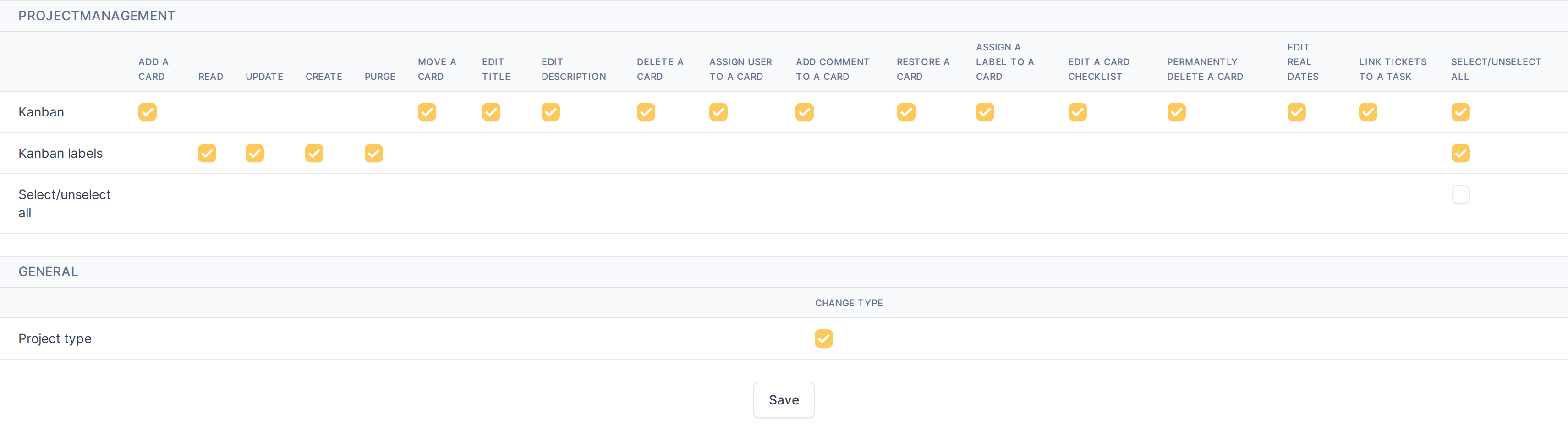
Go to Administration → Profiles, open a profile, then its Agile Project Management tab. Tick or untick the boxes and click Save. The screenshot shows the Super-Admin profile of the demo instance.
Generated for Agile Project Management 2.2.0-alpha.2 on GLPI 11.0 — 2026-09-25.