
5. Usage


Part of the accesstransparencyAccess Transparency manual — see also 1. Introduction, 2. What's New, 3. Scope, 4. Setup, 6. Troubleshooting.
5.1 Viewing a User's Access Transparency tab
Once the plugin is installed and activated, every User in GLPI gains an "Access Transparency" tab showing a centralized history of that user's actions and document opens. The tab displays activity from GLPI's own audit logs, system events, and the plugin's document-open tracker, with native filtering, pagination, and CSV export.
5.1.1 Log in to GLPI
Open GLPI and log in with an account that has the Historical right enabled (check your profile's "Access Transparency" tab to confirm).
5.1.2 Open a user's page
5.1.3 Click the "Access Transparency" tab
On the user's page, a row of tabs appears below the user name and profile information. Look for the "Access Transparency" tab (with a window icon) and click it to switch to that tab.
5.1.4 View the activity table
The "Access Transparency" tab displays a table with six columns: ID, Date, User, Event type, Field, and Update. Rows are listed newest first, showing each action or event this user has performed. The table includes filters (accessed via the Filter button) and a page navigator at the bottom.
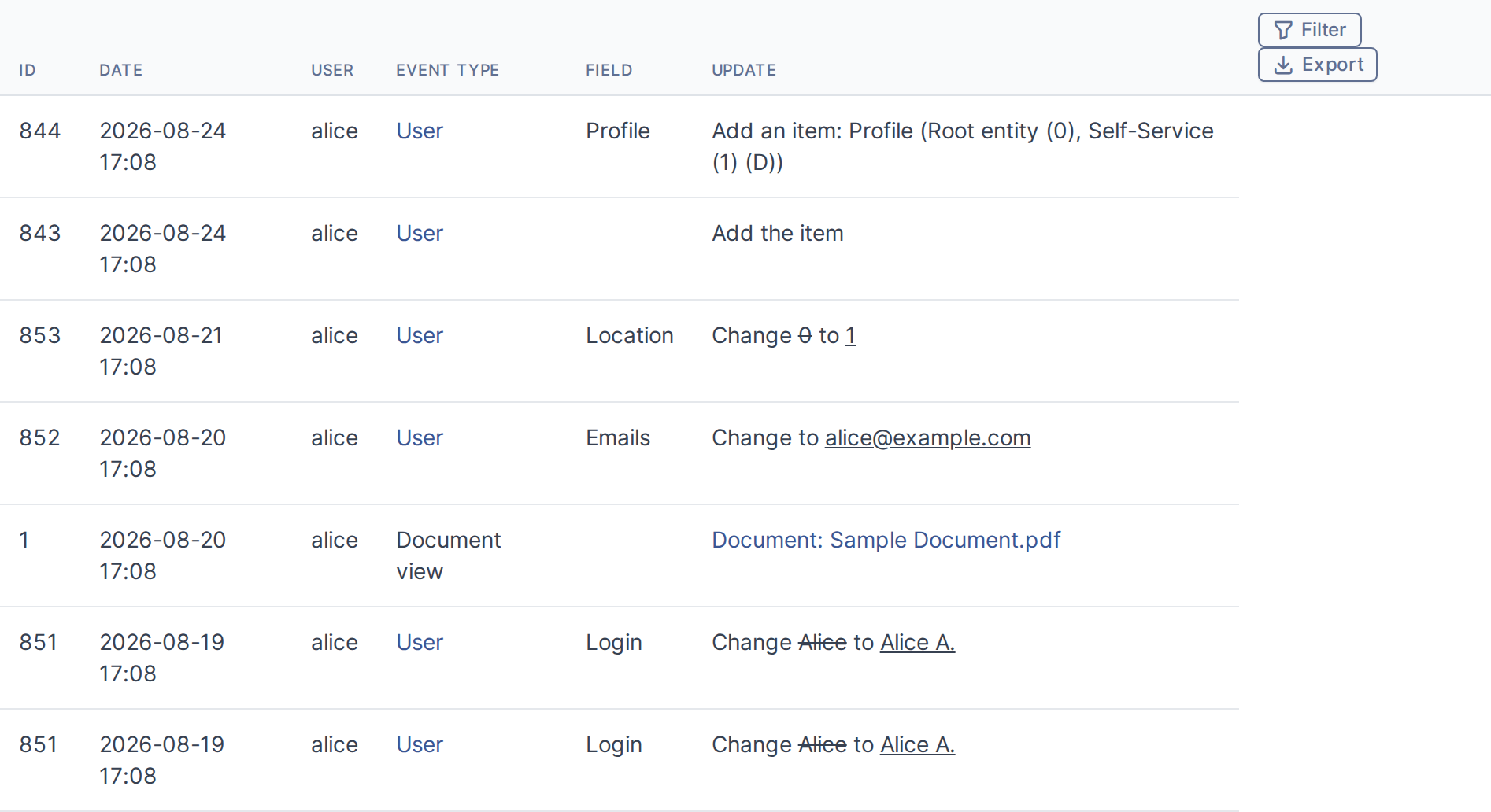
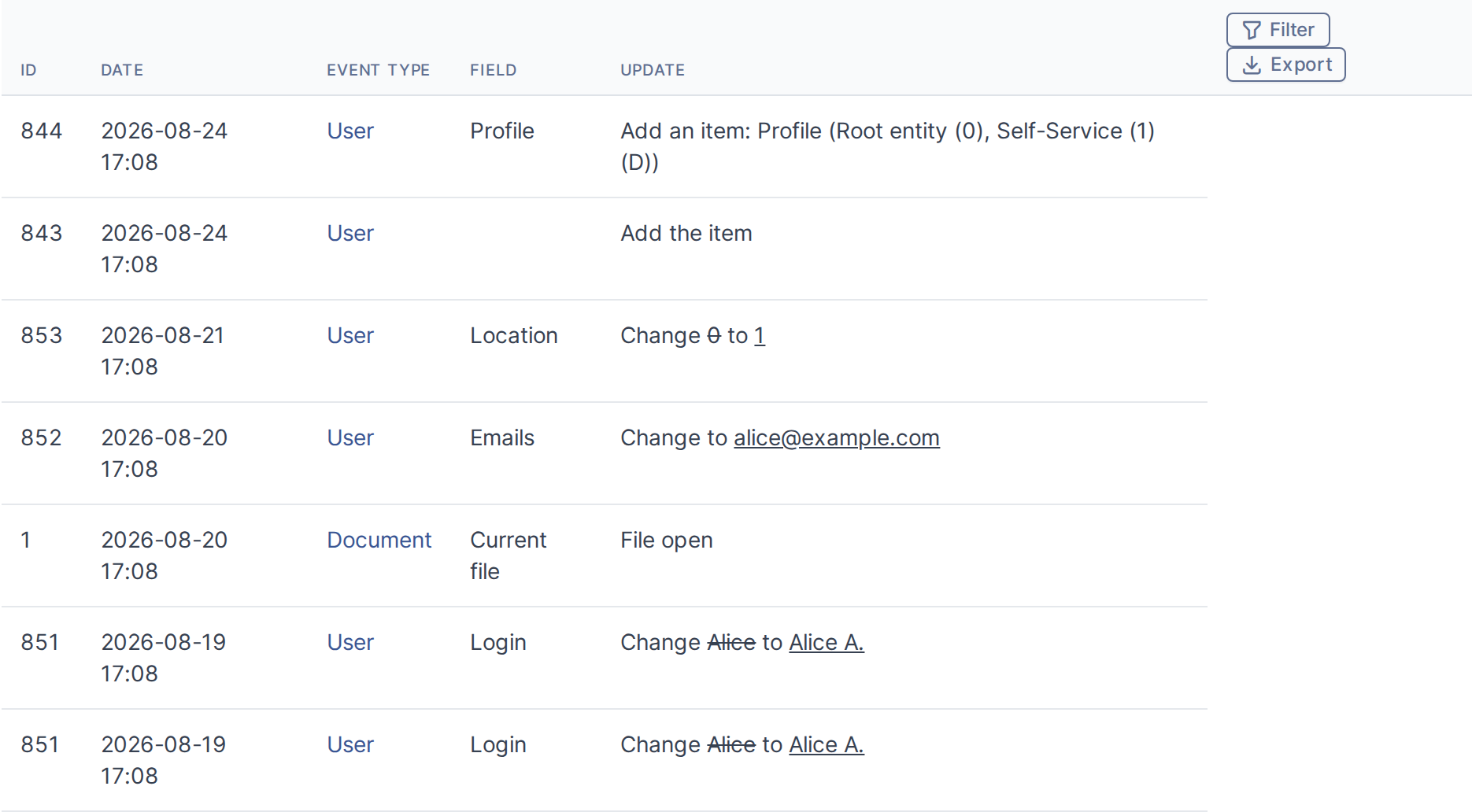
The Access Transparency tab shows a table of the user's activity. Each row includes the action ID, date, related user (for multi-user operations), a readable event type (e.g. "User", "Profile", "Document view"), the field affected (if applicable), and the change made (e.g. "added", "updated", or a document name).
5.1.5 Use filters to narrow the list
Click the Filter button (on the right side of the table header) to reveal a second header row with filter fields. You can filter by date, event type (e.g. "User", "Document view"), field name, or the type of change. The list updates to show only matching rows. Clearing a filter restores the full list.


The filter row allows you to narrow the activity list by date, event type, field name, or type of change. Leave a field empty to skip filtering by that column.
5.1.6 Export the activity as CSV
Click the Export button (next to the Filter button) to download a CSV file containing the currently displayed activity records (filtered or unfiltered). The CSV has six columns (ID, Date, User, Event type, Field, Update) and can be opened in a spreadsheet editor.
Note: The CSV file is downloaded directly to your computer. The filename depends on your browser settings. A typical name might be
activity.csvor similar. You can then open it in Microsoft Excel, Google Sheets, or any spreadsheet editor.
5.1.7 Navigate through pages
If the activity list is longer than one page, a page navigator appears at the bottom right of the table. Use the Previous, Next, and page-number buttons to move through the results. You can also change Entries to show to display more rows per page.
Note: Pagination appears only if the activity list is longer than one page. If all records fit on a single page, no navigator is shown.
Note: Tip: The Access Transparency tab is available on every User's page (not just certain profiles). If you don't see the tab, ask your GLPI administrator to grant you the Historical right under Administration → Profiles.
Generated for
accesstransparencyAccess Transparency 1.2.0-beta2beta3 on GLPI 11.00.8 — 2026-08-24.