
4. Setup


Part of the Access Transparency manual — see also 1. Introduction, 2. What's New, 3. Scope, 5. Usage, 6. Troubleshooting.
4.1 Installation
4.2 Configuration
4.2.1 Automatic actions
Purge old interaction logs (Setup → Automatic actions) automatically deletes old document-open records once they're older than the retention period configured on the "Access Transparency" configuration page (Setup → General → "Access Transparency" → "Log retention"):
- Keep all — nothing is ever deleted.
- Delete all — every document-open record is removed each time the task runs.
- A number of months — only records older than that cutoff are removed; recent ones stay.
4.3 Permissions
Seeing the "Access Transparency" tab on a User or Document page requires the Historical permission on the logged-in user's profile (Administration → Profiles → profile → "Access Transparency" tab). It's Read-only — there's nothing to grant beyond "can see it or can't." CSV export uses the same permission: if you can see the tab, you can export it, and only for Users/Documents you're otherwise allowed to view.
4.4 Configuring Access Transparency
Access Transparency adds one configuration page (log retention and excluded logins) and one permission (granted per profile) that controls who can see the "Access Transparency" tabs.
4.4.1 Log in to GLPI
Open GLPI and log in with an administrator account.
4.4.2 Open the Access Transparency configuration page
Go to Setup → General, then open the Access Transparency tab.
4.4.3 Set log retention and excluded logins
Log retention controls how long document-open records are kept: Keep all never deletes them, Delete all removes them immediately on the next scheduled purge, or pick a number of months to delete anything older than that. Excluded logins is a comma-separated list of accounts (e.g. service/cron accounts like inventory or ocsinventory) whose document views are never tracked. Save to apply either setting.
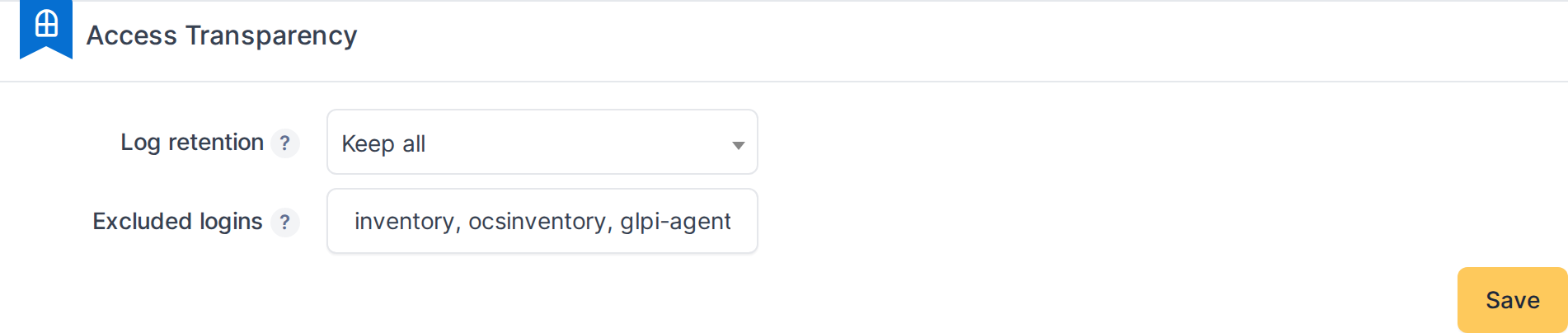
The Access Transparency configuration page: log retention and excluded logins.
4.4.4 Open a profile's Access Transparency tab
Go to Administration → Profiles, open a profile, then click its Access Transparency tab to grant or revoke the permission for that profile.
4.4.5 Grant or revoke the Historical permission
The tab shows a single Historical row with a Read checkbox. Check it to let this profile see the "Access Transparency" tabs on User and Document pages (and export their CSV); uncheck it to hide them. Click Save to apply the change.


Granting the Historical permission on a profile.
Generated for Access Transparency 1.2.0-beta3 on GLPI 11.0.8 — 2026-08-24.