
Asset Handover
Asset handover
The Asset Handover section reads the assets a user has and assigns new ones. It opens from the side menu.
1. Choose how to assign
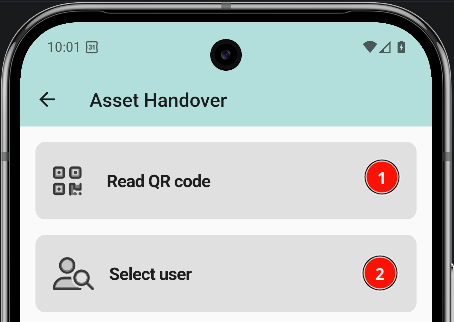
The screen offers two options:
- Read QR code scans a QR code to identify the user.
- Select user opens the user list to pick the user who receives the asset.
2. Select the user
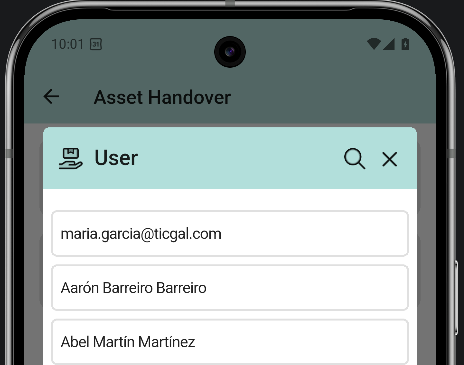
The user list opens. Tap the user who receives the asset.
3. User profile
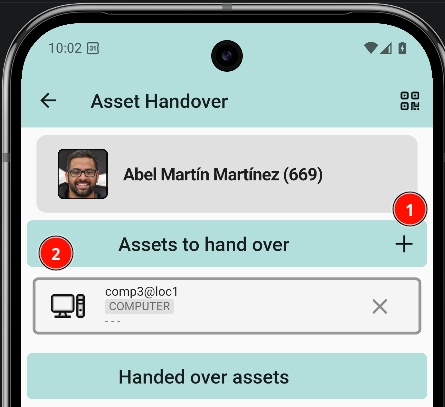
Tapping a user opens their profile, where the assets of that person can be read and new ones assigned. Two actions are available:
- Add new assets opens the asset list to assign a new asset.
- Asset list shows the assets the user already has.
4. Pick the asset
The asset list opens with the available assets. Tap the asset to assign.
Assign an item to a ticket
Items (assets) are linked to a ticket from the GLPI web interface. Once linked, they appear in the Items tab of the ticket inside the app.
1. Link an item from GLPI
Open the ticket in the GLPI web interface and switch to the Items tab. Select the item type and the device, then click Add.
⚠ CAPTURA NECESARIA (SCREENSHOT NEEDED): Captura del tab Items del ticket en GLPI web con un item añadido.
2. View items in the app
Once the item is linked, it shows up in the Items tab at the bottom of the ticket detail screen. Tapping an item opens its full detail: raw information, linked tickets, and available quick actions.
⚠ CAPTURA NECESARIA (SCREENSHOT NEEDED): Captura del tab Items del ticket dentro de la app con el item enlazado.