# The Orbit dial
The orbit dial is a 24-hour clock that places all your cities around the same ring. Moving the dial changes the time for every city at once, so you can quickly find an hour that works for everyone, and your calendar events are drawn on the ring so you can see when you are busy.
## Where to find it
The dial is at the top of the [home screen](/books/new-time-zone-orbit-manual/page/home-screen). It is always visible while you use the app.
## Reading the dial
The outer ring shows the 24 hours of the day, with 0 at the top. Each city appears as a colored marker pointing at its current hour, with its time written just inside the ring.
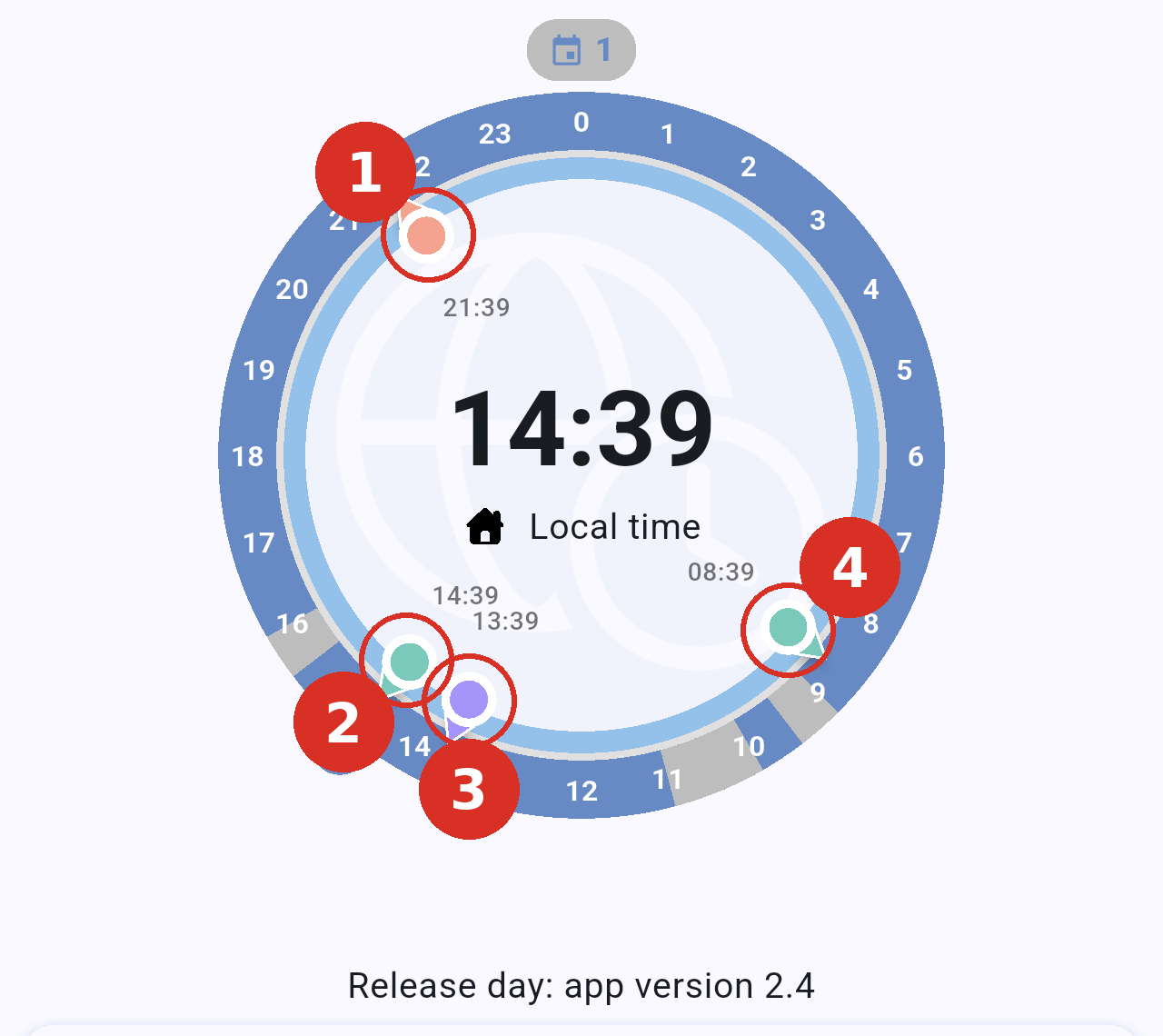
*The dial at 14:39 in Madrid. The red numbered circles mark the four city markers.*
The numbers in the picture match the cities as follows. Each marker is placed on the ring at the hour it is in that city, and its time is written next to it:
- Tokyo: the orange marker, at 21:39.
- Madrid: the green marker next to the house marker, at 14:39.
- London: the purple marker, at 13:39.
- New York: the second green marker, at 08:39.
**City markers can be tapped and dragged.** Tap one to show its time in a bubble (see *Showing a city's time outside the dial* below), or drag it to move the dial.
The rest of the elements of the dial are:
- **Central time**: your base time, shown in large digits, with **Local time** underneath.
- **House marker**: your base time on the ring. It sits on the outer edge and has small arrows on both sides to show it can be dragged.
- **Segments**: the hours when you have events in your calendar today, including events that repeat, such as a daily meeting. You can change their color in **Settings → Events color**.
- **All-day events**: when you have all-day events today, the whole ring is tinted with a light color and a small marker with a calendar icon and the number of events appears above the 0. The line above the city list shows the title of an all-day event when no timed event is happening at the selected time.
- **Red line**: the current time of day. It stays in place while you move the dial, so you always know where "now" is.
## All-day events
Events that last all day are not drawn as segments. When you have any today, the whole ring is tinted with a light color and a small marker with a calendar icon and the number of events appears above the 0. Tap the marker to see them.
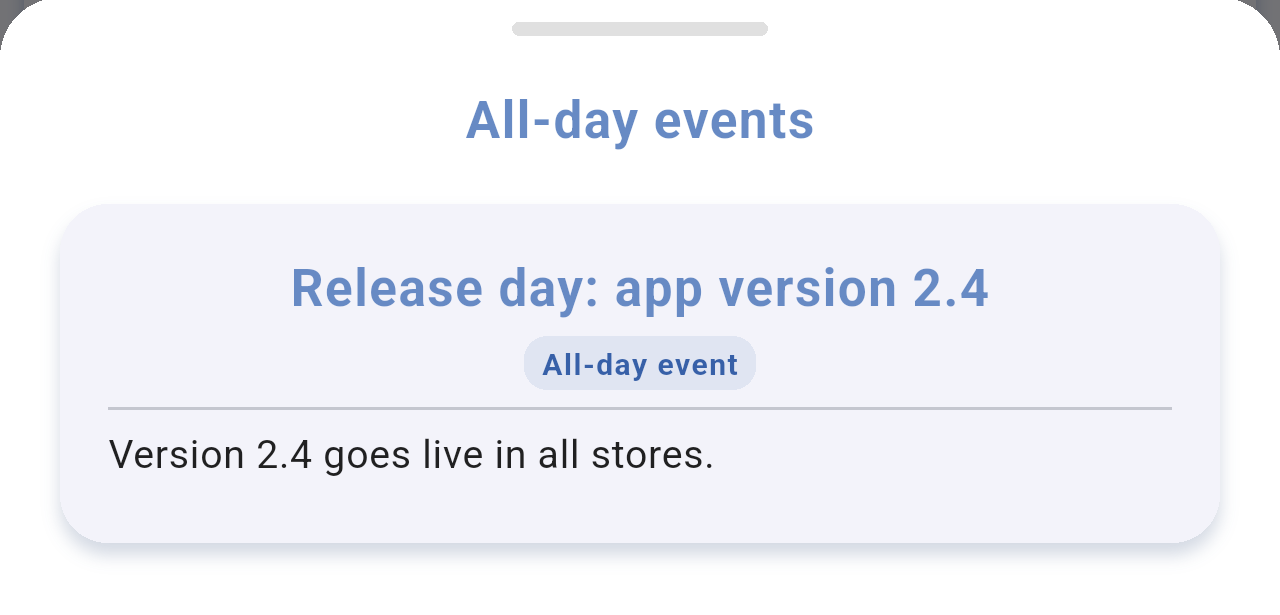
*The **All-day events** sheet, opened by tapping the marker above the 0. Tap a card to open the full details of the event.*
## Changing the time
To check what time it will be in each city at another moment, move the dial. The central time, the time next to every marker and the times in the city list all update while you drag.
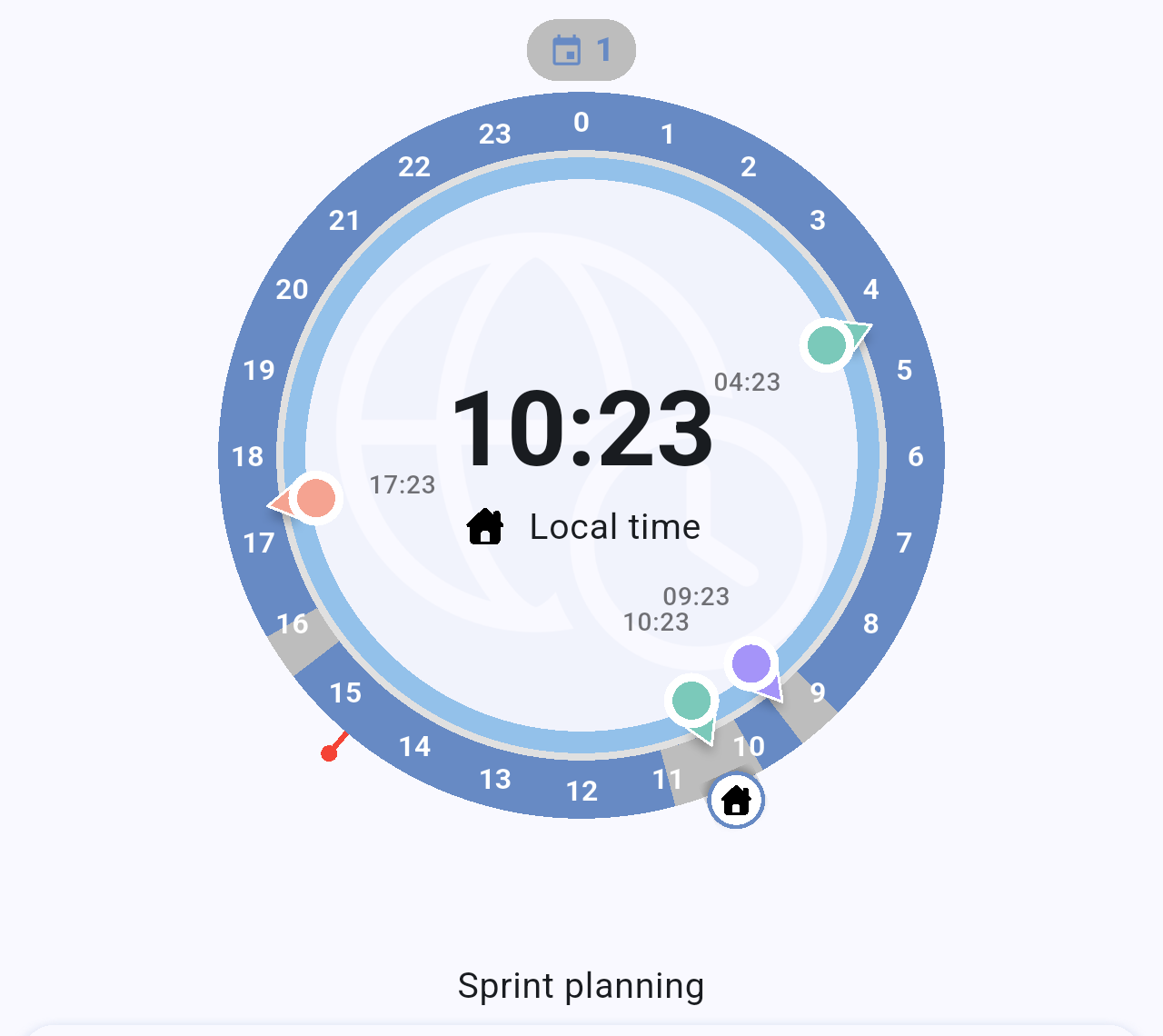
*The house marker dragged to 10:23. That time falls inside a calendar event, so its title, "Sprint planning", appears just above the city list.*
- Touch the house marker and drag it around the ring to the time you want.
- You can also touch a city's marker and drag it: the dial then moves so that this city shows the hour you point at.
- Let go to keep the new time on screen.
> **Note:** How smoothly the dial moves depends on **Settings → Precise minutes**. With the **✕** option it moves freely; with 15", 30" or 60" it snaps to steps of 15 minutes, 30 minutes or one hour.
## Showing a city's time outside the dial
Tap a city's marker to show its time in a bubble outside the ring, linked to the marker by a line. This makes the time easier to read when several cities are close together. In the picture, the circle numbered **1** marks the Tokyo marker that was tapped.
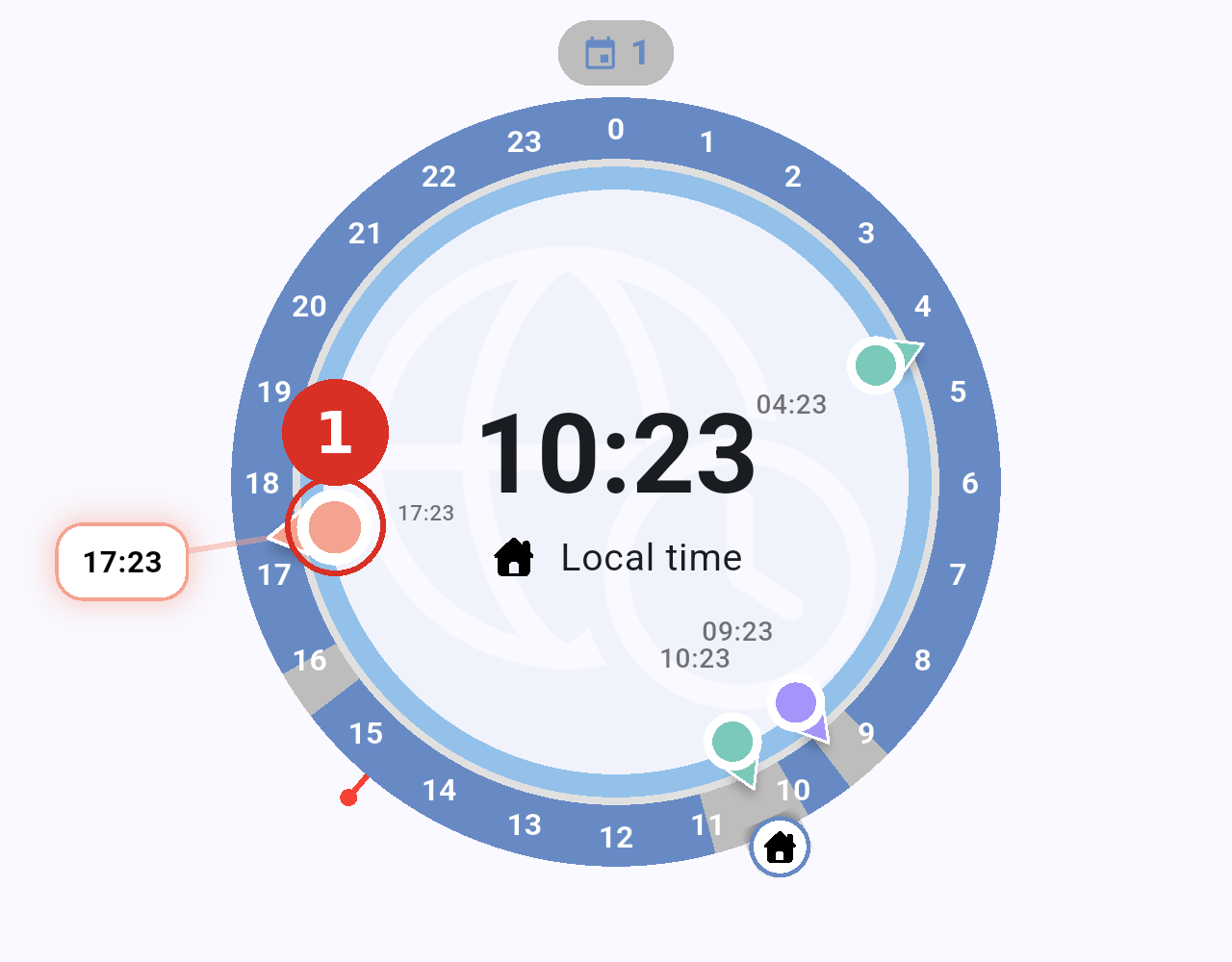
*After tapping the Tokyo marker (**1**), its time, 17:23, is shown in a bubble outside the dial. Tap the marker again to hide it.*
## Going back to the current time
After moving the dial you can return to the present with one tap. Tap **Local time**, under the central time, and the dial jumps back to the current time of your device.
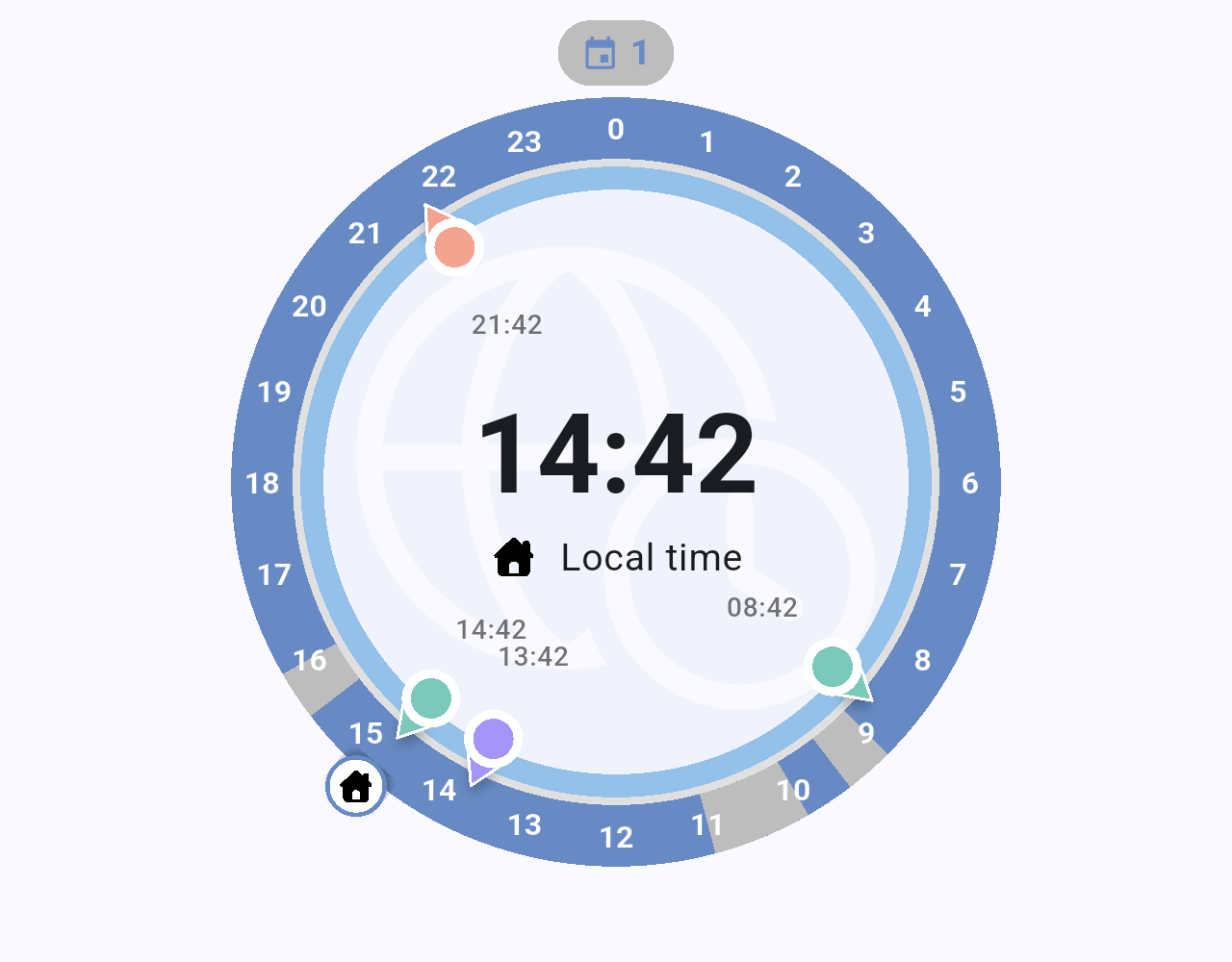
*The dial after tapping **Local time**: every city shows its current time again.*
> **Note:** When **Settings → Sync with system clock** is on, the dial also starts at the current time every time you open the app.
## Related pages
- [Home screen](/books/new-time-zone-orbit-manual/page/home-screen)
- [Managing cities](/books/new-time-zone-orbit-manual/page/managing-cities)
- [City details and events](/books/new-time-zone-orbit-manual/page/city-details-and-events)
- [Settings](/books/new-time-zone-orbit-manual/page/settings)