# Managing cities
You can follow up to four cities at the same time. This page explains how to add a city, how the city list works, and how to remove a city you no longer need.
## Where to find it
Cities are managed from the [home screen](/books/new-time-zone-orbit-manual/page/home-screen): the **+** button in the bottom-right corner adds cities, and the list under the dial shows the ones you have.
## Adding a city
Tap **+** to open the **Add cities** sheet. You can browse the list of regions or search for the city you want.
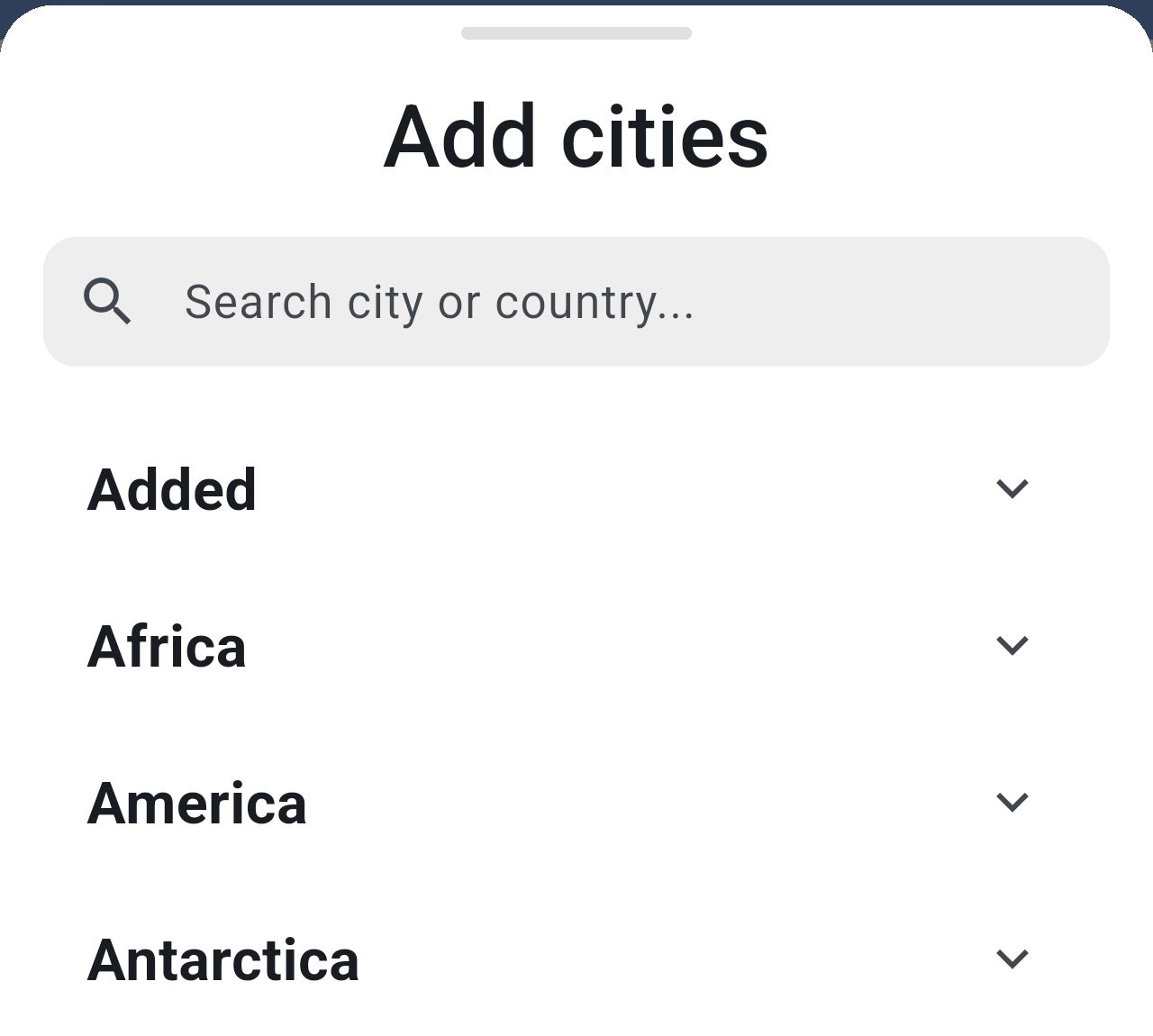
*The **Add cities** sheet. The first group, **Added**, lists the cities you already have; the rest are world regions that you can expand.*
The quickest way is to search:
- Tap the search field and type part of the city name, for example York.
- Tap the city in the results. Its pin icon turns solid to show it has been added.
- Repeat for other cities, or close the sheet by swiping it down.
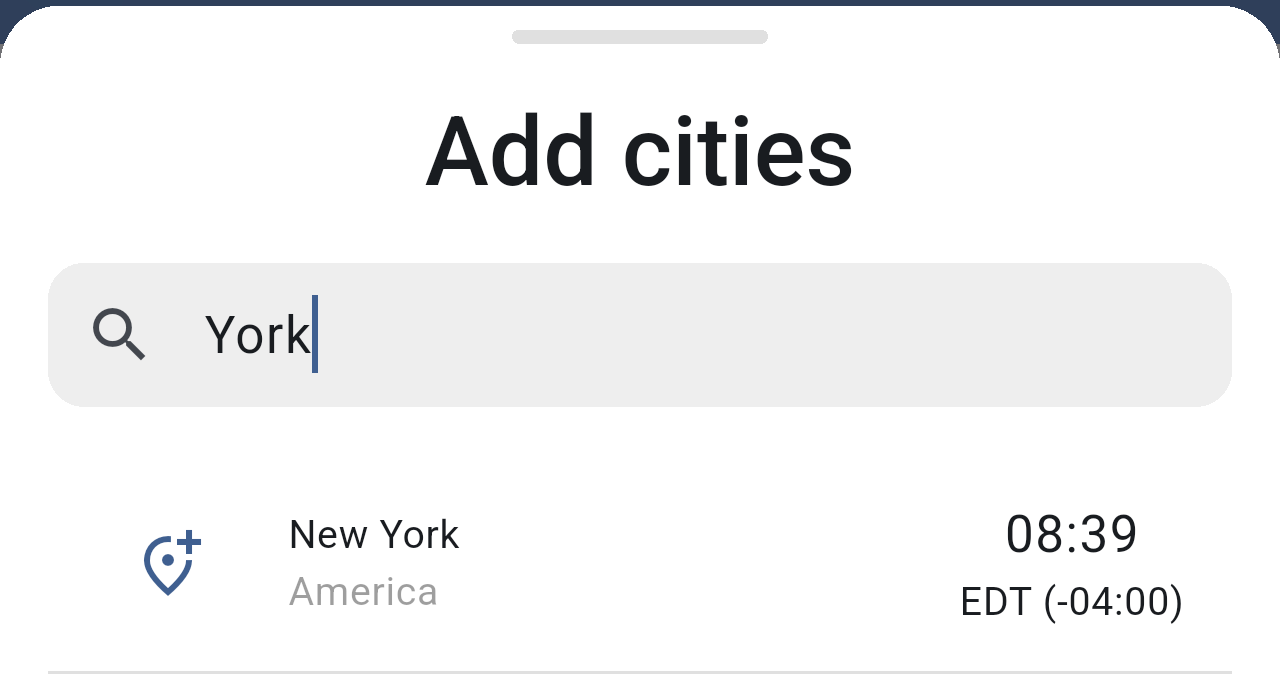
*Searching for "York". Each result shows the city, its region, the time there and its time zone.*
Once added, the cities appear in the **Added** group at the top of the sheet, so you can see at a glance which ones you already follow.
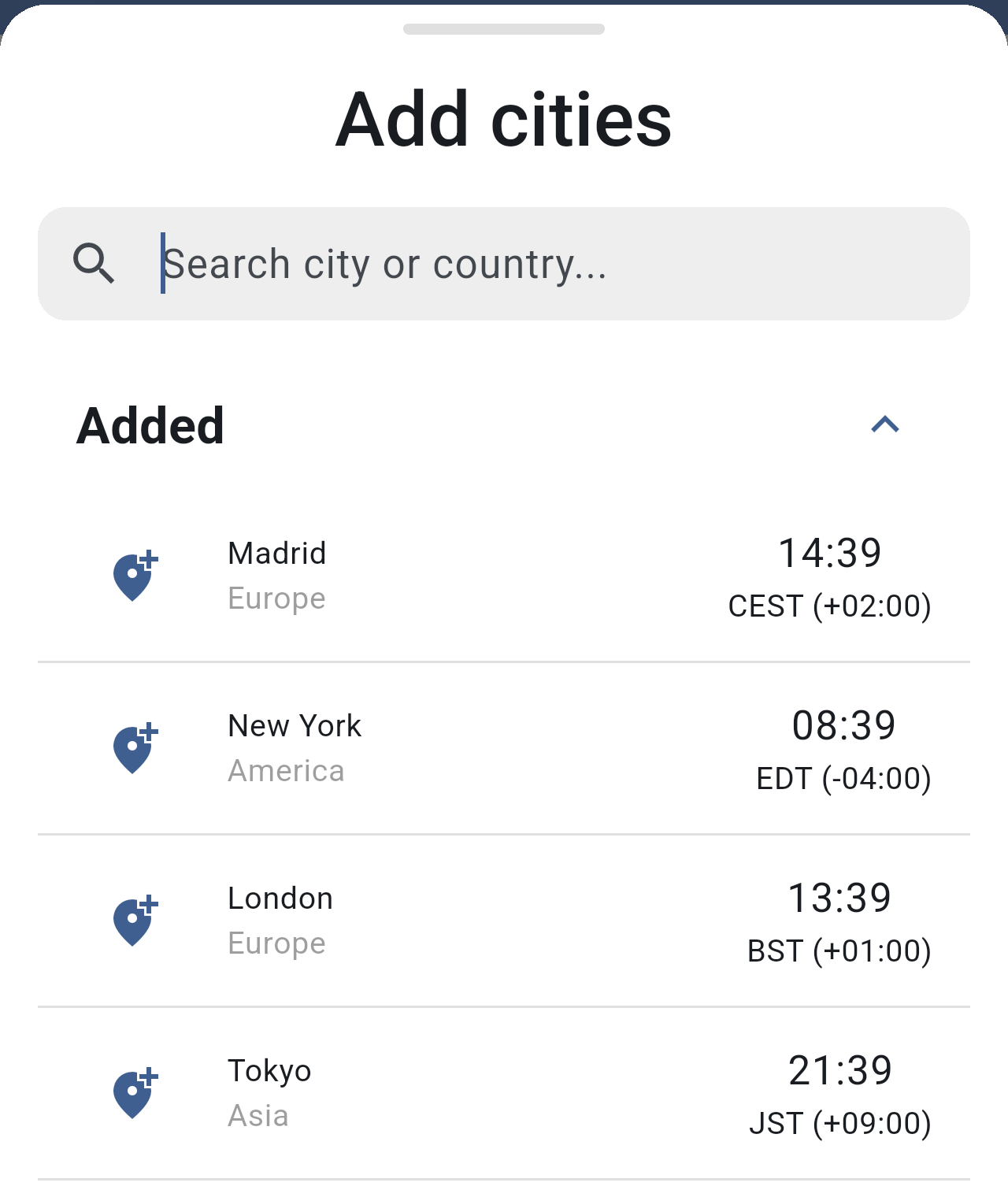
*The **Added** group with the four cities: Madrid, New York, London and Tokyo.*
### City limits
To keep the dial readable, the app limits how many cities you can follow. If you go over a limit, a message appears at the bottom of the screen and the city is not added.
- Up to **4 cities** in total.
- Up to **3 cities** in the same time zone.

*The message shown when trying to add a fifth city.*
## The city list
The cities you follow are listed under the dial, in the order you added them. Each card shows the city's color, its name or alias, its time zone, the time there and its UTC offset.
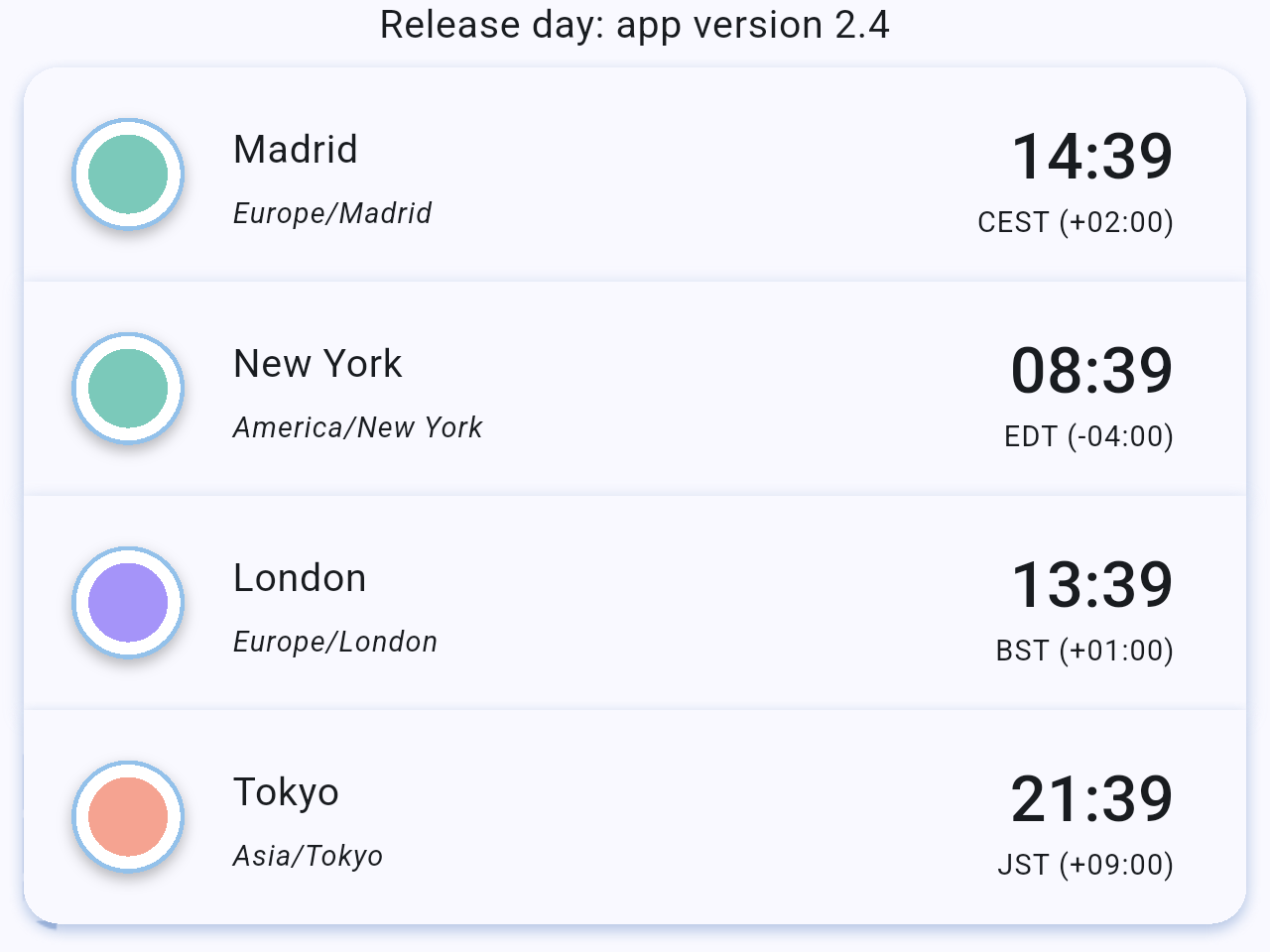
*The city list. The times change as you move the dial.*
Tap a card to open that city's details and calendar events. See [City details and events](/books/new-time-zone-orbit-manual/page/city-details-and-events).
## Removing a city
To remove a city, swipe its card to the right. A red **Delete** area appears behind the card; keep swiping until the card leaves the screen.

*The New York card half swiped. If you let go before the end, the card goes back to its place and nothing is deleted.*
You can also remove a city from the **Add cities** sheet by tapping its solid pin icon.
> **Note:** When you remove a city, the remaining cities take the colors of the current palette again, in order. If you remove all your cities, the app adds Madrid back the next time it starts.
## Related pages
- [Home screen](/books/new-time-zone-orbit-manual/page/home-screen)
- [The Orbit dial](/books/new-time-zone-orbit-manual/page/the-orbit-dial)
- [City details and events](/books/new-time-zone-orbit-manual/page/city-details-and-events)
- [Settings](/books/new-time-zone-orbit-manual/page/settings)