# First launch and tutorial
Time Zone Orbit shows the time of up to four cities on a single interactive dial, together with the events in your phone's calendar. The first time you open the app it asks for calendar access and then shows a short guided tutorial.
## Where to find it
This page covers what you see right after installing the app and opening it for the first time. You can replay the tutorial at any moment from **Settings → Watch tutorial**.
## 1. Allow access to your calendar
Right after the splash screen, Android asks whether Time Zone Orbit can access your calendar. The app only reads your events to show them on the dial and in each city's details; it does not need an account of its own.
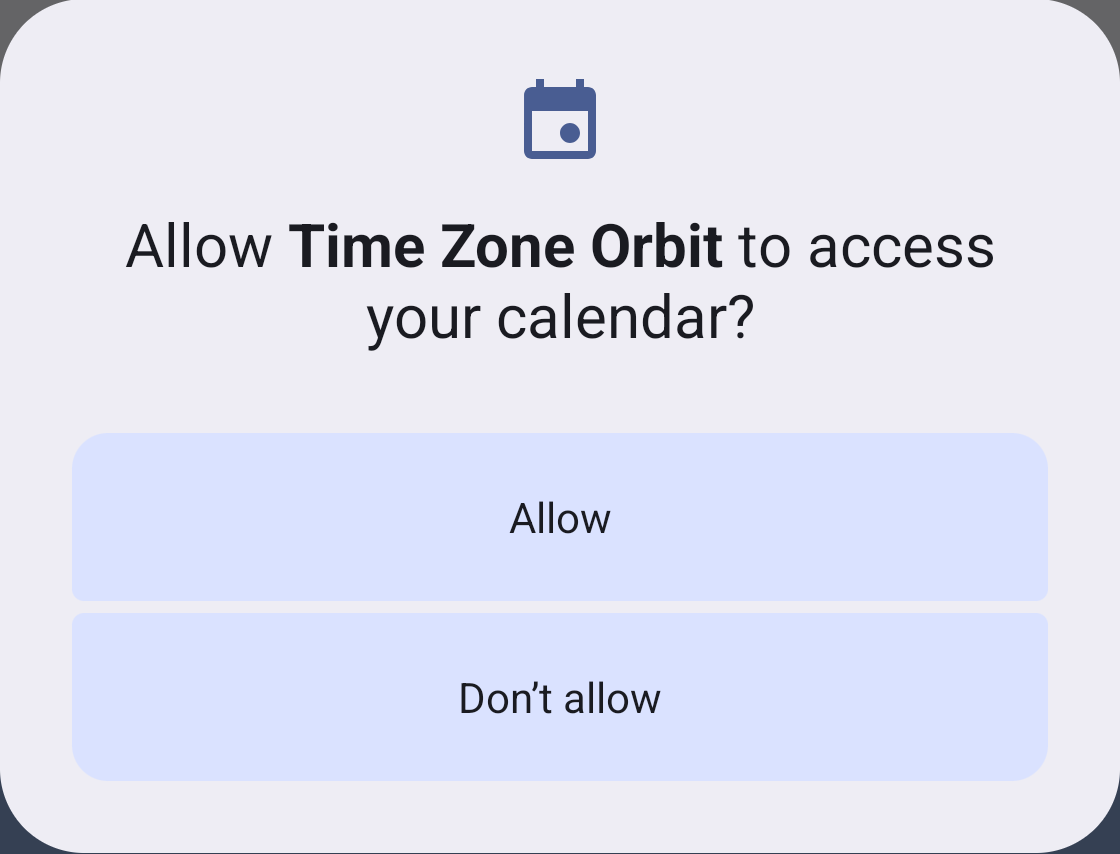
*The calendar permission request shown on first launch. Tap **Allow** to see your events in the app.*
If you tap **Don't allow**, the dial and the city list still work, but no events are shown. You can check the permission status later in **Settings → Calendar**.
## 2. Follow the guided tutorial
After you answer the permission request, a short tutorial introduces the main parts of the app. It darkens the screen and highlights one control at a time, with a short text explaining what it is for. To move on, just tap the highlighted control. The tutorial goes through the dial, the list of cities and the dial settings, and then leaves you on the home screen.
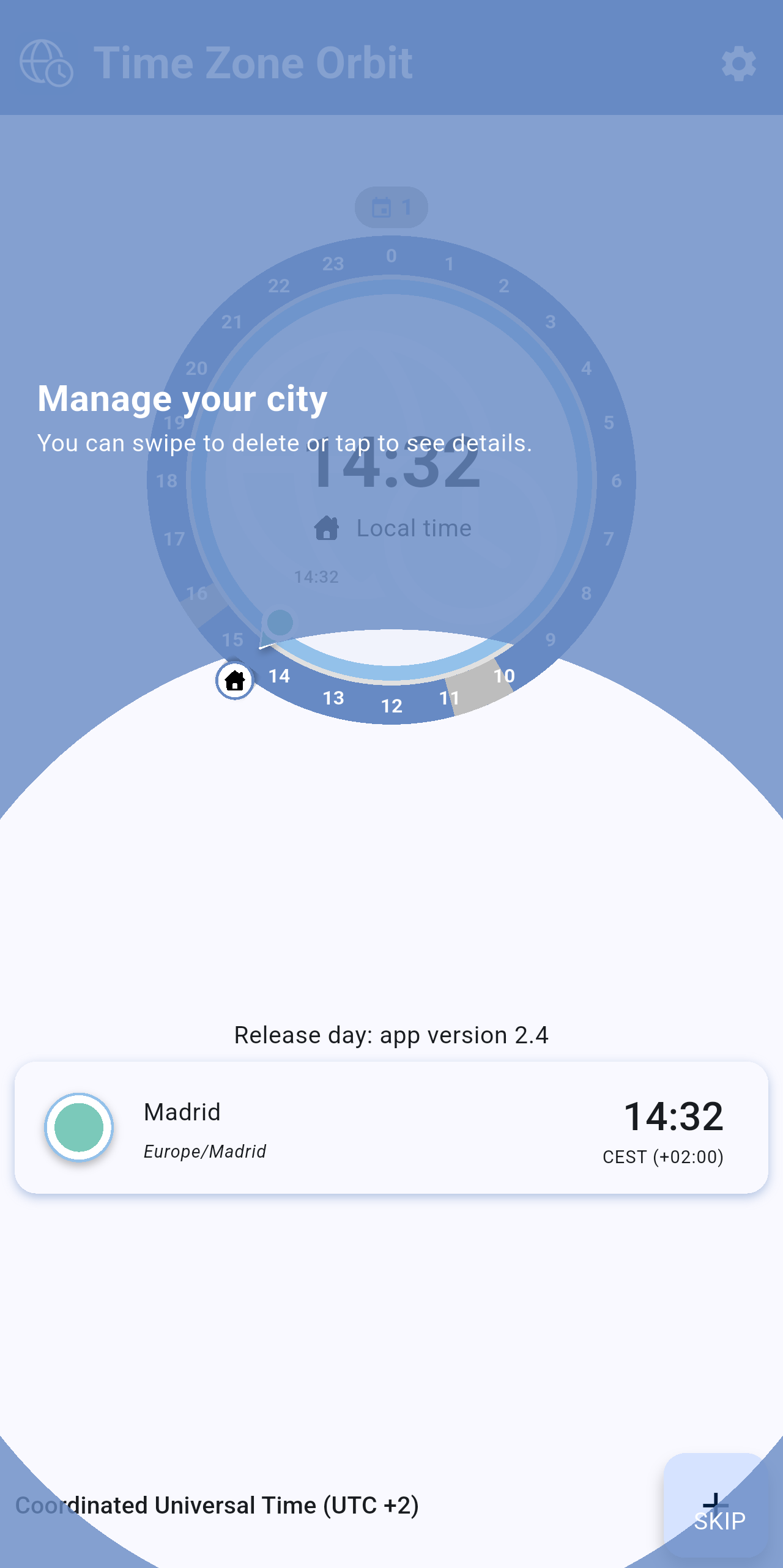
*A tutorial step: the highlighted control is explained in a short text. The **SKIP** button in the bottom-right corner is always available.*
You do not have to go through every step. Tap **SKIP** at any moment to close the tutorial, and it will not be shown again the next time you open the app.
> **Note:** To see the tutorial again, go to **Settings → Sync and time zone → Watch tutorial** and tap the item: the app goes back to the home screen and starts the tutorial straight away.
## Related pages
- [Home screen](/books/new-time-zone-orbit-manual/page/home-screen)
- [The Orbit dial](/books/new-time-zone-orbit-manual/page/the-orbit-dial)
- [Settings](/books/new-time-zone-orbit-manual/page/settings)