# City details and events
Each city has its own details screen. From there you can give the city an alias, check your calendar events day by day, join a call from an event, and start scheduling a new meeting.
## Where to find it
On the [home screen](/books/new-time-zone-orbit-manual/page/home-screen), tap a city's card in the list under the dial. To go back, tap the arrow in the top-left corner.
## The details screen
The top of the screen shows the city with its color, name, time zone and the time currently selected on the dial. Under it you see the selected date and a strip of days, starting today and going up to one year ahead.
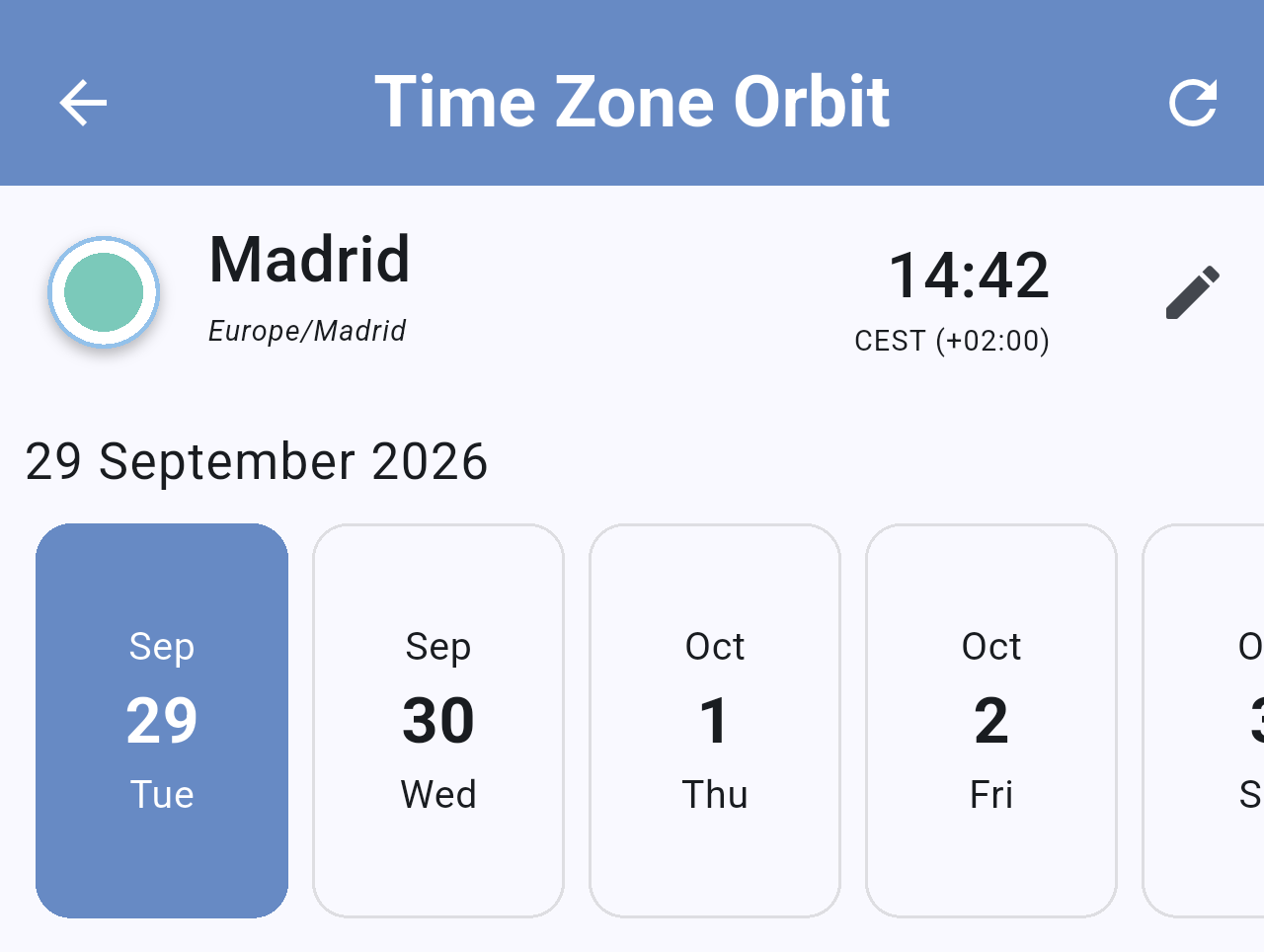
*The details screen for Madrid. Tap a day in the strip to see the events of that day.*
The two icons in the header are:
- **Refresh** (top-right corner): reloads the events from your calendar and goes back to today.
- **Pencil** (next to the time): edits the city's alias. See *Giving a city an alias* below.
## All-day events
If you have events that last all day, they are listed first, in a section called **ALL-DAY EVENT** above the timeline. Only the all-day events of the selected day are shown.
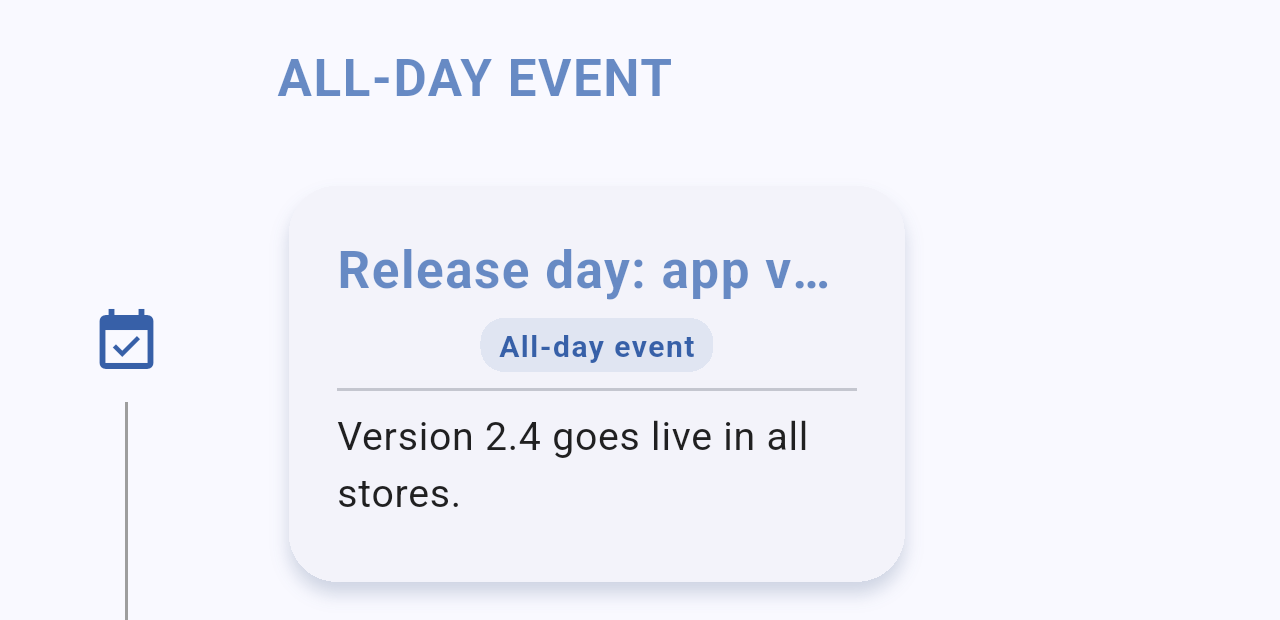
*The all-day section for the selected day. Tap the card to open the event's details.*
## Your events for the day
Below the days, a timeline lists the events in your phone's calendars for the selected day, from midnight to midnight. Free periods are shown as **No events**, so you can spot the gaps at a glance.
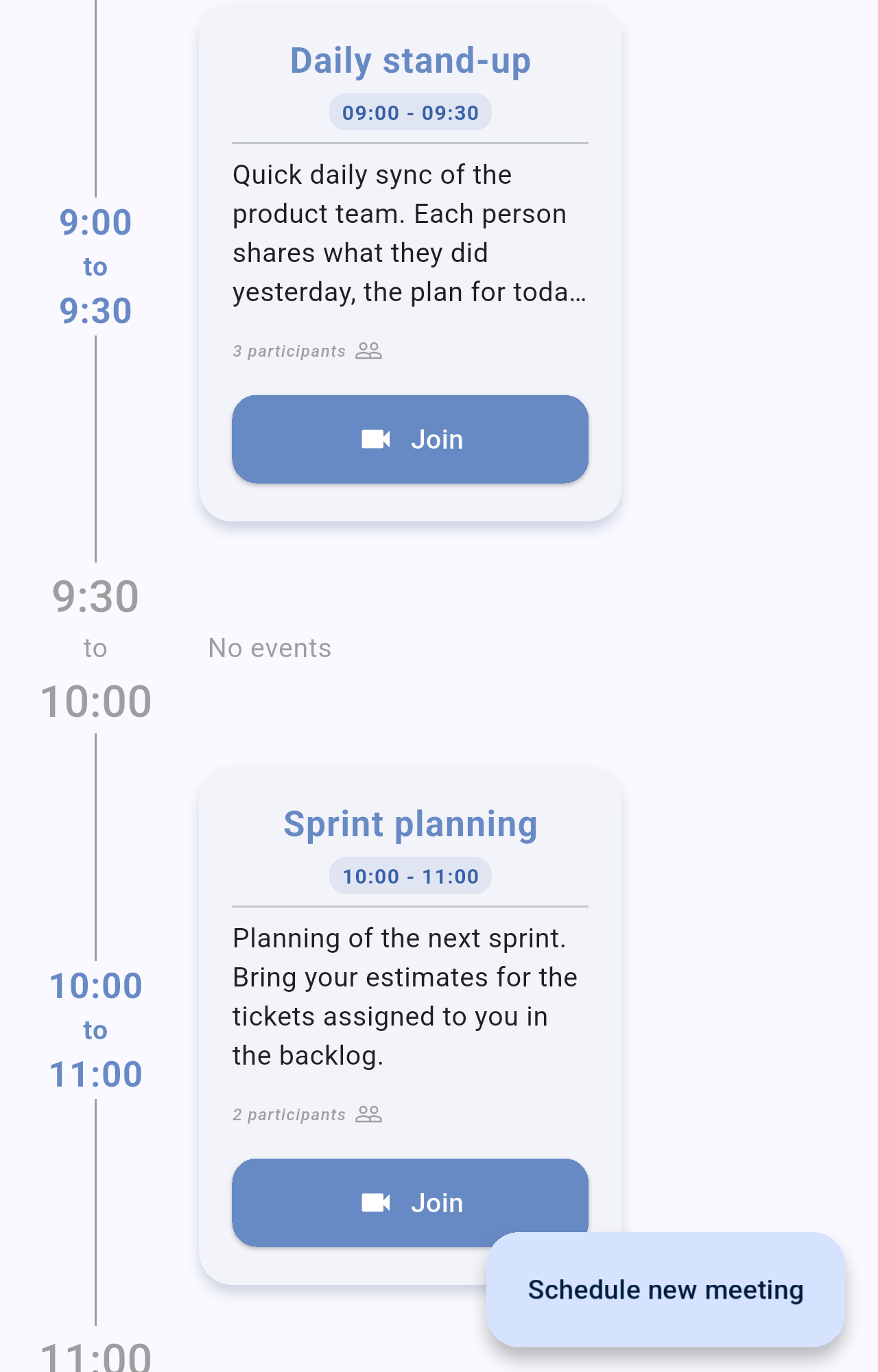
*The timeline: the "Daily stand-up" event at 9:00, a free period until 10:00 and then "Sprint planning". Each card shows the title, time, description, number of participants and the **Join** button.*
Events that repeat, such as a daily meeting, appear on every day they take place.
Each event card shows the title, the start and end time, the start of the description and the number of participants. When the description contains a video call link, the card shows a **Join** button; when it contains a phone number, it also shows a **Call** button. The **Call** button only appears if the event has a phone number.
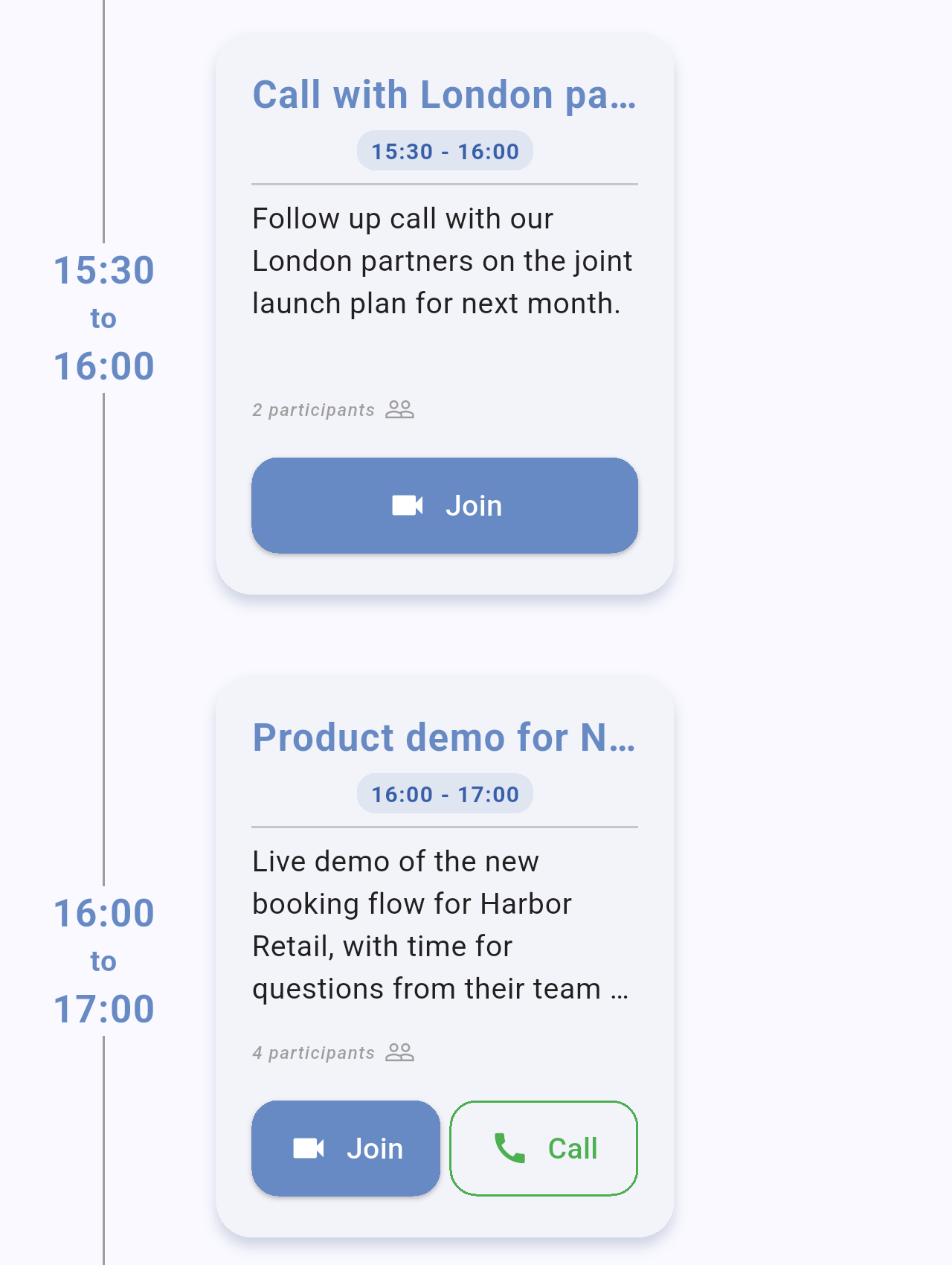
*The "Call with London partners" card only has a video call link, so it shows **Join**. The "Product demo for New York client" card also has a phone number, so it shows **Join** and **Call**.*
> **Note:** The times in the timeline and in the event cards are shown in your own local time, not in the city's time. The city's time is the one shown in the header and on the dial.
### Compact and comfortable view
The event cards can be shown in two sizes. **Comfortable** (the default) shows more lines of the description, the participants and the buttons; **compact** shows only the title, the time and a short description. Pinch outwards on the timeline to switch to comfortable, or pinch inwards to switch to compact. You can also choose the view in **Settings → Event view mode**.
## Event details
Tap an event card to open all its details in a sheet: the time, the location (if any) and three sections you can expand or collapse.
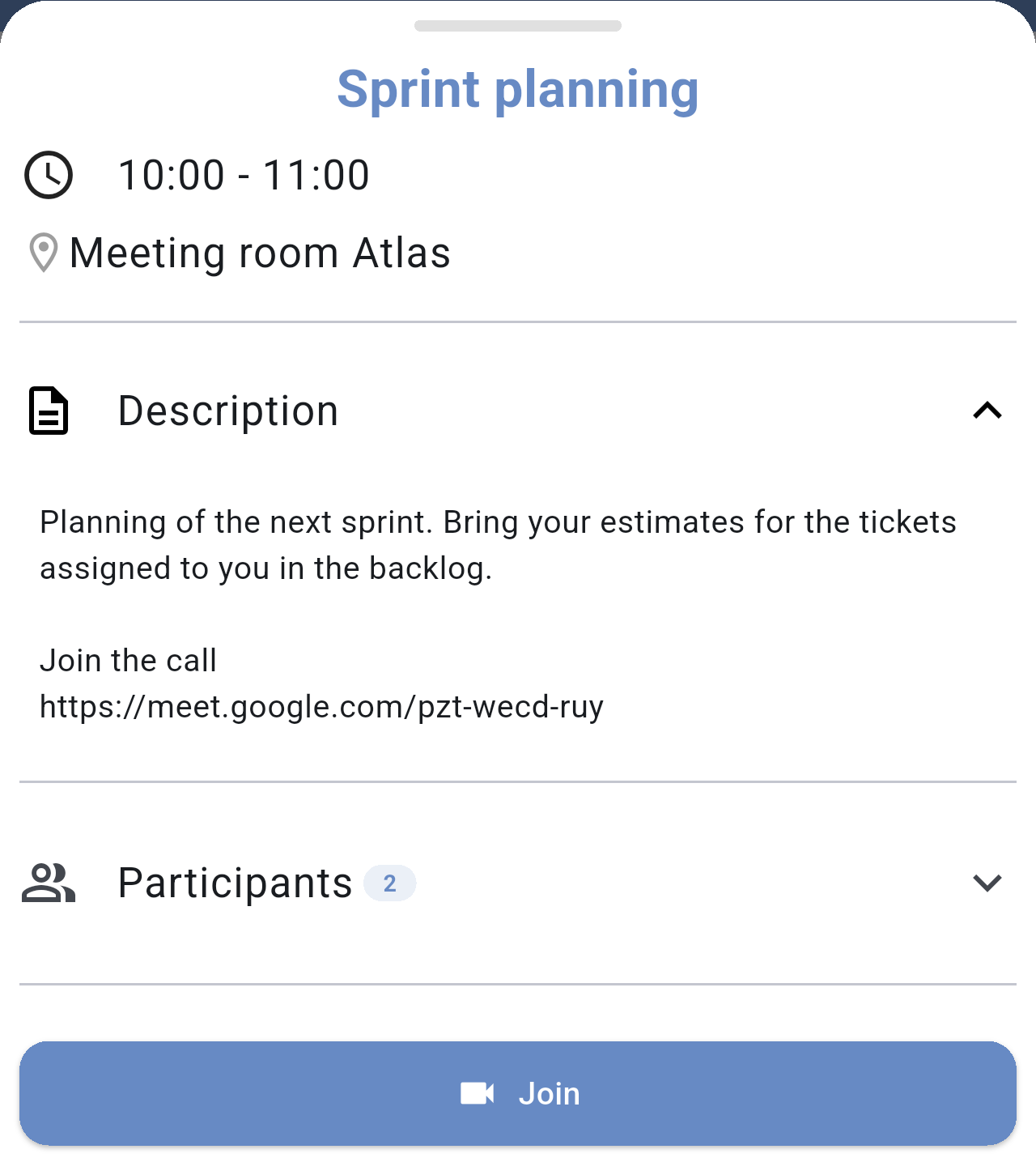
*The details of "Sprint planning" with the **Description** section expanded.*
The sections are:
- **Description**: the full text of the event, including any links.
- **Participants**: the people invited to the event, with their email addresses.
- **Documents**: links found in the description to Google Drive, Google Docs, Dropbox, OneDrive/SharePoint or PDF files. Tap one to open it.
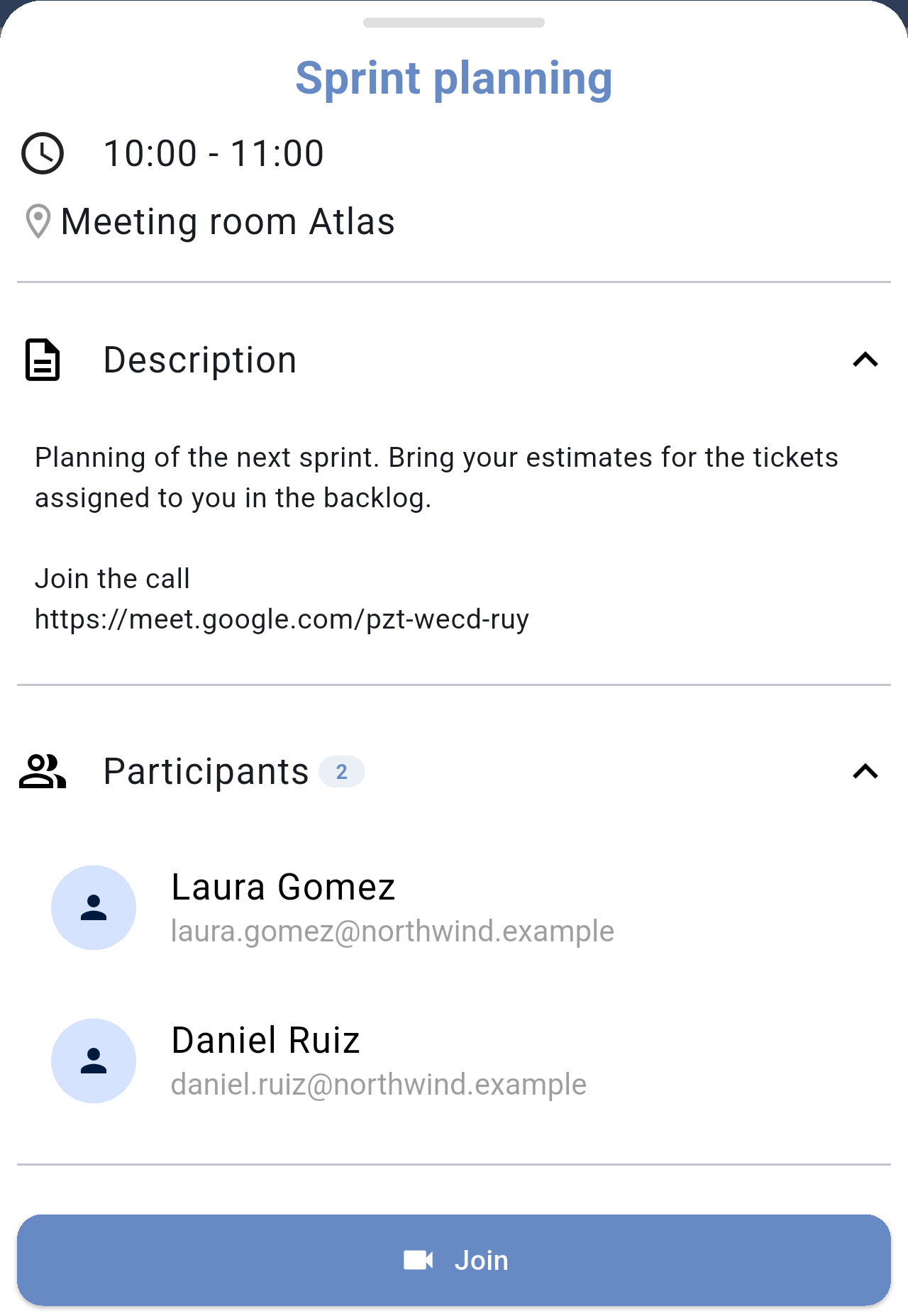
*The **Participants** section expanded, with the number of participants next to the title. Names are shown with a capital letter on each word.*
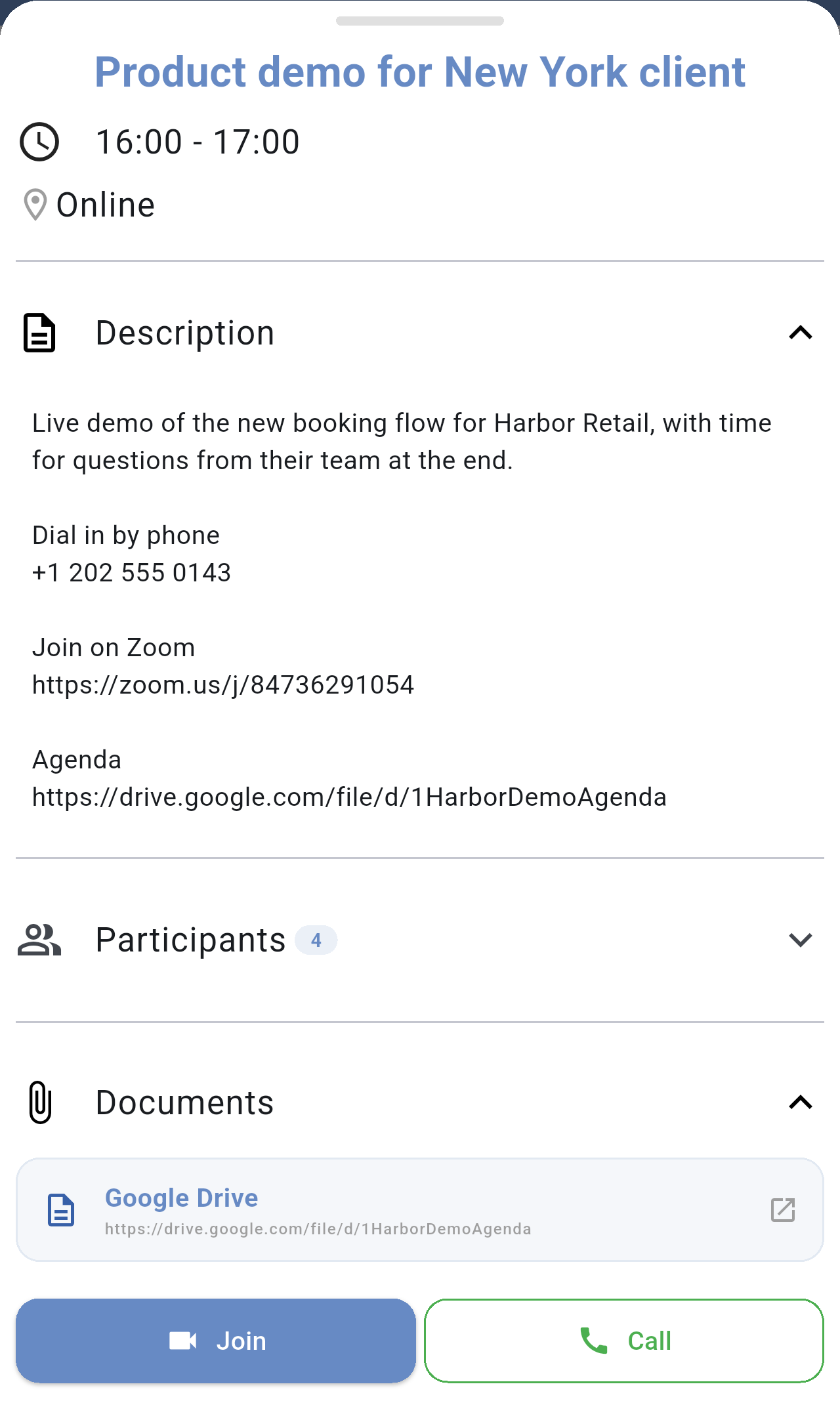
*An event with a phone number and a video call link: the **Documents** section shows the Google Drive link found in the description, and the **Join** and **Call** buttons are at the bottom.*
The buttons at the bottom of the sheet let you act on the event directly:
- **Join** opens the video call link found in the description (Google Meet, Zoom, Microsoft Teams, Webex or Jitsi).
- **Call** opens your phone app with the number found in the description.
## Giving a city an alias
An alias is a short name that replaces the city name in the list, for example the name of an office or a client. It is useful when you follow a city because of the people you work with there.
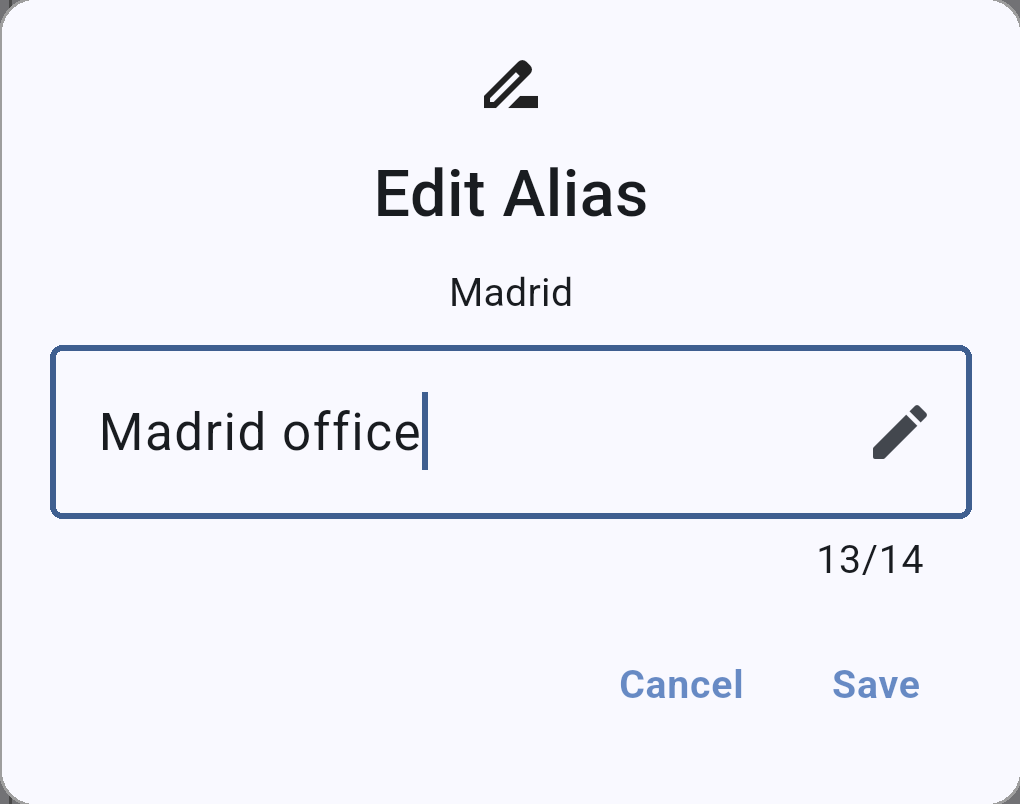
*The **Edit Alias** dialog. The alias can be up to 14 characters long.*
- In the city's details screen, tap the pencil icon.
- Type the alias and tap Save.
- To remove the alias, open the dialog again, delete the text and tap Save: the city name is shown again.
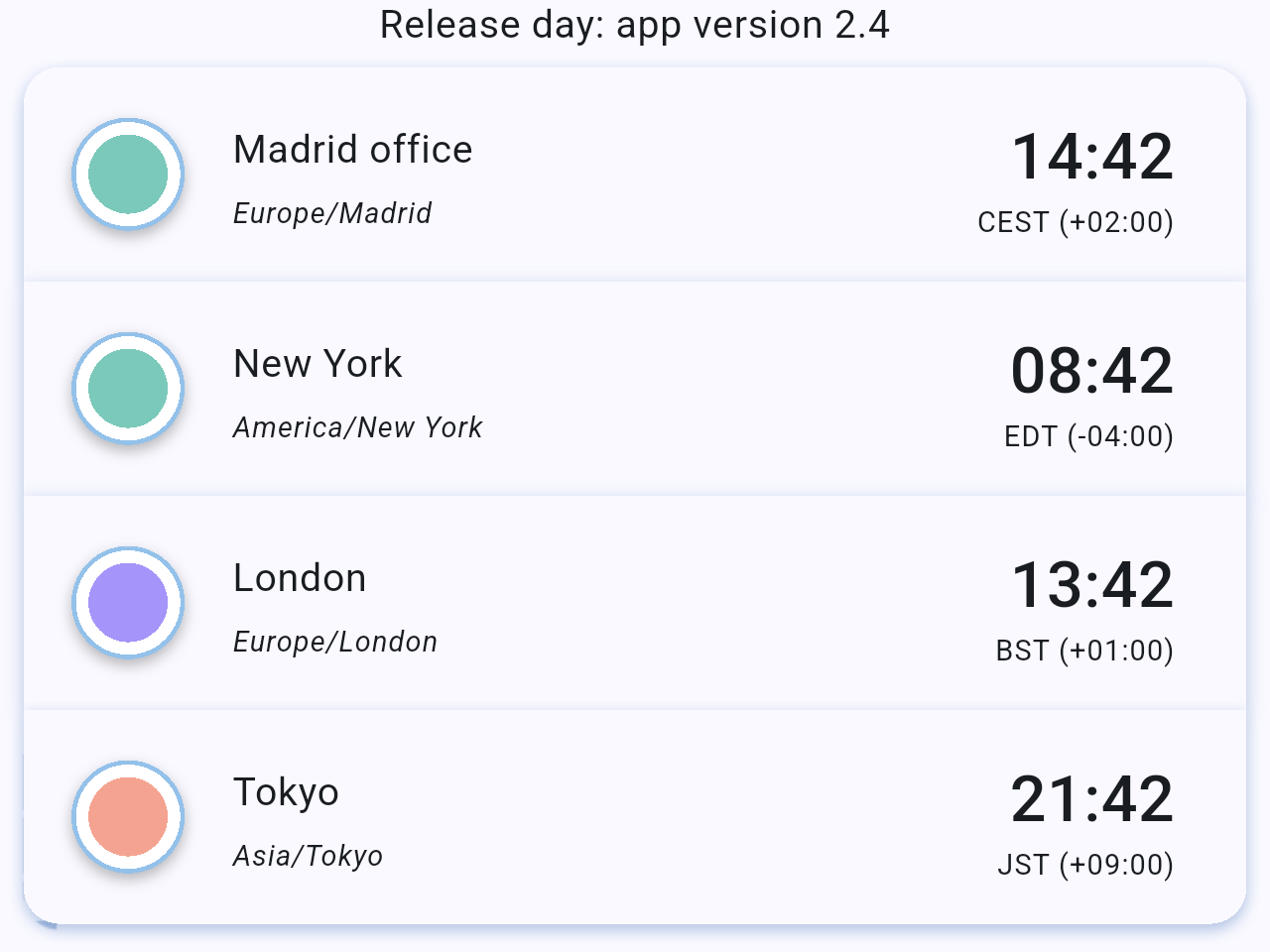
*Back on the home screen, Madrid appears as "Madrid office". The time zone under the name does not change.*
## Scheduling a new meeting
The **Schedule new meeting** button, in the bottom-right corner of the details screen, helps you create an event at the time you picked on the dial.

*The **Schedule new meeting** button.*
On Android, the button opens Google Calendar with a new event already filled in: it starts at the time selected on the dial and lasts one hour. Add the title and guests there and save it. On iPhone, the button opens the Calendar app.
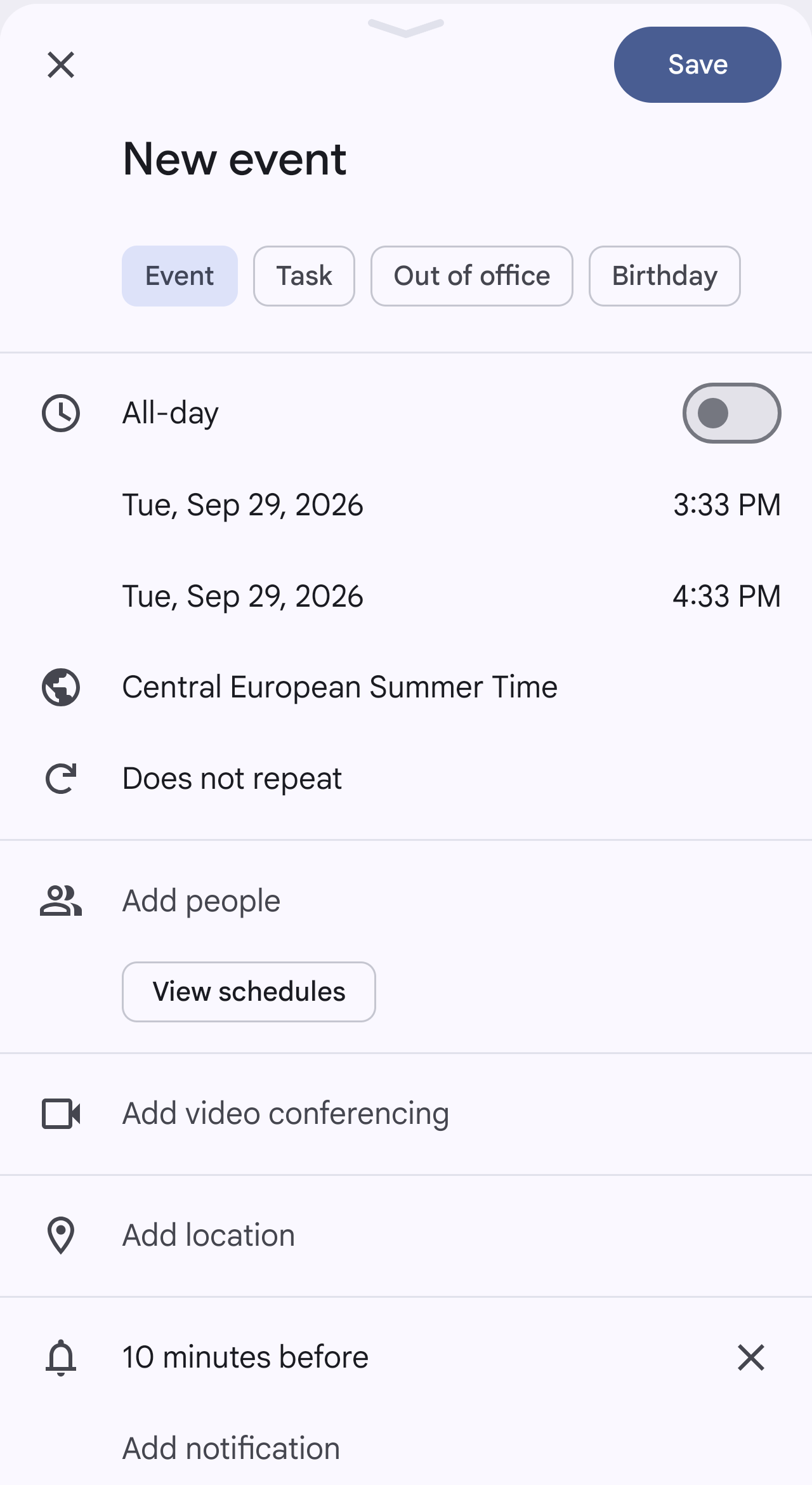
*The screen that opens in Google Calendar after tapping **Schedule new meeting**: a new event that starts at the time selected on the dial and ends one hour later. Change the title, add guests and tap **Save**.*
## Related pages
- [The Orbit dial](/books/new-time-zone-orbit-manual/page/the-orbit-dial)
- [Managing cities](/books/new-time-zone-orbit-manual/page/managing-cities)
- [Settings](/books/new-time-zone-orbit-manual/page/settings)
- [FAQ / Troubleshooting](/books/new-time-zone-orbit-manual/page/faq-troubleshooting)