# Settings & Customization
# Settings
Settings let you adapt Time Zone Orbit to the way you work: how the dial moves, which time zone is your base, how events are shown, which colors the app uses and in which language it is displayed.
## Where to find it
On the [home screen](/books/new-time-zone-orbit-manual/page/home-screen), tap the gear icon in the top-right corner. The options are grouped in sections, from the dial at the top to the app information at the bottom.
## Dial, time zone and sync
The first sections control how the dial behaves and which time it uses as your base.
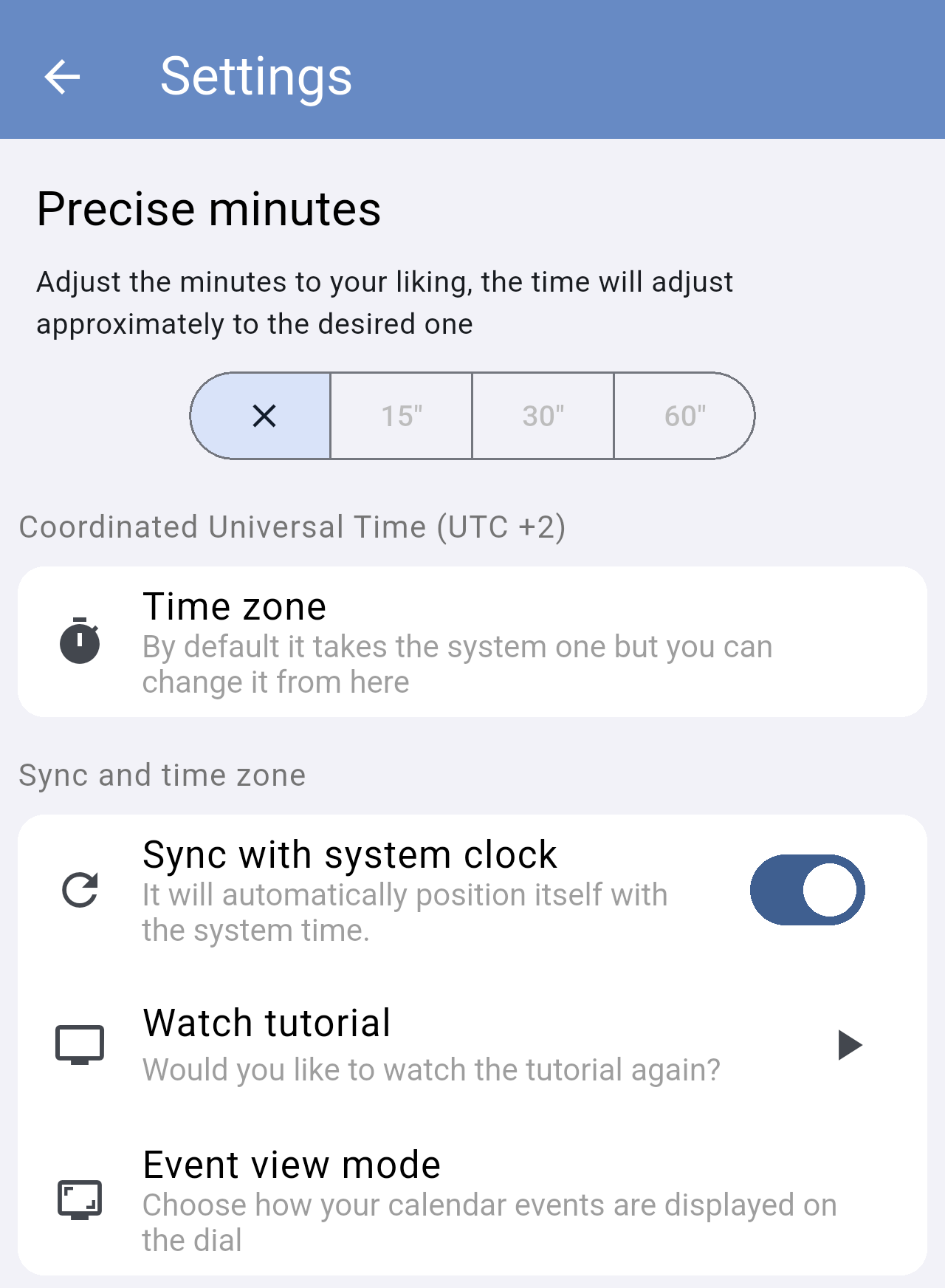
*The top of the Settings screen.*
- **Precise minutes**: how the dial snaps while you drag it. **✕** moves freely, minute by minute; **15"** and **30"** snap to steps of 15 or 30 minutes; **60"** snaps to whole hours.
- **Time zone**: the UTC offset used as your base time. By default it is the one of your device.
- **Sync with system clock**: when on, the dial starts at the current time every time you open the app. When off, it starts at 00:00.
- **Watch tutorial**: tap it to go back to the home screen and replay the guided tutorial.
- **Event view mode**: choose between the **compact** and **comfortable** views for event cards.
### Choosing your time zone
Tap **Time zone** to open the list of UTC offsets, from UTC -12:00 to UTC +14:00. The first option is the offset currently in use; your device's offset is marked with *(Device)*.
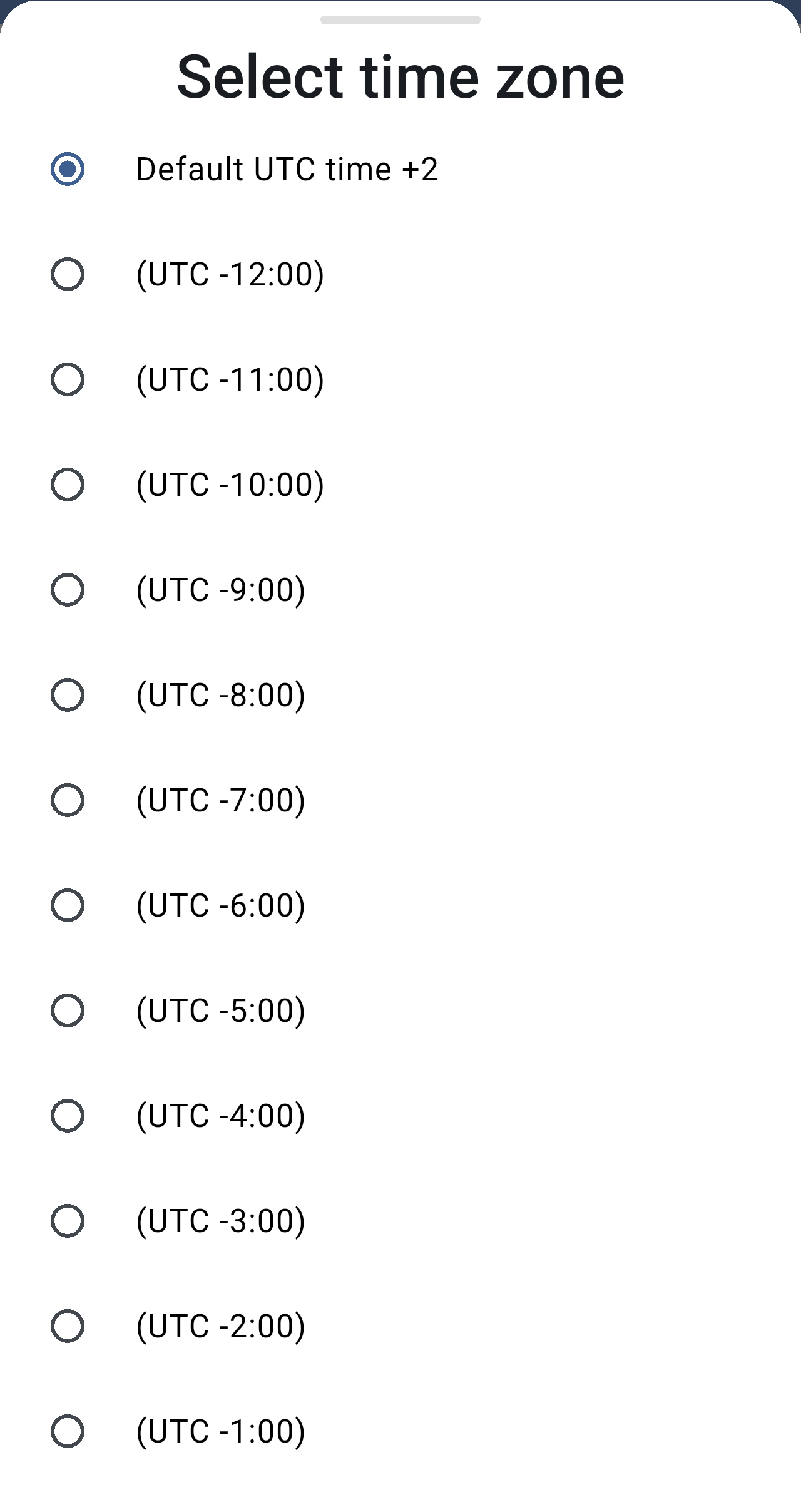
*The list of UTC offsets. Select one to use it as your base time.*
The section title in Settings and the text at the bottom of the home screen show the offset you chose, for example *Coordinated Universal Time (UTC +2)*.
### Choosing the event view mode
Tap **Event view mode** to choose how much information each event card shows in a city's details.
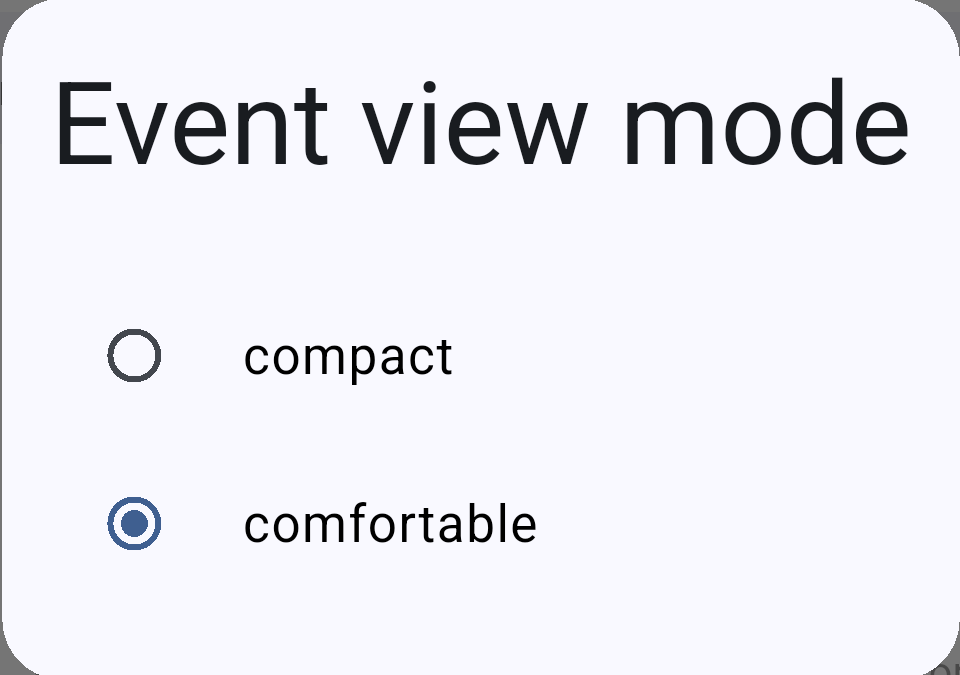
*The two view modes. **Comfortable** is the default.*
The difference between the two options is how much each card shows:
- **Comfortable**: larger cards, with up to four lines of the description, the number of participants written out (for example *3 participants*) and the **Join** and **Call** buttons when the event has a video call link or a phone number. The strip of days at the top is also taller.
- **Compact**: smaller cards, with up to two lines of the description, only a small participants counter next to the time and no buttons, so more events fit on the screen. Tap a card to open the event's details, where the buttons are available.
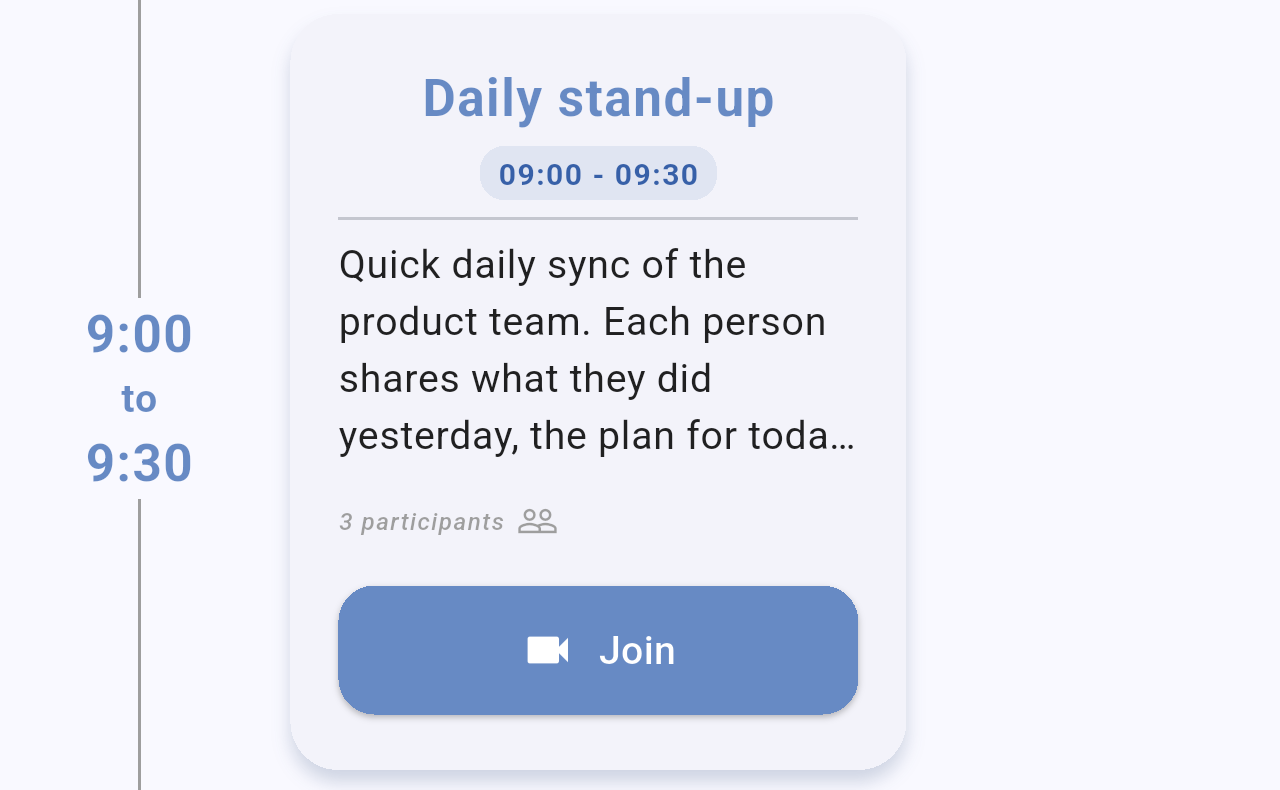
*The same event in **comfortable** view.*
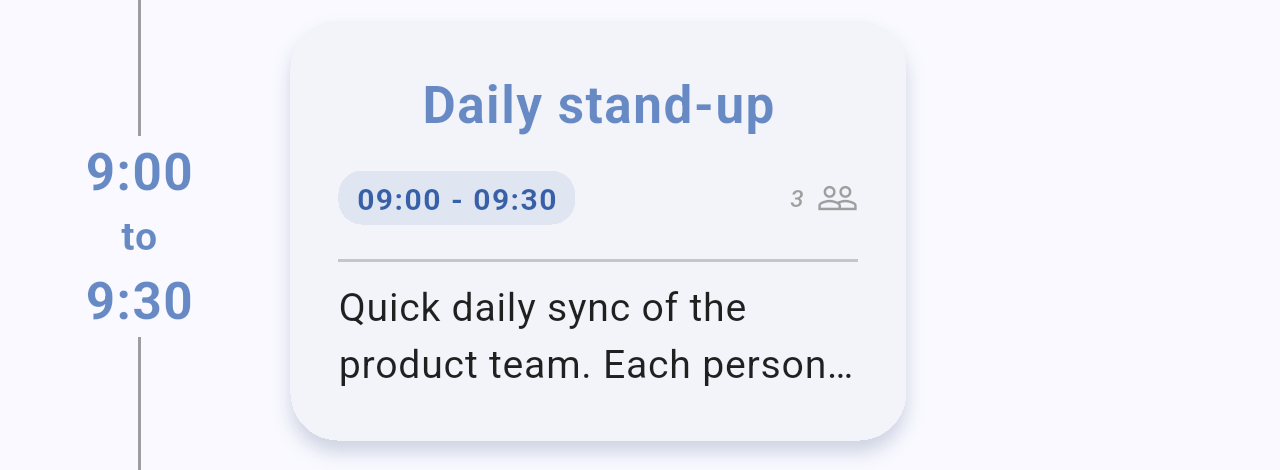
*The same event in **compact** view: less text and no buttons.*
You can also switch between the two views by pinching the event timeline. See [City details and events](/books/new-time-zone-orbit-manual/page/city-details-and-events).
## Calendar
The **Calendar** section shows whether the app can read your calendar and lets you pick your default calendar.
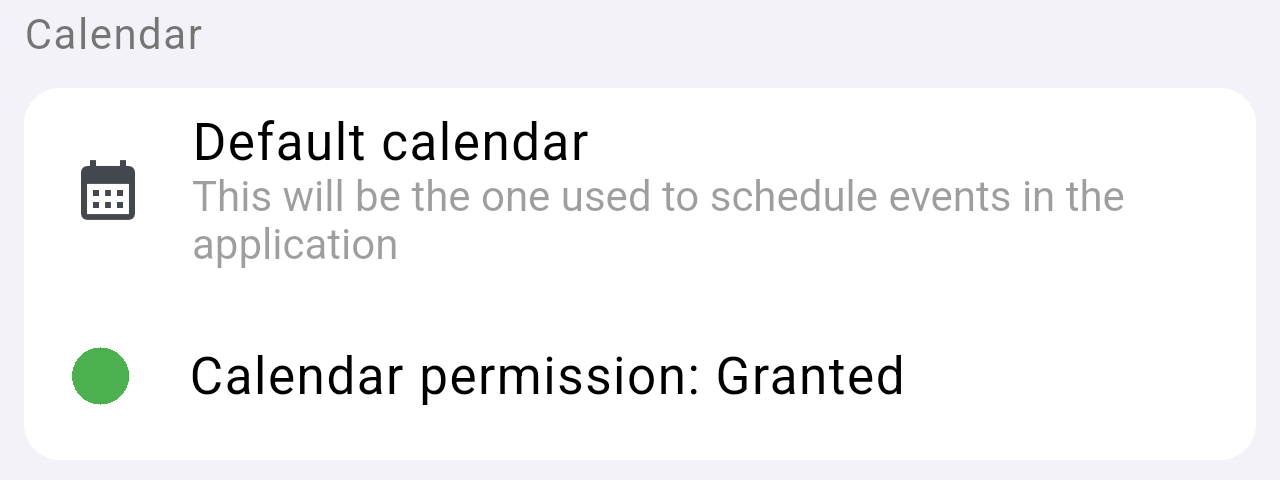
*The **Calendar** section. The green dot means calendar access is granted.*
If the permission shows **Denied** with a red dot, a settings icon appears next to it: tap it to open the app's Android settings and allow calendar access.
Tap **Default calendar** to see the calendars available on your phone and choose one.
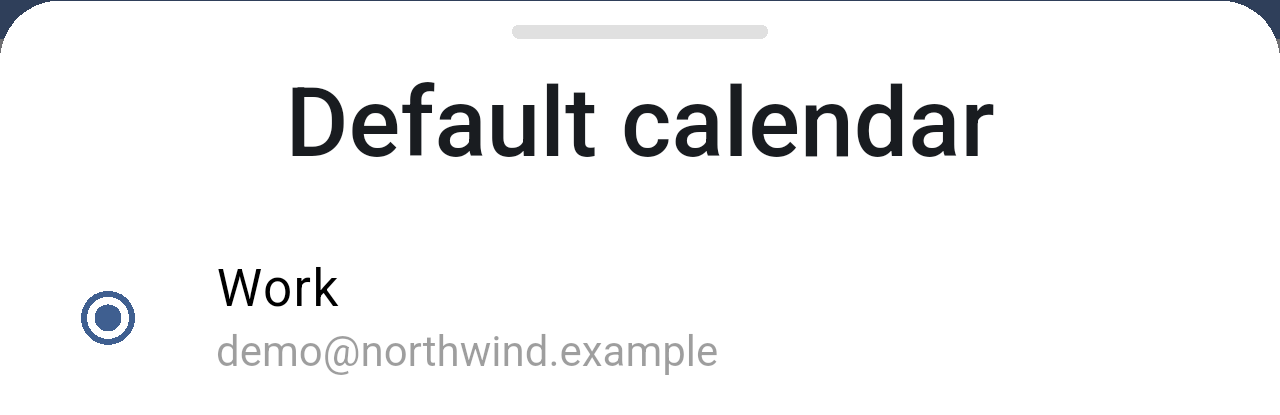
*The list of calendars on the phone, with the account each one belongs to.*
> **Note:** The events shown on the dial and in the city details come from all the calendars on your phone, not only from the default one.
## Colors
The **Color palette** section changes the colors used for your cities and for your events on the dial.
This section has two options: **Color palette**, for the colors of your cities, and **Events color**, for the color of your events on the dial.
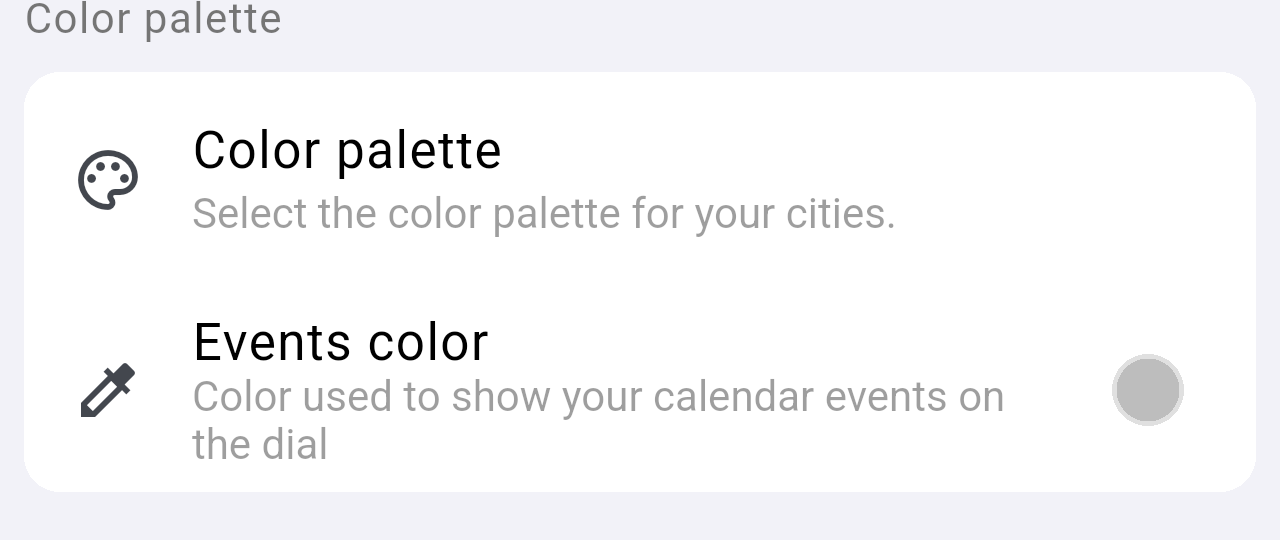
*The **Color palette** section, with **Events color** below **Color palette**.*
Tap **Color palette** to choose one of the three ready-made palettes or your own custom palette. Each city takes the colors of the palette in order.
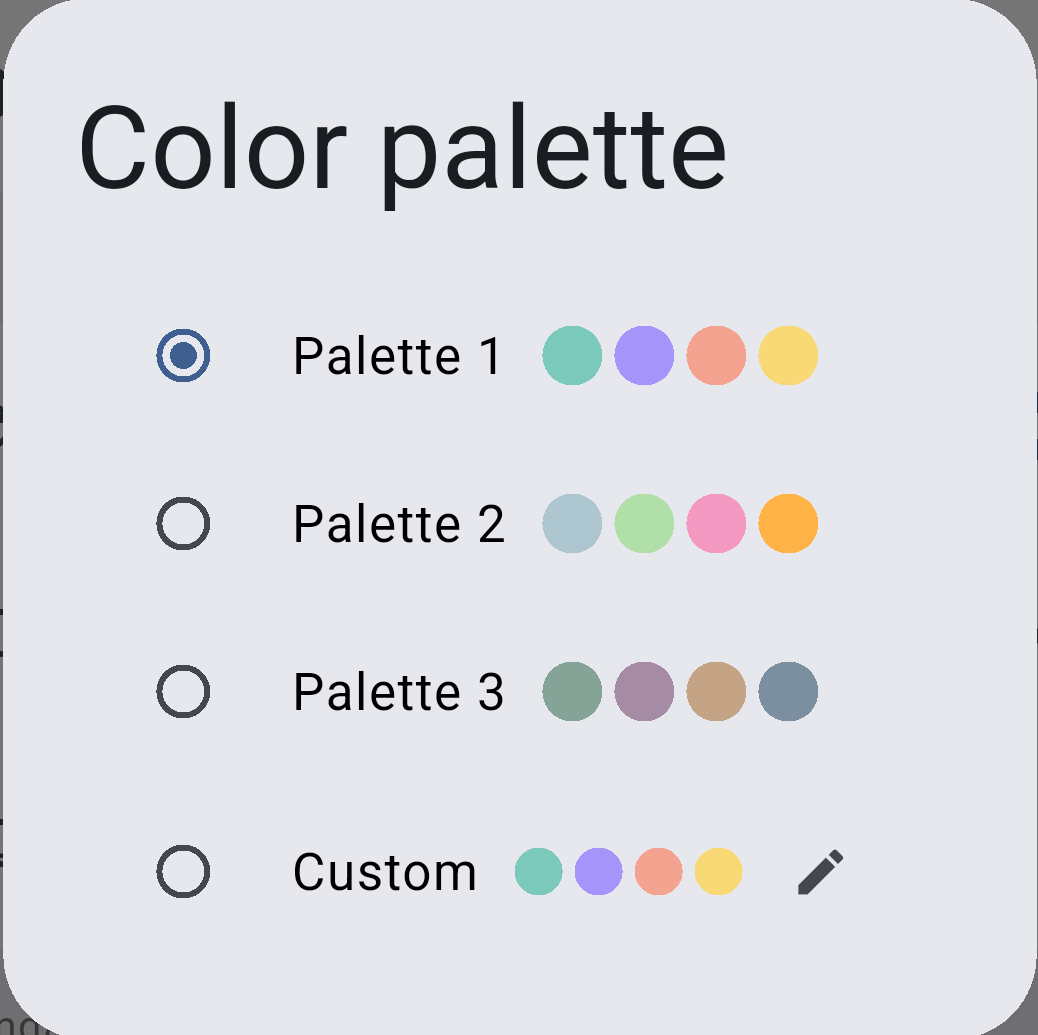
*The palettes, each with a preview of its first four colors. Tap the pencil next to **Custom** to edit your own palette.*
The custom palette has one color per city. Tap a city to pick its color, then tap **Save** in the top-right corner. **Reset to defaults** brings back the colors of Palette 1.
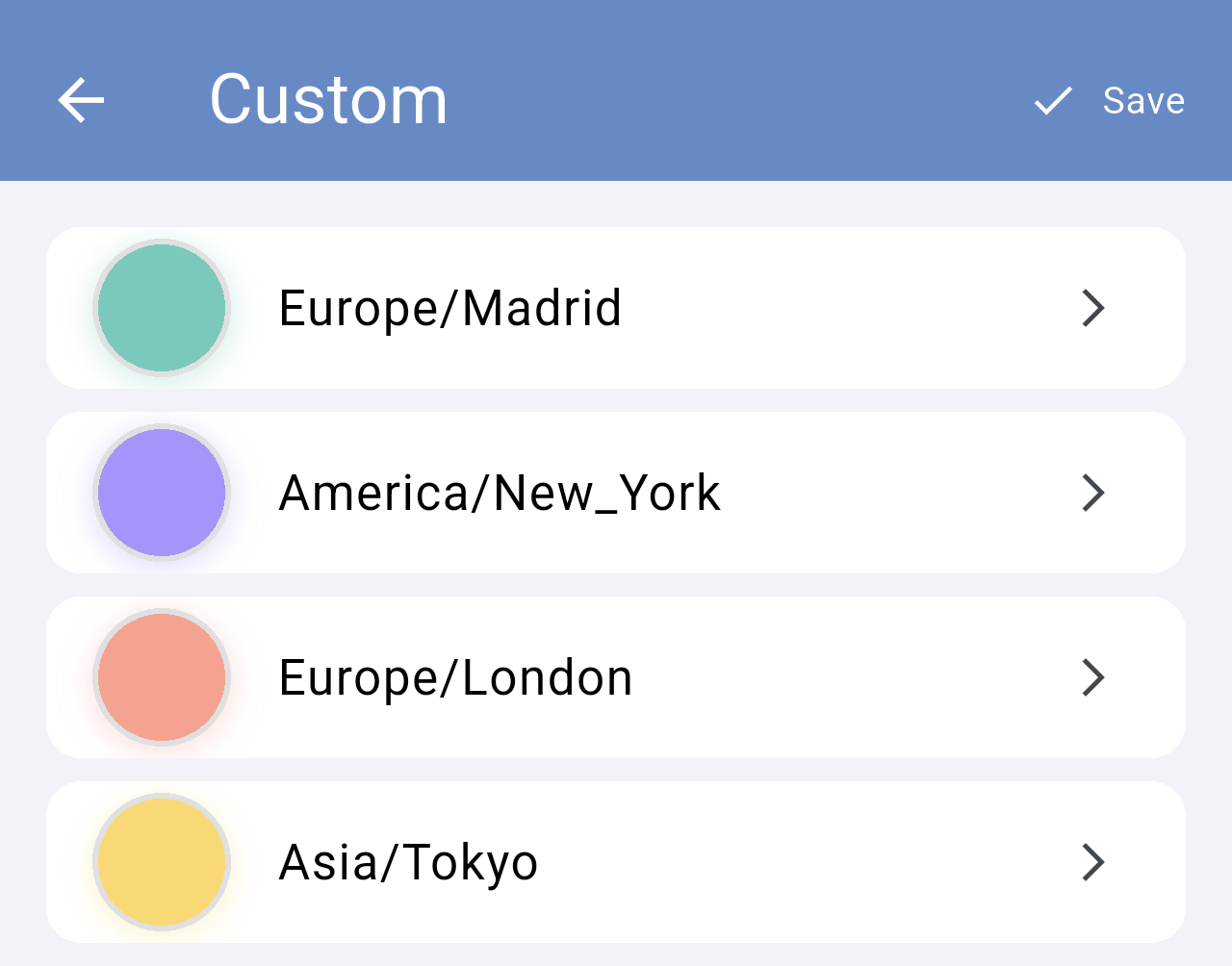
*The custom palette, with one color for each of your cities.*
Tap **Events color** to choose the color used to show your calendar events on the dial: the segments on the ring and the ring of all-day events.
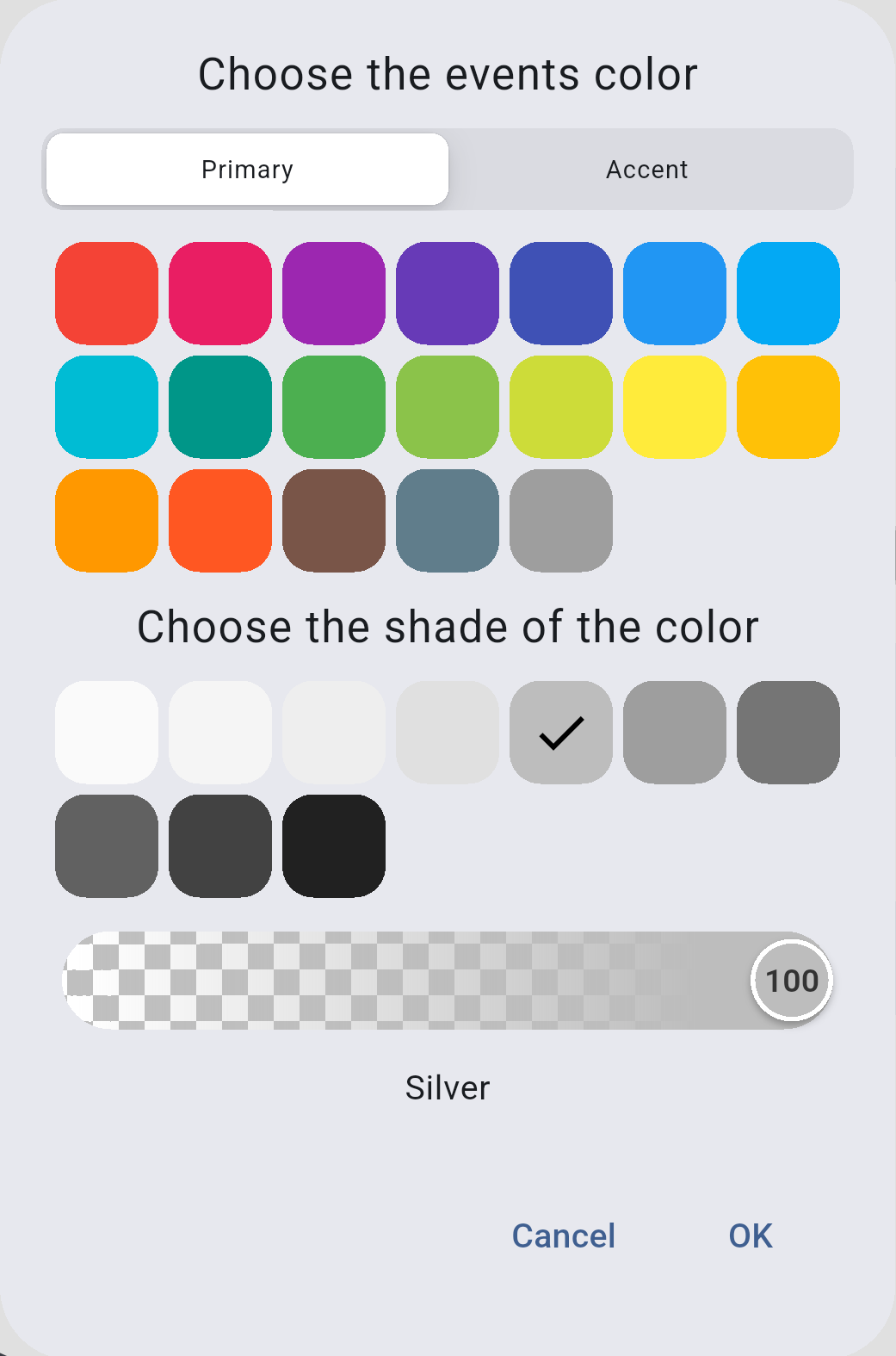
*The color picker for events. Choose a color, then its shade, and tap **OK**.*
## Language
The app is available in English, Spanish and Galician. Tap **Change language** and choose one; the app switches language straight away.
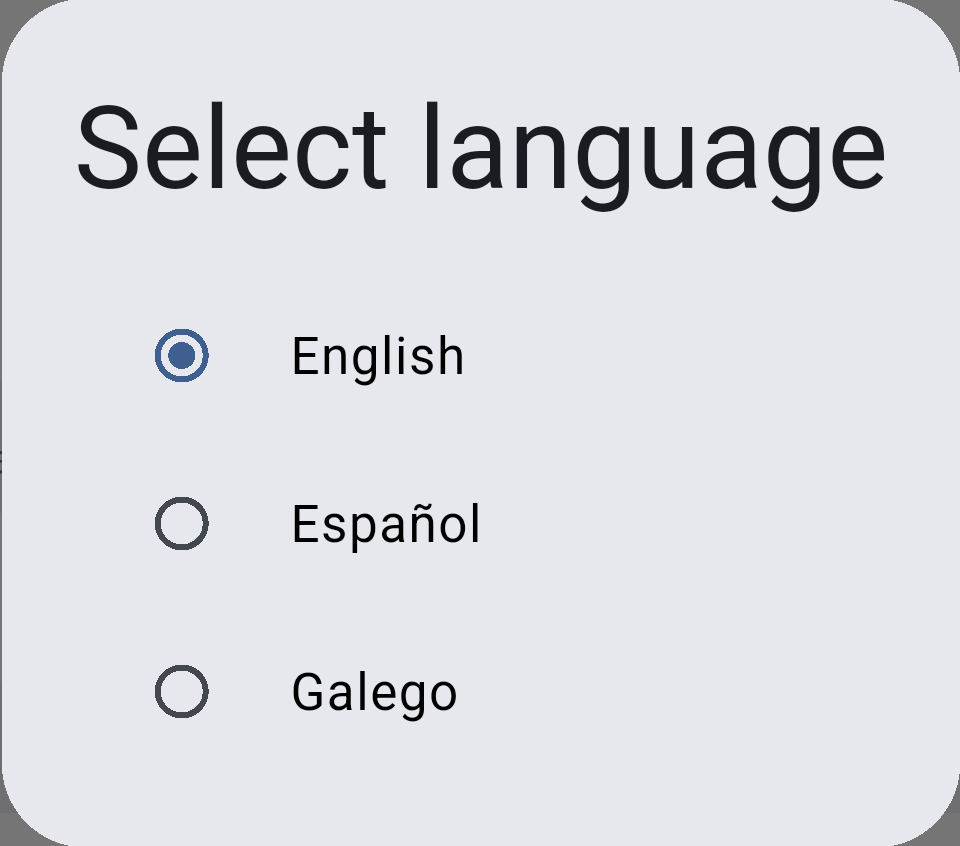
*The languages available in the app.*
## About
The last section gives access to the legal information and to the app's information screen.
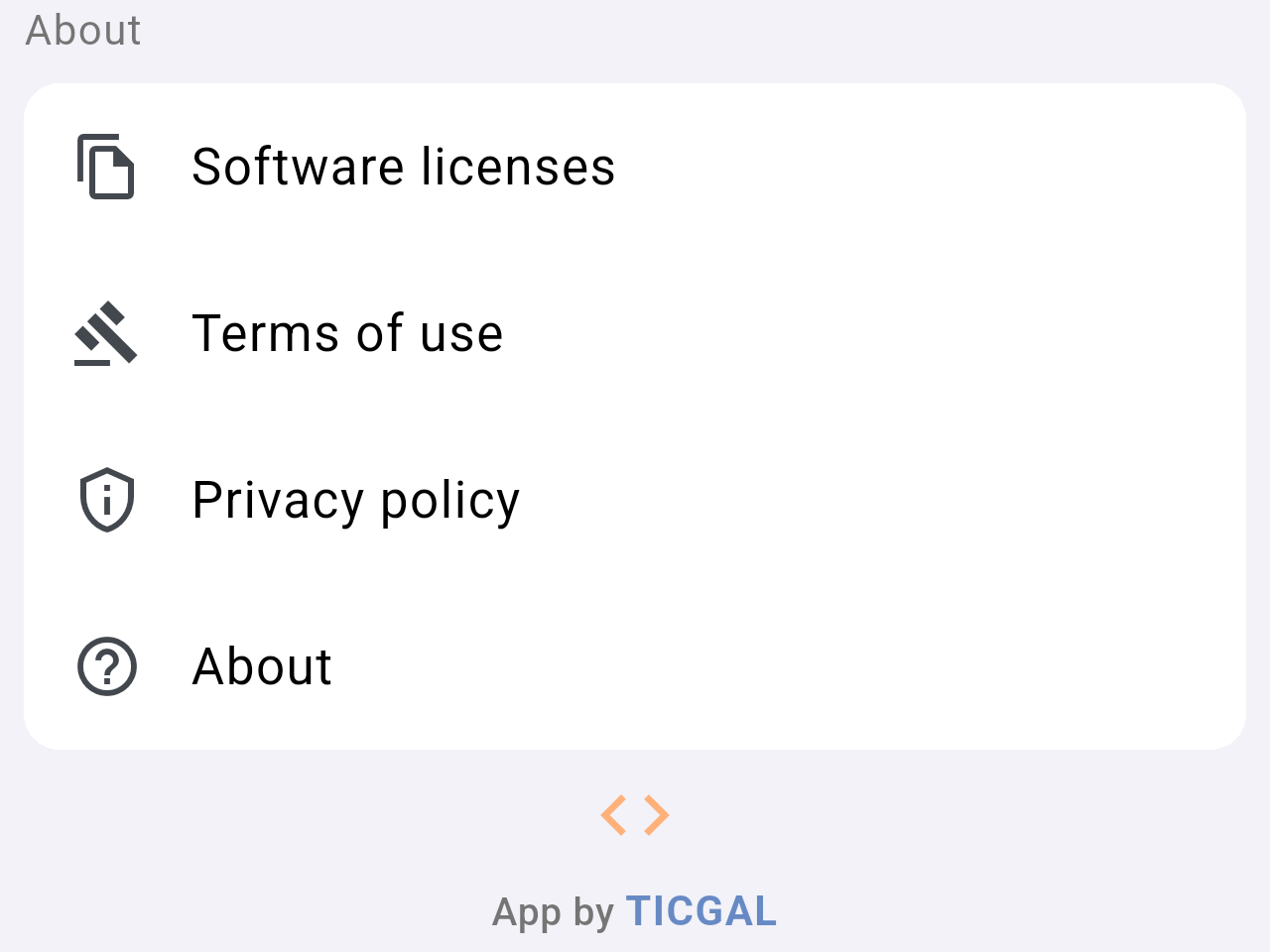
*The **About** section.*
- **Software licenses**: the licenses of the open-source components used by the app.
- **Terms of use** and **Privacy policy**: open the TICGAL web pages with these documents.
- **About**: opens the app's information screen, with the version number and links to the TICGAL and Time Zone Orbit websites.
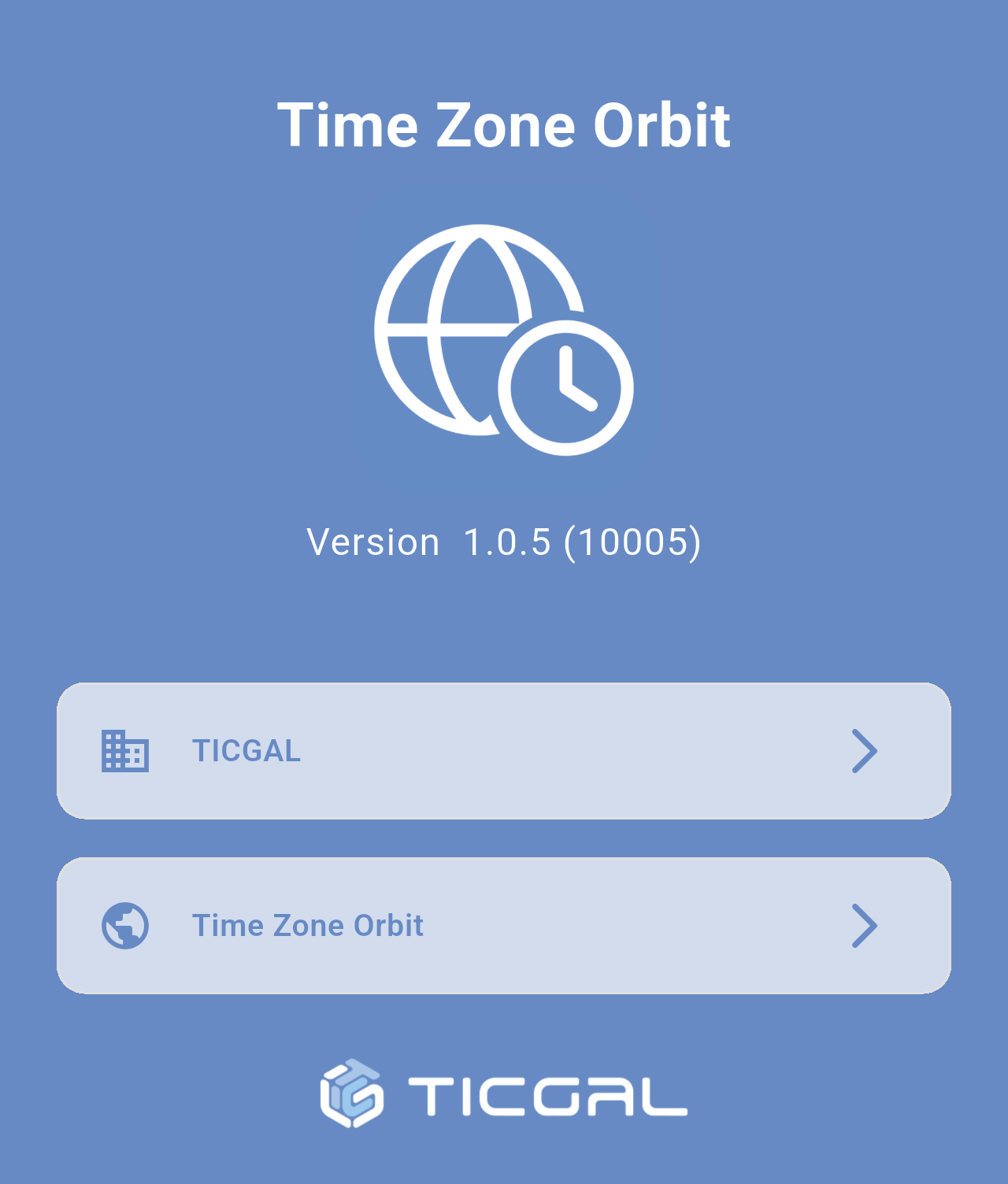
*The **About** screen. Include the version number shown here when you contact support.*
## Related pages
- [First launch and tutorial](/books/new-time-zone-orbit-manual/page/first-launch-and-tutorial)
- [The Orbit dial](/books/new-time-zone-orbit-manual/page/the-orbit-dial)
- [City details and events](/books/new-time-zone-orbit-manual/page/city-details-and-events)
- [FAQ / Troubleshooting](/books/new-time-zone-orbit-manual/page/faq-troubleshooting)