# Core Features
# The Orbit dial
The orbit dial is a 24-hour clock that places all your cities around the same ring. Moving the dial changes the time for every city at once, so you can quickly find an hour that works for everyone, and your calendar events are drawn on the ring so you can see when you are busy.
## Where to find it
The dial is at the top of the [home screen](/books/new-time-zone-orbit-manual/page/home-screen). It is always visible while you use the app.
## Reading the dial
The outer ring shows the 24 hours of the day, with 0 at the top. Each city appears as a colored marker pointing at its current hour, with its time written just inside the ring.
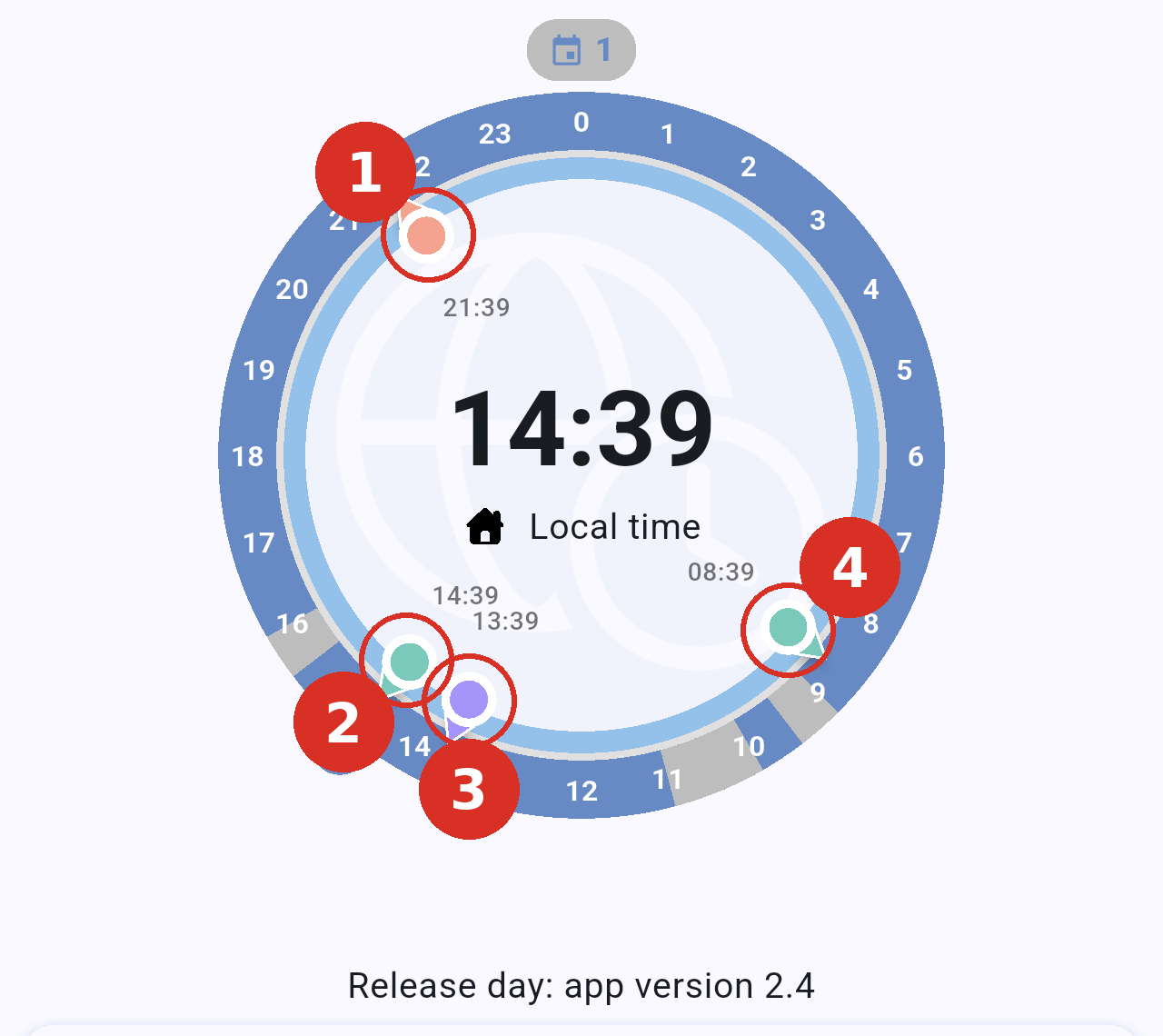
*The dial at 14:39 in Madrid. The red numbered circles mark the four city markers.*
The numbers in the picture match the cities as follows. Each marker is placed on the ring at the hour it is in that city, and its time is written next to it:
- Tokyo: the orange marker, at 21:39.
- Madrid: the green marker next to the house marker, at 14:39.
- London: the purple marker, at 13:39.
- New York: the second green marker, at 08:39.
**City markers can be tapped and dragged.** Tap one to show its time in a bubble (see *Showing a city's time outside the dial* below), or drag it to move the dial.
The rest of the elements of the dial are:
- **Central time**: your base time, shown in large digits, with **Local time** underneath.
- **House marker**: your base time on the ring. It sits on the outer edge and has small arrows on both sides to show it can be dragged.
- **Segments**: the hours when you have events in your calendar today, including events that repeat, such as a daily meeting. You can change their color in **Settings → Events color**.
- **All-day events**: when you have all-day events today, the whole ring is tinted with a light color and a small marker with a calendar icon and the number of events appears above the 0. The line above the city list shows the title of an all-day event when no timed event is happening at the selected time.
- **Red line**: the current time of day. It stays in place while you move the dial, so you always know where "now" is.
## All-day events
Events that last all day are not drawn as segments. When you have any today, the whole ring is tinted with a light color and a small marker with a calendar icon and the number of events appears above the 0. Tap the marker to see them.
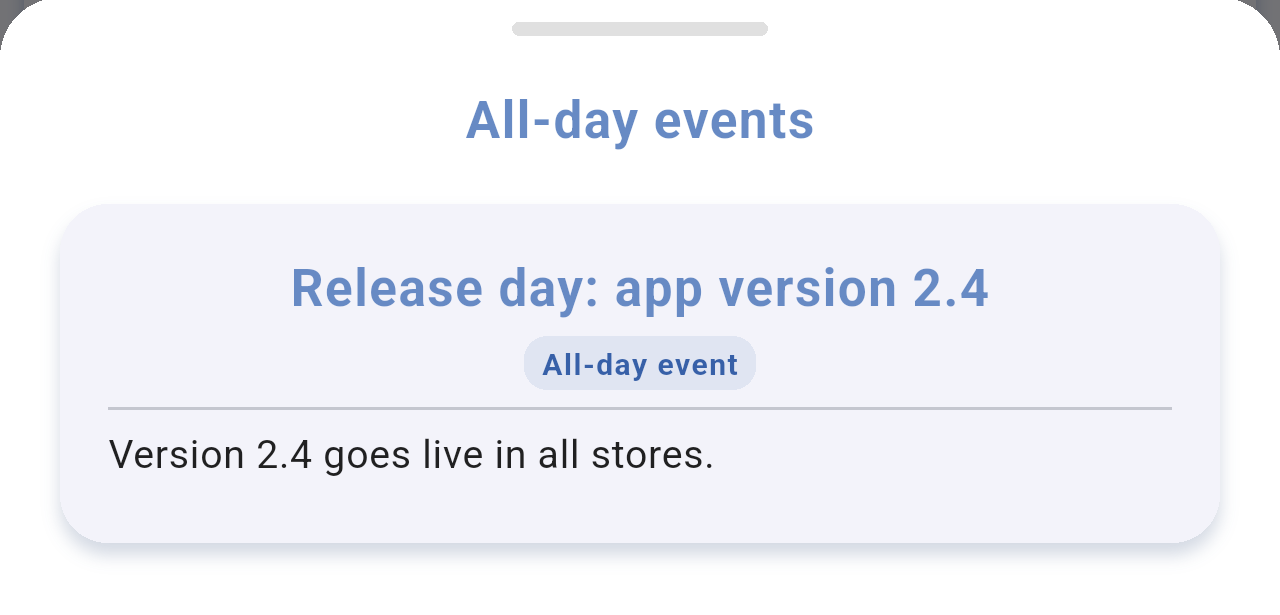
*The **All-day events** sheet, opened by tapping the marker above the 0. Tap a card to open the full details of the event.*
## Changing the time
To check what time it will be in each city at another moment, move the dial. The central time, the time next to every marker and the times in the city list all update while you drag.
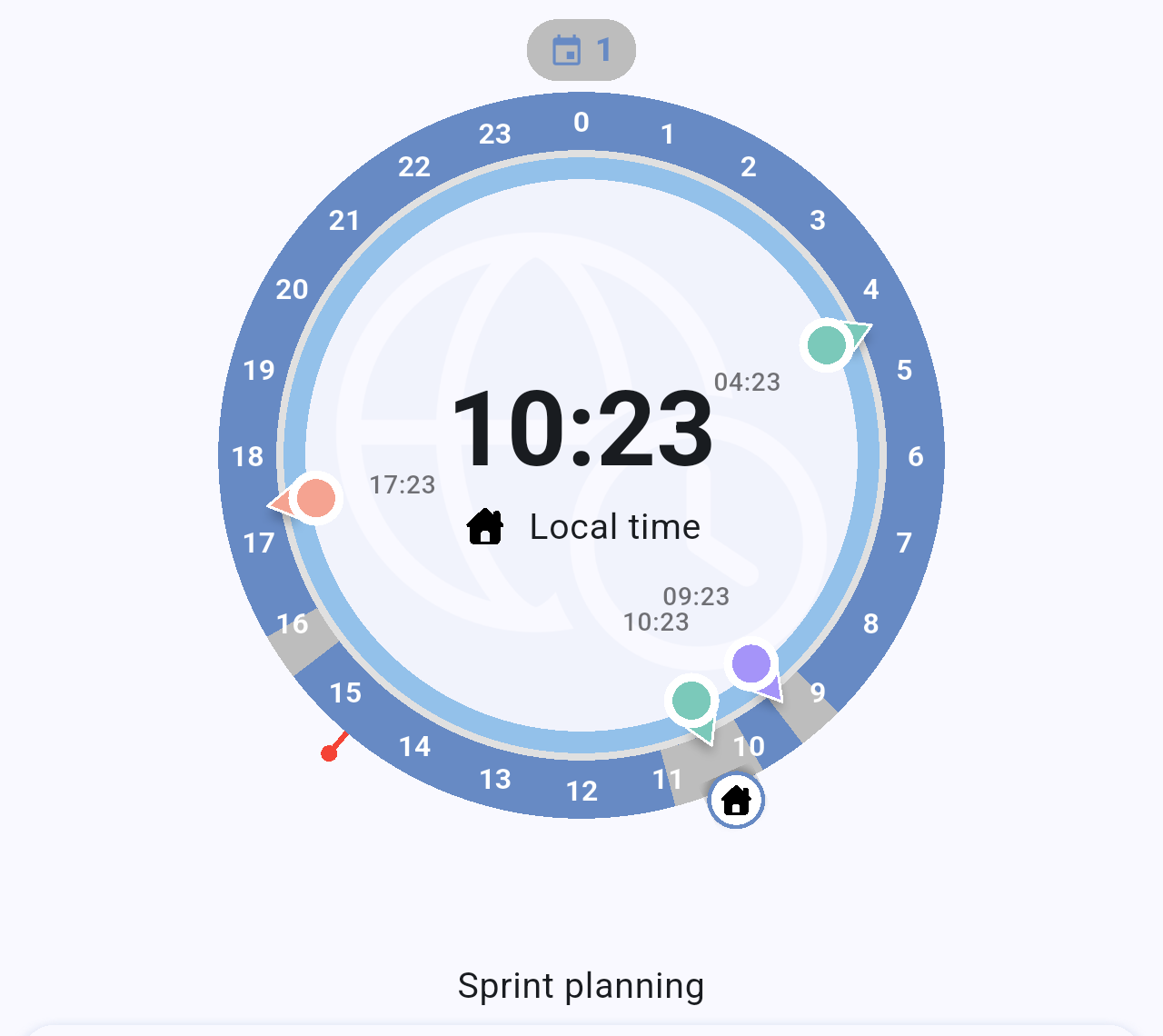
*The house marker dragged to 10:23. That time falls inside a calendar event, so its title, "Sprint planning", appears just above the city list.*
- Touch the house marker and drag it around the ring to the time you want.
- You can also touch a city's marker and drag it: the dial then moves so that this city shows the hour you point at.
- Let go to keep the new time on screen.
> **Note:** How smoothly the dial moves depends on **Settings → Precise minutes**. With the **✕** option it moves freely; with 15", 30" or 60" it snaps to steps of 15 minutes, 30 minutes or one hour.
## Showing a city's time outside the dial
Tap a city's marker to show its time in a bubble outside the ring, linked to the marker by a line. This makes the time easier to read when several cities are close together. In the picture, the circle numbered **1** marks the Tokyo marker that was tapped.
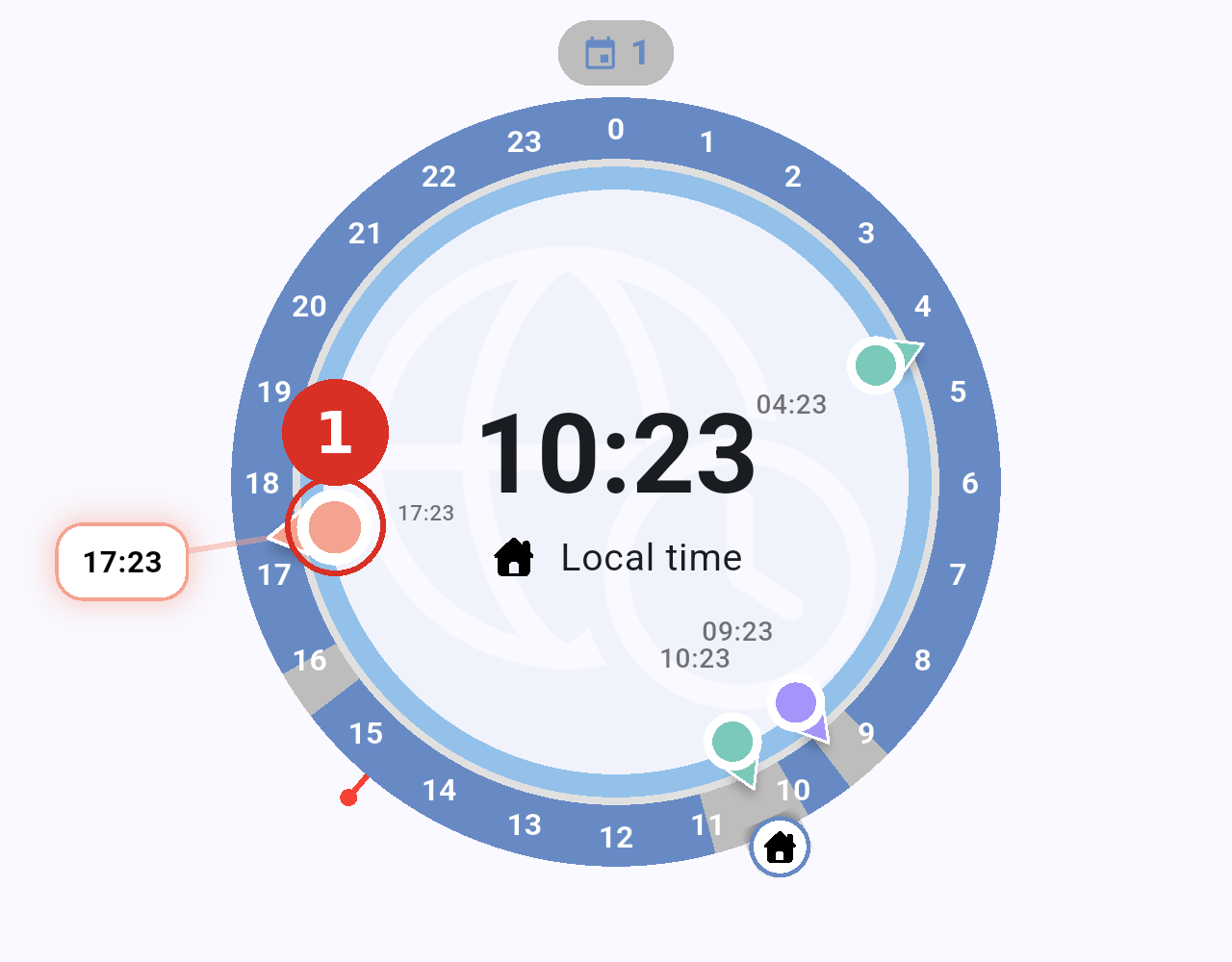
*After tapping the Tokyo marker (**1**), its time, 17:23, is shown in a bubble outside the dial. Tap the marker again to hide it.*
## Going back to the current time
After moving the dial you can return to the present with one tap. Tap **Local time**, under the central time, and the dial jumps back to the current time of your device.
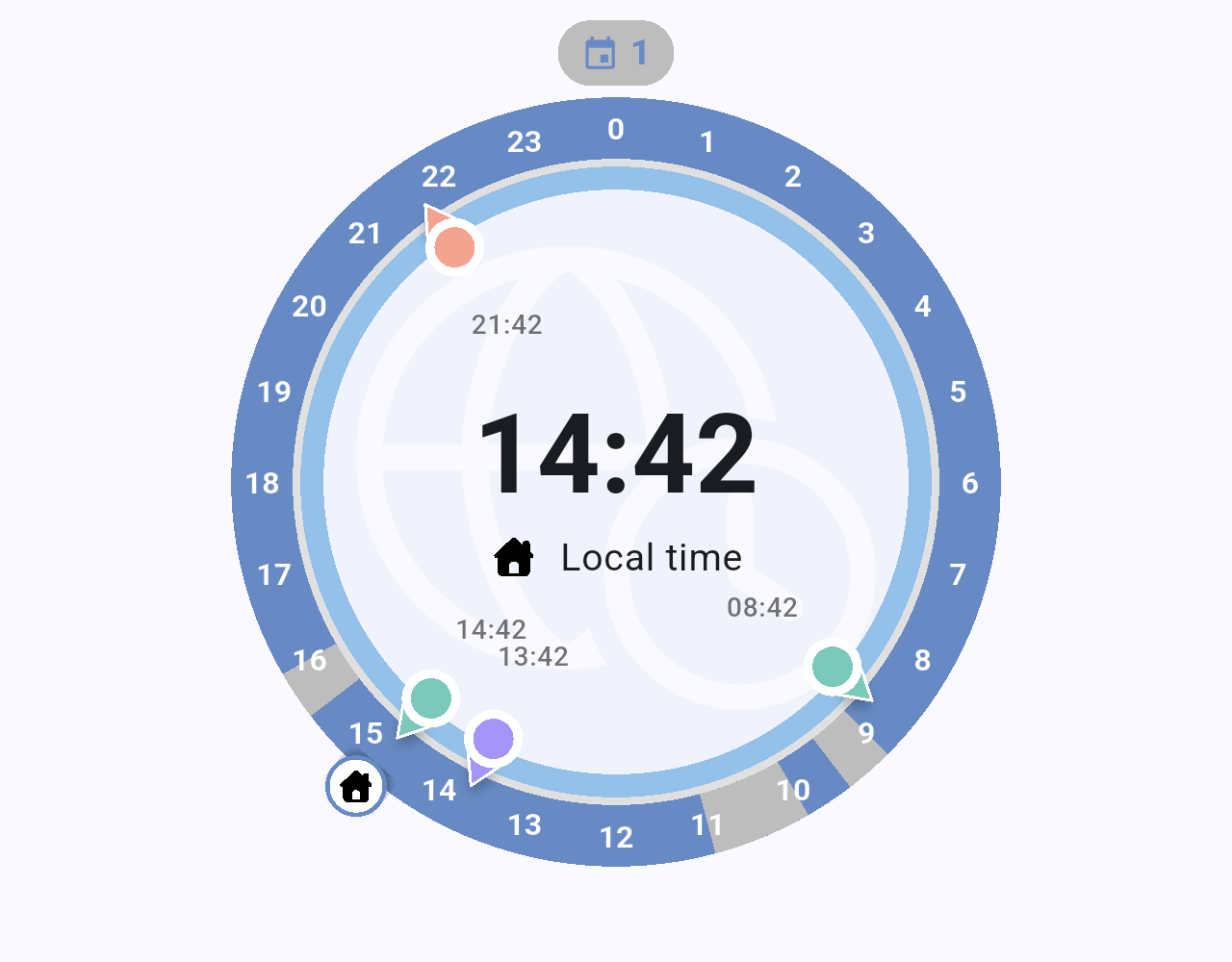
*The dial after tapping **Local time**: every city shows its current time again.*
> **Note:** When **Settings → Sync with system clock** is on, the dial also starts at the current time every time you open the app.
## Related pages
- [Home screen](/books/new-time-zone-orbit-manual/page/home-screen)
- [Managing cities](/books/new-time-zone-orbit-manual/page/managing-cities)
- [City details and events](/books/new-time-zone-orbit-manual/page/city-details-and-events)
- [Settings](/books/new-time-zone-orbit-manual/page/settings)
# Managing cities
You can follow up to four cities at the same time. This page explains how to add a city, how the city list works, and how to remove a city you no longer need.
## Where to find it
Cities are managed from the [home screen](/books/new-time-zone-orbit-manual/page/home-screen): the **+** button in the bottom-right corner adds cities, and the list under the dial shows the ones you have.
## Adding a city
Tap **+** to open the **Add cities** sheet. You can browse the list of regions or search for the city you want.
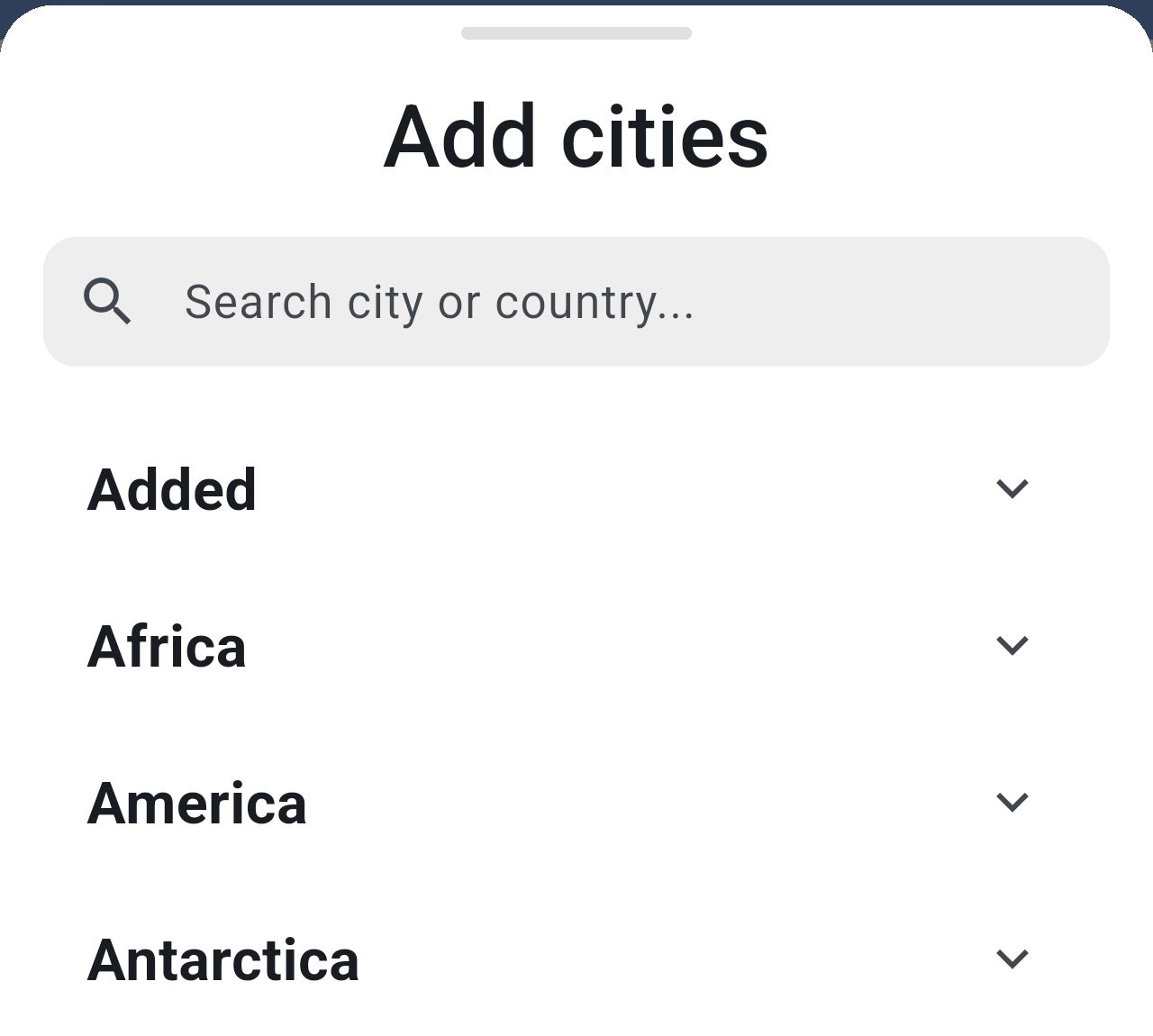
*The **Add cities** sheet. The first group, **Added**, lists the cities you already have; the rest are world regions that you can expand.*
The quickest way is to search:
- Tap the search field and type part of the city name, for example York.
- Tap the city in the results. Its pin icon turns solid to show it has been added.
- Repeat for other cities, or close the sheet by swiping it down.
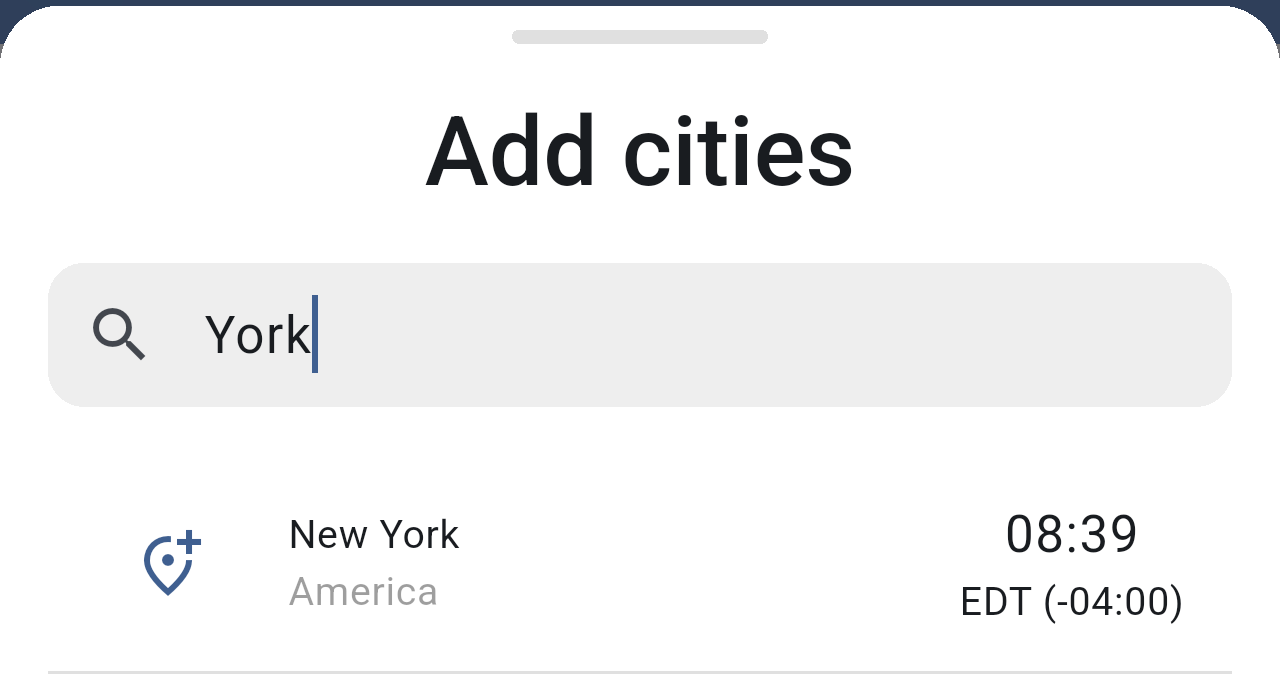
*Searching for "York". Each result shows the city, its region, the time there and its time zone.*
Once added, the cities appear in the **Added** group at the top of the sheet, so you can see at a glance which ones you already follow.
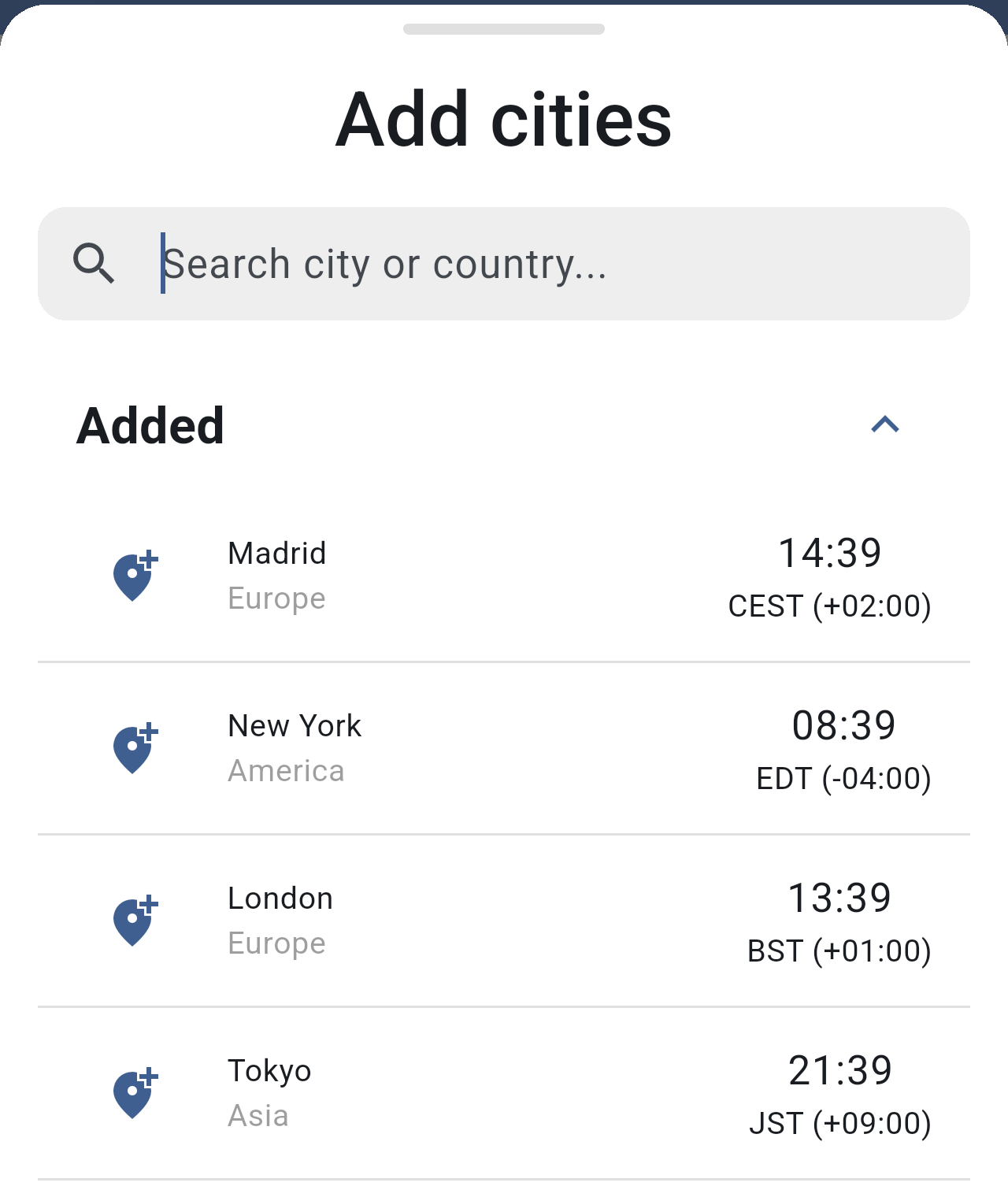
*The **Added** group with the four cities: Madrid, New York, London and Tokyo.*
### City limits
To keep the dial readable, the app limits how many cities you can follow. If you go over a limit, a message appears at the bottom of the screen and the city is not added.
- Up to **4 cities** in total.
- Up to **3 cities** in the same time zone.

*The message shown when trying to add a fifth city.*
## The city list
The cities you follow are listed under the dial, in the order you added them. Each card shows the city's color, its name or alias, its time zone, the time there and its UTC offset.
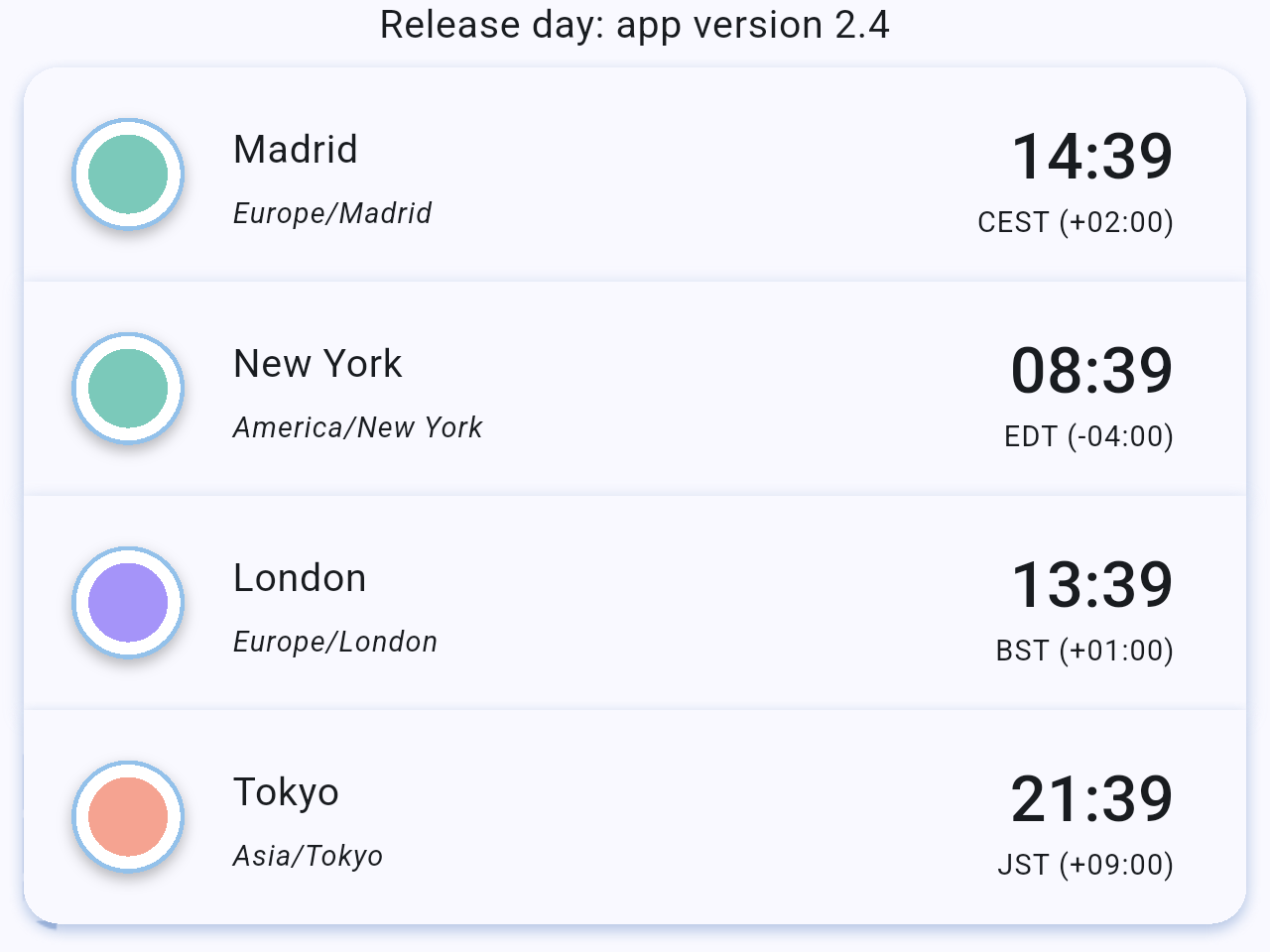
*The city list. The times change as you move the dial.*
Tap a card to open that city's details and calendar events. See [City details and events](/books/new-time-zone-orbit-manual/page/city-details-and-events).
## Removing a city
To remove a city, swipe its card to the right. A red **Delete** area appears behind the card; keep swiping until the card leaves the screen.

*The New York card half swiped. If you let go before the end, the card goes back to its place and nothing is deleted.*
You can also remove a city from the **Add cities** sheet by tapping its solid pin icon.
> **Note:** When you remove a city, the remaining cities take the colors of the current palette again, in order. If you remove all your cities, the app adds Madrid back the next time it starts.
## Related pages
- [Home screen](/books/new-time-zone-orbit-manual/page/home-screen)
- [The Orbit dial](/books/new-time-zone-orbit-manual/page/the-orbit-dial)
- [City details and events](/books/new-time-zone-orbit-manual/page/city-details-and-events)
- [Settings](/books/new-time-zone-orbit-manual/page/settings)
# City details and events
Each city has its own details screen. From there you can give the city an alias, check your calendar events day by day, join a call from an event, and start scheduling a new meeting.
## Where to find it
On the [home screen](/books/new-time-zone-orbit-manual/page/home-screen), tap a city's card in the list under the dial. To go back, tap the arrow in the top-left corner.
## The details screen
The top of the screen shows the city with its color, name, time zone and the time currently selected on the dial. Under it you see the selected date and a strip of days, starting today and going up to one year ahead.
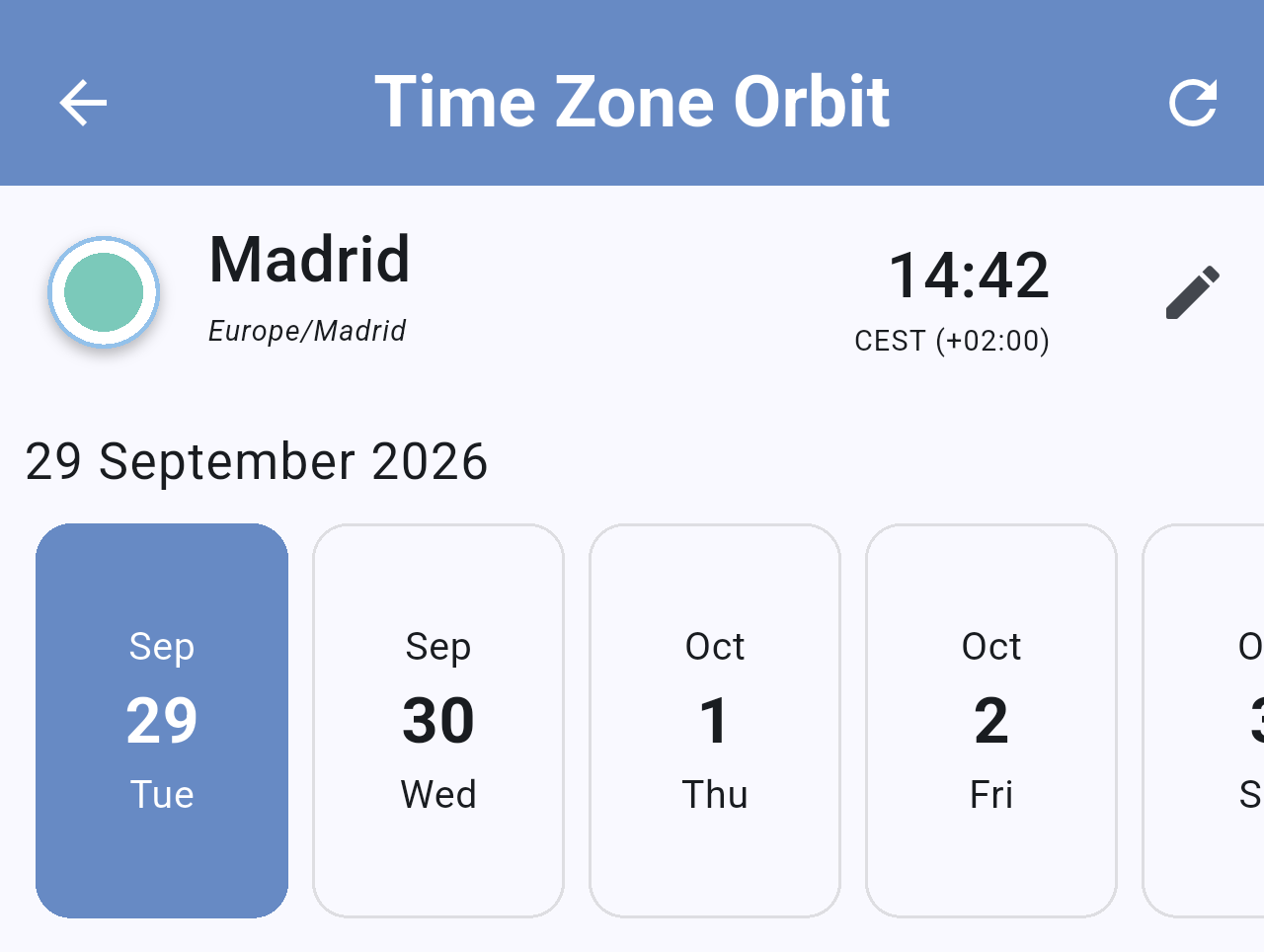
*The details screen for Madrid. Tap a day in the strip to see the events of that day.*
The two icons in the header are:
- **Refresh** (top-right corner): reloads the events from your calendar and goes back to today.
- **Pencil** (next to the time): edits the city's alias. See *Giving a city an alias* below.
## All-day events
If you have events that last all day, they are listed first, in a section called **ALL-DAY EVENT** above the timeline. Only the all-day events of the selected day are shown.
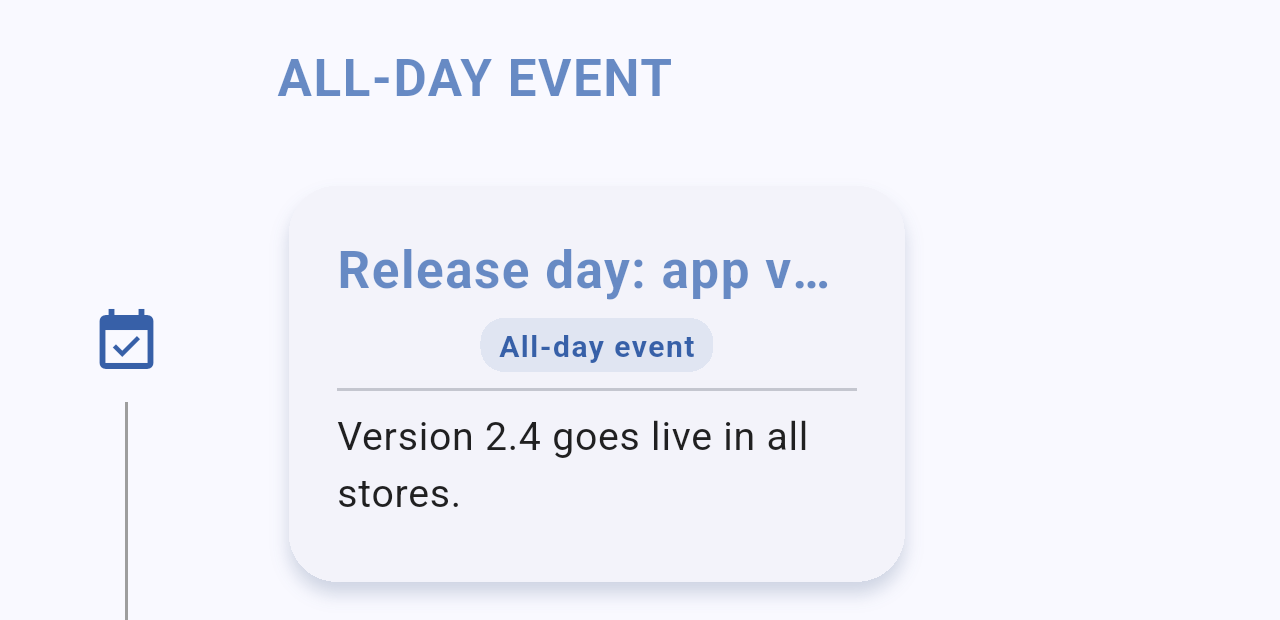
*The all-day section for the selected day. Tap the card to open the event's details.*
## Your events for the day
Below the days, a timeline lists the events in your phone's calendars for the selected day, from midnight to midnight. Free periods are shown as **No events**, so you can spot the gaps at a glance.
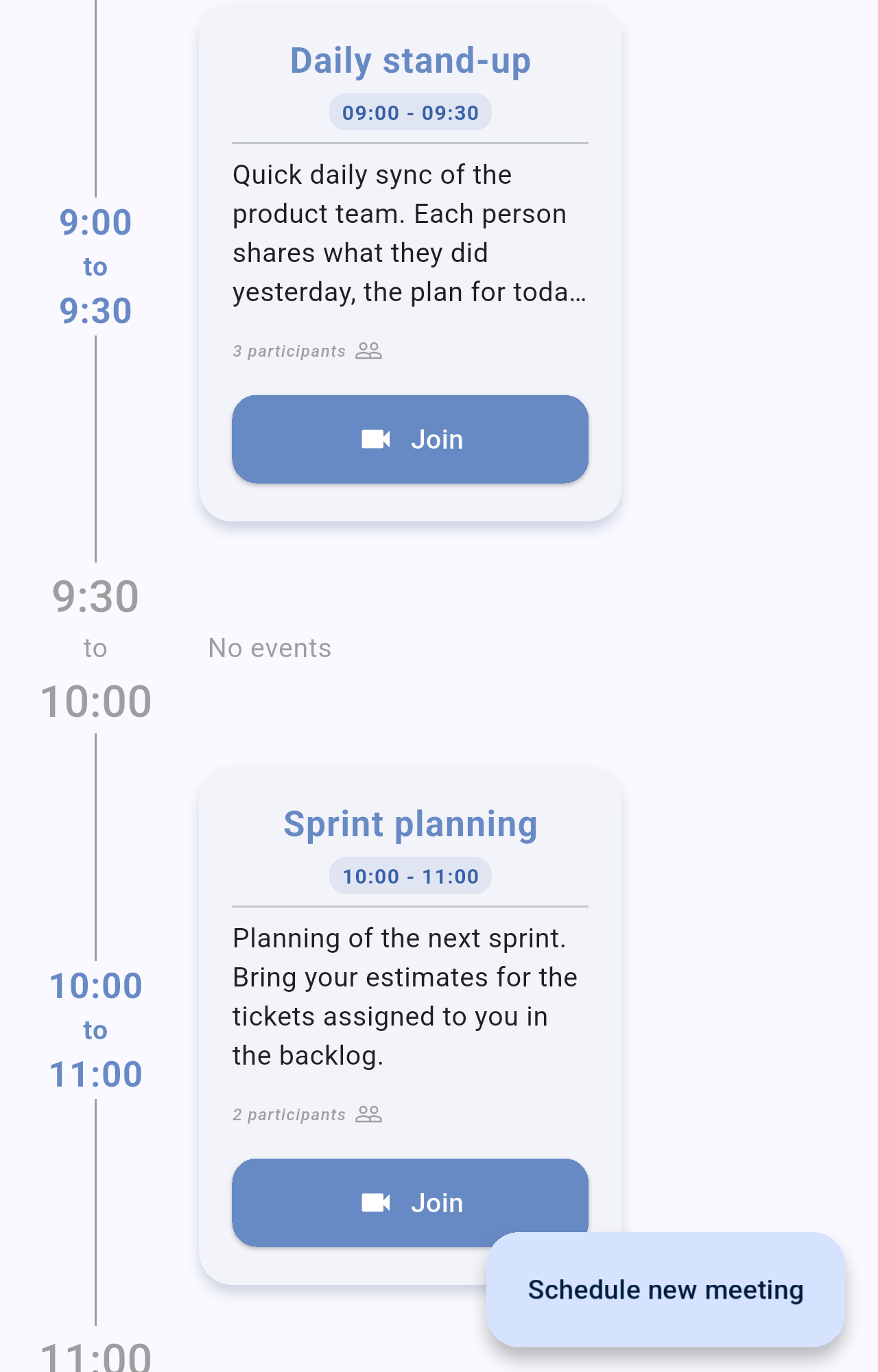
*The timeline: the "Daily stand-up" event at 9:00, a free period until 10:00 and then "Sprint planning". Each card shows the title, time, description, number of participants and the **Join** button.*
Events that repeat, such as a daily meeting, appear on every day they take place.
Each event card shows the title, the start and end time, the start of the description and the number of participants. When the description contains a video call link, the card shows a **Join** button; when it contains a phone number, it also shows a **Call** button. The **Call** button only appears if the event has a phone number.

*The "Call with London partners" card only has a video call link, so it shows **Join**. The "Product demo for New York client" card also has a phone number, so it shows **Join** and **Call**.*
> **Note:** The times in the timeline and in the event cards are shown in your own local time, not in the city's time. The city's time is the one shown in the header and on the dial.
### Compact and comfortable view
The event cards can be shown in two sizes. **Comfortable** (the default) shows more lines of the description, the participants and the buttons; **compact** shows only the title, the time and a short description. Pinch outwards on the timeline to switch to comfortable, or pinch inwards to switch to compact. You can also choose the view in **Settings → Event view mode**.
## Event details
Tap an event card to open all its details in a sheet: the time, the location (if any) and three sections you can expand or collapse.
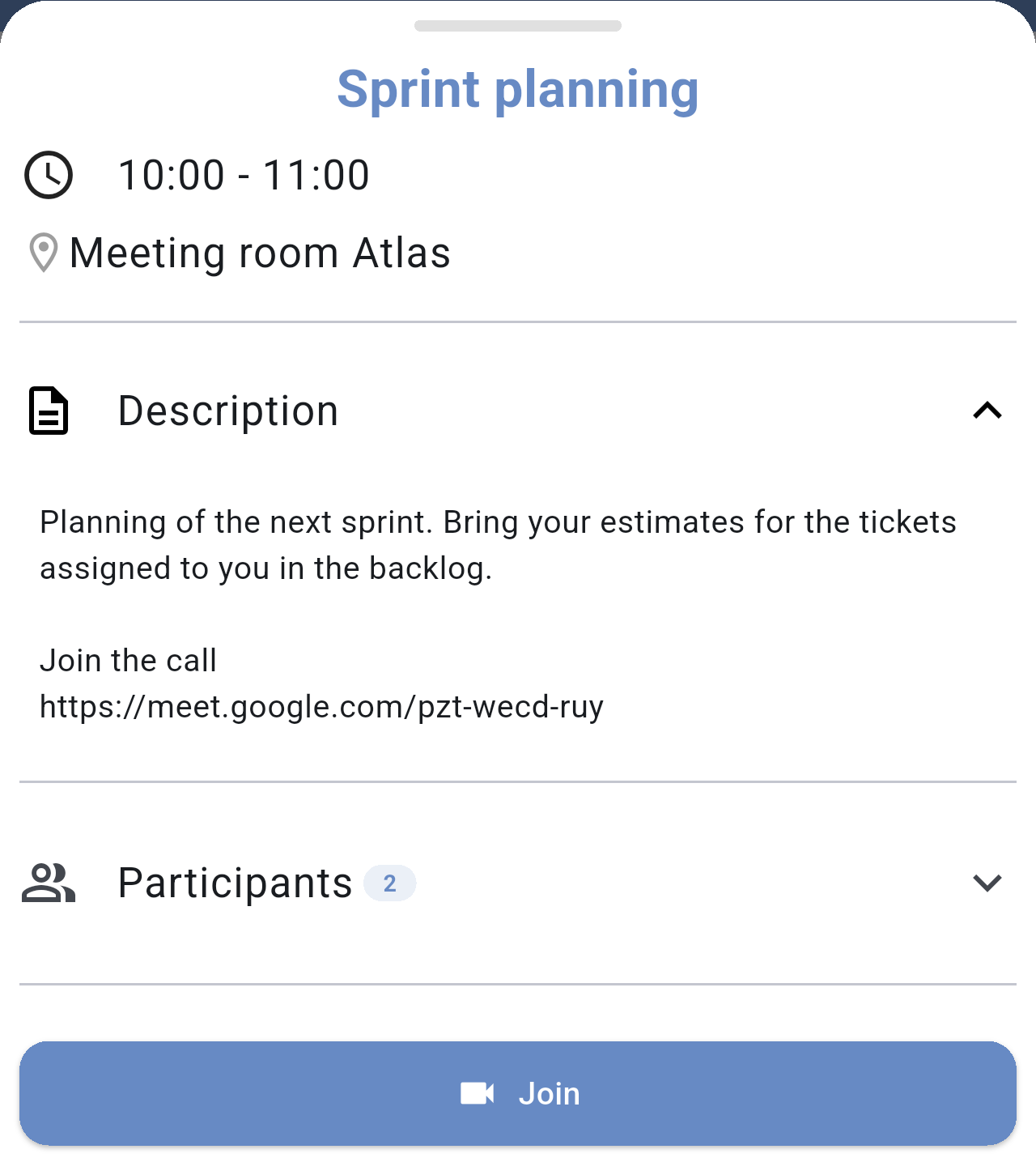
*The details of "Sprint planning" with the **Description** section expanded.*
The sections are:
- **Description**: the full text of the event, including any links.
- **Participants**: the people invited to the event, with their email addresses.
- **Documents**: links found in the description to Google Drive, Google Docs, Dropbox, OneDrive/SharePoint or PDF files. Tap one to open it.
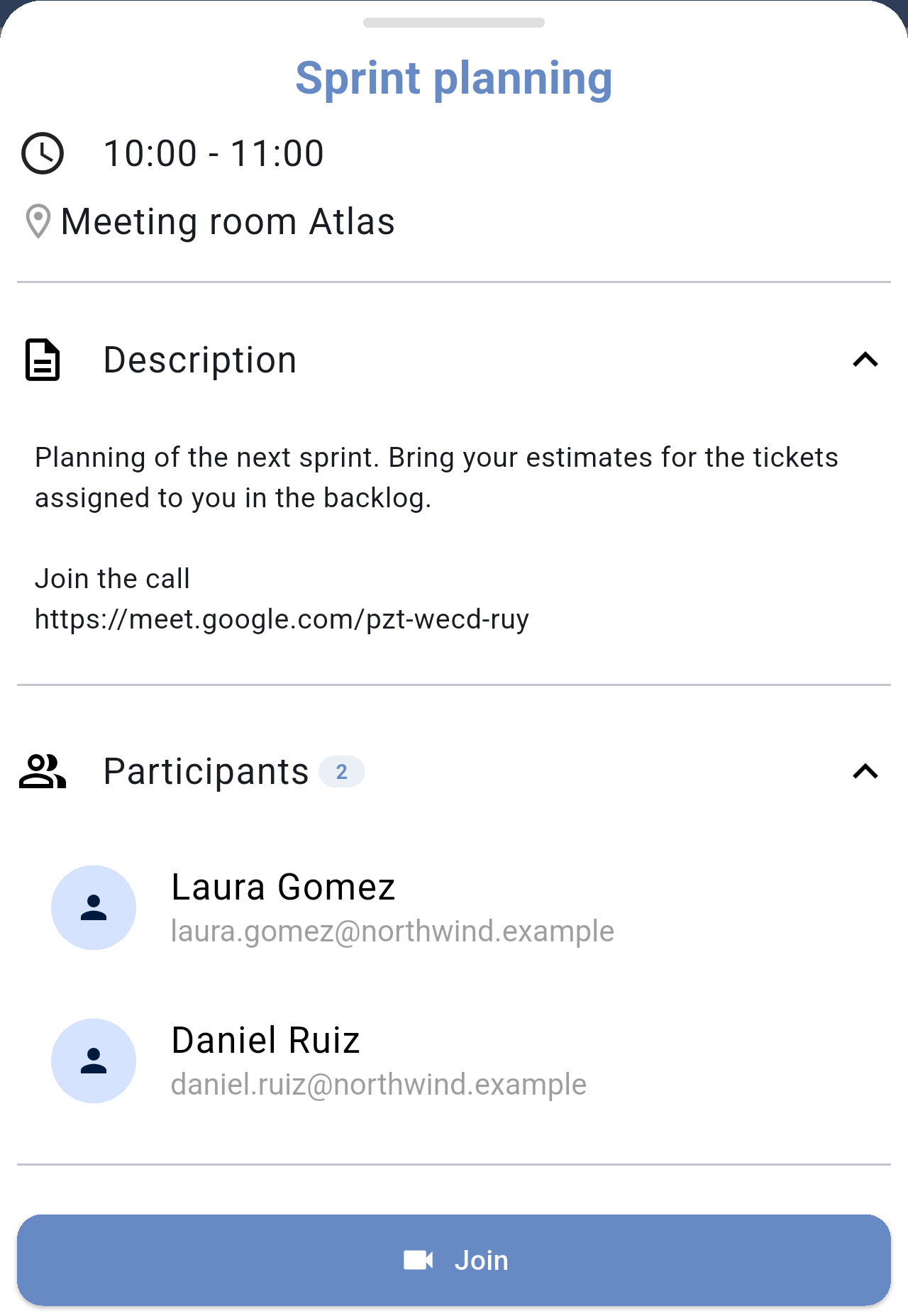
*The **Participants** section expanded, with the number of participants next to the title. Names are shown with a capital letter on each word.*

*An event with a phone number and a video call link: the **Documents** section shows the Google Drive link found in the description, and the **Join** and **Call** buttons are at the bottom.*
The buttons at the bottom of the sheet let you act on the event directly:
- **Join** opens the video call link found in the description (Google Meet, Zoom, Microsoft Teams, Webex or Jitsi).
- **Call** opens your phone app with the number found in the description.
## Giving a city an alias
An alias is a short name that replaces the city name in the list, for example the name of an office or a client. It is useful when you follow a city because of the people you work with there.
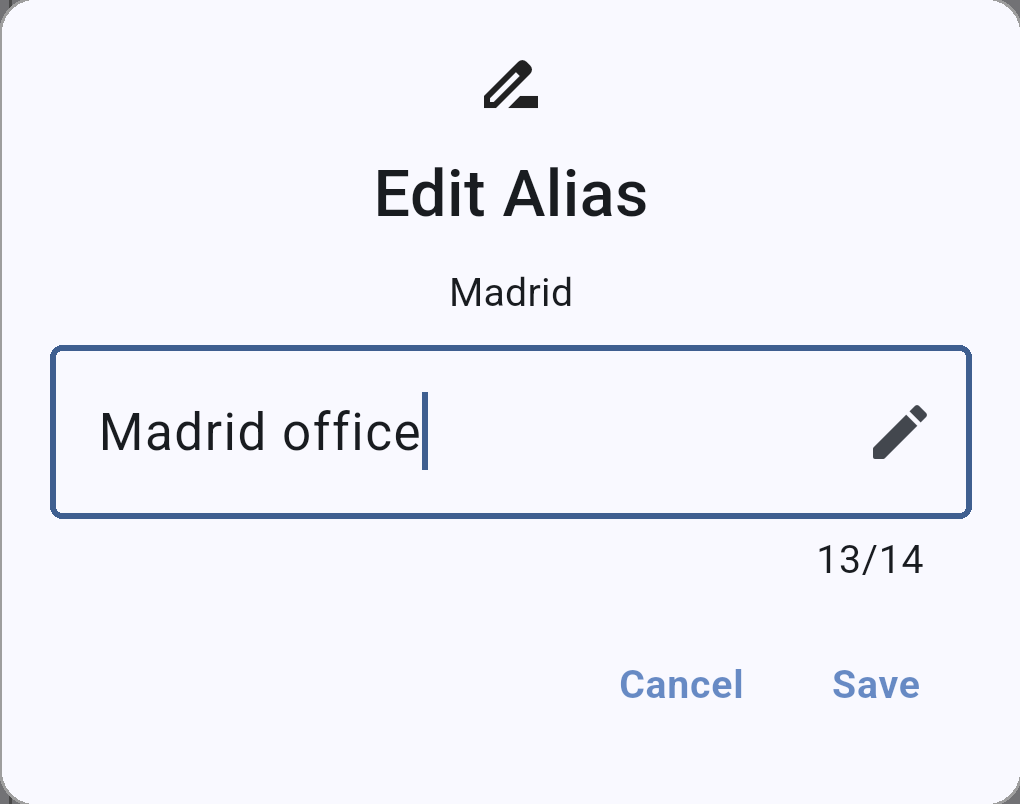
*The **Edit Alias** dialog. The alias can be up to 14 characters long.*
- In the city's details screen, tap the pencil icon.
- Type the alias and tap Save.
- To remove the alias, open the dialog again, delete the text and tap Save: the city name is shown again.
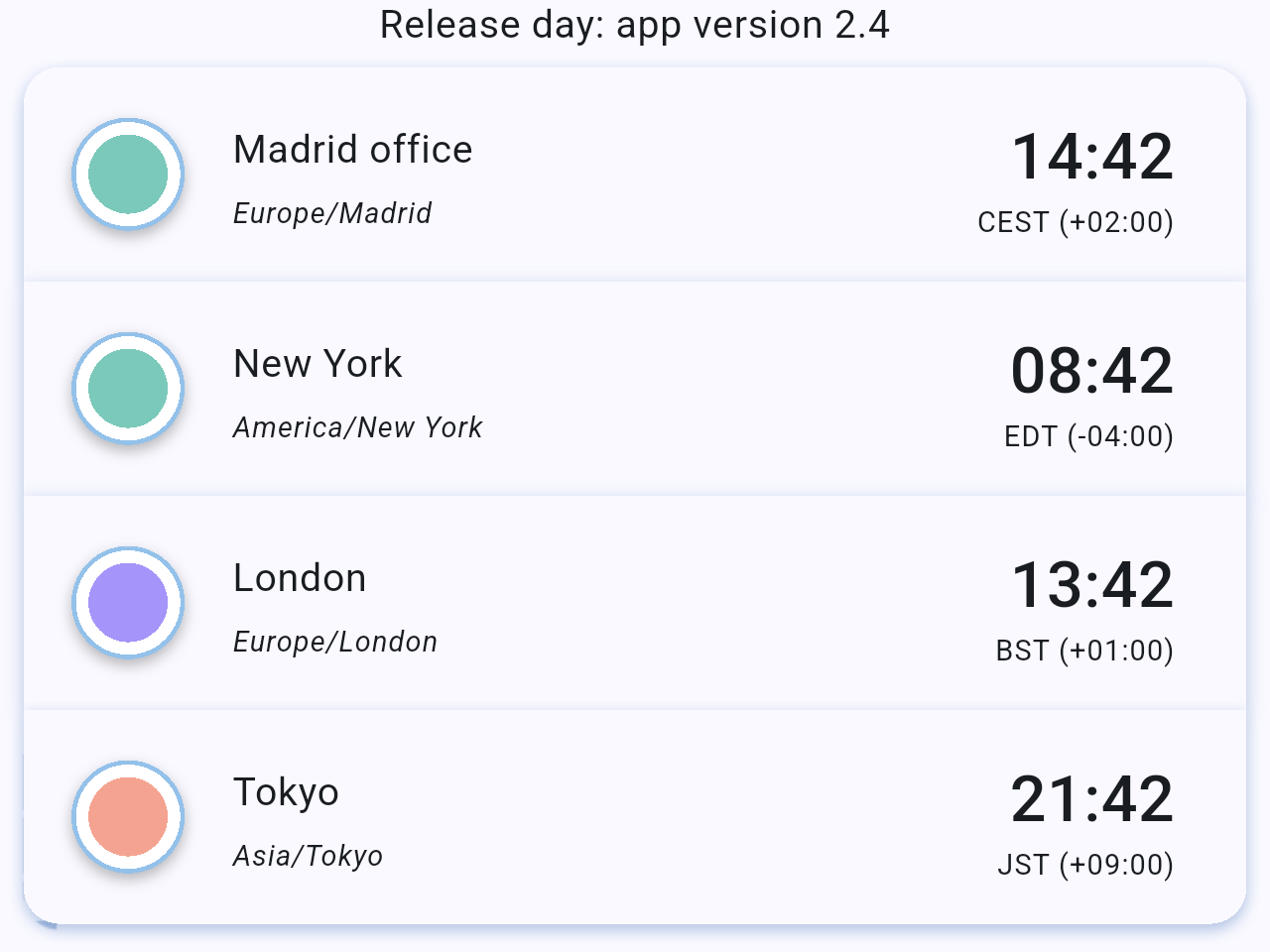
*Back on the home screen, Madrid appears as "Madrid office". The time zone under the name does not change.*
## Scheduling a new meeting
The **Schedule new meeting** button, in the bottom-right corner of the details screen, helps you create an event at the time you picked on the dial.

*The **Schedule new meeting** button.*
On Android, the button opens Google Calendar with a new event already filled in: it starts at the time selected on the dial and lasts one hour. Add the title and guests there and save it. On iPhone, the button opens the Calendar app.
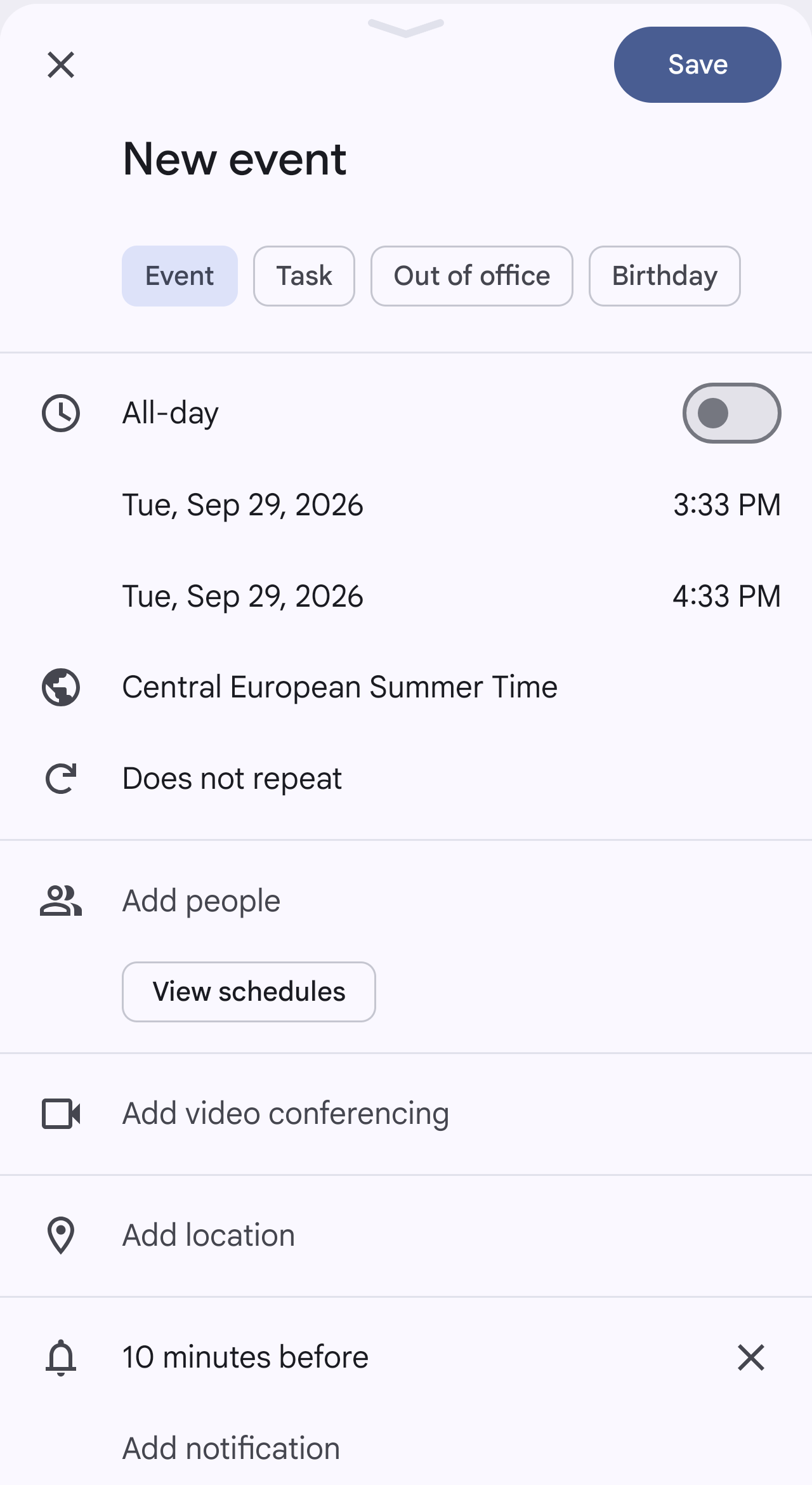
*The screen that opens in Google Calendar after tapping **Schedule new meeting**: a new event that starts at the time selected on the dial and ends one hour later. Change the title, add guests and tap **Save**.*
## Related pages
- [The Orbit dial](/books/new-time-zone-orbit-manual/page/the-orbit-dial)
- [Managing cities](/books/new-time-zone-orbit-manual/page/managing-cities)
- [Settings](/books/new-time-zone-orbit-manual/page/settings)
- [FAQ / Troubleshooting](/books/new-time-zone-orbit-manual/page/faq-troubleshooting)