# Talent
Talent adds training and skills management to GLPI: courses, scheduled editions of those
# Getting Started
# 1. Introduction

*Part of the **talent** manual — see also [2. What's New](https://docs.tic.gal/books/talent/page/2-whats-new), [3. Scope](https://docs.tic.gal/books/talent/page/3-scope), [4. Setup](https://docs.tic.gal/books/talent/page/4-setup), [5.1 Training Courses](https://docs.tic.gal/books/talent/page/51-training-courses), [5.2 Training Certifications](https://docs.tic.gal/books/talent/page/52-training-certifications), [5.3 Skills](https://docs.tic.gal/books/talent/page/53-skills), [6. Troubleshooting](https://docs.tic.gal/books/talent/page/6-troubleshooting).*
## 1.1 What talent does
Talent adds training and skills management to GLPI: courses, scheduled editions of those
courses, enrollments, the certifications a person earns or holds as a result, and — beyond
training itself — a way to define the skills a role requires, evaluate people against them,
and see the result as radar charts on a person's own profile and on a team dashboard. It
lets a team plan and record workplace training and competence the same way GLPI already
tracks assets and tickets — scoped to entities, gated by rights, and linked to tickets when
a training request or a piece of evidence comes through the helpdesk.
## 1.2 Pain points it addresses
Training records (who attended what, when, and whether they're certified) tend to live in
spreadsheets disconnected from the rest of an organization's GLPI data. Talent keeps that
information inside GLPI: a course a supplier delivers, the editions (sessions) scheduled
for it, who enrolled and their outcome, and the certifications that come out of it —
including expiry tracking and a document attached as proof.
This isn't only a tidiness problem — several compliance frameworks explicitly require
demonstrable, up-to-date training and awareness records, something a spreadsheet is a weak
substitute for at audit time:
- **ISO 9001:2015, Clause 7.2 (Competence)** requires an organization to determine the
competence needed by people whose work affects quality, ensure that competence through
education, training or experience, and **retain documented information as evidence** —
certificates, licenses, on-the-job training records. Talent's User Certifications, with
issue/expiration dates and an attached document, are exactly that evidence.
- **ISO/IEC 27001:2022, Annex A Control 6.3 (Information security awareness, education and
training)** requires an ongoing, role-based training and awareness programme for all
personnel, with auditors expecting completion logs and evidence per person. Talent's
Enrollments (attendance/outcome per user per session) and User Certifications provide
that log.
- **Spain's Esquema Nacional de Seguridad (ENS, RD 311/2022)** separates this into two
distinct, continuous measures: **op.pers.3 (Concienciación / Awareness)** — keeping staff
alert to their security role through periodic reminders — and **op.pers.4 (Formación /
Training)** — ensuring regular, role-proportional training. Both must be demonstrated on
an ongoing basis, not as a one-off at onboarding, which is what Courses scheduling
repeated Editions over time is built for.
Talent doesn't certify compliance with any of these on its own, but it gives the team
responsible for it a real, queryable, entity-scoped record instead of an Excel file no
auditor can easily verify.
## 1.3 Features
- **Courses** — reusable templates for a training subject: name, supplier, reference code,
type, and default duration.
- **Editions** — a scheduled session of a course, with its own dates, status and delivery
format. A "Not Delivered" status requires a reason and offers a one-click Clone to
reschedule; a "Completed" status automatically marks every enrolled attendee as Attended.
- **Enrollments** — one user's participation in one edition, with attendance and outcome.
A Mass Enrollment tool enrolls several users into one edition at once.
- **Certifications** — the certification records a course can lead to, with a validity
period; **User Certifications** are the individual instances a user holds, with issue and
(auto-calculated) expiration dates and an optional supporting document.
- **Effectiveness** — a per-attendee judgment, recorded once an edition is completed and
within a configurable evaluation window, on whether the training actually changed
on-the-job behavior — backed by a linked ticket as evidence.
- **Skills, Skill Categories and Skillsets** — a skill (e.g. "Forklift Operation") is either
Transversal or Technical and filed under a matching category; a Skillset sets the target
score a GLPI Group is expected to reach on each skill it lists.
- **Evaluations** — a snapshot, on a given date, of one person's score (0–5, or N/A) against
every skill their group's Skillset targets. A Job Fit percentage and per-type averages are
calculated automatically from the scores.
- **Skill radar charts** — every user has a "Skills" tab on their own GLPI profile showing
two radar charts (Transversal and Technical) plotting their target, previous and current
score per skill, alongside their Job Fit and average scores.
- **Team dashboard** — a native GLPI dashboard aggregating every evaluation across a group
into two team-average radar charts and five KPI figures (Job Fit, average scores, team
members evaluated, and how many are below target), filterable by group.
- Entity isolation throughout: a technician only ever sees and manages the courses,
editions, enrollments, certifications, skills and evaluations in their own entity.
> Generated for **talent 1.1.0-beta.3** on GLPI 11.0 — 2026-09-03.
# 2. What's New

*Part of the **talent** manual — see also [1. Introduction](https://docs.tic.gal/books/talent/page/1-introduction), [3. Scope](https://docs.tic.gal/books/talent/page/3-scope), [4. Setup](https://docs.tic.gal/books/talent/page/4-setup), [5.1 Training Courses](https://docs.tic.gal/books/talent/page/51-training-courses), [5.2 Training Certifications](https://docs.tic.gal/books/talent/page/52-training-certifications), [5.3 Skills](https://docs.tic.gal/books/talent/page/53-skills), [6. Troubleshooting](https://docs.tic.gal/books/talent/page/6-troubleshooting).*
_Nothing to report yet._
> Generated for **talent 1.1.0-beta.3** on GLPI 11.0 — 2026-09-03.
# Using Talent
# 3. Scope

*Part of the **talent** manual — see also [1. Introduction](https://docs.tic.gal/books/talent/page/1-introduction), [2. What's New](https://docs.tic.gal/books/talent/page/2-whats-new), [4. Setup](https://docs.tic.gal/books/talent/page/4-setup), [5.1 Training Courses](https://docs.tic.gal/books/talent/page/51-training-courses), [5.2 Training Certifications](https://docs.tic.gal/books/talent/page/52-training-certifications), [5.3 Skills](https://docs.tic.gal/books/talent/page/53-skills), [6. Troubleshooting](https://docs.tic.gal/books/talent/page/6-troubleshooting).*
Reference only — see [4. Setup](https://docs.tic.gal/books/talent/page/4-setup) for how to configure each of these.
## 3.1 Definitions
- **Skillset** — a baseline: for each skill it lists, it sets the target score (0–5) a group
is expected to reach, and whether that skill is a **core** requirement. A Skillset applies
to one or more GLPI Groups, never to individual users, so everyone in that group is
measured against the same expectations.
- **Core skill** — a skill marked as a hard requirement on a Skillset, as opposed to one
that's merely tracked. The distinction is informational (it doesn't block an evaluation),
intended to help a manager tell "must reach this score" apart from "nice to have" at a
glance.
- **Effectiveness (result)** — a separate judgment from whether someone *attended* a
training: it records whether the training actually changed on-the-job behavior, as
*Effective*, *Partially effective*, or *Not effective*, backed by a piece of evidence (a
GLPI ticket) rather than inferred automatically from attendance.
- **Job Fit** — a single percentage summarizing how close a person's current skill scores
are to their group's Skillset targets, capped per skill so an excess on one skill can
never compensate for a shortfall on another.
## 3.2 Assets, management & administration items
- **Courses, Editions, Enrollments, Certifications, User Certifications, Effectiveness
evaluations, Skills, Skill Categories, Skillsets, Evaluations** — new itemtypes under
**Management > Talent**.
- **Tickets** — a ticket can be linked to a Course, Edition or Certification (the linked
item's own **Tickets** tab shows the connection), and an Effectiveness evaluation always
links to one as its supporting evidence.
- **Core Users** — a user's own record gains **Enrollments** and **Certifications** tabs
listing their training history, and a **Skills** tab showing their radar charts and
evaluation history (visible to the user themselves, to anyone managing their group, or to
an evaluator with full access).
- **Core Groups** — a Skillset applies to one or more Groups; a user's applicable skills and
targets come from the Skillset(s) linked to the groups they belong to.
- **Documents** — a User Certification can carry an attached file (e.g. a scanned
certificate), stored under the document category configured in Setup.
- **Native GLPI Dashboard** — Talent installs its own "Team dashboard" (under **Management >
Talent > Team dashboard**), alongside GLPI's own Assets/Helpdesk dashboards, with two radar
charts and five KPI cards. Sharing it with other profiles uses GLPI's own dashboard-sharing
icon, not a Talent-specific right.
## 3.3 Automatic actions
_None._
See [4.2 Configuration](https://docs.tic.gal/books/talent/page/4-setup).
## 3.4 Notifications
_None._
## 3.5 Rules
_None._
## 3.6 Permissions
Rights are granted per profile on **Setup > Profiles > (a profile) > Talent**, one row per
itemtype — Courses, Editions, Enrollments, Certifications, User Certifications, Skills,
Skillsets — each with the standard Read / Update / Create / Delete / Purge rights. A profile
only sees the Talent menu, and only the itemtypes it has at least Read on.
Evaluations and Effectiveness evaluations carry one extra option beyond the standard rights:
a profile holding it can create and view evaluations/effectiveness results for *any* user,
not just the members of a group they manage. Without it, an evaluator can still evaluate —
just only people in a group GLPI already lists them as managing.
See [4.3 Permissions](https://docs.tic.gal/books/talent/page/4-setup).
> Generated for **talent 1.1.0-beta.3** on GLPI 11.0 — 2026-09-03.
# 4. Setup

*Part of the **talent** manual — see also [1. Introduction](https://docs.tic.gal/books/talent/page/1-introduction), [2. What's New](https://docs.tic.gal/books/talent/page/2-whats-new), [3. Scope](https://docs.tic.gal/books/talent/page/3-scope), [5.1 Training Courses](https://docs.tic.gal/books/talent/page/51-training-courses), [5.2 Training Certifications](https://docs.tic.gal/books/talent/page/52-training-certifications), [5.3 Skills](https://docs.tic.gal/books/talent/page/53-skills), [6. Troubleshooting](https://docs.tic.gal/books/talent/page/6-troubleshooting).*
## 4.1 Installation
Drop the plugin in `plugins/talent`, then install and activate it from **Setup > Plugins**.
## 4.2 Configuration
Talent has one configuration screen, on **Setup > General > Talent**: the document category
new User Certification uploads are filed under. No other setup is required before use.
## 4.3 Permissions
Rights are granted per profile on **Setup > Profiles > (a profile) > Talent**, one row per
itemtype — Courses, Editions, Enrollments, Certifications, User Certifications, Skills,
Skillsets — each with the standard Read / Update / Create / Delete / Purge rights. A profile
only sees the Talent menu, and only the itemtypes it has at least Read on.
Evaluations and Effectiveness evaluations carry one extra option beyond the standard rights:
a profile holding it can create and view evaluations/effectiveness results for *any* user,
not just the members of a group they manage. Without it, an evaluator can still evaluate —
just only people in a group GLPI already lists them as managing.
> Generated for **talent 1.1.0-beta.3** on GLPI 11.0 — 2026-09-03.
# 5.1 Training Courses

*Part of the **talent** manual — see also [1. Introduction](https://docs.tic.gal/books/talent/page/1-introduction), [2. What's New](https://docs.tic.gal/books/talent/page/2-whats-new), [3. Scope](https://docs.tic.gal/books/talent/page/3-scope), [4. Setup](https://docs.tic.gal/books/talent/page/4-setup), [5.2 Training Certifications](https://docs.tic.gal/books/talent/page/52-training-certifications), [5.3 Skills](https://docs.tic.gal/books/talent/page/53-skills), [6. Troubleshooting](https://docs.tic.gal/books/talent/page/6-troubleshooting).*
### 5.1.1 Configuring document headings
Talent has one general configuration screen: which document heading a Certification's and a Course's uploaded files are filed under.
#### 5.1.1.1 Open the Talent configuration screen
From the main menu choose **Setup > General**, then the **Talent** tab.
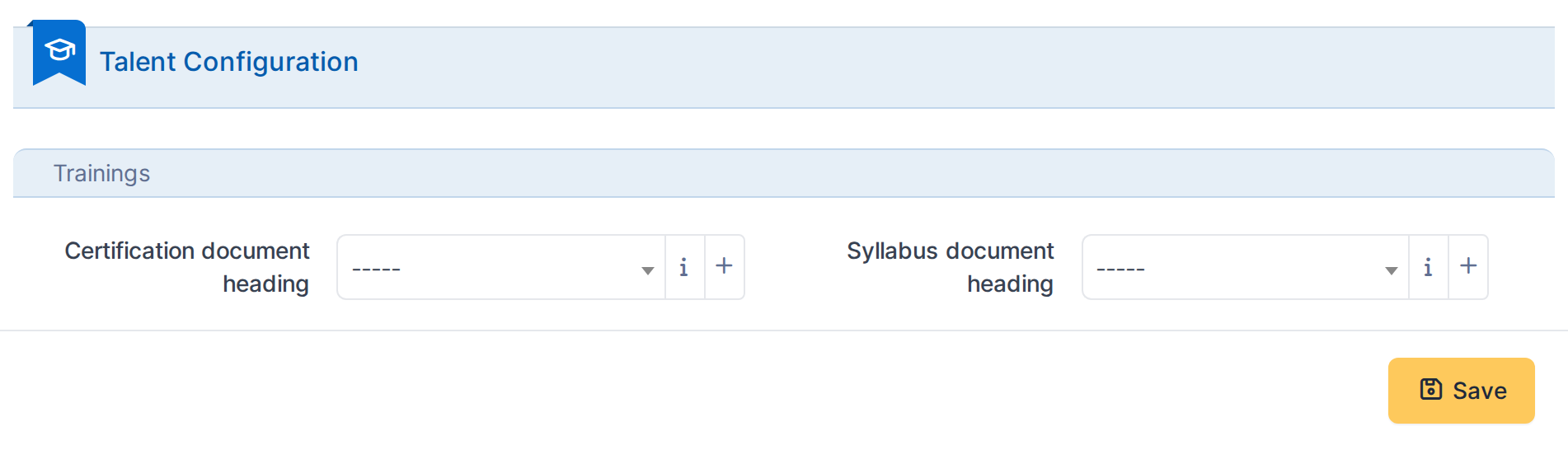
*The Talent configuration screen, showing the document headings uploads are filed under.*
> **Note:** - **Certification document heading** — the document category a new User Certification's uploaded file is filed under.
- **Syllabus document heading** — the same, for a Course's uploaded syllabus.
Both are optional; leaving one empty files uploads without a heading rather than blocking the upload.
### 5.1.2 Enabling effectiveness on a course
Effectiveness evaluation (see 5.1.4) is not a global setting — it is switched on per course, the same place a course's name and supplier are set.
#### 5.1.2.1 Create a course with effectiveness enabled
On a course's form, tick **Enable effectiveness evaluation** to reveal three extra fields:
- **Evaluation responsible** — who is expected to carry out the effectiveness evaluation for editions of this course. Optional; left empty, any user with the right can still evaluate.
- **Evaluation method** — *Questionnaire* or *Direct observation*, recorded for reference only; it does not change how the evaluation form behaves.
- **Evaluation delay (months)** — how many months after an edition ends its evaluation window stays open, from 1 to 12. Required once effectiveness is enabled: a course with effectiveness on but no delay would have no evaluation window at all, so nothing could ever be evaluated — GLPI rejects saving that combination.

*In this example: effectiveness is enabled with a 3-month evaluation window, using direct observation, with Jane Smith as the evaluation responsible.*
#### 5.1.2.2 Save the course
Click **Add** to create the course. From now on, every edition scheduled under it opens an Effectiveness evaluations tab once completed.
### 5.1.3 Granting Talent permissions
Talent rights are granted per profile, one row per itemtype, alongside every other plugin's rights on the same Profile form.
#### 5.1.3.1 Open a profile's Talent rights
From the main menu choose **Setup > Profiles**, open a profile, then switch to its **Talent** tab.
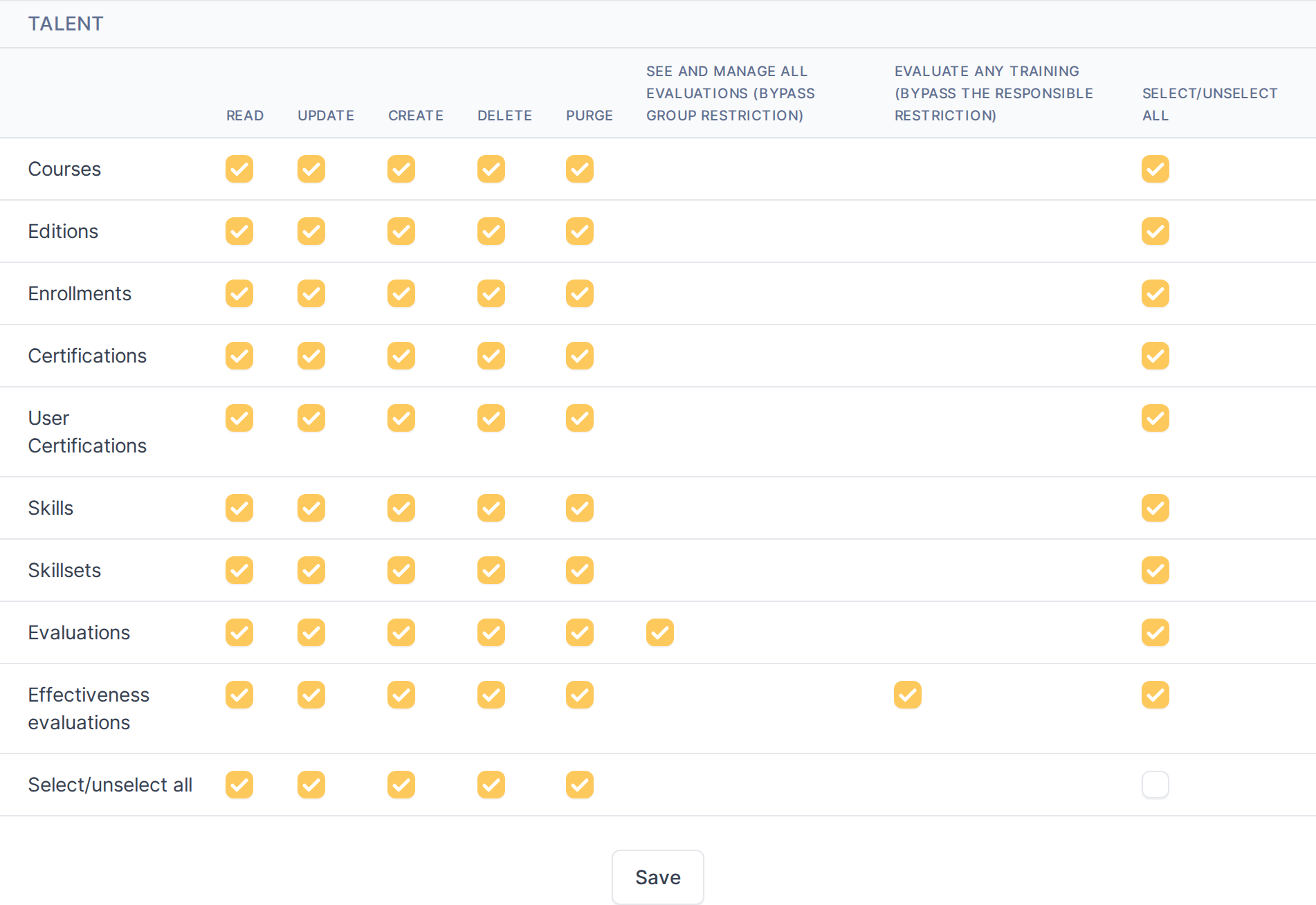
*The Talent rights matrix: one row per itemtype, with the standard Read/Update/Create/Delete/Purge columns.*
> **Note:** A profile only sees the Talent menu, and only the itemtypes it has at least Read on. Evaluations and Effectiveness evaluations carry one extra option beyond the standard rights — see 5.1.4 and 5.3.3 — letting a profile holding it evaluate any user, not just the members of a group it manages.
### 5.1.4 Creating a course
A course is the reusable template for a training subject — its name, supplier, reference code and default duration. Courses do not have dates or attendees of their own; those live on the editions scheduled under a course.
#### 5.1.4.1 Open the course list
From the main menu choose **Management > Talent > Courses**. The list shows every course the current entity can see.

*The course list, scoped to the current entity.*
#### 5.1.4.2 Start a new course
Click **Add** to open a blank course form.
#### 5.1.4.3 Fill in the course details
- **Name** and **Reference code** — the course's title and a short internal identifier you choose, used to tell similar courses apart in lists and reports. Both required.
- **Supplier** — the organization or trainer delivering it. Required.
- **Course type** — a category you define (e.g. "Professional Licenses", "Compliance"). Required.
- **Duration (hours)** — the course's expected length. Informational only; it does not block edition scheduling.
- **Scope** — optionally restricts which GLPI groups the course is intended for. Leaving it empty means it applies to everyone.
- **Active** — controls whether the course can be selected when scheduling a new edition. An inactive course stays visible in lists and reports but drops out of the edition-creation dropdown.
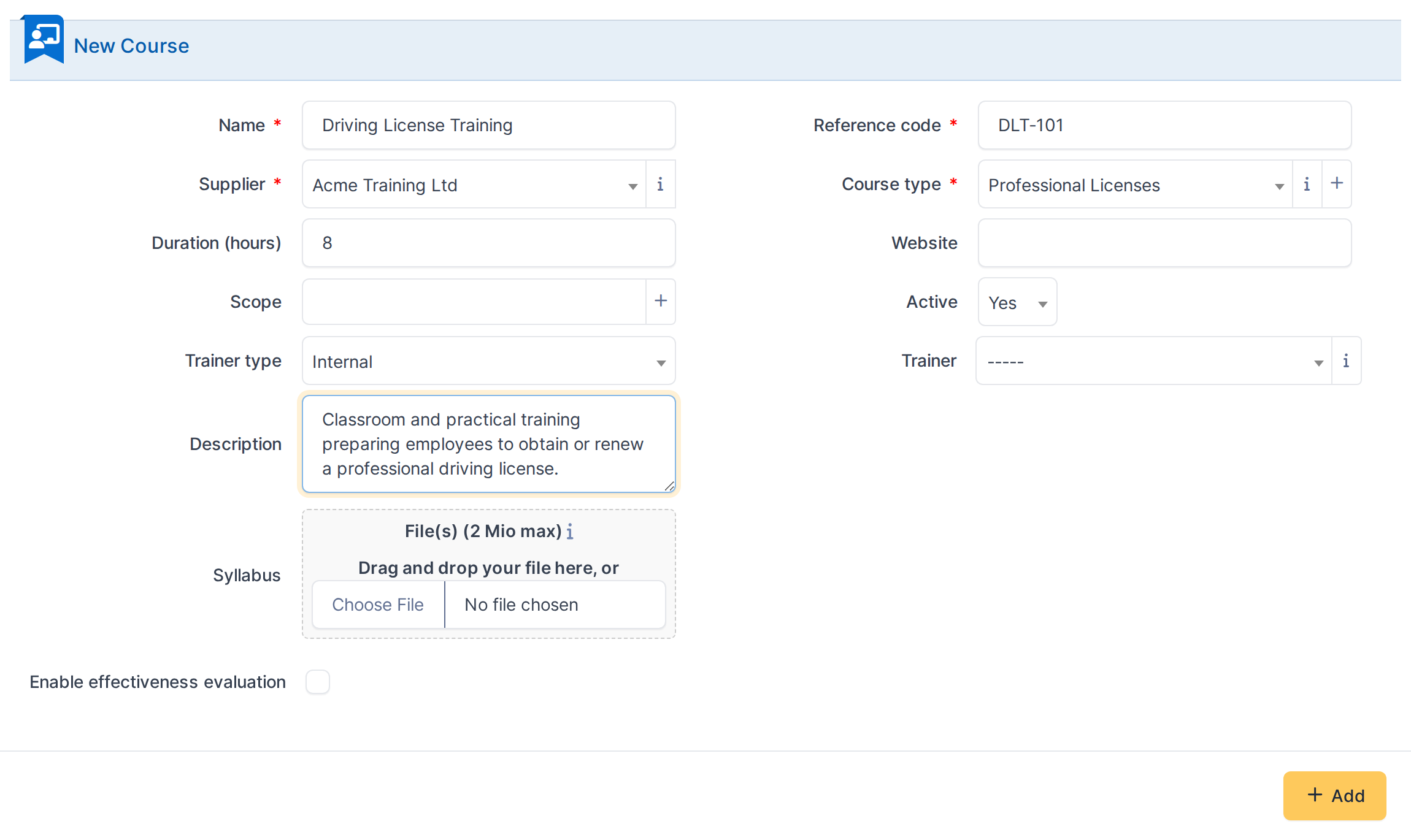
*In this example: a supplier-delivered, active course, 8 hours, filed under the "Professional Licenses" course type.*
#### 5.1.4.4 Save the course
Click **Add** to create the course. GLPI returns to the course list, and the new entry appears there.
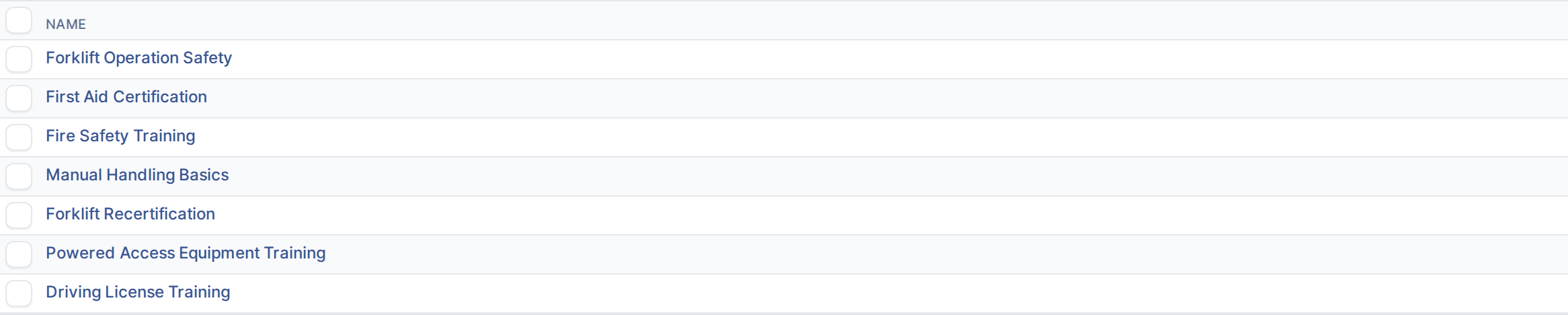
*The new course appears in the list.*
> **Note:** A course's **Editions**, **User Certifications** and **Tickets** tabs appear once the course is saved — see the Editions chapter for scheduling a session under this course.
### 5.1.5 Scheduling an edition
An edition is one scheduled session of a course — its dates, delivery format and status. A course can have any number of editions over time; enrollments and attendance are always recorded against a specific edition, never against the course itself.
#### 5.1.5.1 Open the edition list
From the main menu choose **Management > Talent > Editions**. The list shows every scheduled session across all courses the current entity can see.

*The edition list, scoped to the current entity.*
#### 5.1.5.2 Start a new edition
Click **Add** to open a blank edition form.
#### 5.1.5.3 Fill in the edition details
- **Name** — a title for this session (e.g. including a date or cohort). Required.
- **Course** — the course this edition schedules a session of. Required; only active courses appear here.
- **Start date** / **End date** — the session's dates. Required.
- **Status** — *Planned* (the default, open for enrollment), *Not Delivered* (cancelled — requires a reason, see the warning below), or *Completed* (marks every enrolled attendee as Attended automatically).
- **Format** — how the session is delivered (e.g. in person, online).
- **Website** — an optional link, e.g. to a video-call room or a supplier's registration page.
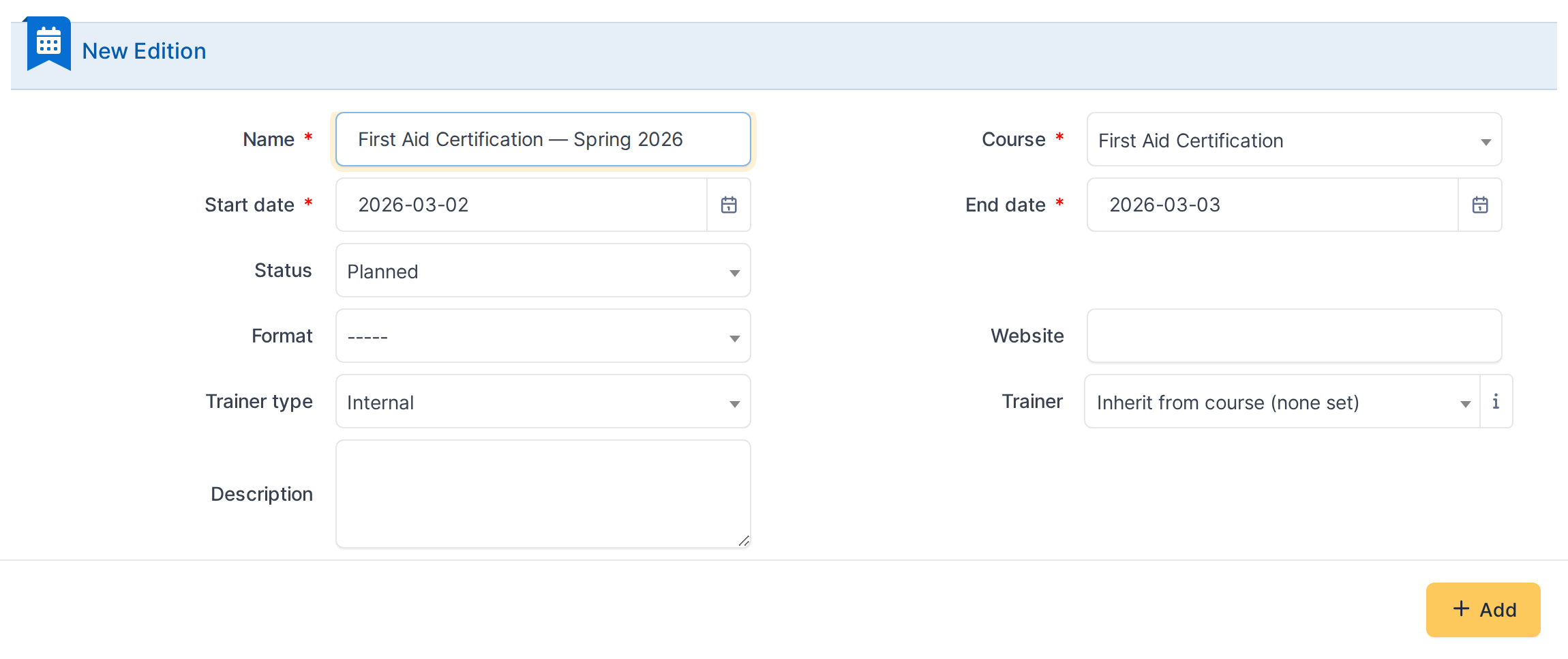
*In this example: a session of "First Aid Certification", planned and running for two days.*
> ⚠️ **Warning:** Setting **Status** to *Not Delivered* requires a reason and cannot be undone from the form alone — GLPI offers a **Clone** button on a not-delivered edition to reschedule it as a new one instead of trying to reuse the cancelled record.
#### 5.1.5.4 Save the edition
Click **Add** to create the edition. GLPI returns to the edition list, and the new entry appears there.

*The new edition appears in the list.*
> **Note:** An edition's **Enrollments** tab appears once it is saved — see the Enrollments chapter for enrolling users into a session.
### 5.1.6 Enrolling a user into an edition
An enrollment links one user to one edition, and is where attendance and outcome are recorded once the session has taken place. A user cannot be enrolled twice into the same edition.
#### 5.1.6.1 Open the enrollment list
From the main menu choose **Management > Talent > Enrollments**. The list shows every enrollment the current entity can see, across all editions.

*The enrollment list, scoped to the current entity.*
#### 5.1.6.2 Start a new enrollment
Click **Add** to open a blank enrollment form.
#### 5.1.6.3 Fill in the enrollment details
- **Course** — pick the course first; it filters the **Edition** dropdown below to that course's own sessions.
- **User** — the person being enrolled. Required.
- **Edition** — the specific session the user is enrolled into. Required; only editions still in *Planned* status can accept new enrollments.
- **Attendance** — left at its default until the session takes place, then updated to record whether the user actually attended.
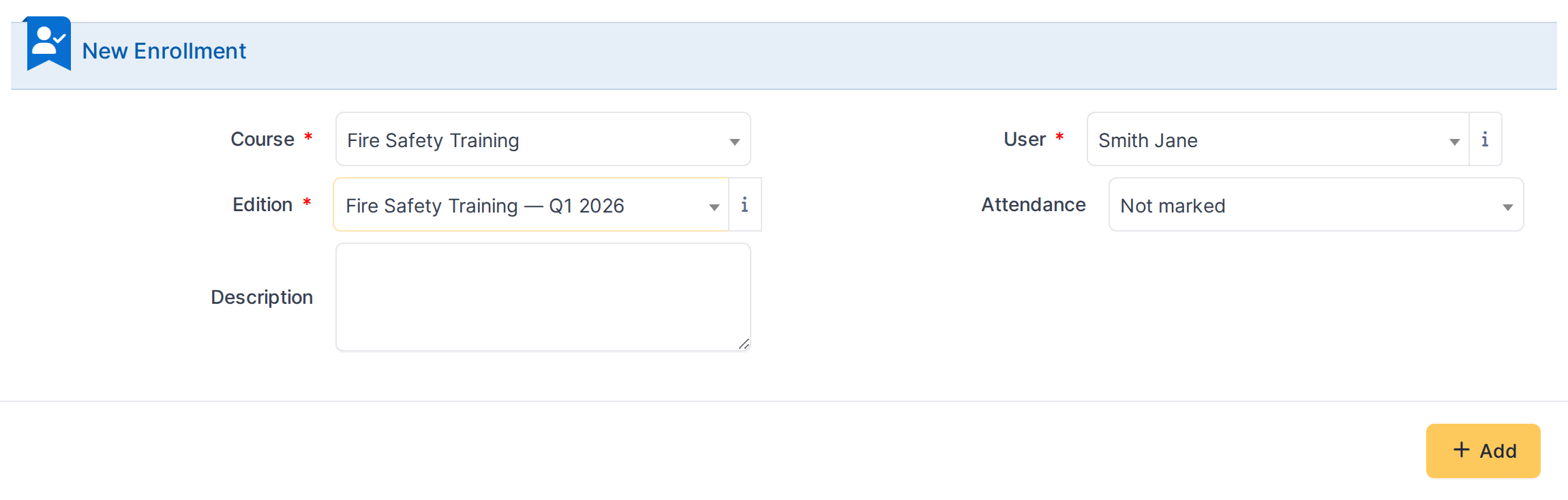
*In this example: enrolling a user into "Fire Safety Training — Q1 2026".*
#### 5.1.6.4 Save the enrollment
Click **Add** to create the enrollment. GLPI returns to the enrollment list, and the new entry appears there.

*The new enrollment appears in the list.*
#### 5.1.6.5 Enrolling several users at once
Repeating the single-enrollment form for a whole group is slow — **Mass Enrollment** enrolls any number of users into one edition in a single submission. Open it from the **+** icon next to the Talent menu title, or navigate to it directly.
#### 5.1.6.6 Pick the users and the edition
- **User** — a multi-select; add as many users as needed, one at a time.
- **Course** then **Edition** — same as the single-enrollment form: pick the course first to filter the Edition dropdown to its sessions.
- **Description** — optional, but applies identically to every enrollment this creates, not just one.
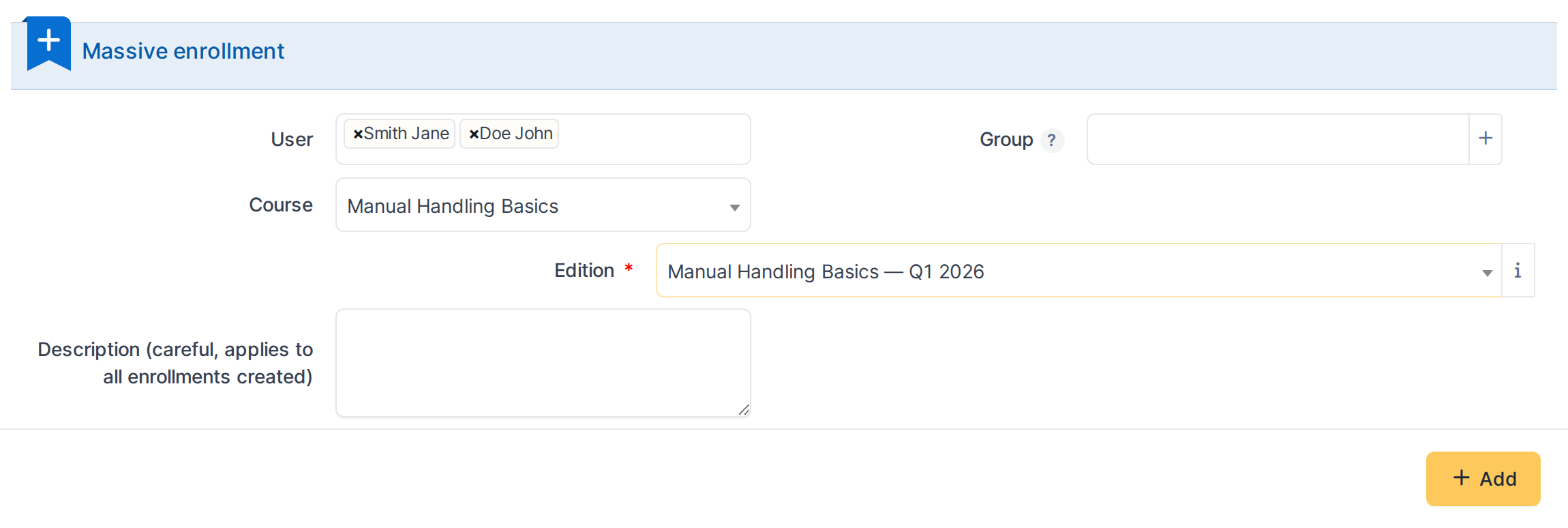
*In this example: enrolling two users into "Manual Handling Basics — Q1 2026" in one submission.*
#### 5.1.6.7 Save the mass enrollment
Click **Add** to create one enrollment per selected user, all against the same edition.

*Both enrollments appear in the list, one per user.*
### 5.1.7 Recording training effectiveness
Effectiveness measures whether a training actually changed on-the-job behavior, separately from whether the attendee simply completed the session. It is recorded per attendee, once the edition is completed, against evidence you attach yourself — never inferred automatically from attendance alone.
#### 5.1.7.1 Open the edition's Effectiveness tab
Effectiveness is only available on a course that has it enabled (see Setup), and only once the edition's status is *Completed*. Open the edition and switch to its **Effectiveness evaluations** tab.

*The Effectiveness evaluations tab lists every attendee, with an Evaluate action for anyone not yet evaluated.*
#### 5.1.7.2 Evaluate an attendee
Click **Evaluate** next to an attendee's row to open a blank effectiveness form for their enrollment.
#### 5.1.7.3 Fill in the result and its evidence
- **Result** — *Effective* (the training produced the intended change), *Partially effective* (some improvement, but short of the goal), or *Not effective* (no observable change). There is no automatic threshold; this is a judgment call made against the evidence below.
- **Evidence** — a GLPI ticket documenting what was observed (an incident that did or didn't recur, a follow-up review, a manager's note). Required: effectiveness is always backed by a concrete record, not a free-text opinion.
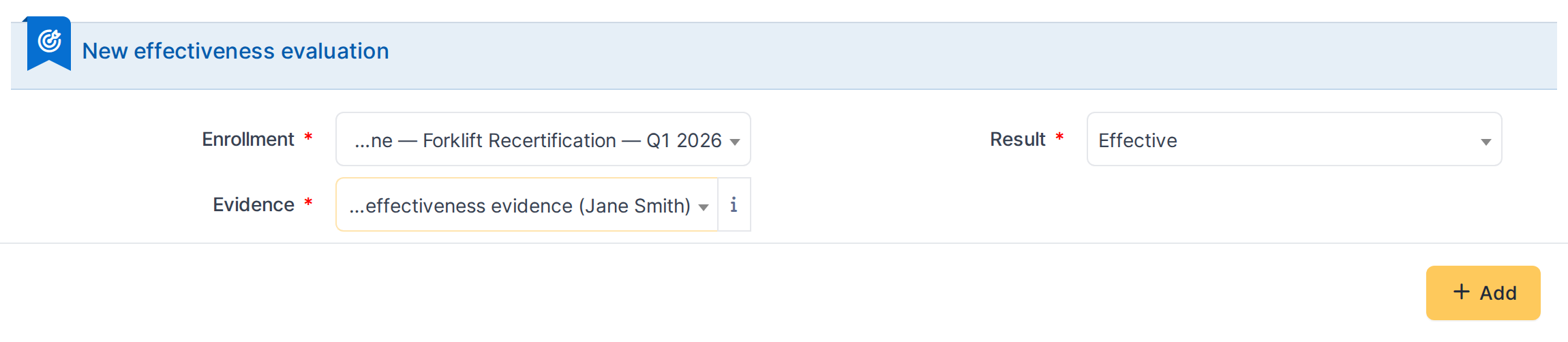
*In this example: recording an Effective result for Jane Smith's forklift recertification, backed by a ticket documenting the post-training observation.*
#### 5.1.7.4 Save the evaluation
Click **Add** to record the result. GLPI returns to the edition's Effectiveness evaluations tab, which now shows the result and evaluation date for this attendee.

*The result now appears against the attendee, with the evaluation date GLPI recorded automatically.*
> **Note:** An attendee can only be evaluated once, and only within the evaluation window a course's Setup configures (a number of months after the edition's end date). Outside that window, or before it, no **Evaluate** action appears for them.
> Generated for **talent 1.1.0-beta.3** on GLPI 11.0 — 2026-09-03.
# 5.2 Training Certifications

*Part of the **talent** manual — see also [1. Introduction](https://docs.tic.gal/books/talent/page/1-introduction), [2. What's New](https://docs.tic.gal/books/talent/page/2-whats-new), [3. Scope](https://docs.tic.gal/books/talent/page/3-scope), [4. Setup](https://docs.tic.gal/books/talent/page/4-setup), [5.1 Training Courses](https://docs.tic.gal/books/talent/page/51-training-courses), [5.3 Skills](https://docs.tic.gal/books/talent/page/53-skills), [6. Troubleshooting](https://docs.tic.gal/books/talent/page/6-troubleshooting).*
### 5.2.1 Creating a certification and issuing it to a user
A certification is the record a course can lead to, with a validity period. A User Certification is the individual instance a specific person holds — with its own issue date, an automatically calculated expiration date, and an optional supporting document.
#### 5.2.1.1 Open the certification list
From the main menu choose **Management > Talent > Certifications**. The list shows every certification the current entity can see.

*The certification list, scoped to the current entity.*
#### 5.2.1.2 Create a new certification
- **Name** — the certification's title. Required.
- **Certification type** — a category you define (e.g. "License", "Compliance"). Required.
- **Course** — optionally links the certification to the course that leads to it.
- **Validity (months)** — how long the certification remains valid once issued. A value of 0 means it never expires.
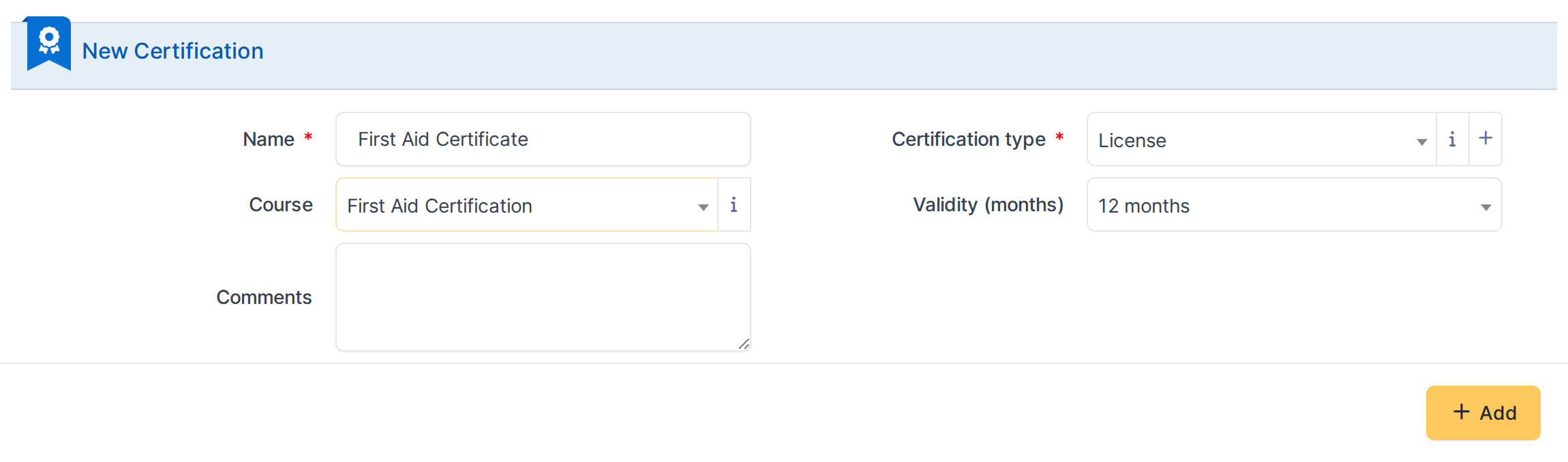
*In this example: a certification linked to "First Aid Certification", valid for 12 months once issued.*
> **Note:** A certification only becomes something a person holds once it is issued as a **User Certification** — the certification record itself has no holder.
#### 5.2.1.3 Open the User Certification list
From the main menu choose **Management > Talent > User Certifications**. The list shows every certification issued to a user that the current entity can see.

*The User Certification list, scoped to the current entity.*
#### 5.2.1.4 Issue the certification to a user
- **User** — who is being certified. Required.
- **Certification** — which certification is being issued. Required.
- **Status** — the certification's lifecycle state: Pending, Ongoing, Completed, Valid, Expired, Prior Notice or Revoked. Set manually; it does not flip to Expired automatically once the expiration date passes.
- **Certification number** — the identifier printed on the certificate itself. Required.
- **Issue date** — required; **Expiration date** is calculated automatically from the certification's validity period and is left blank when validity is 0.
- **User Certification file** — an optional upload (e.g. a scanned certificate), stored under the document category set in Setup.
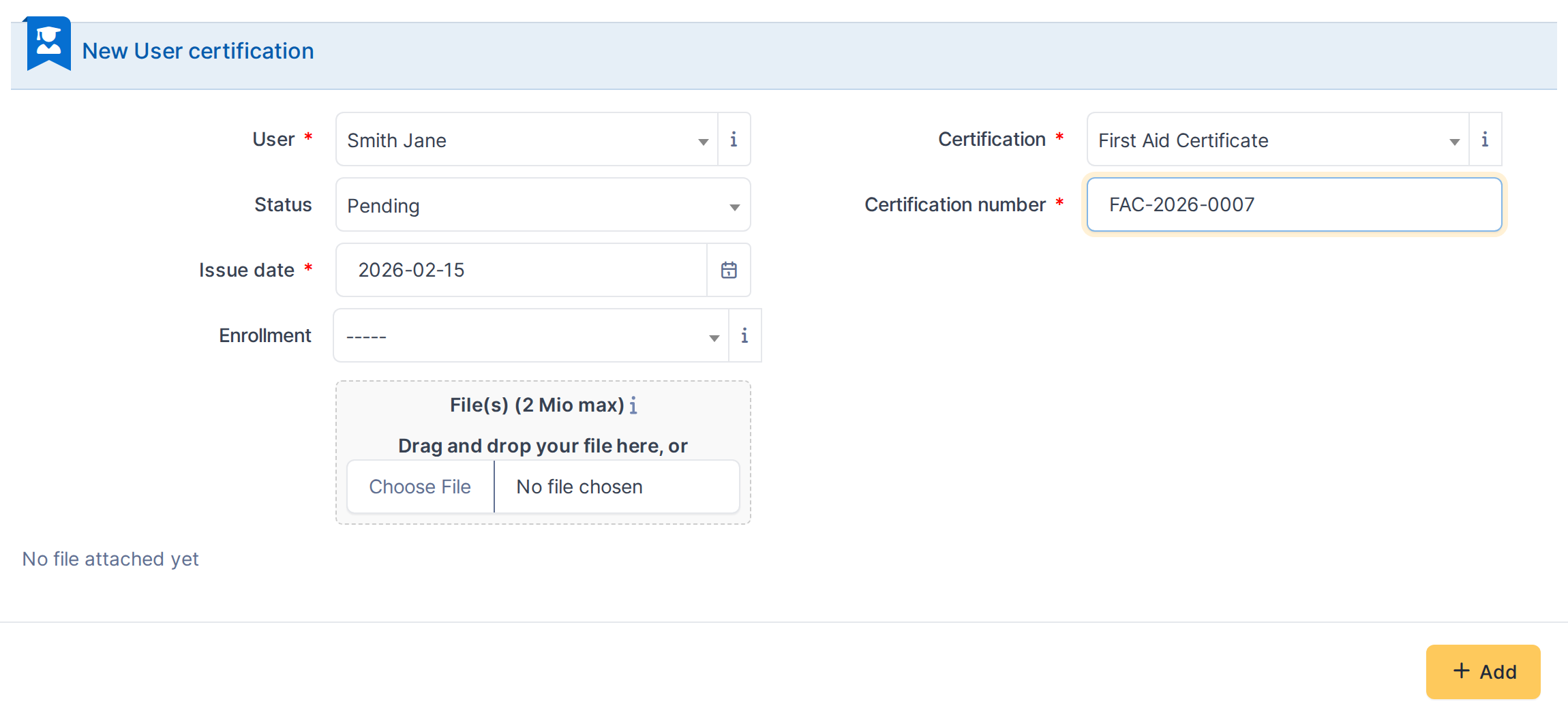
*In this example: issuing "First Aid Certificate" with a 12-month validity — the expiration date fills in automatically once saved.*
#### 5.2.1.5 Save the User Certification
Click **Add** to issue the certification. GLPI calculates the expiration date and returns to the User Certification's own form, where **Expiration date** now shows the result.
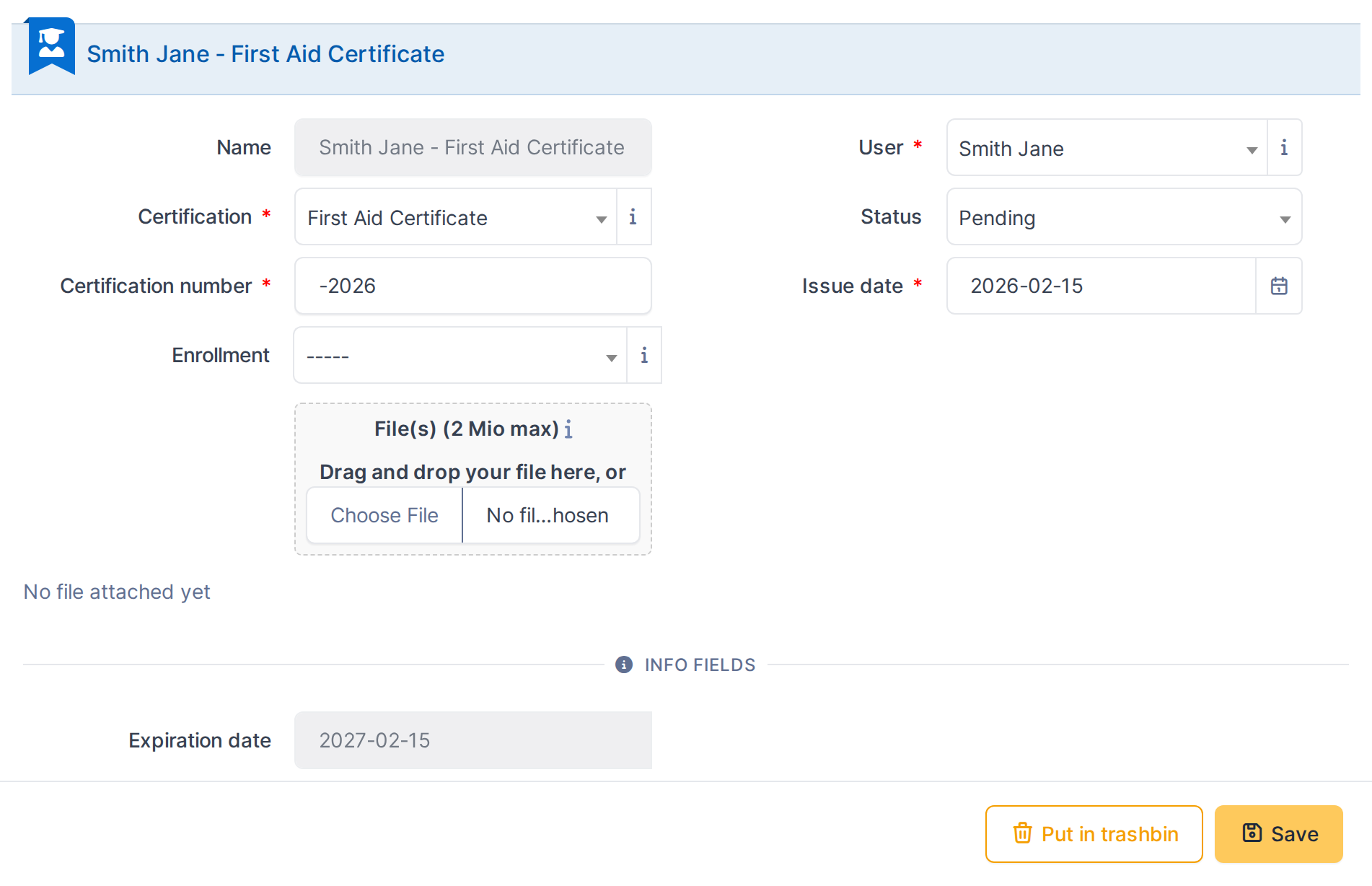
*Issued on 2026-02-15 with a 12-month validity, the expiration date is automatically set to 2027-02-15.*
> Generated for **talent 1.1.0-beta.3** on GLPI 11.0 — 2026-09-03.
# 5.3 Skills

*Part of the **talent** manual — see also [1. Introduction](https://docs.tic.gal/books/talent/page/1-introduction), [2. What's New](https://docs.tic.gal/books/talent/page/2-whats-new), [3. Scope](https://docs.tic.gal/books/talent/page/3-scope), [4. Setup](https://docs.tic.gal/books/talent/page/4-setup), [5.1 Training Courses](https://docs.tic.gal/books/talent/page/51-training-courses), [5.2 Training Certifications](https://docs.tic.gal/books/talent/page/52-training-certifications), [6. Troubleshooting](https://docs.tic.gal/books/talent/page/6-troubleshooting).*
### 5.3.1 Creating a skill category and a skill
A skill is one competency the plugin can track — e.g. "Forklift Operation" or "Customer Communication". Every skill is either **Transversal** (a general, role-independent competency such as teamwork or communication) or **Technical** (specific to a job or piece of equipment), and is filed under a Skill Category of the matching type. Skills only become meaningful once they are targeted by a Skillset and scored in an Evaluation — see the next two chapters.
#### 5.3.1.1 Open the skill category list
From the main menu choose **Management > Talent > Skills**, then the **Skill Categories** dropdown management link. Skill categories are hierarchical, like other GLPI dropdowns — you can nest them if useful.
#### 5.3.1.2 Fill in the category details
- **Name** — the category's title. Required.
- **Type** — Transversal or Technical. Every skill filed under this category inherits its type; this is what splits a user's skill radar into its two charts.
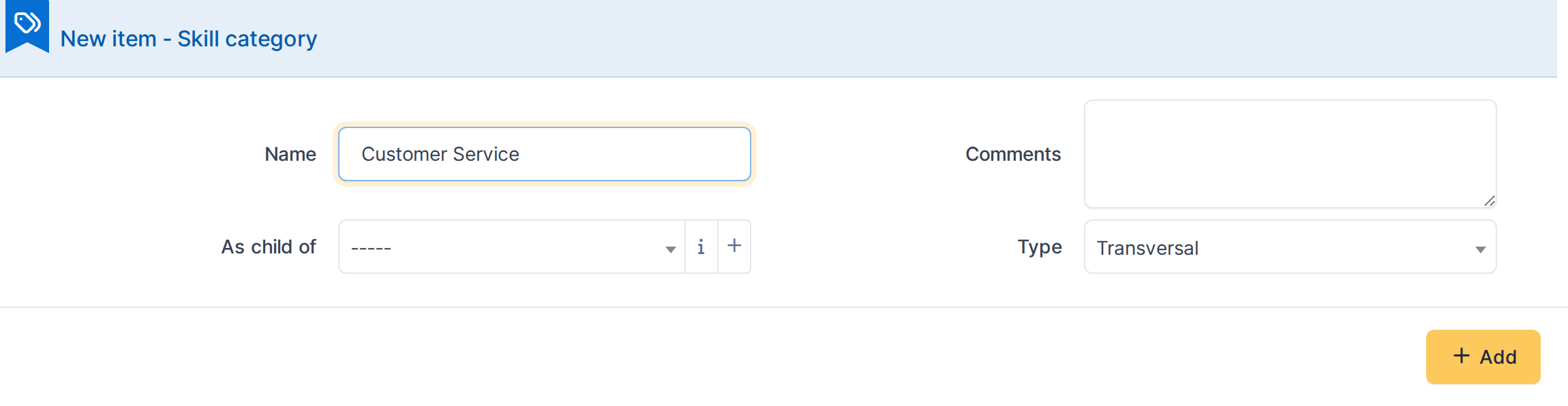
*In this example: a new Transversal category, "Customer Service".*
#### 5.3.1.3 Save the category
Click **Add** to create the category.
#### 5.3.1.4 Open the skill list
From the main menu choose **Management > Talent > Skills**. The list shows every skill the current entity can see, alongside the pre-existing Teamwork, Problem Solving and Forklift Operation skills used elsewhere in this manual.

*The skill list, scoped to the current entity.*
#### 5.3.1.5 Start a new skill
Click **Add** to open a blank skill form.
#### 5.3.1.6 Fill in the skill details
- **Name** — the skill's title. Required.
- **Code** — a short, unique, read-only identifier GLPI generates from the name the first time you save. Used internally to reference the skill; it never changes afterwards, even if you rename the skill later.
- **Type** — Transversal or Technical; picking a type filters the **Category** dropdown below to categories of the same type.
- **Category** — which Skill Category this skill is filed under. Required.
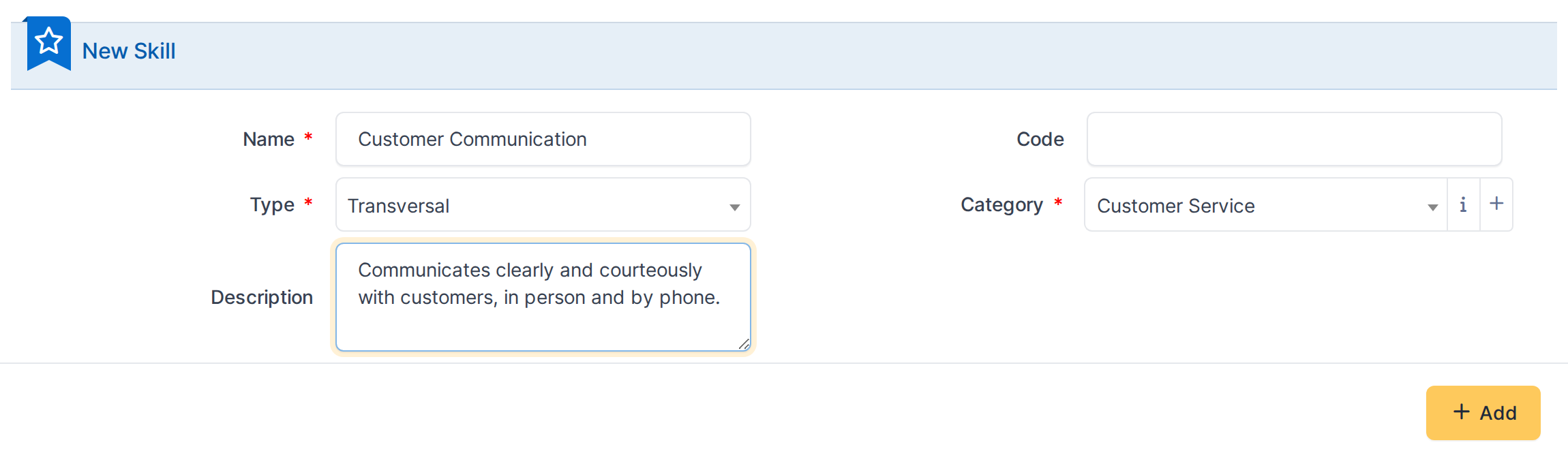
*In this example: a Transversal skill, "Customer Communication", filed under the "Customer Service" category.*
#### 5.3.1.7 Save the skill
Click **Add** to create the skill. GLPI returns to the skill list, and the new entry appears there, alongside its auto-generated code.

*The new skill appears in the list, with its generated code.*
### 5.3.2 The team dashboard
Talent adds a Team dashboard to GLPI's native dashboard system — the same "Central > Dashboard" area that hosts GLPI's own Assets and Helpdesk dashboards. It aggregates every evaluation across a group into two team-average radar charts and five KPI figures, and can be filtered to a single group at a time.
#### 5.3.2.1 Open the Team dashboard
From the main menu choose **Management > Talent > Team dashboard**. Like any GLPI dashboard, it can be shared with other profiles from its own share icon — sharing is managed the same way as GLPI's built-in dashboards, not through Talent's own rights.
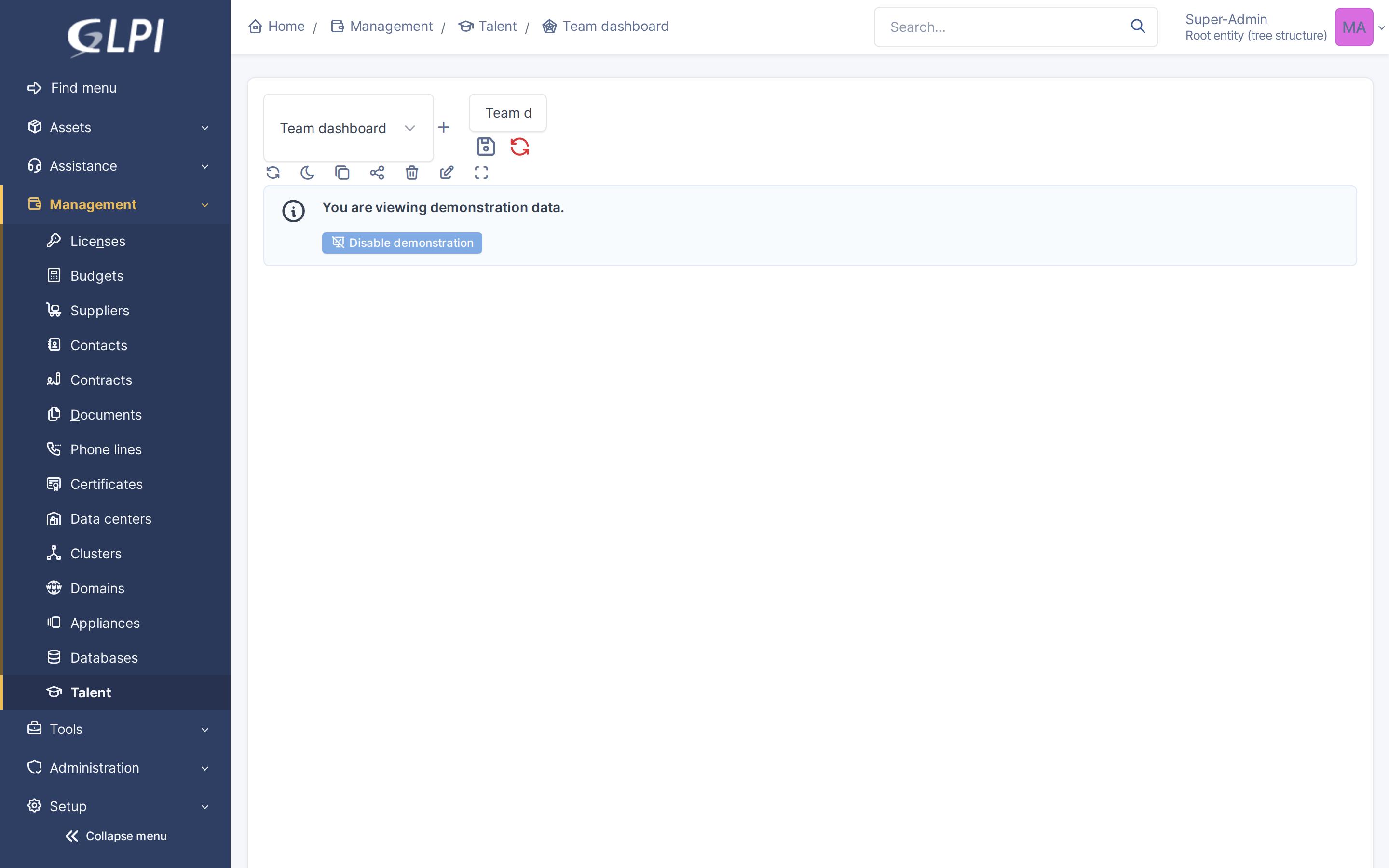
*The Team dashboard: five KPI cards (Job Fit, average Transversal/Technical scores, team members evaluated, and how many are below target) above the team's average Transversal and Technical radar charts.*
> **Note:** Every card can be filtered to a single group with the dashboard's own group filter — useful when several Skillsets apply to different teams and a manager only wants to see their own.
### 5.3.3 Recording an evaluation and reading a skill radar
An Evaluation is a snapshot: on a given date, an evaluator scores a user against every skill their group's Skillset targets. Scoring the same skills again later builds a history, which is what lets the radar chart show progress rather than just a single point in time.
#### 5.3.3.1 Open the evaluation list
From the main menu choose **Management > Talent > Evaluations**. The list shows one row per evaluation already on record, including the earlier baseline evaluation this chapter is about to add to.

*The evaluation list, showing the previous evaluation on record for Jane Smith.*
#### 5.3.3.2 Start a new evaluation
Click **Add**, then pick the **User** being evaluated. The skills table below fills in automatically once a user is selected: it lists every skill their group's skillset targets, alongside the target itself and the score from their most recent previous evaluation, if any.
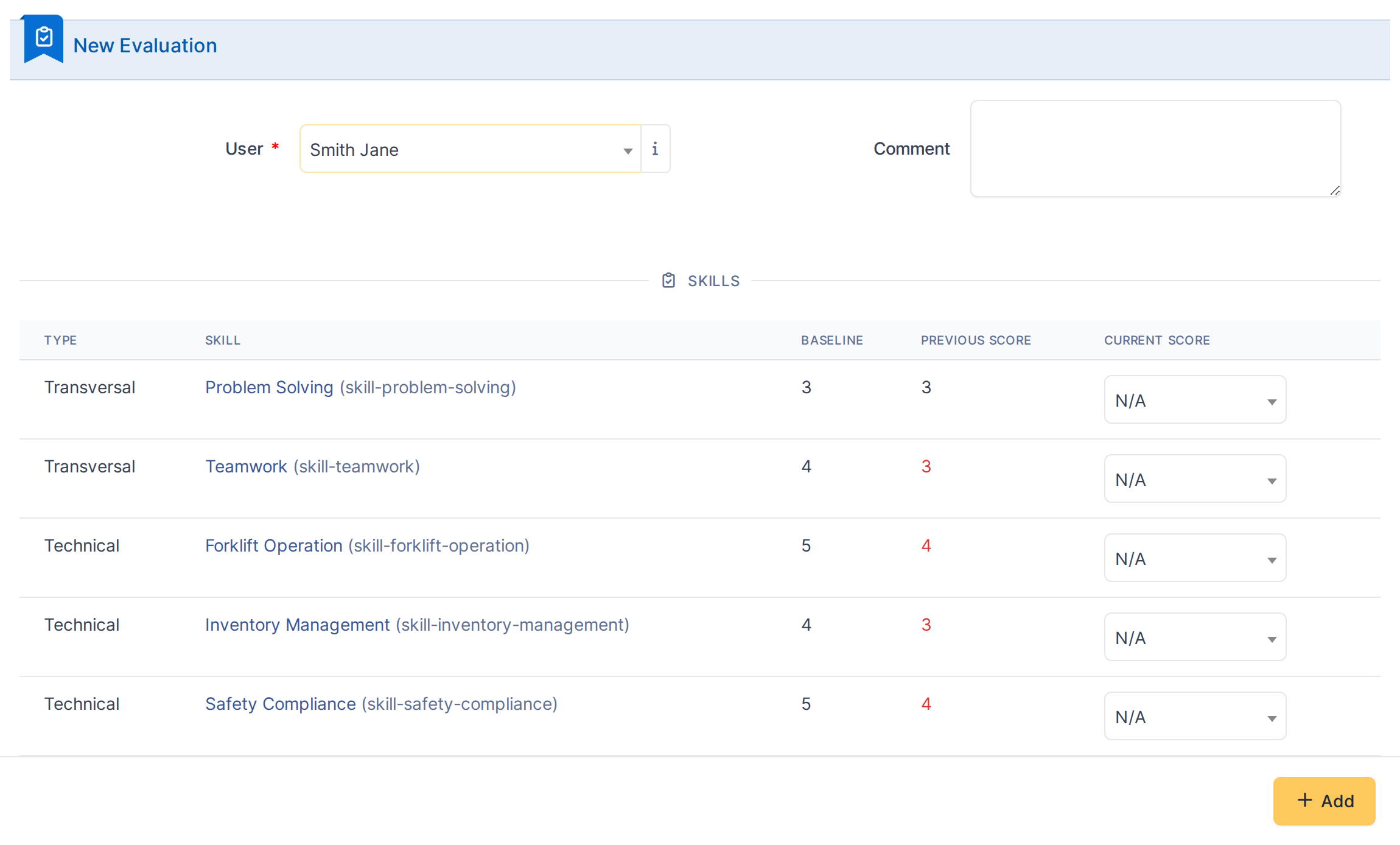
*Selecting Jane Smith loads the skills her group's baseline targets, each with its target score and her previous score for comparison.*
#### 5.3.3.3 Score each skill
Set the **Current score** for each skill on the 0–5 scale, or **N/A** for a skill that genuinely cannot be assessed this time (excluded from every average and from the radar chart, rather than counted as a 0).
#### 5.3.3.4 Save the evaluation
Click **Add** to record the scores. The evaluation date is set automatically to today and cannot be backdated.
#### 5.3.3.5 View a user's skill radar
Every user has a **Skills** tab on their own GLPI profile (visible to the user themselves, to anyone managing their group, or to an evaluator with full access), showing two radar charts — Transversal and Technical — plotting the target, the previous score and the current score for each skill side by side, alongside three KPI figures: **Job Fit** (how close the current scores are to target, overall), and the average Transversal and Technical scores.
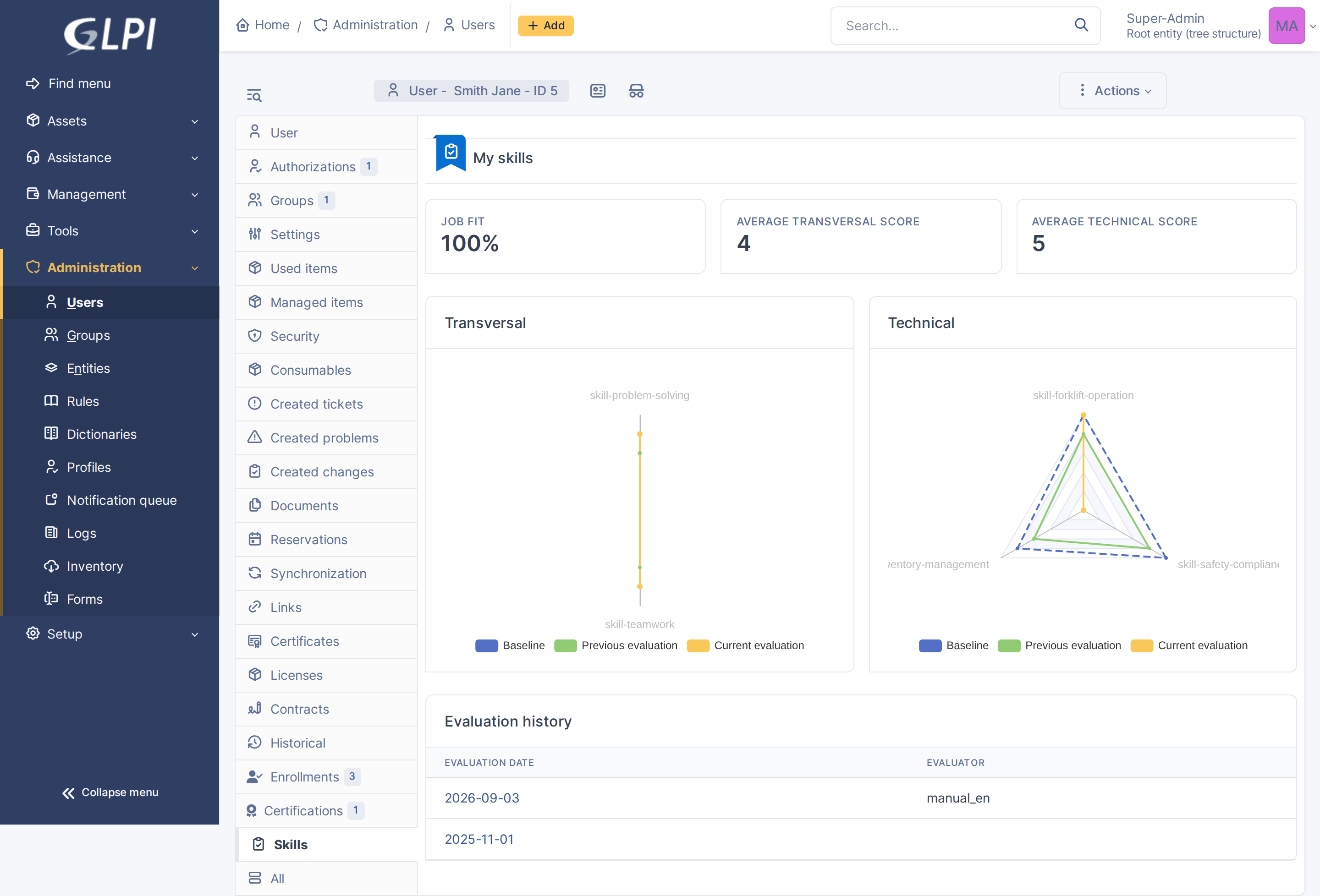
*Jane Smith's skill radar: the Technical chart shows her scores now exceeding target on Forklift Operation.*
### 5.3.4 Building a skillset
A Skillset is a baseline: for each skill it lists, it sets the target score (0–5) a group is expected to reach, and whether that skill is a **core** requirement. A Skillset applies to one or more GLPI Groups — not to individual users — so everyone in that group is measured against the same expectations. A user with no group, or whose group has no Skillset, has nothing to be evaluated against.
#### 5.3.4.1 Open the skillset list
From the main menu choose **Management > Talent > Skillsets**. The list shows every skillset the current entity can see, including the pre-existing "Warehouse Associate Baseline" used by the Evaluations chapter.

*The skillset list, scoped to the current entity.*
#### 5.3.4.2 Start a new skillset
Click **Add** to open a blank skillset form.
#### 5.3.4.3 Name the skillset
- **Name** — the skillset's title, e.g. the role or team it sets the baseline for. Required.
- **Description** — optional context on who this baseline applies to and why.
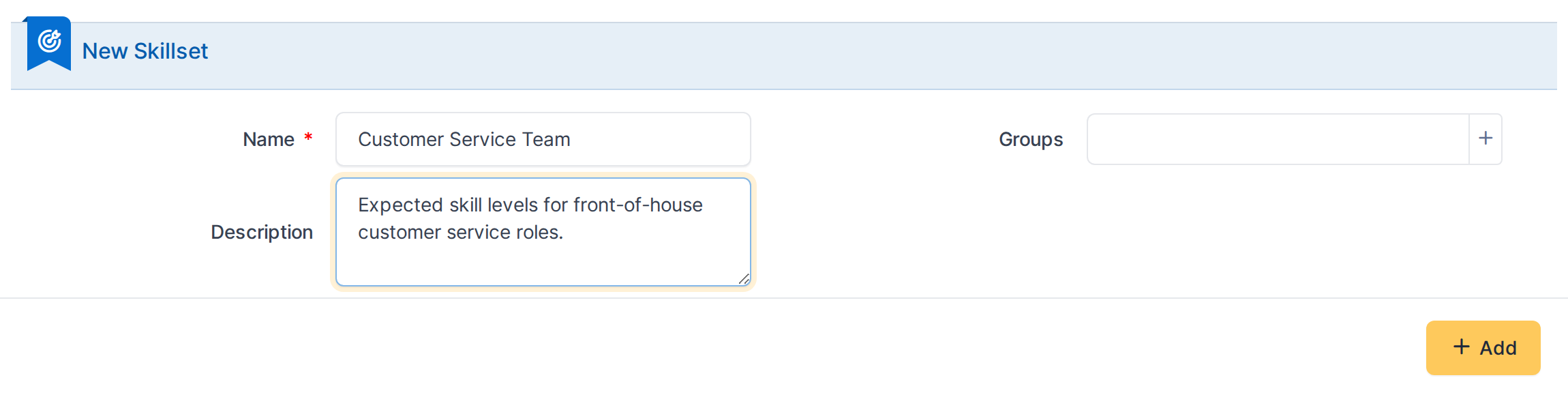
*In this example: a new skillset, "Customer Service Team".*
#### 5.3.4.4 Save the skillset
Click **Add** to create the skillset. GLPI returns to the skillset list; open the new skillset from there to reach its own form, where the **Skills** and **Groups** tabs become available.
#### 5.3.4.5 Add a skill and its target score
Switch to the **Skills** tab. Pick a **Type**, then a **Skill** of that type, and click **Add** to append it to the table below with a default target of 0 — adjust the **Baseline** dropdown to the score this group is expected to reach, and tick **Core** for a skill that is a hard requirement rather than a nice-to-have.

*In this example: "Customer Communication" added with a target score of 4.*
#### 5.3.4.6 Save the skillset's skills
Click **Save** to record the target scores. These are what an evaluator sees as the "Baseline" column when scoring anyone in a group this skillset applies to (set from the **Groups** tab).
> **Note:** A skillset only takes effect once it is linked to a group on its **Groups** tab — see the pre-existing "Warehouse Associate Baseline" skillset (linked to the "Warehouse Team" group) in the Evaluations chapter for that workflow.
> Generated for **talent 1.1.0-beta.3** on GLPI 11.0 — 2026-09-03.
# 6. Troubleshooting

*Part of the **talent** manual — see also [1. Introduction](https://docs.tic.gal/books/talent/page/1-introduction), [2. What's New](https://docs.tic.gal/books/talent/page/2-whats-new), [3. Scope](https://docs.tic.gal/books/talent/page/3-scope), [4. Setup](https://docs.tic.gal/books/talent/page/4-setup), [5.1 Training Courses](https://docs.tic.gal/books/talent/page/51-training-courses), [5.2 Training Certifications](https://docs.tic.gal/books/talent/page/52-training-certifications), [5.3 Skills](https://docs.tic.gal/books/talent/page/53-skills).*
## The Talent menu doesn't appear
Talent's menu entry only shows once a profile has been granted at least Read on one of its itemtypes. Go to **Setup > Profiles**, open the profile, and check the **Talent** tab: grant Read on Courses, Editions, Enrollments, Certifications or User Certifications as appropriate, then have the user log out and back in.
## "You do not have access to this course/edition"
This is entity isolation working as intended: an edition can only be created under a course in the same entity as the user's active entity, and an enrollment can only be created into an edition in that same entity. Switch to the correct active entity (top right of the page) before creating the record, or ask an administrator to grant the right in the target entity.
## A course doesn't appear when scheduling an edition
Only **active** courses appear in the edition-creation dropdown. Open the course and set **Active** to **Yes**.
## The "Not delivered reason" dropdown won't let me save
Setting an edition's status to **Not Delivered** requires selecting a reason — it's a required field for that status only. Pick a reason from the dropdown, or ask an administrator to add one under the relevant dropdown management screen if none fits.
## expiration_date stays empty on a User Certification
This is expected when the underlying certification's **validity (months)** is set to 0 — a validity of 0 means the certification never expires, so no expiration date is calculated.
> Generated for **talent 1.1.0-beta.3** on GLPI 11.0 — 2026-09-03.