# Rinodicionarios
# RD - Getting Started
# First launch and tutorial
The first time you open RinoDicionarios, the app chooses a language for you and shows a short tutorial of the search screen.
## Language
The app starts in your phone's language if it is Galician, Spanish, English or Latin, and in Galician otherwise. You can change it at any moment in **Settings → Idioma / Language**. See [Settings](/books/rd-settings-customization/page/settings).
## Tutorial
A short guide highlights the main controls one by one: the search field, the dictionary picker, reverse search and the buttons of a result card. Tap the highlighted element to go to the next step.
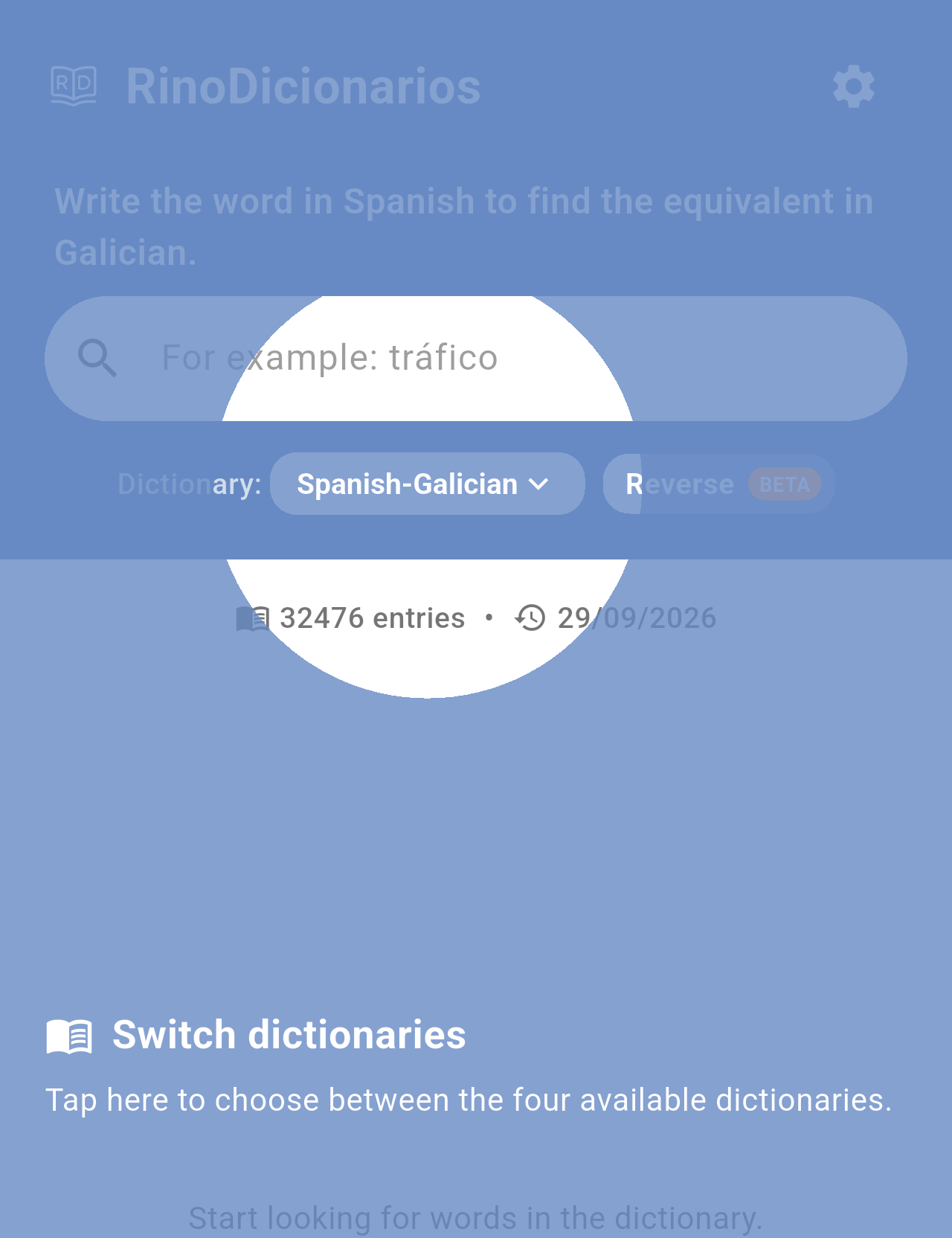
*One of the tutorial steps, over the dictionary picker.*
> **Note:** The tutorial is only shown once. To watch it again, go to **Settings → Watch tutorial again**.
## Word of the day
So that it does not cover the tutorial, the **Word of the day** is not shown on the first launch. From the next time you open the app, it shows a random word once a day. See [Word of the day](/books/rd-core-features/page/word-of-the-day).
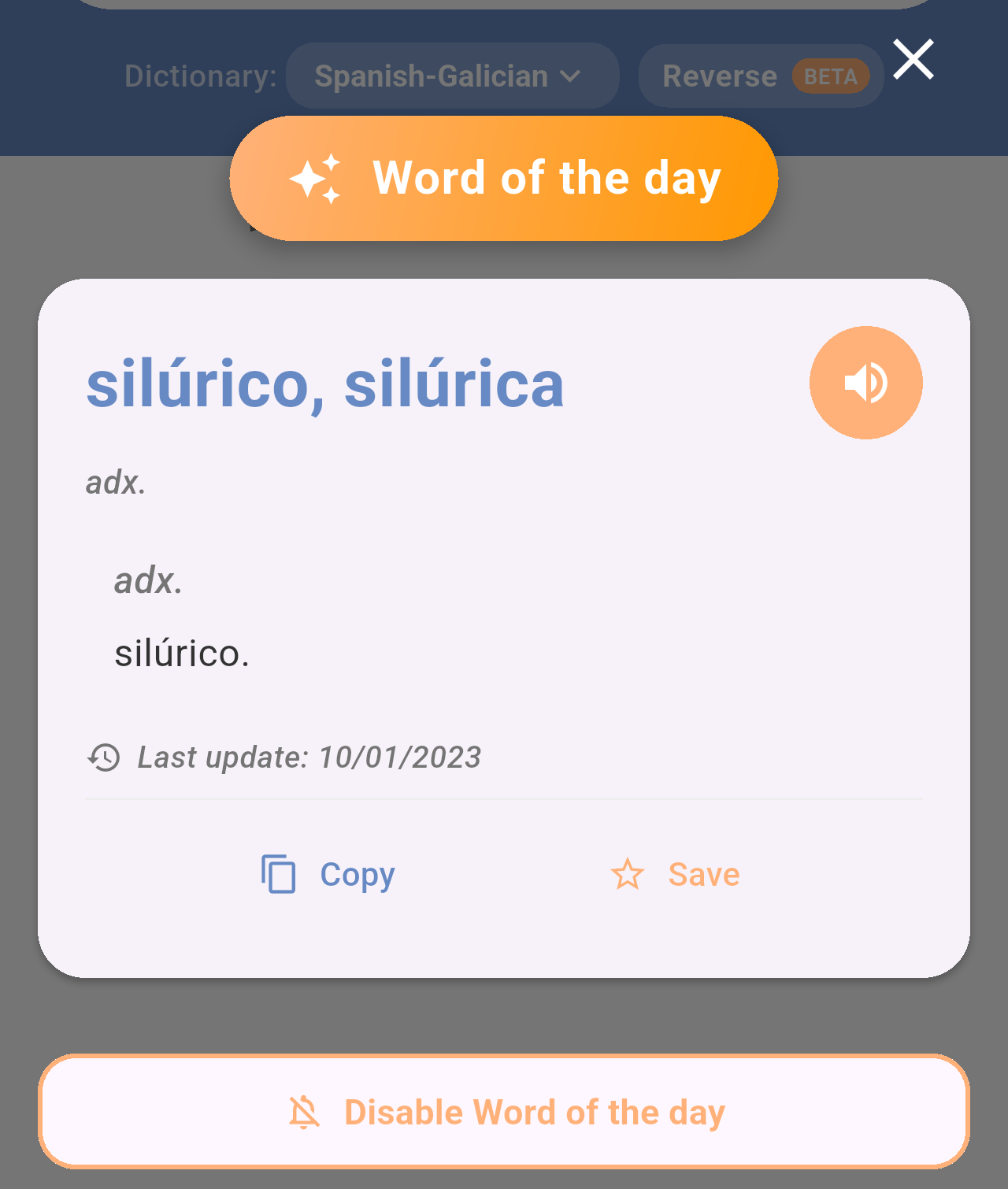
*The Word of the day window, shown the first time you open the app each day.*
## Related pages
- [Home screen](/books/rd-getting-started/page/home-screen)
- [Searching the dictionaries](/books/rd-core-features/page/searching-the-dictionaries)
- [Settings](/books/rd-settings-customization/page/settings)
# Home screen
The search screen is the home of RinoDicionarios: from here you choose a dictionary, search for words, repeat recent searches and move to your favorites or settings.
## Getting there
The search screen opens every time you start the app. It is the **Explore** tab in the bar at the bottom of the screen; from any other screen, go back with the arrow in the top-left corner until you reach it.
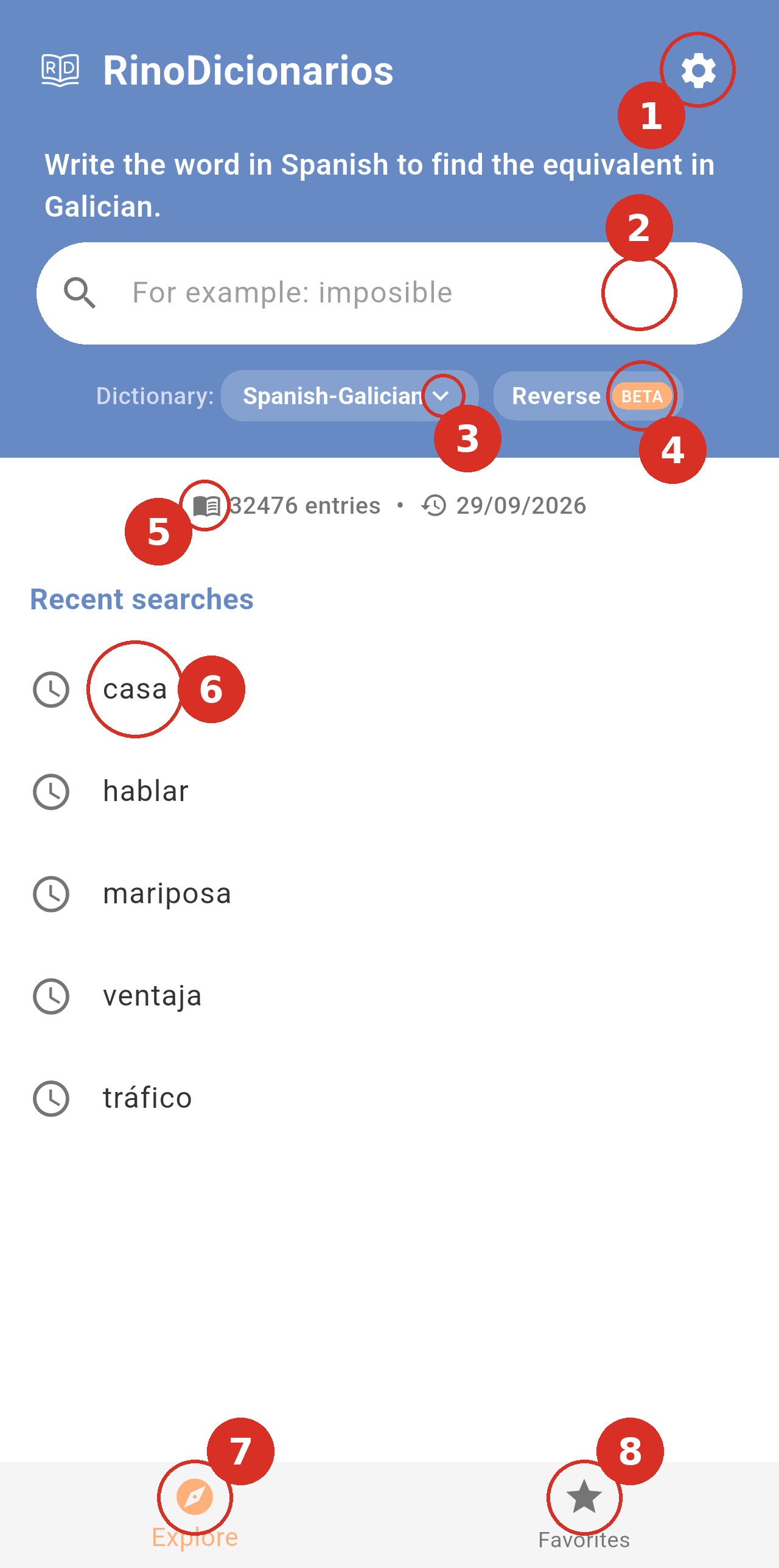
*The search screen with the Spanish-Galician dictionary selected. The numbers mark the controls described below.*
- Settings: The gear icon in the top-right corner opens Settings, where you change the language, the default dictionary, the theme and other options. See Settings.
- Search field: Type the word you want to look up. The text above the field tells you what to type in the selected dictionary (for example, Write the word in Spanish to find the equivalent in Galician), and the field shows an example word that changes every time. See Searching the dictionaries.
- Dictionary picker: Shows the dictionary you are searching in. Tap it to switch between the four dictionaries: Spanish-Galician, Etymological, Supplementary and Latin-Galician.
- Reverse: Turns reverse search on or off, to search from Galician into Spanish or Latin. It is only shown for the Spanish-Galician and Latin-Galician dictionaries. See Reverse search below.
- Dictionary information: The number of entries in the selected dictionary and the date it was last updated.
- Recent searches: Your last searches in the selected dictionary, the most recent first. Tap one to search it again.
- Explore: The search screen you are on.
- Favorites: Opens the words you have saved. See Favorites.
> **Note:** Your phone's back button also works inside the app: on the Favorites tab it takes you back to Explore, and on the Explore tab it first clears the current search. Pressing it on the empty search screen closes the app.
## Reverse search
Reverse search lets you search the Spanish-Galician and Latin-Galician dictionaries the other way round: you type a Galician word and the app finds the Spanish or Latin entries where it appears. It is turned on and off with the **Reverse** button (number 4 in the screenshot above), which is only shown for these two dictionaries. This feature is in **BETA**.
| Dictionary | Reverse off | Reverse on |
|---|---|---|
| **Spanish-Galician** | Spanish → Galician | Galician → Spanish |
| **Latin-Galician** | Latin → Galician | Galician → Latin |
### Turning reverse search on
Tap **Reverse**. The button turns white to show it is on, and the text above the search field changes, for example to *Write the word in Galician to find the equivalent in Spanish*.
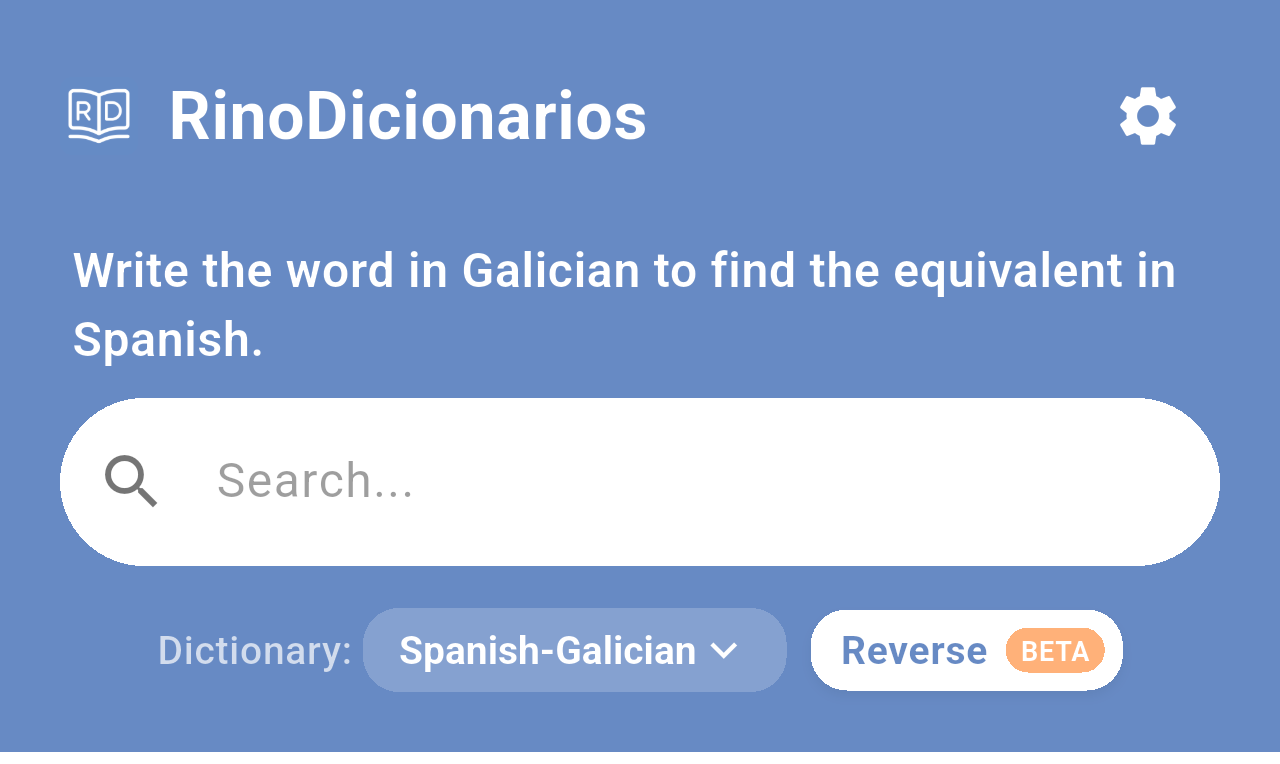
*Reverse search turned on in the Spanish-Galician dictionary.*
Tap **Reverse** again to go back to normal search. Turning it on or off clears the search you had on screen.
### Searching in reverse
The search works as usual: type the Galician word and pick a suggestion or tap the search key on your keyboard. The suggestions are Spanish (or Latin) entries whose definition contains the Galician word you typed.
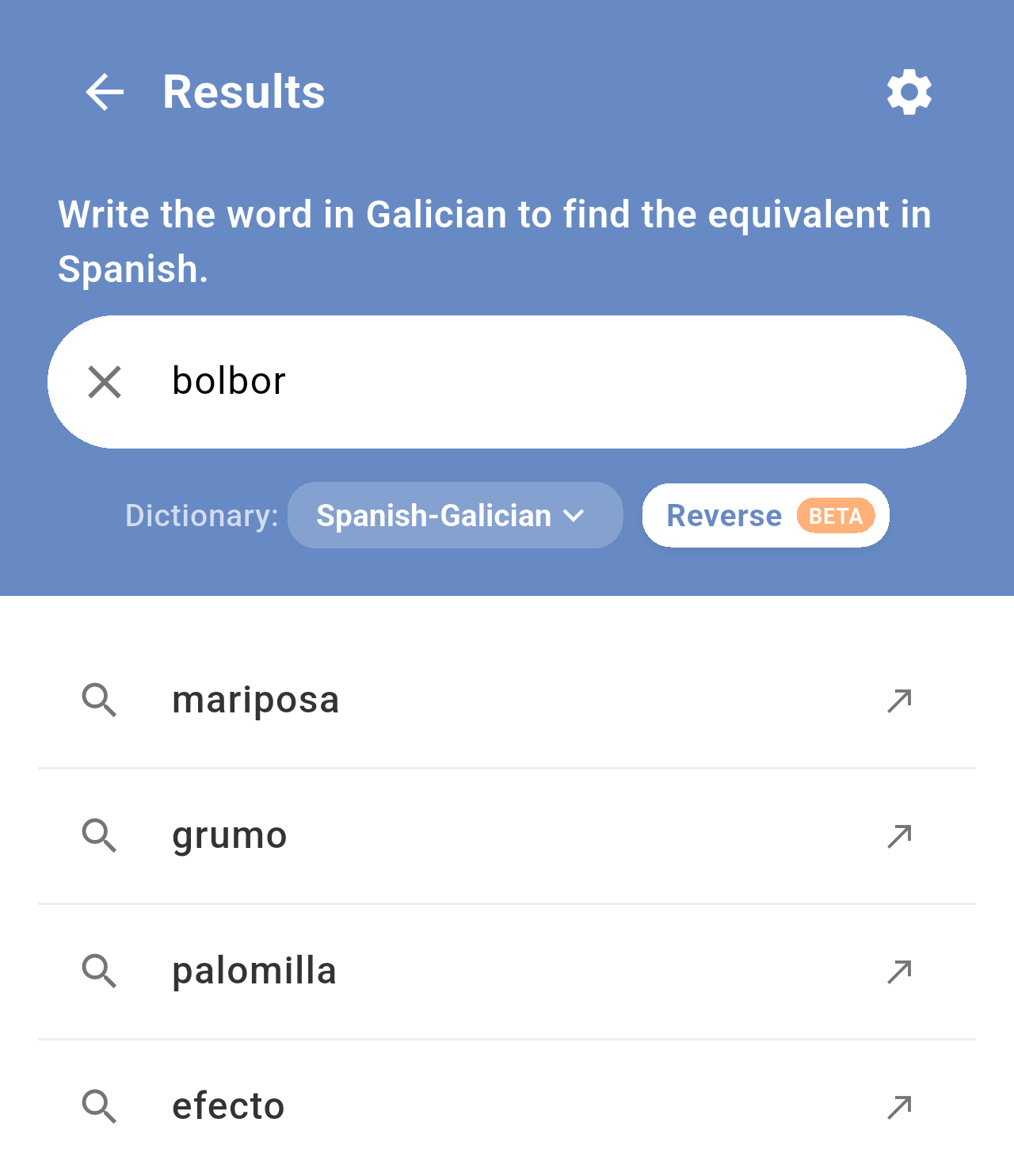
*Typing "bolbor" in reverse: mariposa, grumo, palomilla and efecto all mention "bolboreta" in their definitions.*
When you tap the search key, the app shows the first entry found.
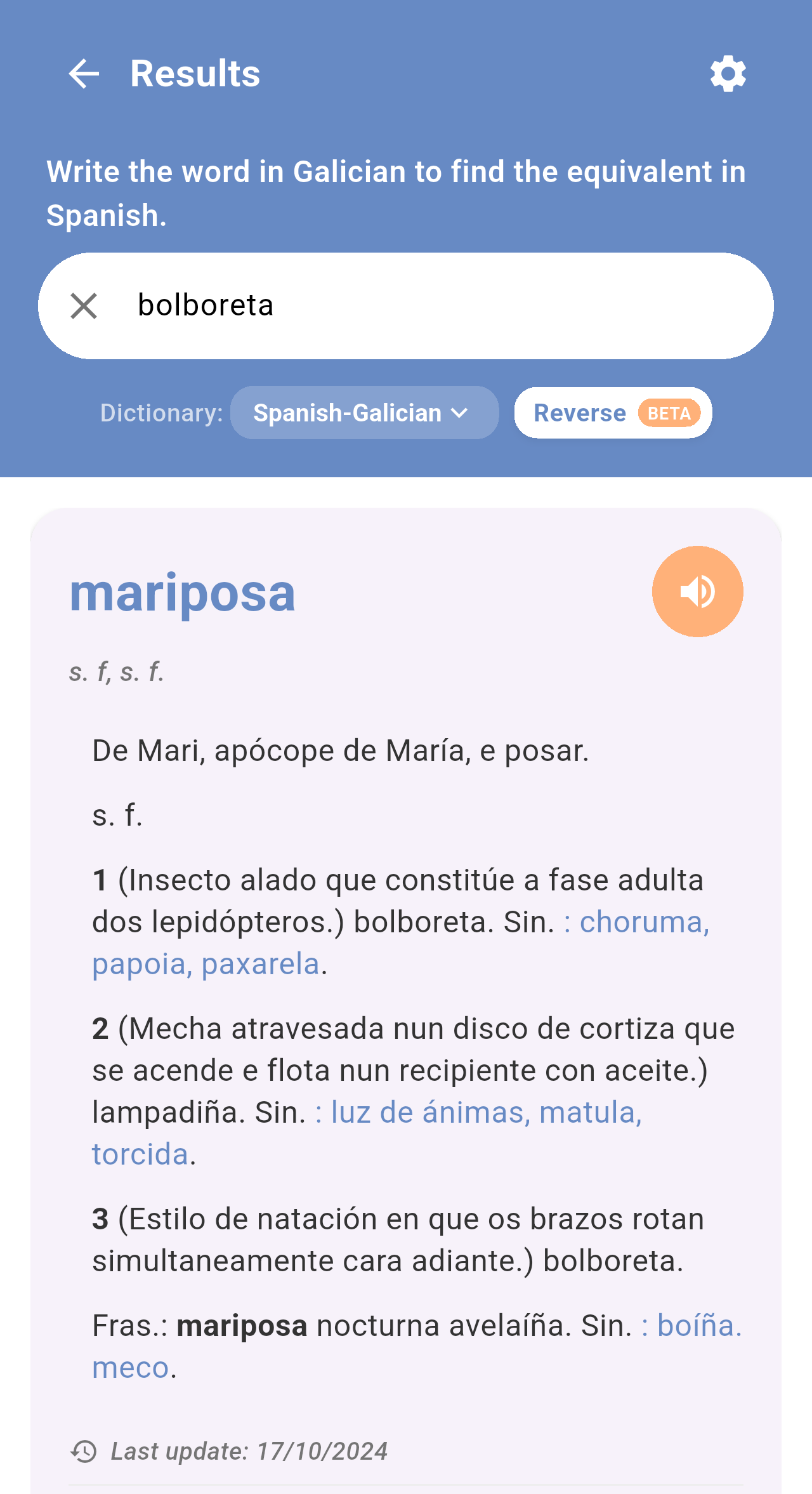
*Searching the Galician word "bolboreta" returns the Spanish entry "mariposa", whose first sense is bolboreta.*
> **Note:** In reverse search, the app saves the Spanish or Latin word it found (in the example, *mariposa*) in your recent searches, not the Galician word you typed. Tapping it later searches it in the normal direction.
> **Note:** The app remembers whether reverse search was on the next time you open it. If you switch to the Etymological or Supplementary dictionary, reverse search is turned off automatically.
## Related pages
- [First launch and tutorial](/books/rd-getting-started/page/first-launch-and-tutorial)
- [Searching the dictionaries](/books/rd-core-features/page/searching-the-dictionaries)
- [Favorites](/books/rd-core-features/page/favorites)
- [Settings](/books/rd-settings-customization/page/settings)
# RD - Core Features
# Searching the dictionaries
Search any of the four Rinoceronte dictionaries by typing a word. The app suggests entries as you type and keeps a list of your recent searches for each dictionary.
## Getting there
Searching is done from the **Explore** tab, the screen the app opens on. See [Home screen](/books/rd-getting-started/page/home-screen).
## Choosing a dictionary
Tap the dictionary picker under the search field and choose the dictionary you want to search in. The dictionary you pick here is used until you close the app; the next time, the app opens with the dictionary set in **Settings → Default dictionary**.
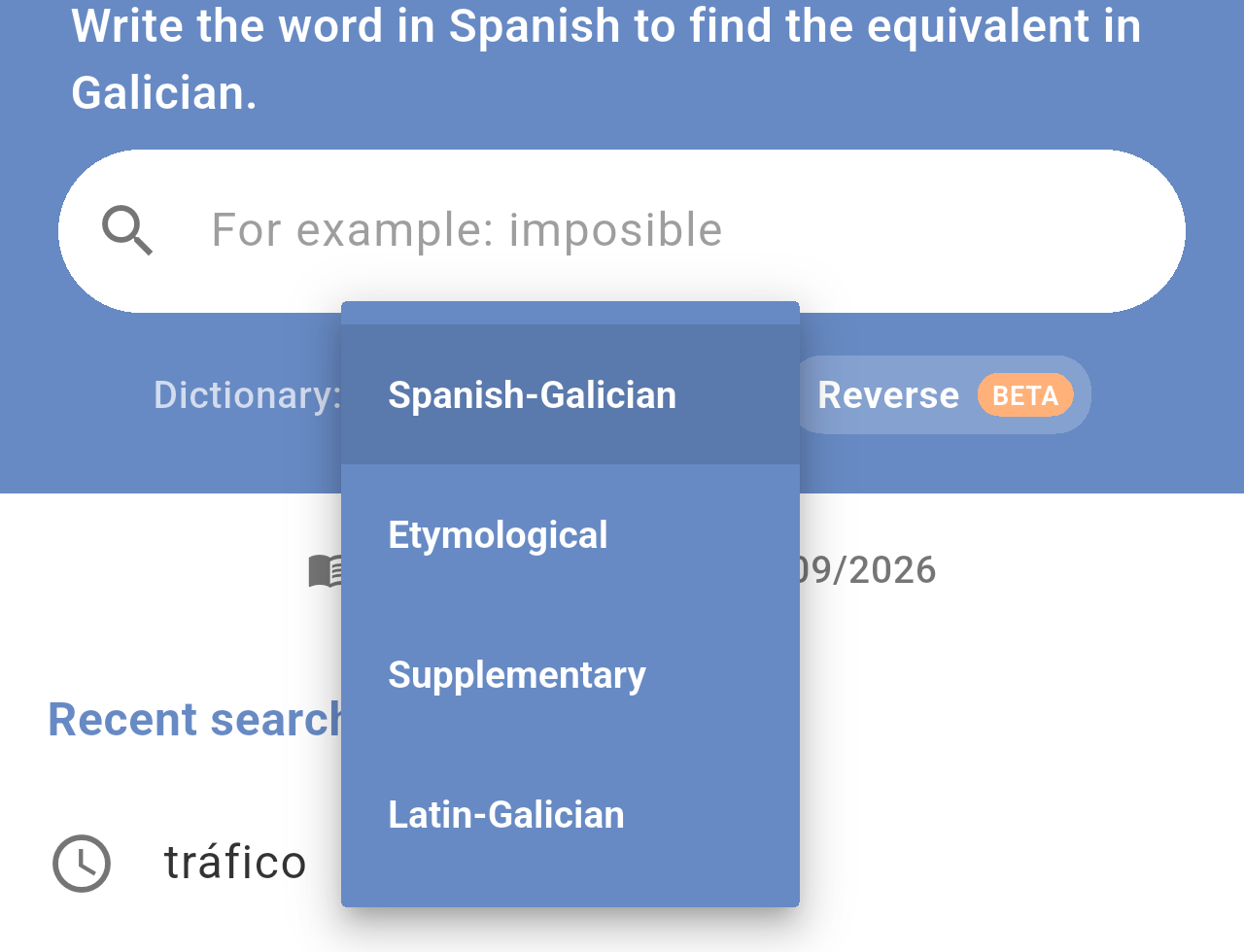
*The dictionary picker with the four available dictionaries.*
Each dictionary expects a different kind of word. The text above the search field reminds you what to type:
| Dictionary | What you type | What you get |
|---|---|---|
| **Spanish-Galician** | A Spanish word | Its Galician equivalents |
| **Etymological** | A Galician word | The origin of the word |
| **Supplementary** | A Galician word | Its meaning |
| **Latin-Galician** | A Latin word | Its Galician equivalents |
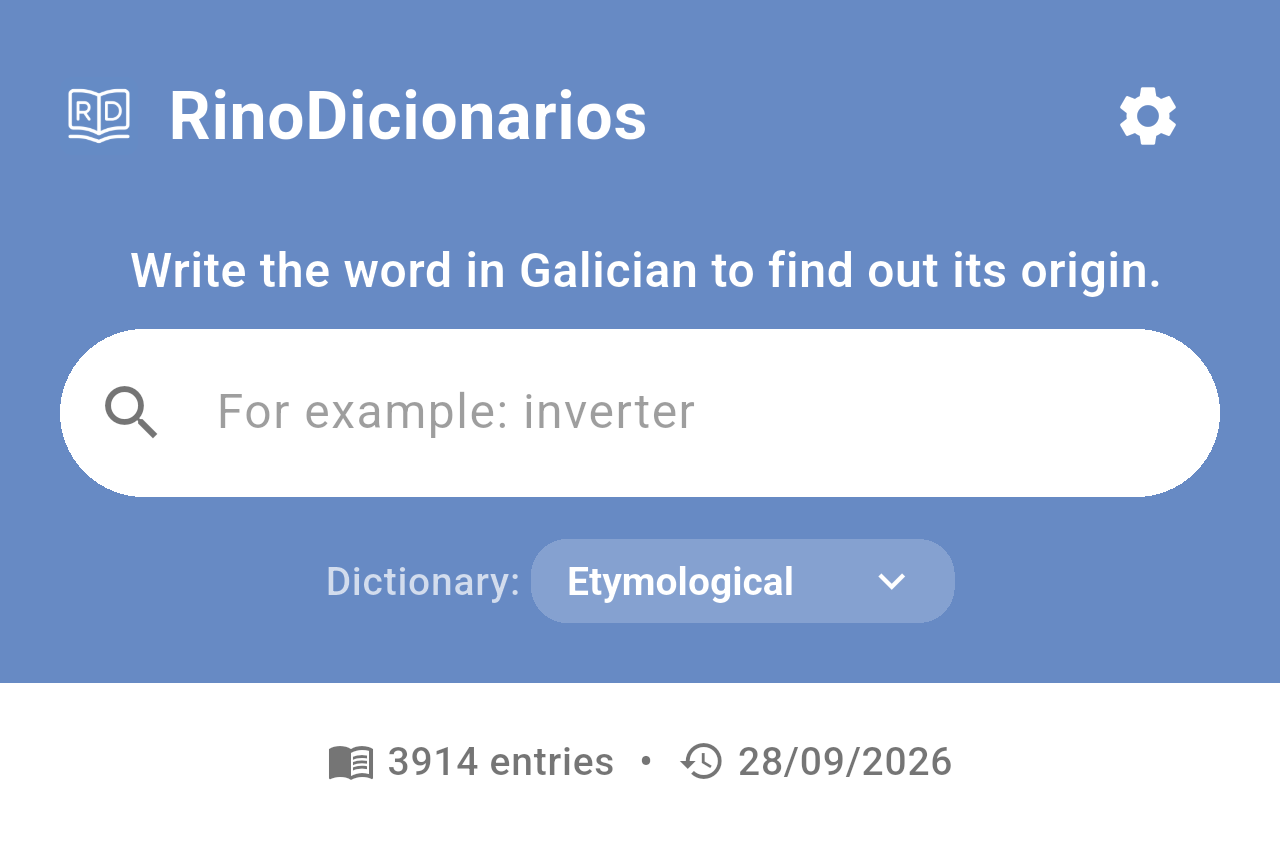
*The Etymological dictionary selected. The text above the field and the example word change with the dictionary, and the Reverse button is not shown.*
> **Note:** Changing the dictionary clears the search you had on screen.
## Searching for a word
To search, follow these steps:
- Tap the search field and start typing the word.
- After a moment, a list of suggestions from the dictionary appears under the field.
- Tap a suggestion to open it, or tap the search key on your keyboard to search exactly what you typed.
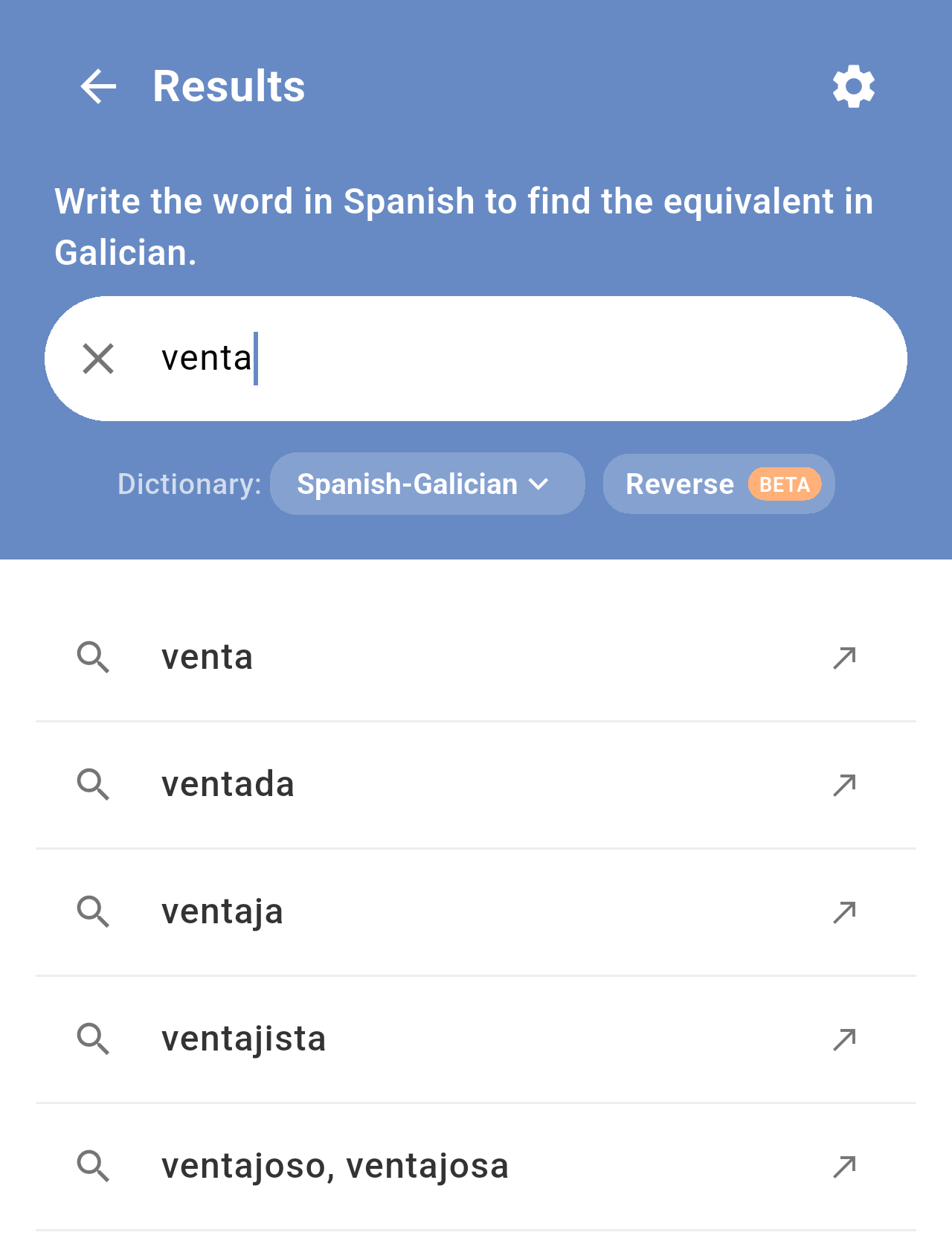
*Suggestions while typing "venta" in the Spanish-Galician dictionary.*
The result opens as a card with the definition. If there is no entry that matches your word exactly, the app shows the closest entry it finds.
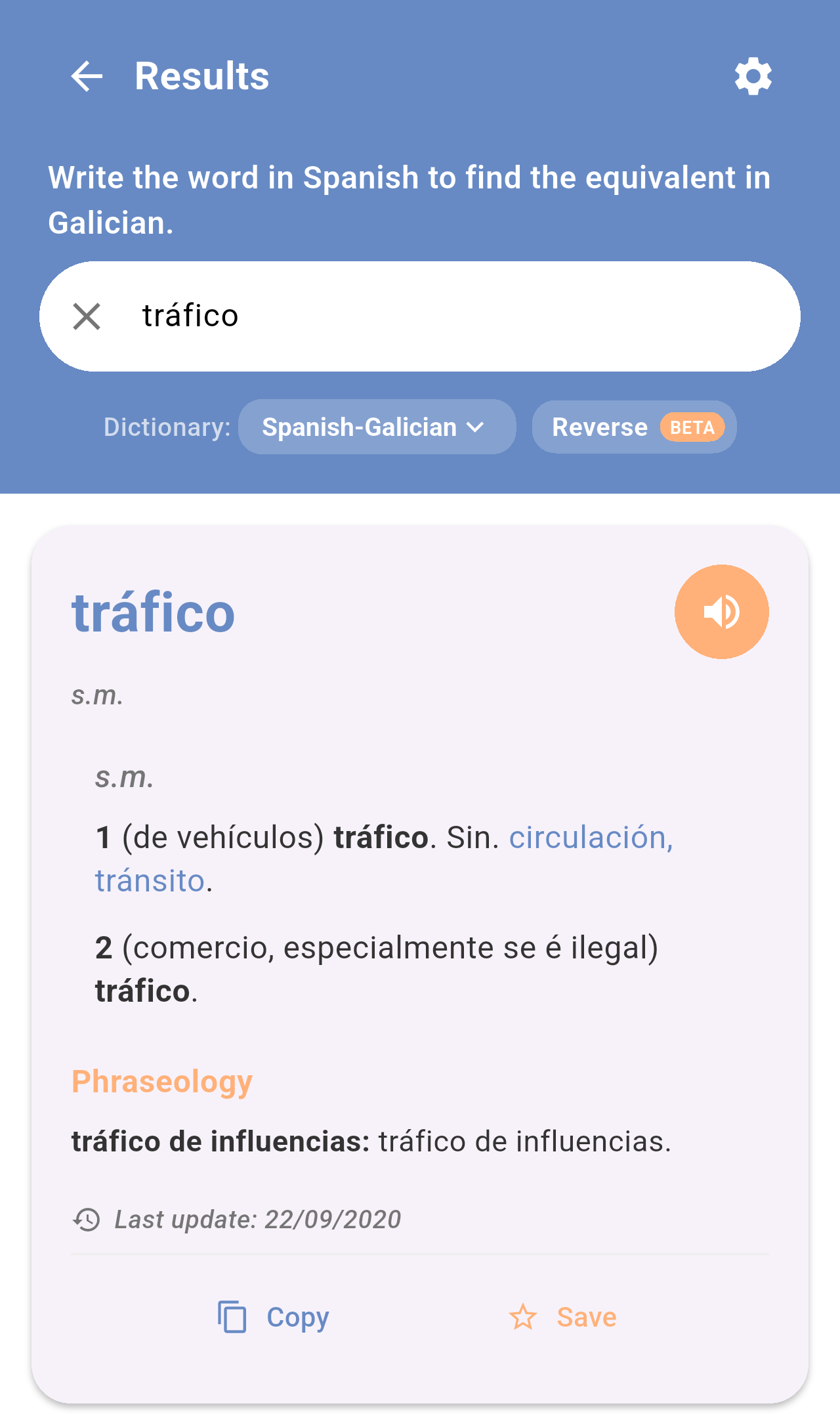
*The result for "tráfico". The title of the screen changes to **Results**.*
To learn how to read the card and what each button does, see [Reading a definition](/books/rd-core-features/page/reading-a-definition).
To start a new search, tap the **✕** in the search field or the arrow next to **Results** in the top-left corner.
## Recent searches
When the search field is empty, the screen shows your recent searches in the selected dictionary, the most recent first. Tap one to search it again.
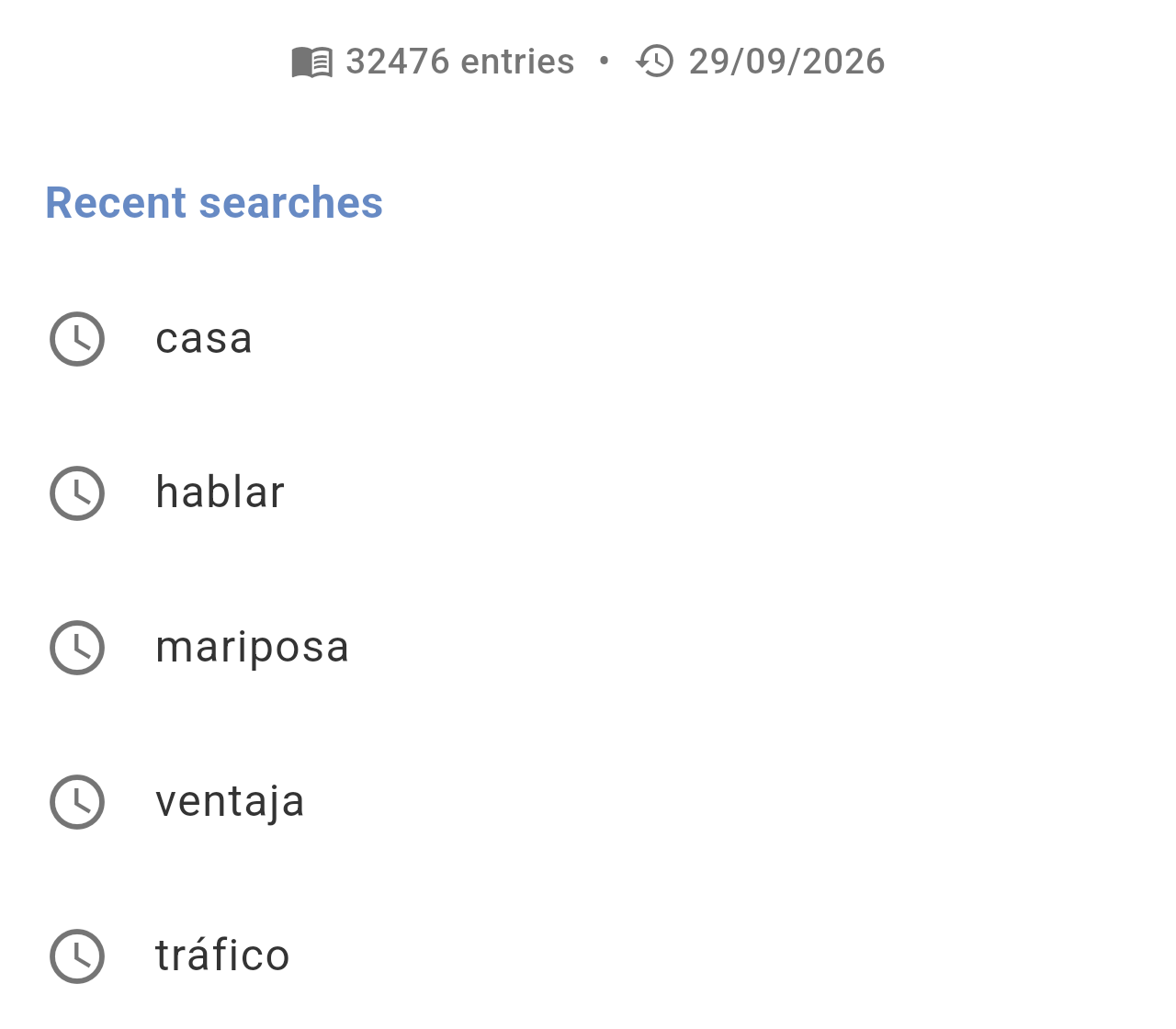
*Recent searches in the Spanish-Galician dictionary. Above the list you can see the number of entries in the dictionary and the date of its last update.*
- Each dictionary has its own list, with up to 10 words.
- Only searches that found a result are added.
- To delete the list, use **Settings → Clear history and cache**. Be aware that this also deletes your favorites. See [Settings](/books/rd-settings-customization/page/settings).
## When nothing is found
If the dictionary has no entry for the word, the app shows the message *What a pity, no results were found.* Check the spelling, try a related form of the word (for example the infinitive of a verb) or make sure you are in the right dictionary.
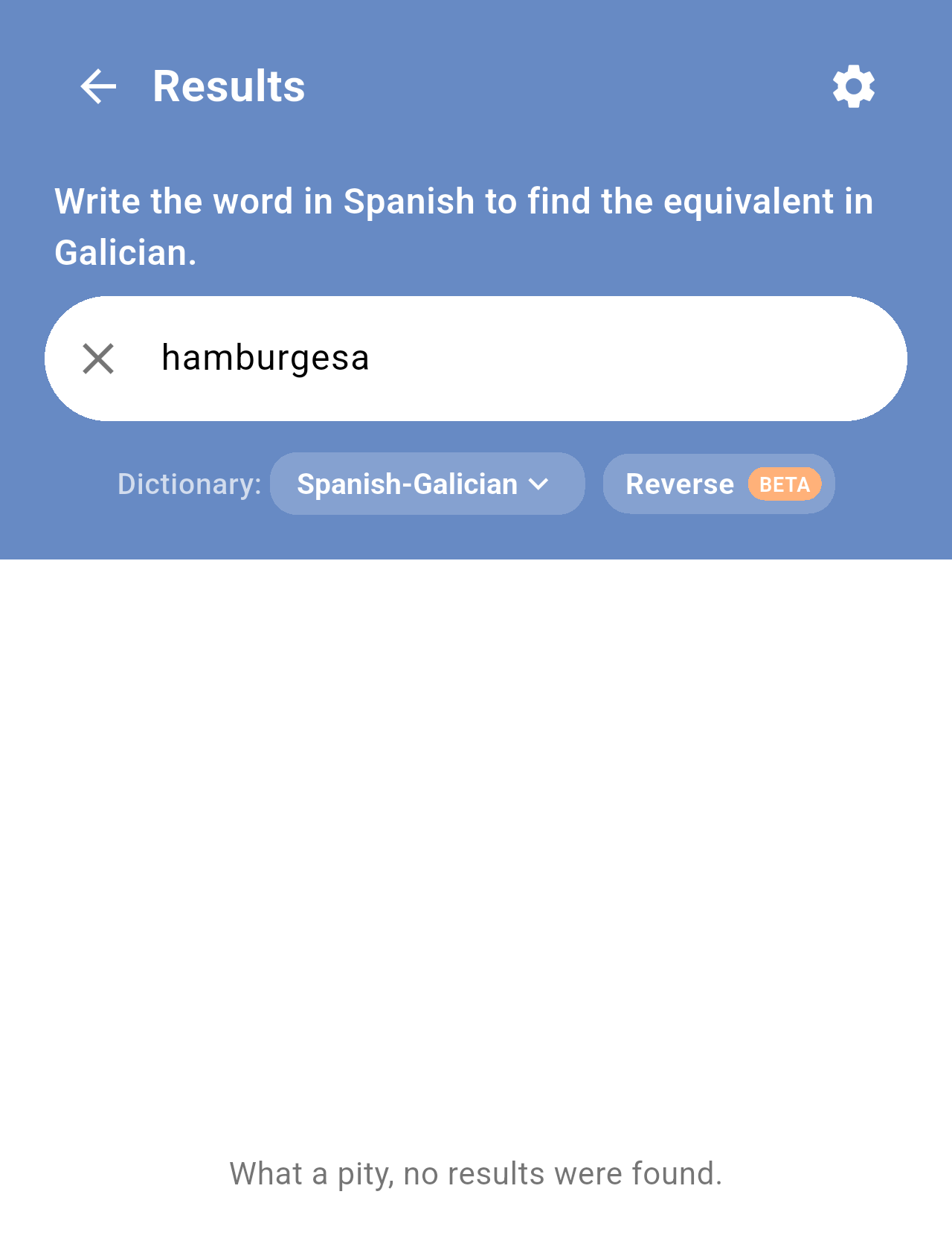
*A misspelled search ("hamburgesa" instead of "hamburguesa") in the Spanish-Galician dictionary.*
> **Note:** Searching needs an Internet connection. Without one, the app shows *Connection error to the dictionary*. See [FAQ / Troubleshooting](/books/rd-faq-troubleshooting/page/faq-troubleshooting).
## Reverse search
In the Spanish-Galician and Latin-Galician dictionaries you can also search from Galician, with the **Reverse** button next to the dictionary picker. See [Home screen](/books/rd-getting-started/page/home-screen).
## Related pages
- [Home screen](/books/rd-getting-started/page/home-screen)
- [Reading a definition](/books/rd-core-features/page/reading-a-definition)
- [Favorites](/books/rd-core-features/page/favorites)
# Reading a definition
Every search result is shown as a card with the entry from the dictionary. This page explains the parts of the card and the actions you can do from it: listen to the word, copy the definition, save it to your favorites and select text.
## Getting there
Result cards appear on the **Explore** tab after a search (see [Searching the dictionaries](/books/rd-core-features/page/searching-the-dictionaries)), in the **Word of the day** window and when you open a word from **Favorites**.
## Parts of a card
The content of the card depends on the dictionary and on the entry, but it follows the same order from top to bottom.
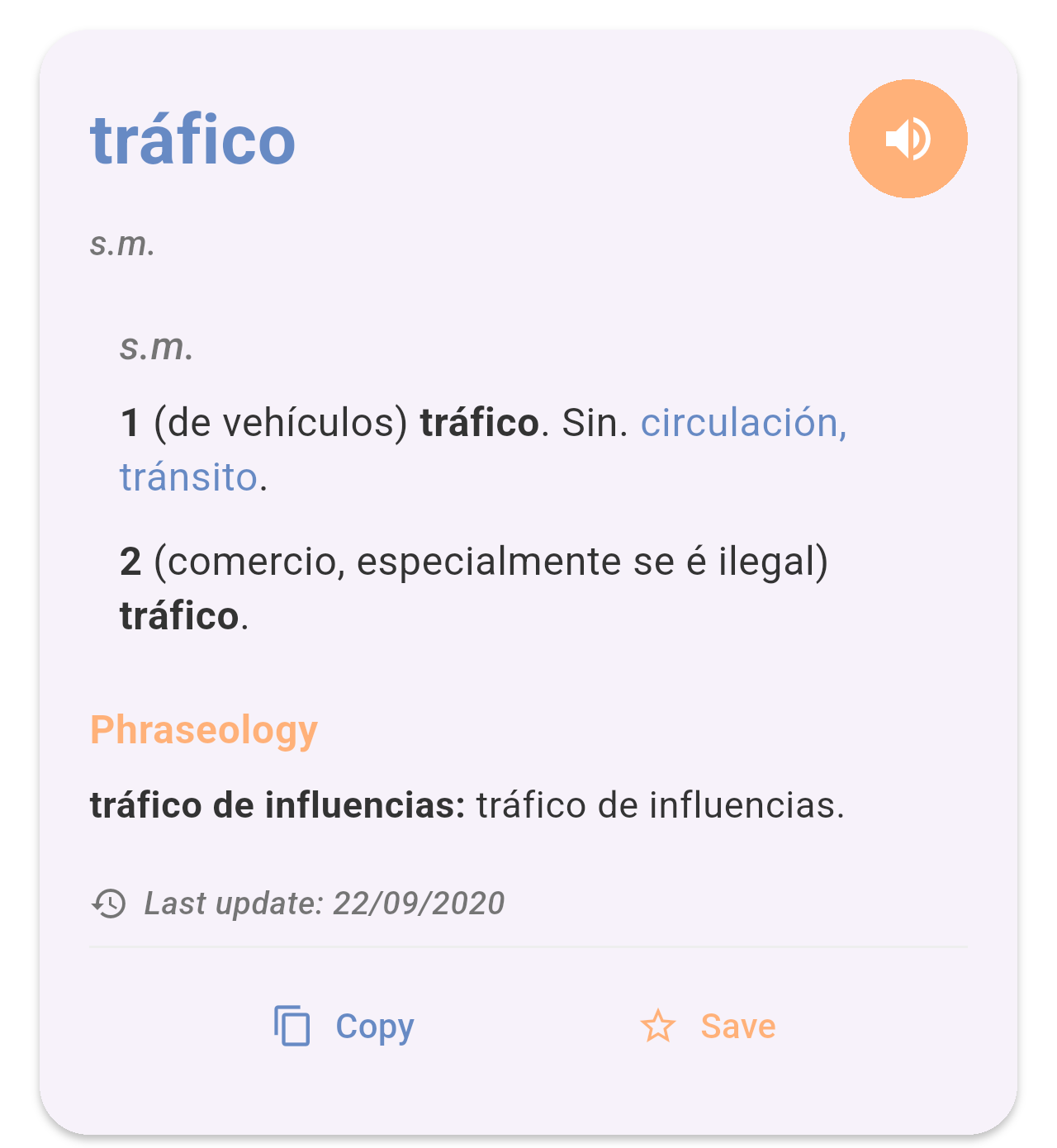
*The entry "tráfico" in the Spanish-Galician dictionary.*
- **Headword:** The word, in blue at the top. When a word has a feminine form, both are shown (for example *silúrico, silúrica*).
- **Speaker button:** The orange button next to the headword. See *Listening to the word* below.
- **Grammatical category:** Under the headword, in grey italics (for example *s.m.*, *adx.*, *v.t.*).
- **Senses:** Each numbered sense shows, in brackets, the context in which the word is used, followed by the Galician equivalent in bold. Words in blue after *Sin.* are synonyms.
- **Phraseology:** When the entry has set phrases, they are listed at the end under this orange title, with the expression in bold followed by its equivalent.
- **Last update:** The date the entry was last changed in the dictionary.
- **Copy** and **Save:** At the bottom of the card.
When a word belongs to several categories, the senses are grouped under each category label. For example, the verb *hablar* has transitive (*v.t.*), intransitive (*v.i.*) and pronominal (*v.p.*) senses:
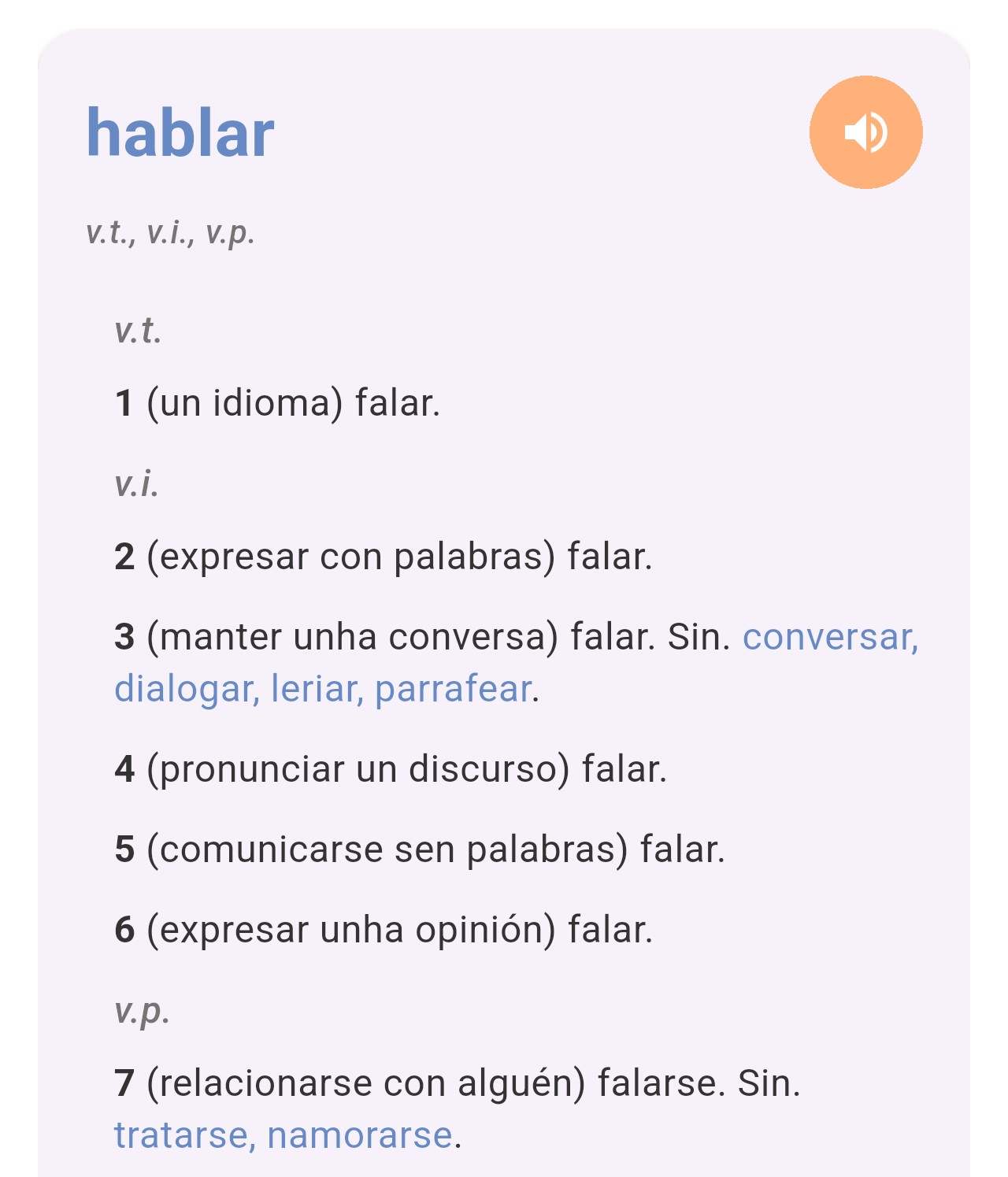
*The entry "hablar", with its senses grouped by category.*
## Listening to the word
Tap the orange speaker button to hear the headword read aloud. The app uses your phone's text-to-speech engine, so the voice and pronunciation depend on the voices installed on your phone.
## Copying the definition
Tap **Copy** to copy the whole entry (headword, category, senses and phraseology) as plain text. A message at the bottom of the screen confirms it, and you can paste the text in any other app.
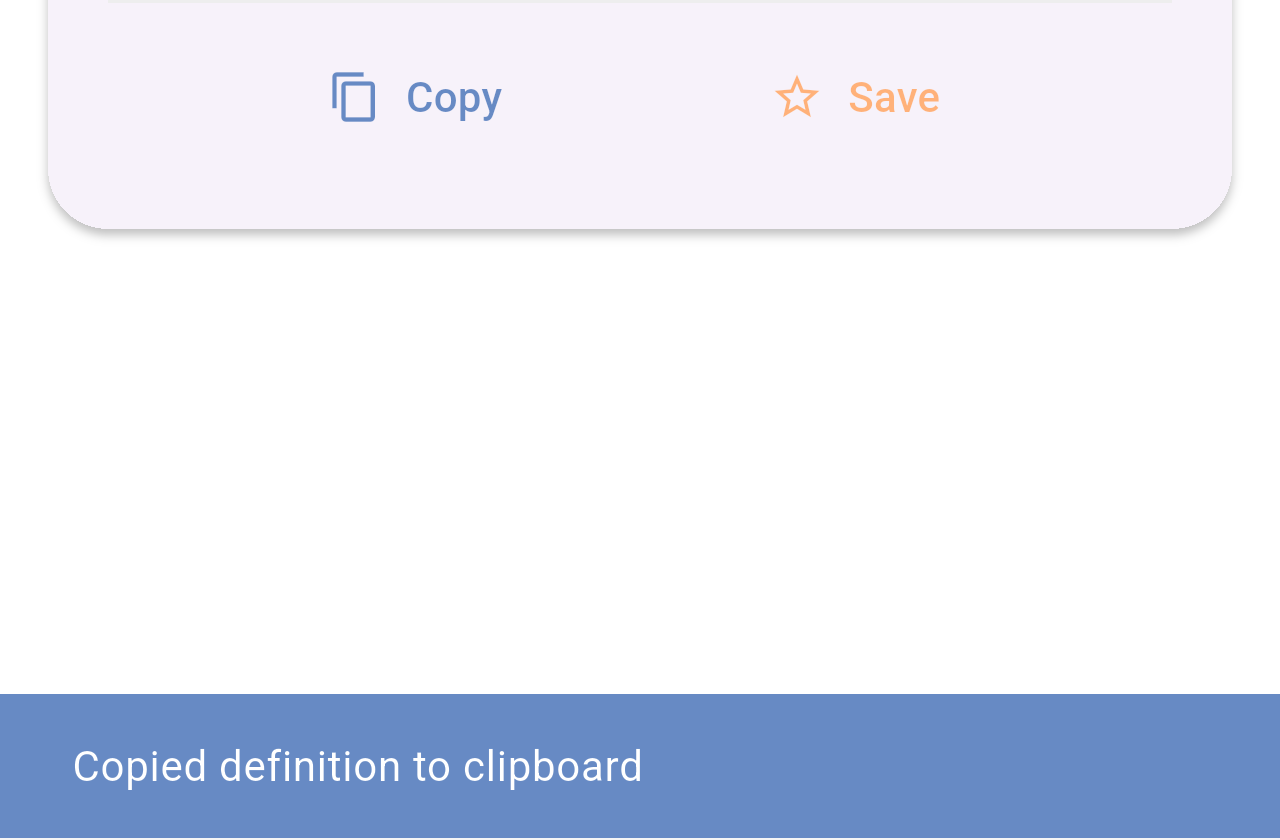
*The confirmation shown after tapping **Copy**.*
## Saving to favorites
Tap **Save** to add the word to your favorites. The star turns solid and the button changes to **Saved**. Tap **Saved** to remove the word from your favorites.
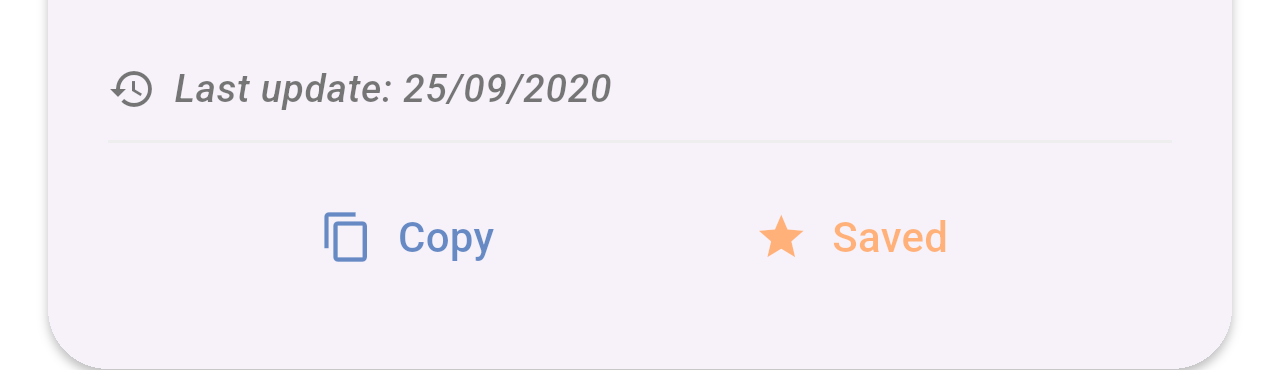
*A word already saved to your favorites.*
Your saved words are listed on the **Favorites** tab. See [Favorites](/books/rd-core-features/page/favorites).
## Selecting part of the text
To copy only part of a definition, touch and hold a word on the card. Drag the handles to change the selection and choose an option in the menu that appears, such as **Copy** or **Share**.
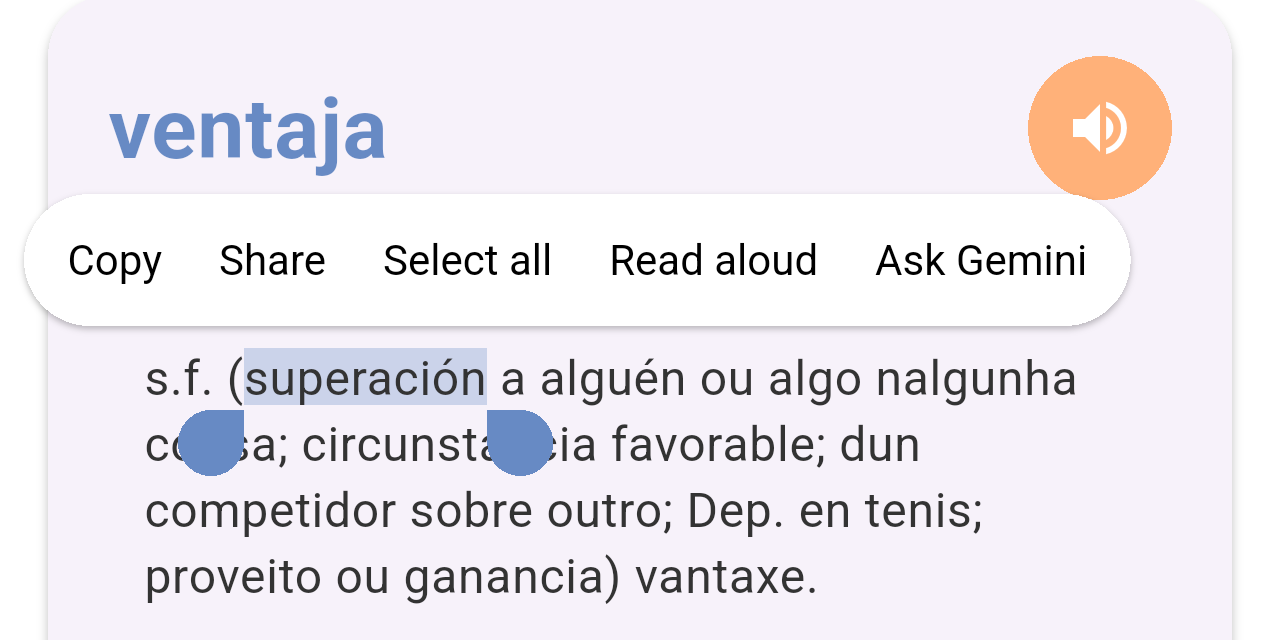
*A word selected on the card. The options in the menu come from your phone and may vary.*
## Related pages
- [Searching the dictionaries](/books/rd-core-features/page/searching-the-dictionaries)
- [Favorites](/books/rd-core-features/page/favorites)
- [Word of the day](/books/rd-core-features/page/word-of-the-day)
# Word of the day
The Word of the day shows you a random entry from the dictionary once a day, the first time you open the app. It is a simple way to discover new words.
## Getting there
The Word of the day appears by itself when you open the app for the first time each day. It is not shown on the very first launch of the app, so that it does not cover the tutorial. You can turn it on or off in **Settings → Word of the day**. See [Settings](/books/rd-settings-customization/page/settings).
## Using the Word of the day
The word is shown in a window over the search screen, with an orange **Word of the day** label on top.
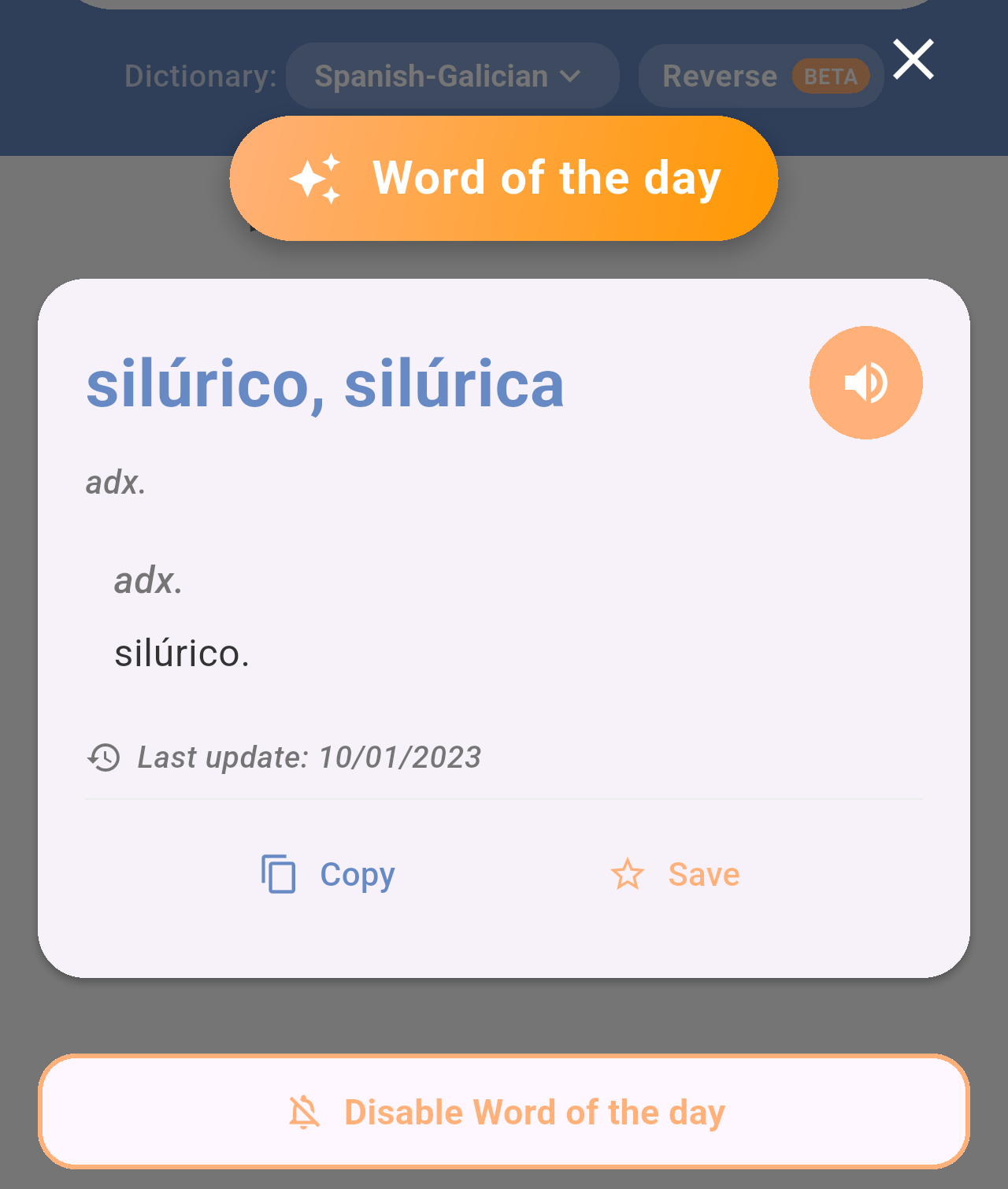
*The Word of the day: "silúrico, silúrica", from the Spanish-Galician dictionary.*
The word is shown on a normal result card, so you can:
- Tap the speaker button to listen to it.
- Tap **Copy** to copy the definition, or **Save** to add it to your favorites.
See [Reading a definition](/books/rd-core-features/page/reading-a-definition) for more details about the card.
To close the window, tap the **✕** in the top-right corner. If you don't want to see the Word of the day any more, tap **Disable Word of the day**: the window closes and the option is turned off in Settings.
> **Note:** The word is taken from your default dictionary (**Settings → Default dictionary**). If the app can't get the word, for example because there is no Internet connection, it tries again the next time you open it that day.
## Related pages
- [Reading a definition](/books/rd-core-features/page/reading-a-definition)
- [Favorites](/books/rd-core-features/page/favorites)
- [Settings](/books/rd-settings-customization/page/settings)
# Favorites
Favorites keeps the words you save so you can check them again at any time, even without an Internet connection. You can filter them and open each one to see its full definition.
## Getting there
Tap **Favorites** in the bar at the bottom of the screen. To add a word, tap **Save** on its result card. See [Reading a definition](/books/rd-core-features/page/reading-a-definition).
## The favorites list
Your saved words are shown as cards, in the order you saved them. Each card shows the dictionary the word comes from, its grammatical category and the headword.
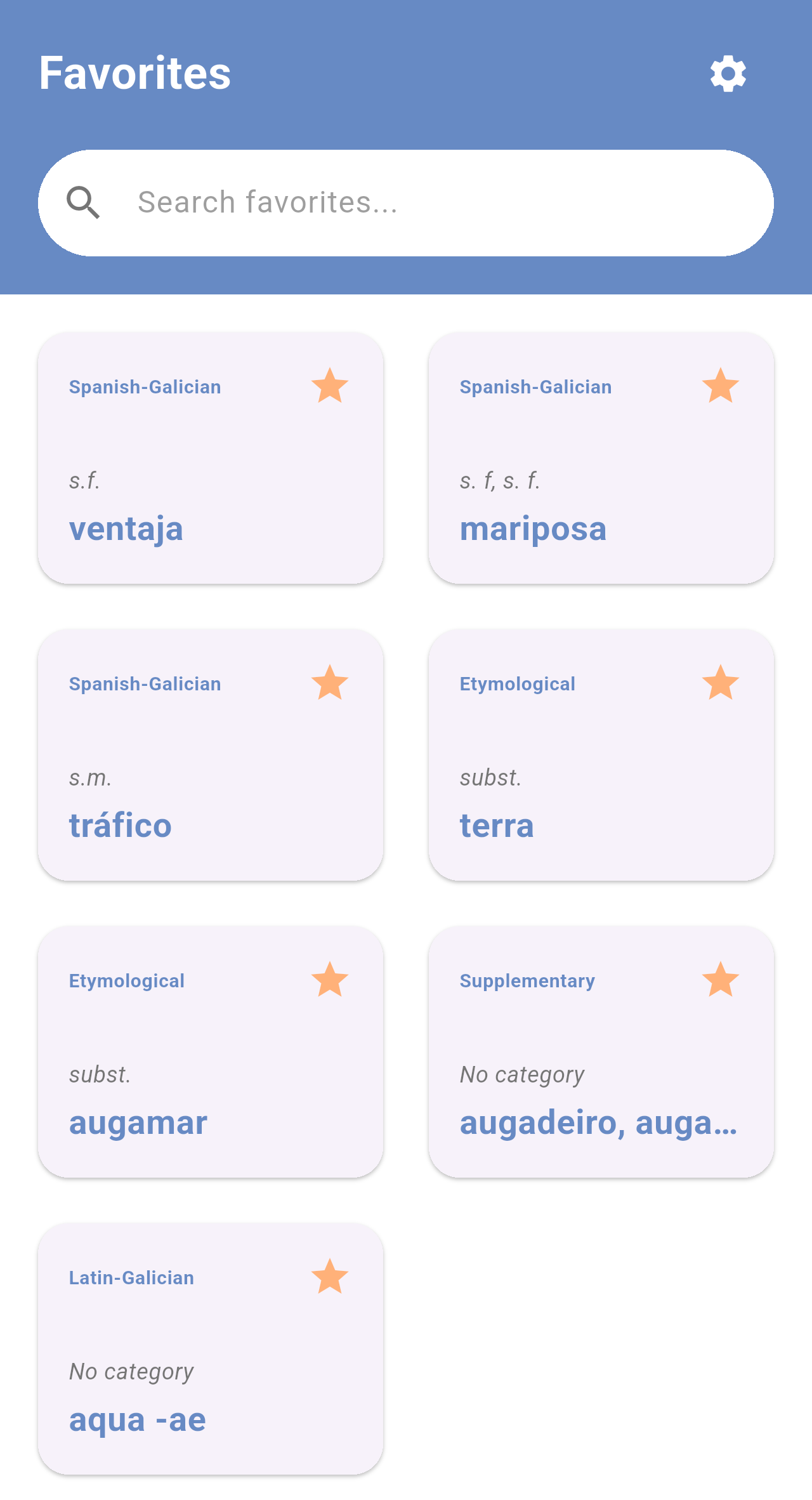
*Favorites with words from the four dictionaries. When the entry has no category, the card shows* No category.
If you haven't saved any word yet, the screen shows *You haven't saved any words yet.*
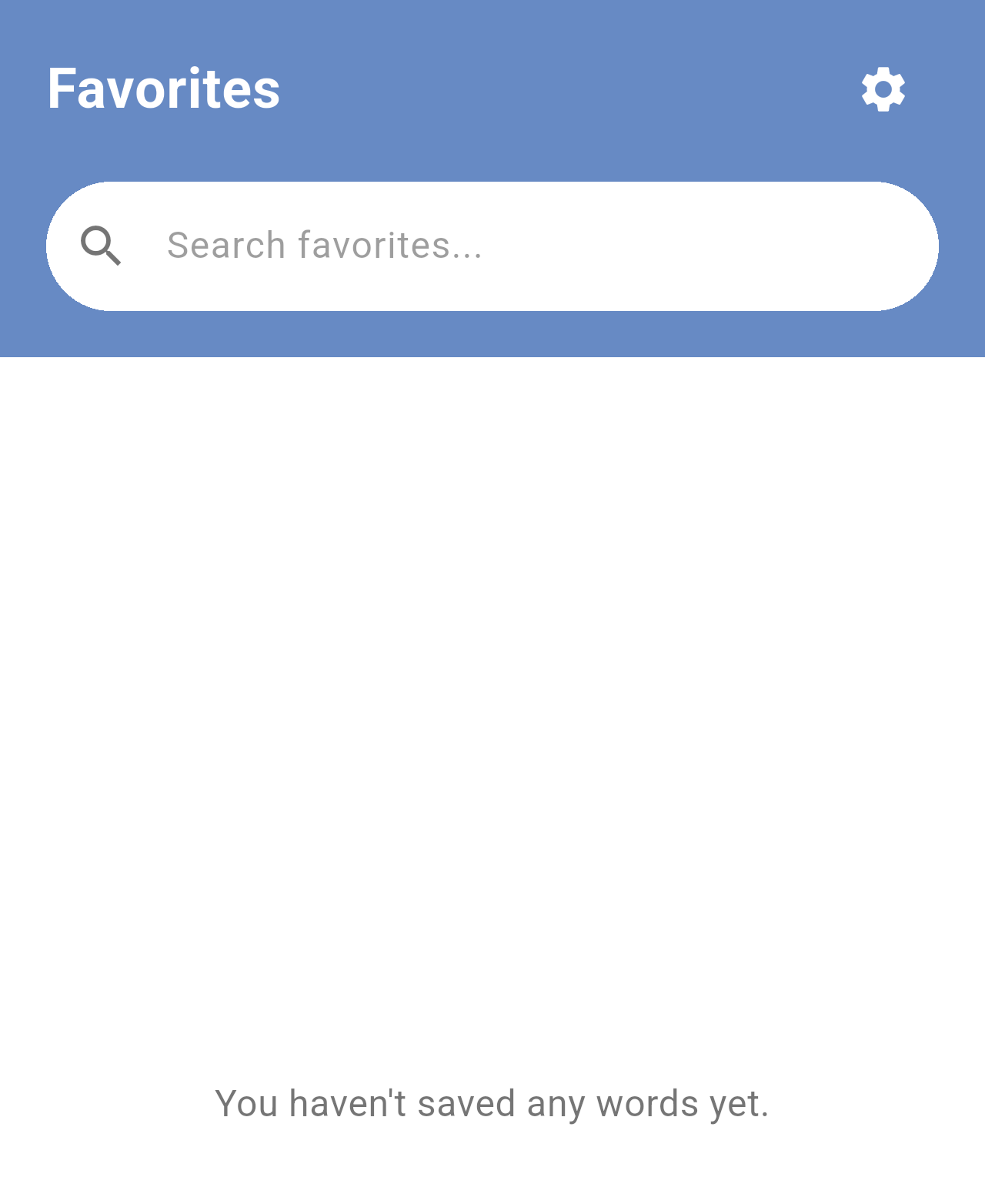
*The Favorites tab before saving any word.*
## Filtering your favorites
Type in the **Search favorites...** field to show only the favorites that match. The filter looks at the headword, the name of the dictionary and the grammatical category, so you can type, for example, *etym* to see only the words from the Etymological dictionary.
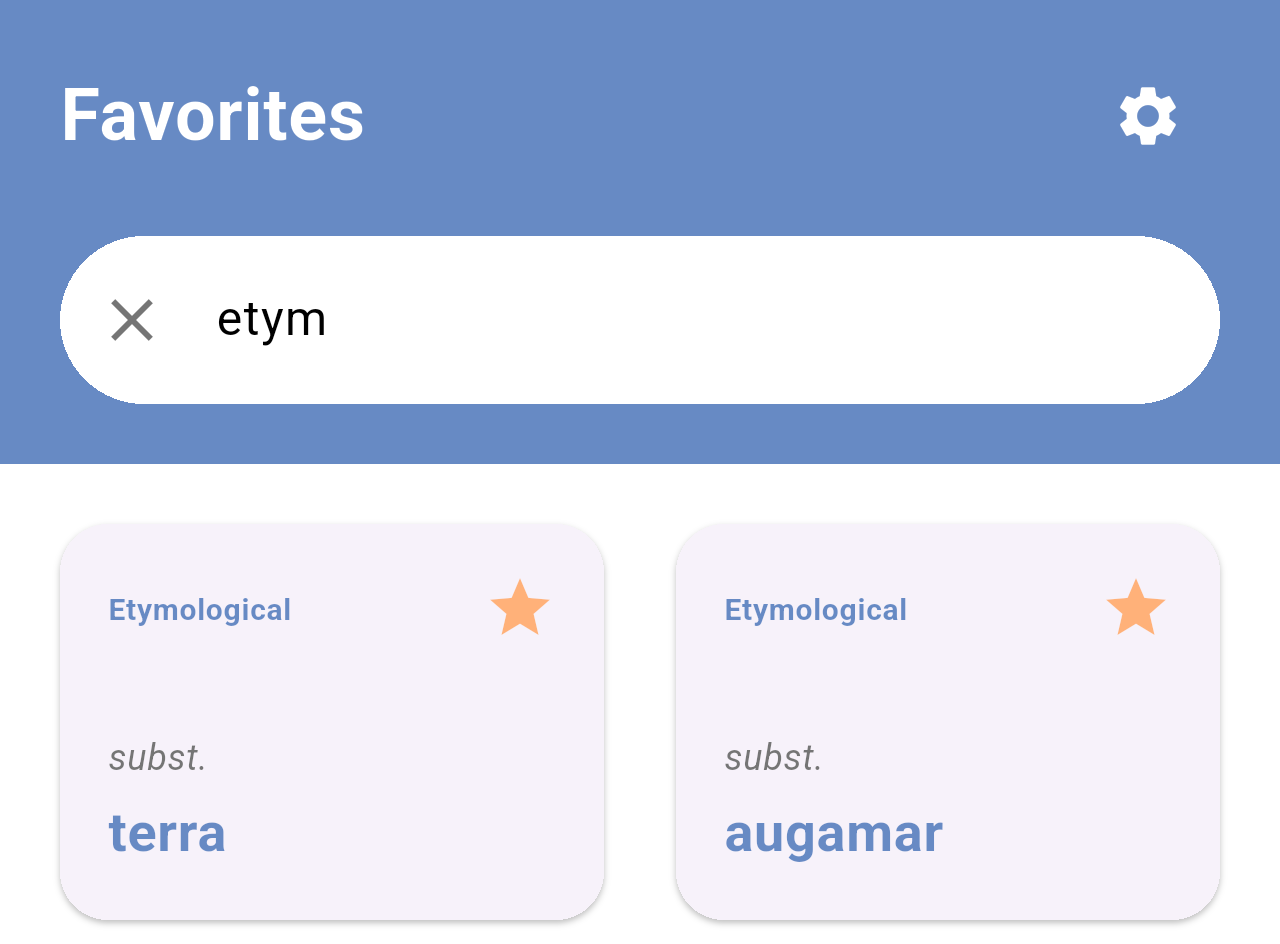
*Favorites filtered by "etym".*
Tap the **✕** in the field to clear the filter. If no favorite matches, the screen shows *No favourites were found using those criteria.*
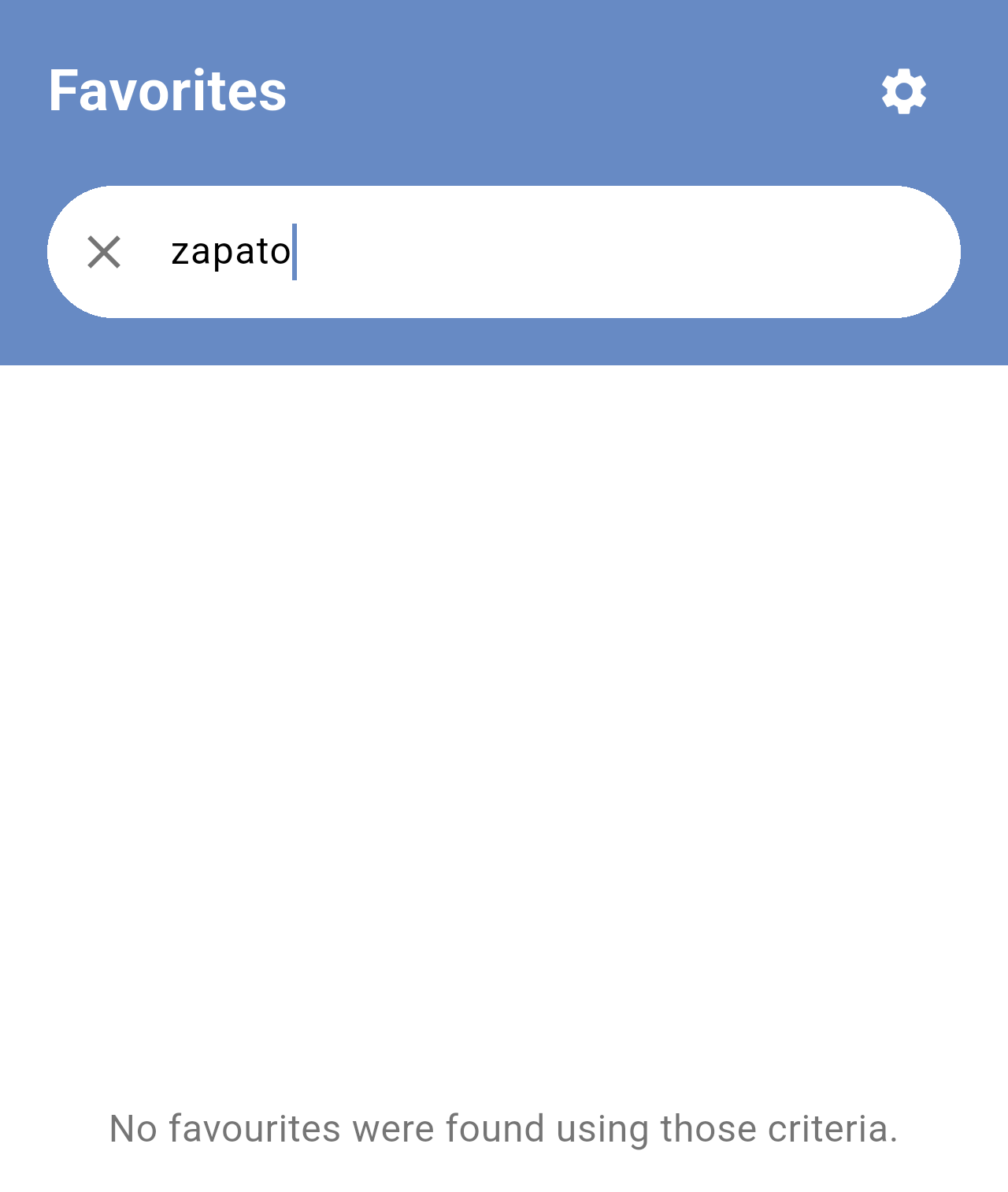
*No favorite matches "zapato".*
## Opening a favorite
Tap a card to open the word with its full definition. From here you can listen to it, copy it or tap **Saved** to remove it from your favorites. Go back with the arrow in the top-left corner.
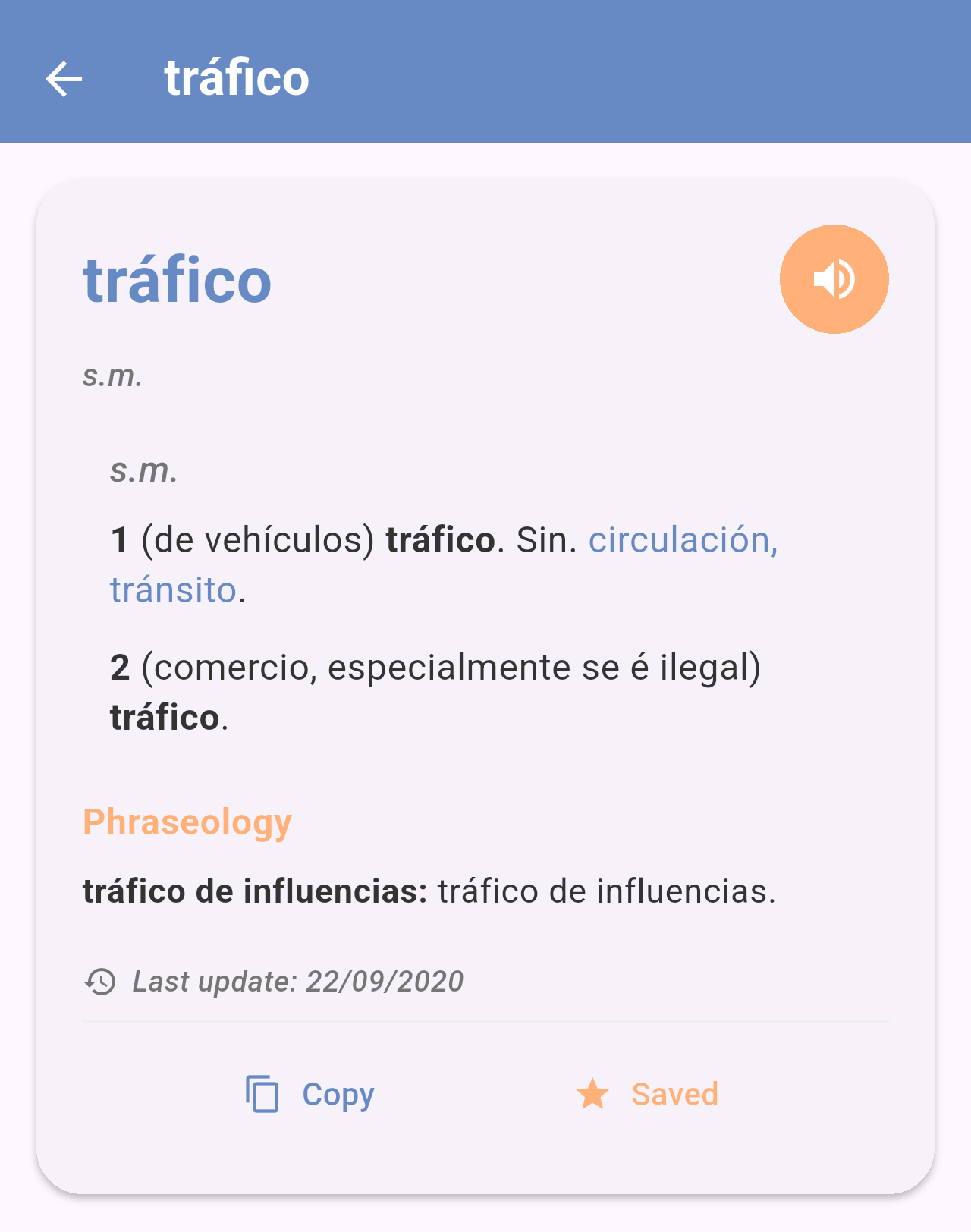
*The favorite "tráfico" opened.*
> **Note:** Favorites are stored only on your phone. **Settings → Clear history and cache** deletes all your favorites together with your recent searches, and they can't be recovered. Uninstalling the app also deletes them.
## Related pages
- [Reading a definition](/books/rd-core-features/page/reading-a-definition)
- [Searching the dictionaries](/books/rd-core-features/page/searching-the-dictionaries)
- [Settings](/books/rd-settings-customization/page/settings)
# RD - Settings & Customization
# Settings
In Settings you choose the language of the app, the dictionary it opens with, the theme and other preferences. You can also delete your data and find information about the app.
## Getting there
Tap the gear icon in the top-right corner of the **Explore** or **Favorites** tab. See [Home screen](/books/rd-getting-started/page/home-screen).
## Preferences
The first group of options changes how the app looks and behaves. Changes are saved at once.
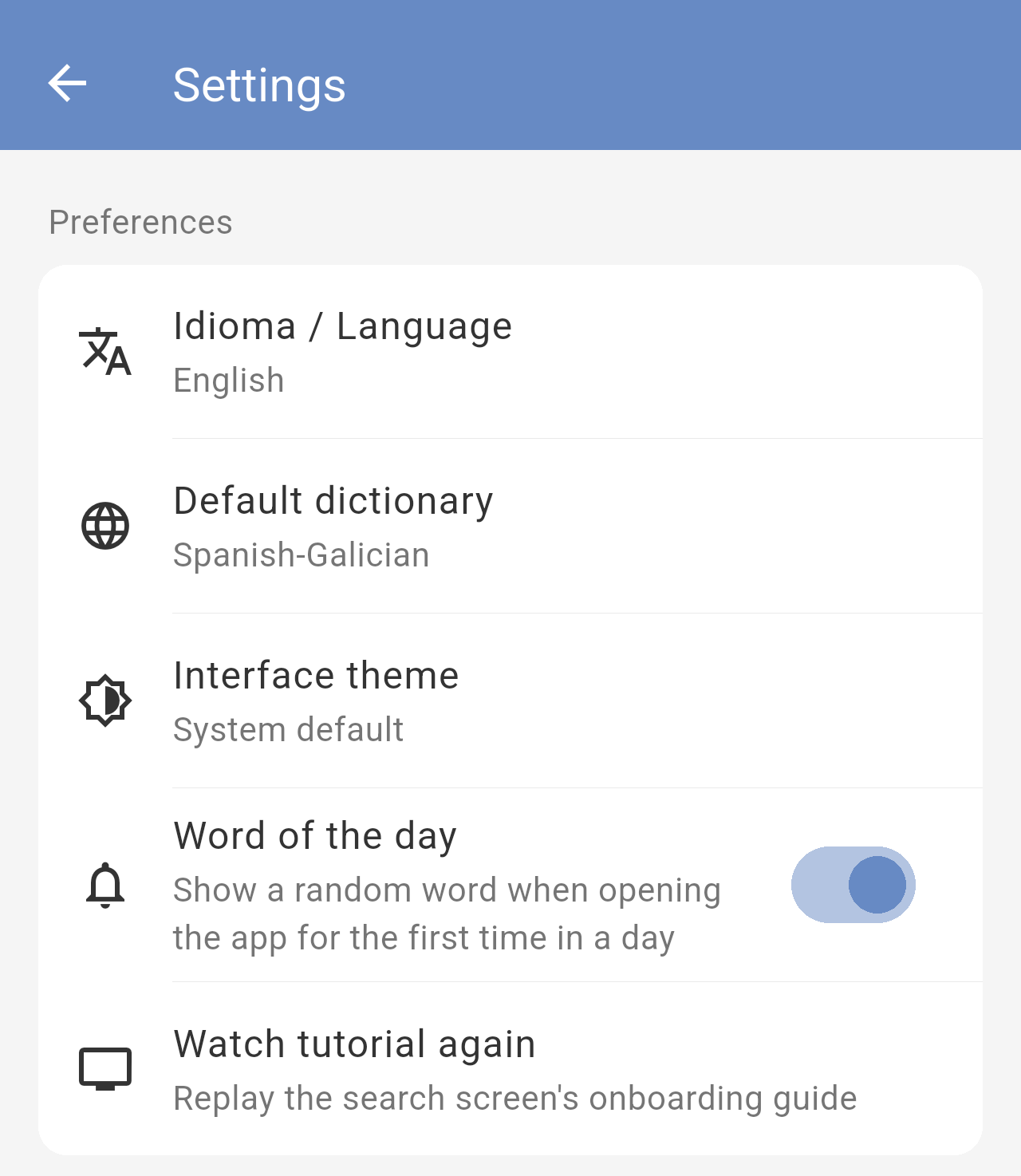
*The Preferences group.*
### Idioma / Language
The language of the app: **Galego**, **Español**, **English** or **Lingua Latina**. The title of this option is always shown in Galician and English, so you can find it whatever language the app is in.
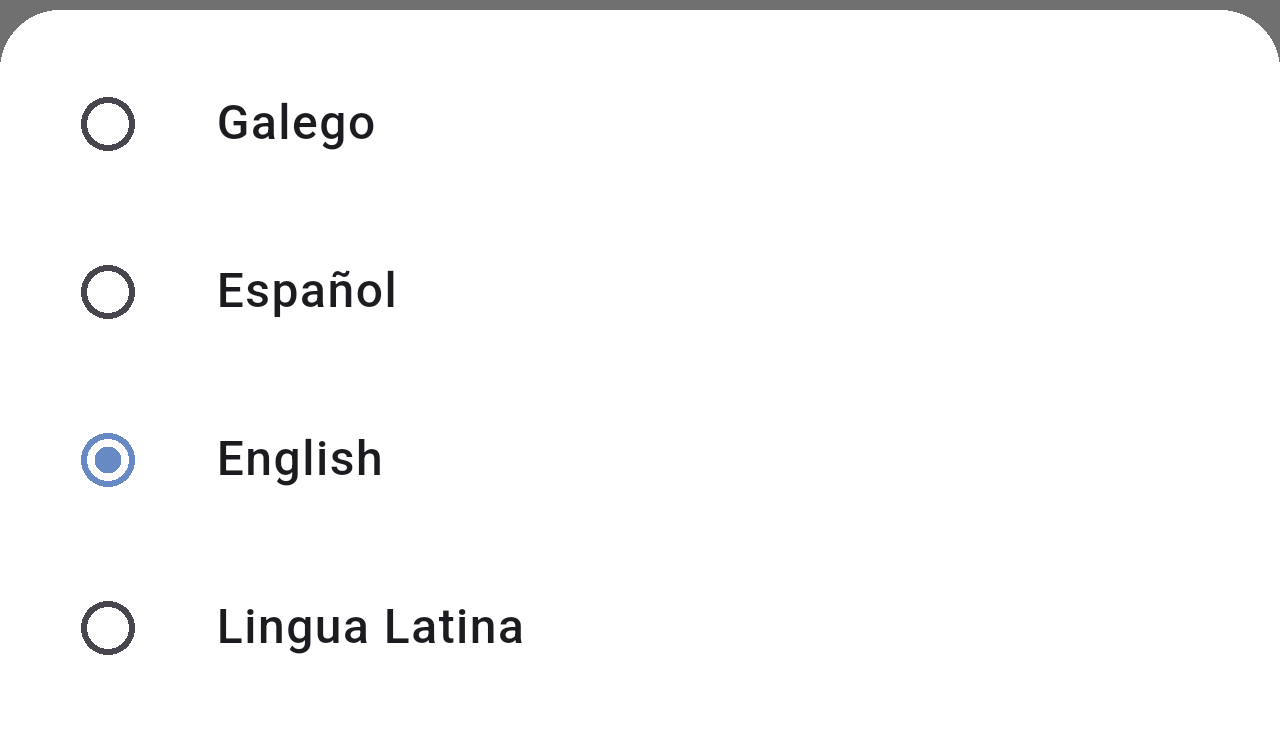
*The language options.*
This only changes the texts of the app. The dictionary entries are always shown as they are in the dictionary.
### Default dictionary
The dictionary the app opens with. Choosing one here also switches the search screen to that dictionary. It is also the dictionary used for the Word of the day.
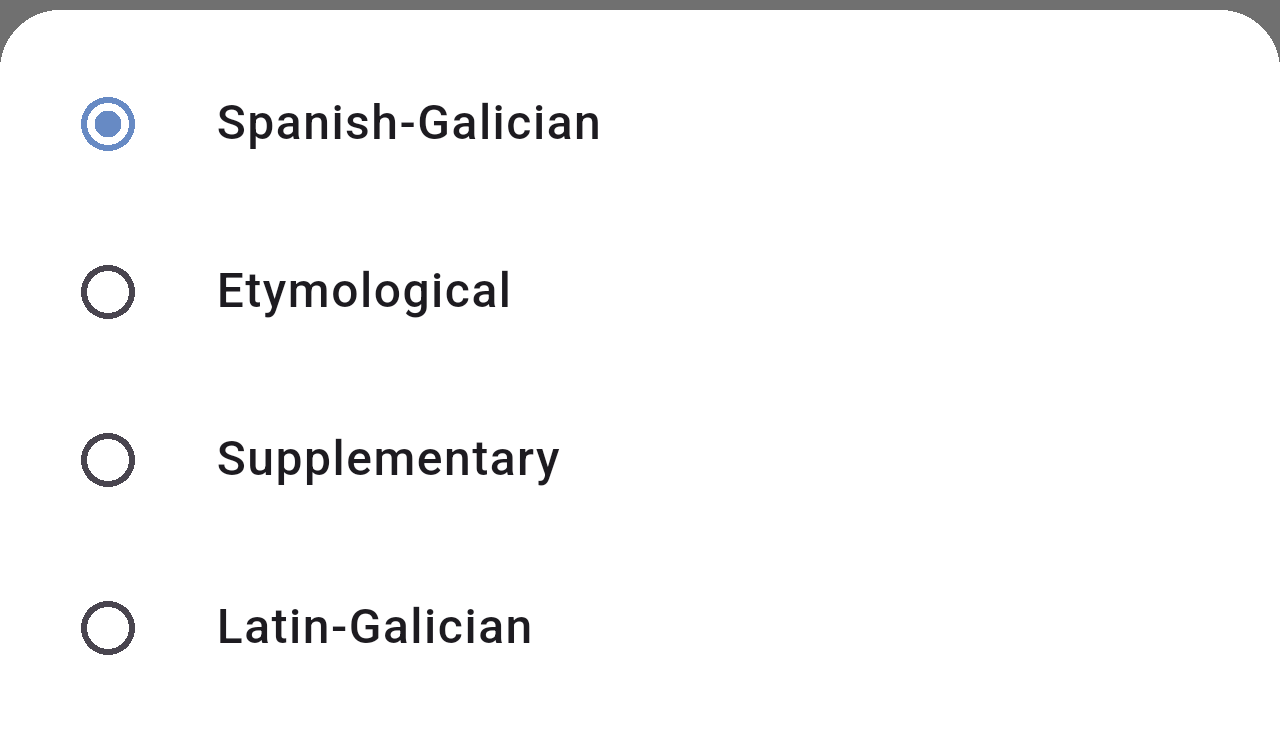
*The four dictionaries you can set as default.*
### Interface theme
Choose **Light theme**, **Dark theme**, or **System default** to follow your phone's setting.
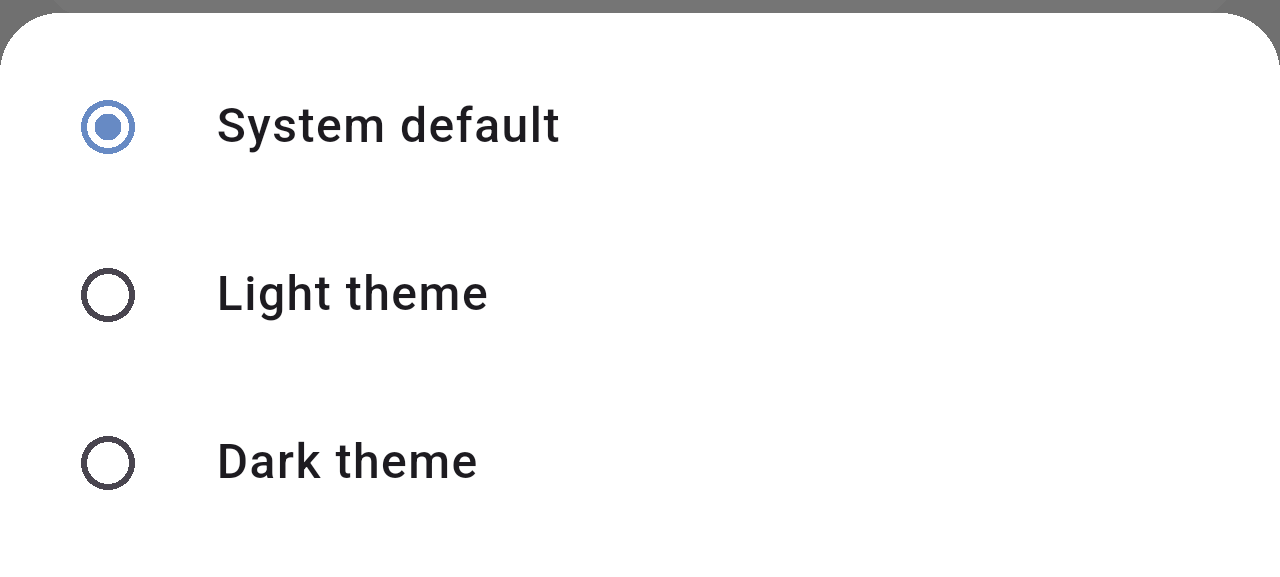
*The theme options.*
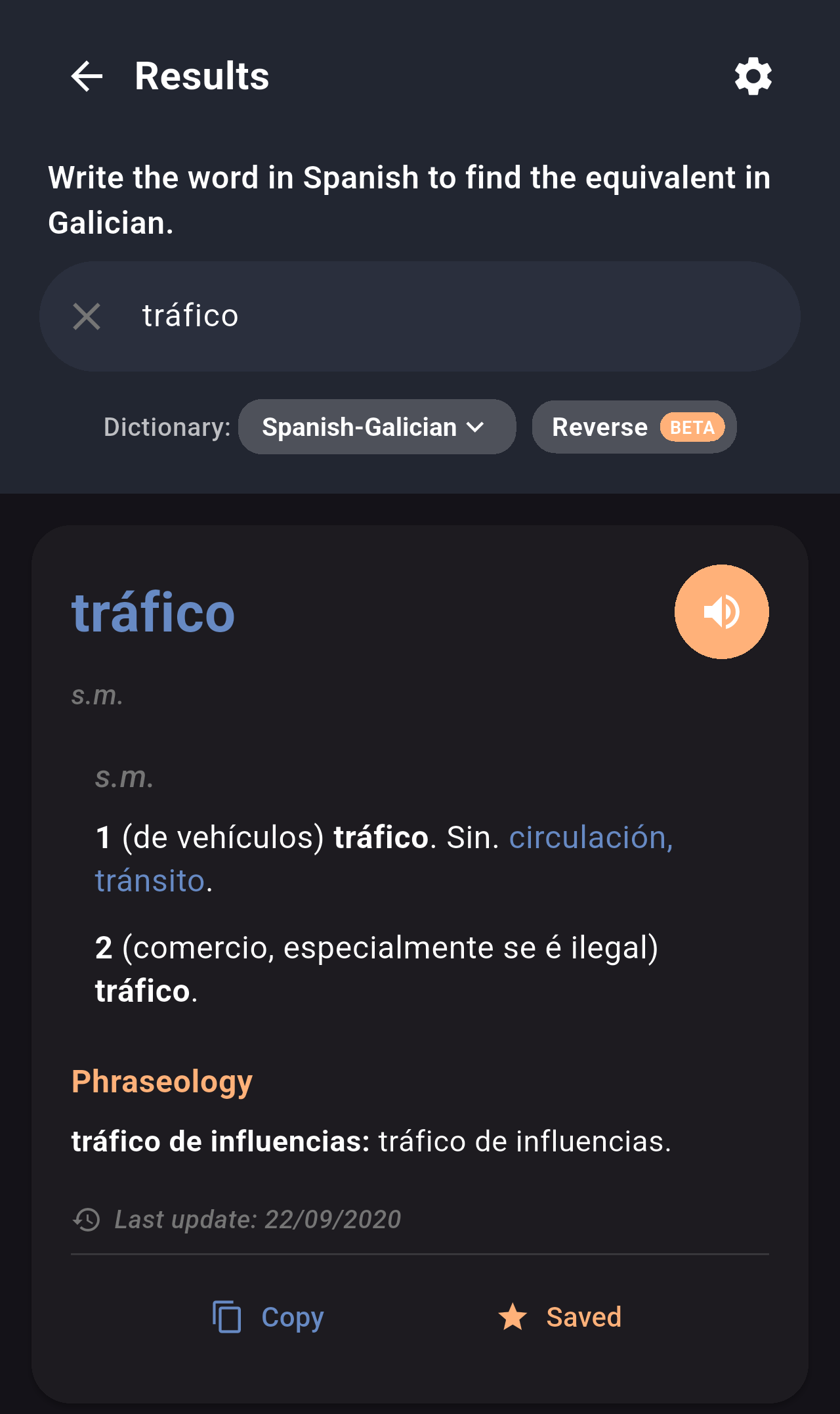
*A search result with the dark theme.*
### Word of the day
Turn this switch on to see a random word the first time you open the app each day, or off to stop it. See [Word of the day](/books/rd-core-features/page/word-of-the-day).
### Watch tutorial again
Tap it to go back to the search screen and see the tutorial from the beginning. See [First launch and tutorial](/books/rd-getting-started/page/first-launch-and-tutorial).
## Data
This group has a single option to delete the data the app keeps on your phone.
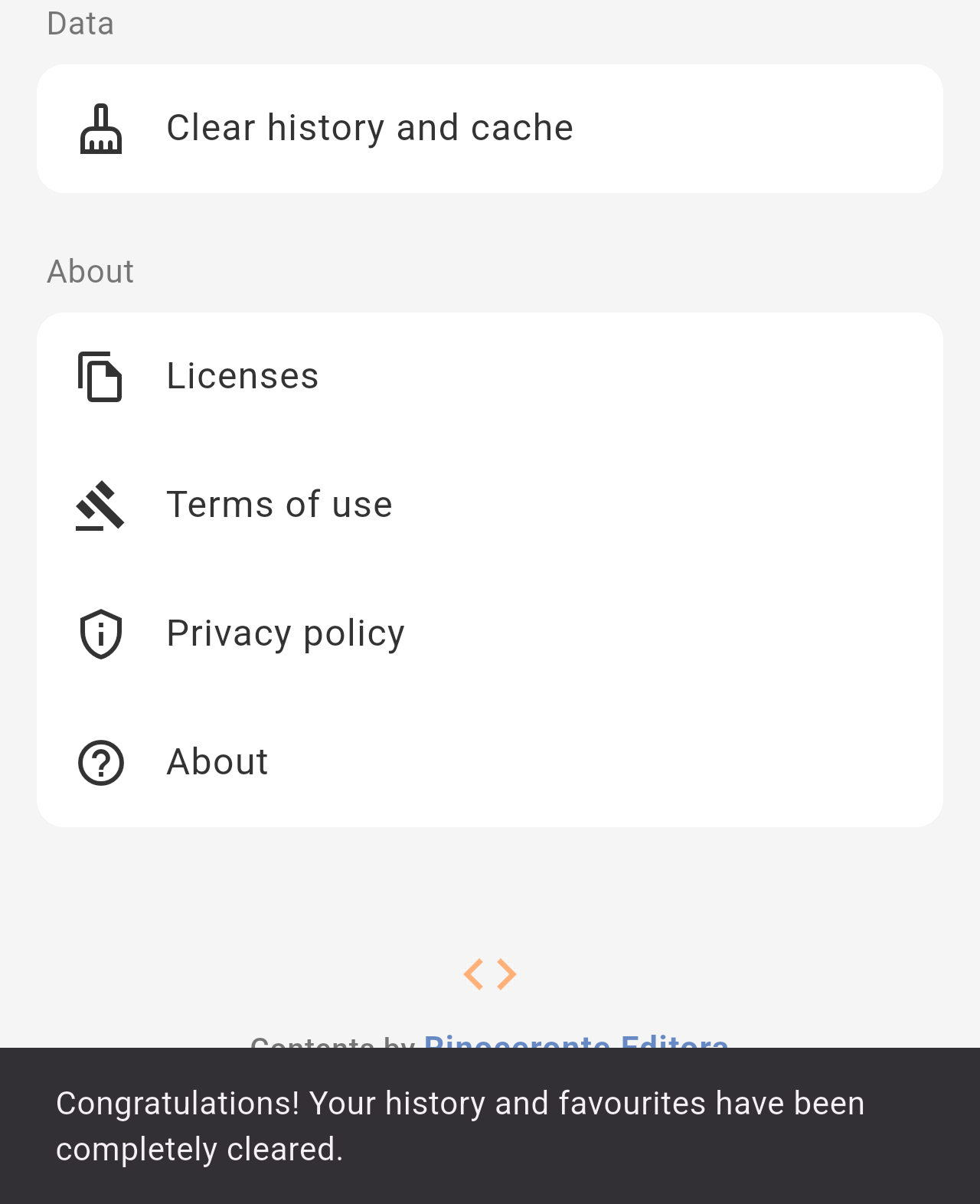
*The **Clear history and cache** option and the message shown after tapping it.*
Tap **Clear history and cache** to delete the recent searches of all the dictionaries **and all your favorites**.
> **Warning:** The data is deleted as soon as you tap the option, without asking for confirmation, and it can't be recovered. If you want to keep your favorites, don't use this option.
## About
The last group has information about the app and its contents.
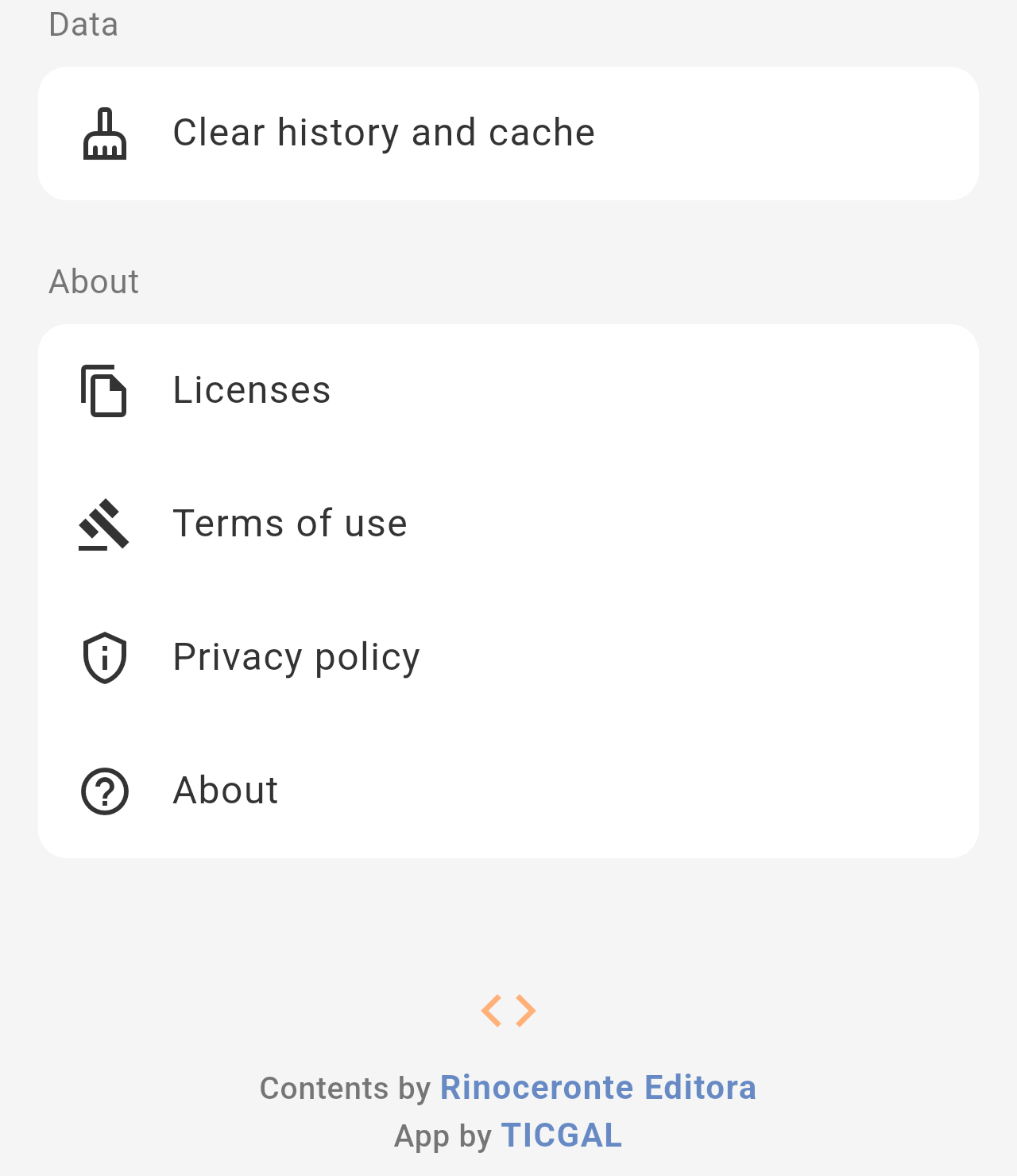
*The About group and the credits at the bottom of Settings.*
- **Licenses:** The open-source licenses of the components used by the app.
- **Terms of use** and **Privacy policy:** Open the documents in your browser.
- **About:** Shows the version of the app, the credits and links to more information.
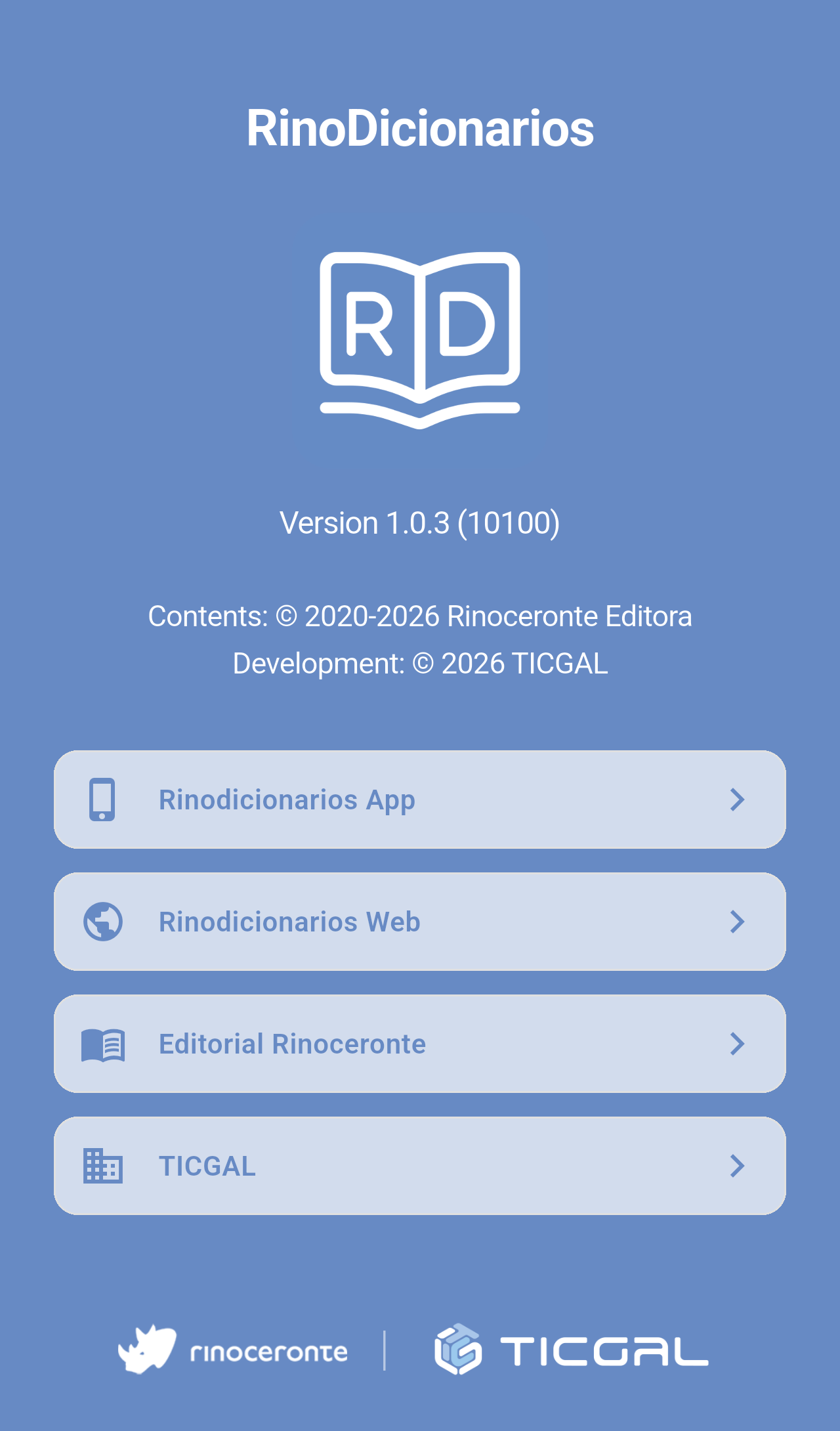
*The About screen. Tap any of the buttons to open the website in your browser, or tap anywhere else on the screen to close it.*
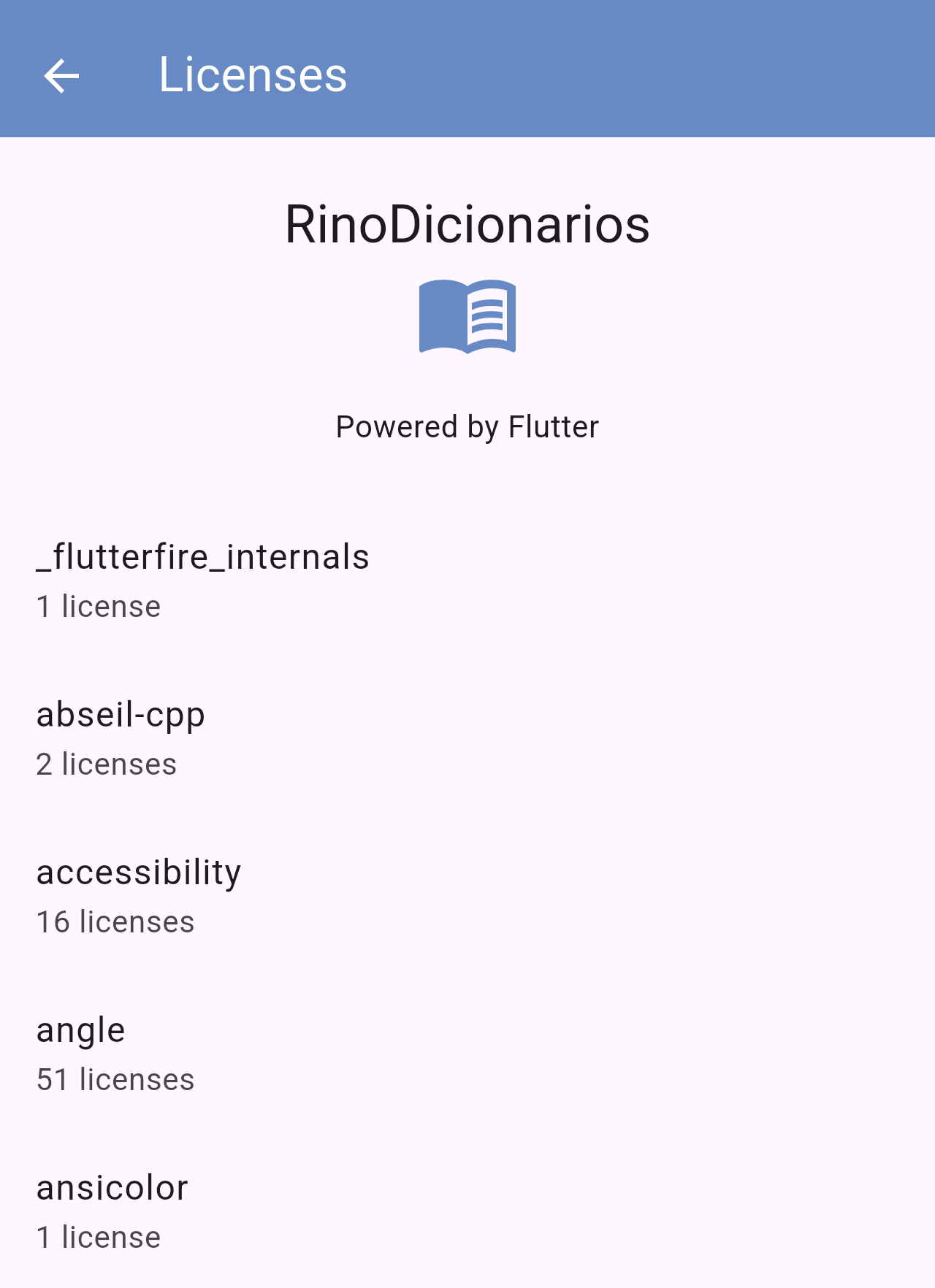
*The Licenses screen.*
> **Note:** The version shown on the About screen is useful when you contact support.
## Related pages
- [Home screen](/books/rd-getting-started/page/home-screen)
- [Word of the day](/books/rd-core-features/page/word-of-the-day)
- [Favorites](/books/rd-core-features/page/favorites)
- [FAQ / Troubleshooting](/books/rd-faq-troubleshooting/page/faq-troubleshooting)
# FAQ / Troubleshooting
# FAQ / Troubleshooting
Answers to the most common questions about RinoDicionarios, and what to do when something does not work as expected.
## The app says "Connection error to the dictionary"
RinoDicionarios searches the dictionaries online, so it needs an Internet connection. Check that your phone is connected to Wi-Fi or mobile data and search again. Your favorites are stored on your phone, so you can still check them without a connection. See [Favorites](/books/rd-core-features/page/favorites).
## I can't find a word
Check the following:
- Make sure you are in the right dictionary and typing in the right language: Spanish in Spanish-Galician, Latin in Latin-Galician and Galician in the Etymological and Supplementary dictionaries. The text above the search field reminds you.
- Check the spelling, or type the first letters and pick one of the suggestions.
- Try the basic form of the word: the singular of a noun or the infinitive of a verb.
- If you want to search a Galician word in the Spanish-Galician or Latin-Galician dictionary, turn on Reverse.
See [Searching the dictionaries](/books/rd-core-features/page/searching-the-dictionaries).
## I don't see the Reverse button
Reverse search is only available in the Spanish-Galician and Latin-Galician dictionaries. Select one of them in the dictionary picker. See [Home screen](/books/rd-getting-started/page/home-screen).
## I can't hear the word when I tap the speaker
The app uses your phone's text-to-speech engine. Check that the media volume is up and that your phone has a text-to-speech voice installed (in Android, in the phone's settings under *Text-to-speech output*).
## My favorites and recent searches have disappeared
**Settings → Clear history and cache** deletes both your recent searches and your favorites, and they can't be recovered. They are also deleted if you uninstall the app or clear its data from the phone's settings.
## How do I stop the Word of the day?
Tap **Disable Word of the day** in the Word of the day window, or turn off **Settings → Word of the day**. See [Word of the day](/books/rd-core-features/page/word-of-the-day).
## The app always opens with the same dictionary
The app opens with the dictionary set in **Settings → Default dictionary**. Change it there to start with a different dictionary.
## How do I change the language of the app?
Go to **Settings → Idioma / Language**. The title of this option is in Galician and English, so you can find it whatever language the app is in.
## How do I see the tutorial again?
Go to **Settings → Watch tutorial again**. The app goes back to the search screen and starts the tutorial.
## A message says an update is available
When a new version is published, a message appears at the bottom of the search screen. Tap **Update** to open the app store and install it.
## Related pages
- [First launch and tutorial](/books/rd-getting-started/page/first-launch-and-tutorial)
- [Searching the dictionaries](/books/rd-core-features/page/searching-the-dictionaries)
- [Favorites](/books/rd-core-features/page/favorites)
- [Settings](/books/rd-settings-customization/page/settings)