# RD - Settings & Customization
# Settings
In Settings you choose the language of the app, the dictionary it opens with, the theme and other preferences. You can also delete your data and find information about the app.
## Getting there
Tap the gear icon in the top-right corner of the **Explore** or **Favorites** tab. See [Home screen](/books/rd-getting-started/page/home-screen).
## Preferences
The first group of options changes how the app looks and behaves. Changes are saved at once.
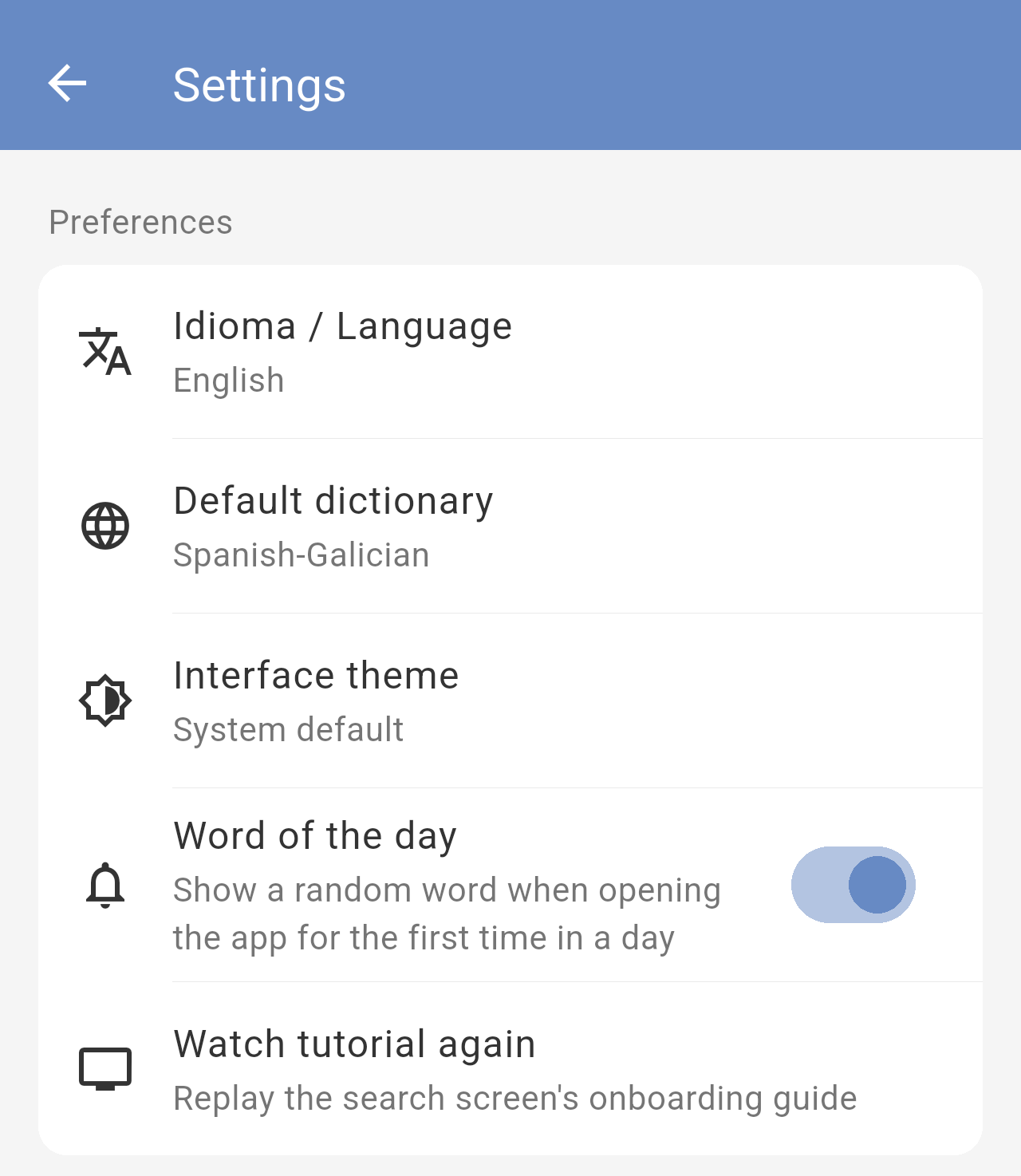
*The Preferences group.*
### Idioma / Language
The language of the app: **Galego**, **Español**, **English** or **Lingua Latina**. The title of this option is always shown in Galician and English, so you can find it whatever language the app is in.
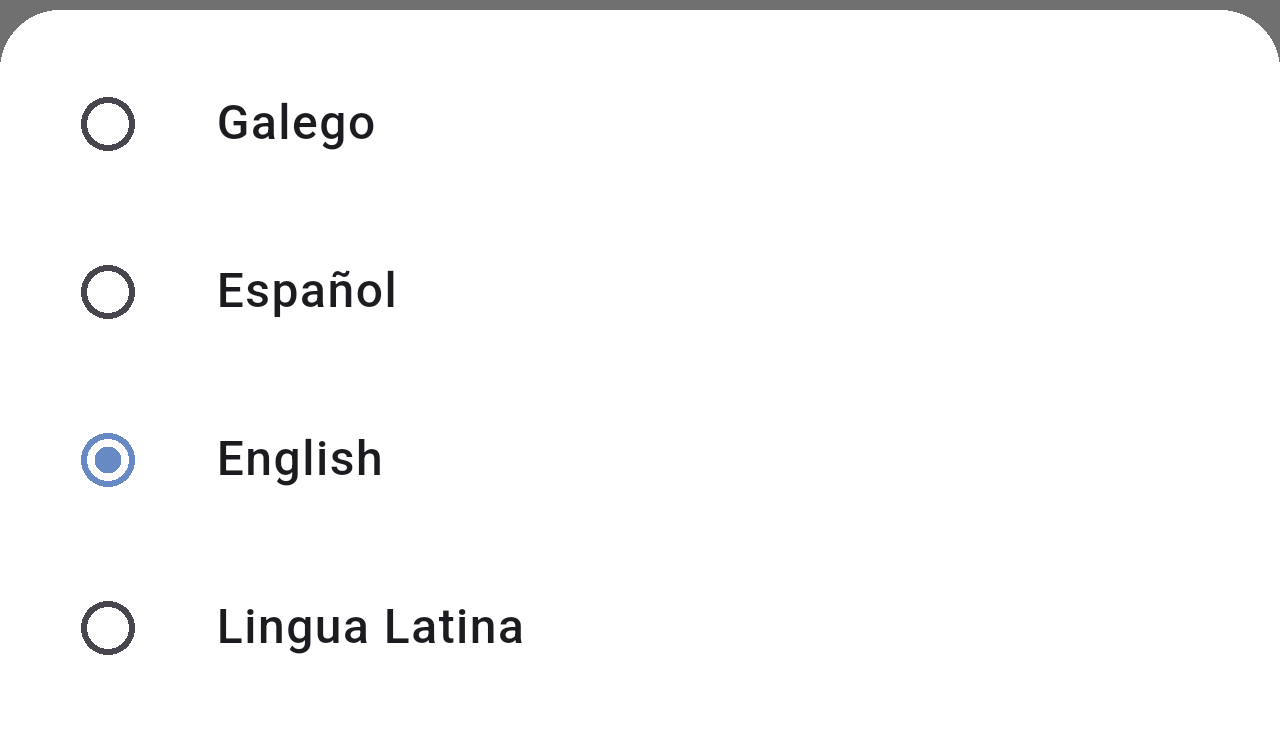
*The language options.*
This only changes the texts of the app. The dictionary entries are always shown as they are in the dictionary.
### Default dictionary
The dictionary the app opens with. Choosing one here also switches the search screen to that dictionary. It is also the dictionary used for the Word of the day.
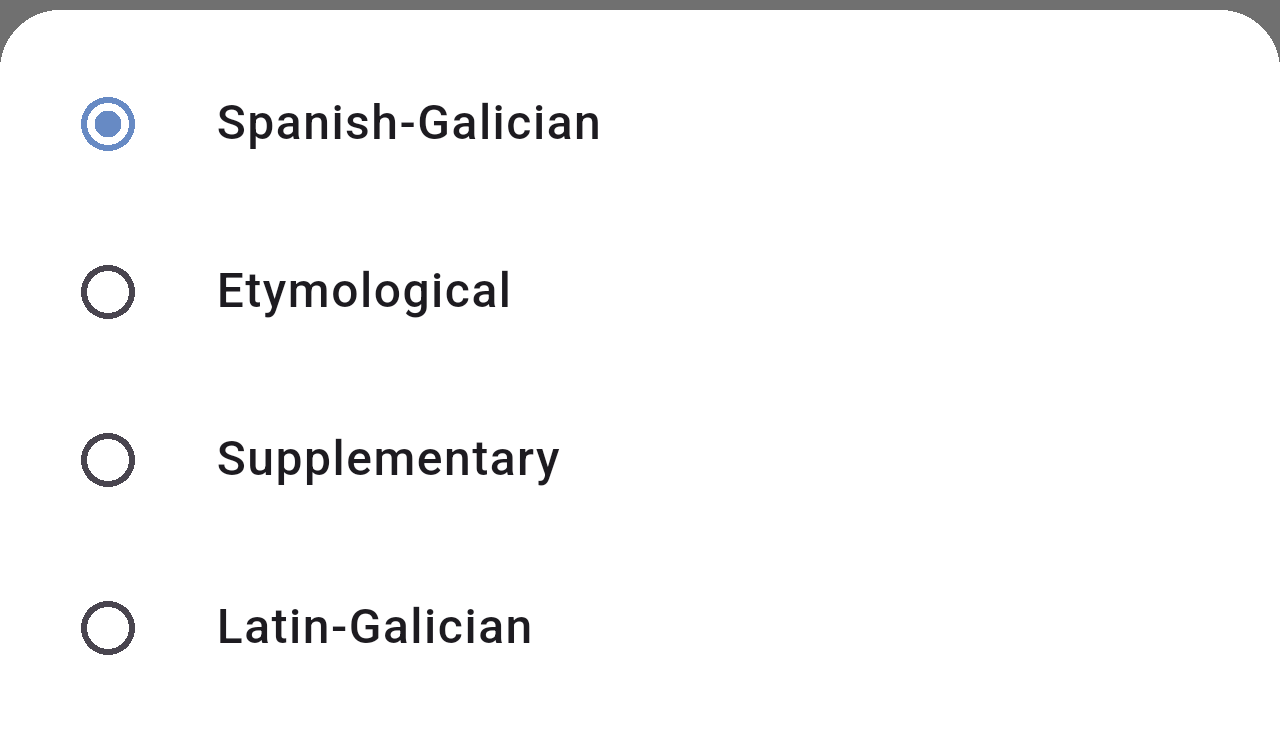
*The four dictionaries you can set as default.*
### Interface theme
Choose **Light theme**, **Dark theme**, or **System default** to follow your phone's setting.
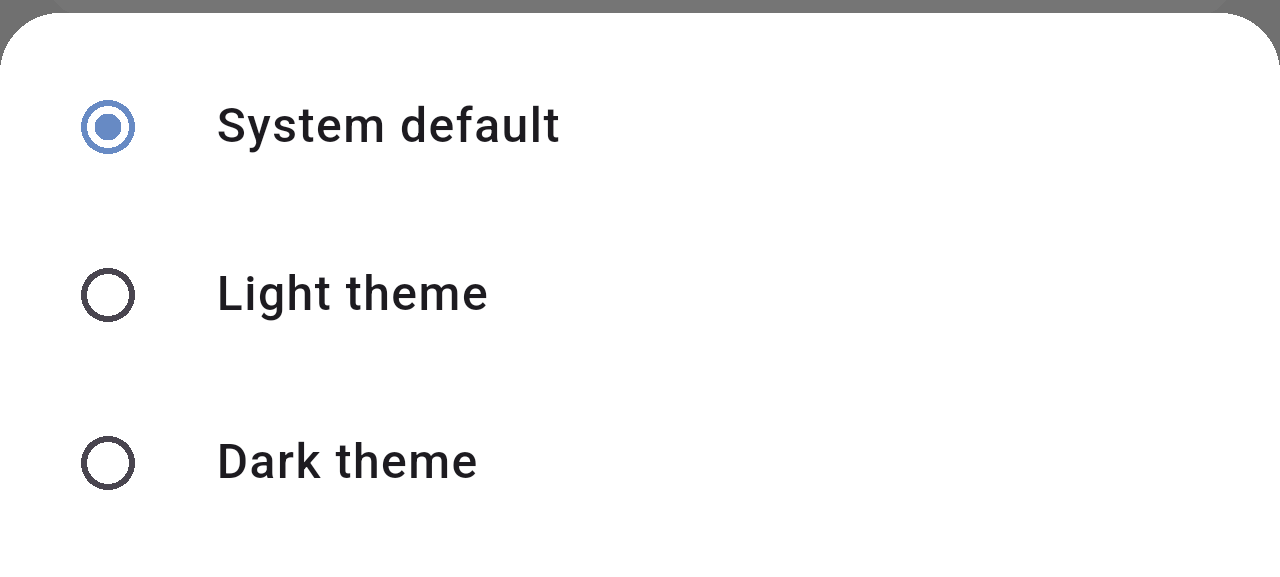
*The theme options.*
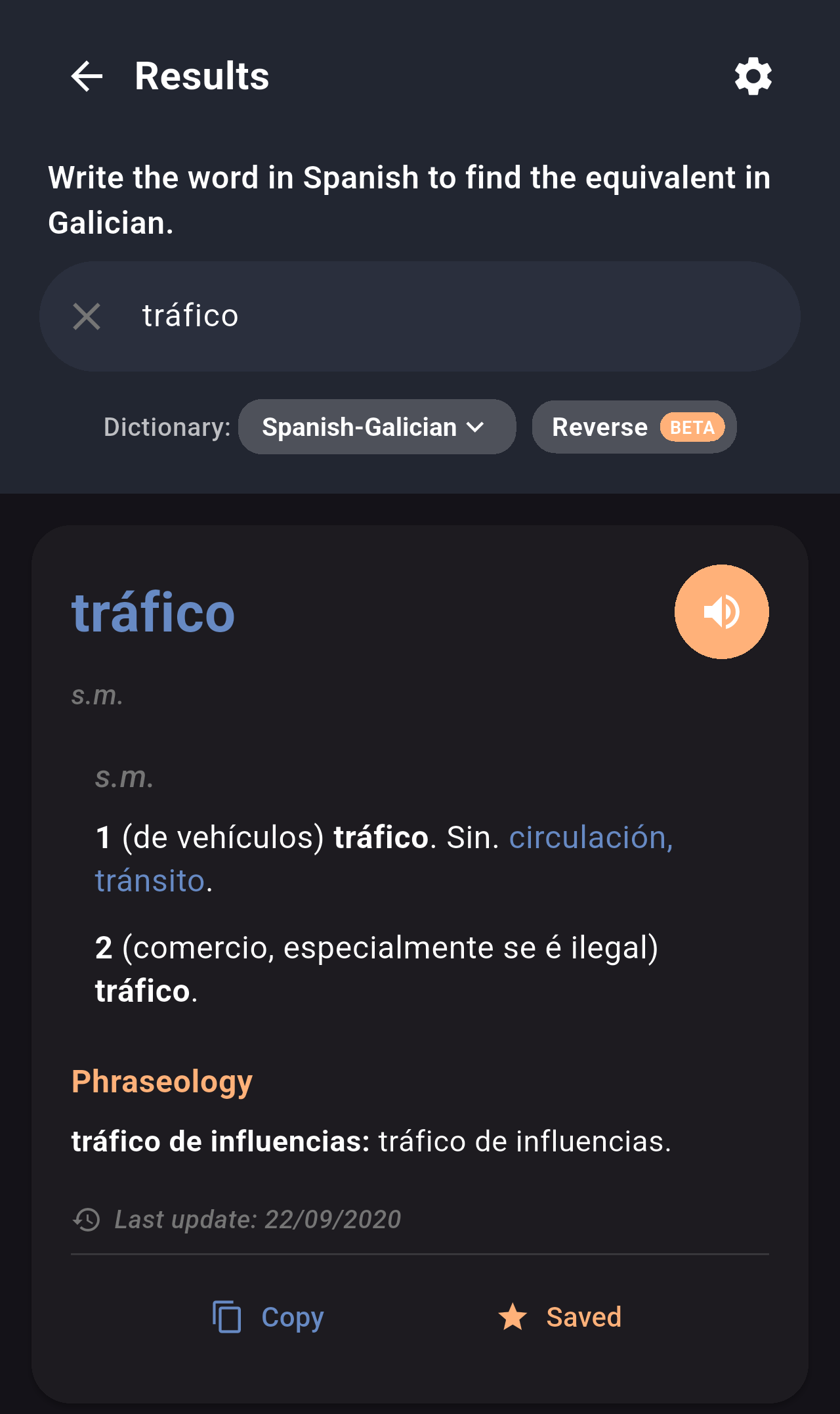
*A search result with the dark theme.*
### Word of the day
Turn this switch on to see a random word the first time you open the app each day, or off to stop it. See [Word of the day](/books/rd-core-features/page/word-of-the-day).
### Watch tutorial again
Tap it to go back to the search screen and see the tutorial from the beginning. See [First launch and tutorial](/books/rd-getting-started/page/first-launch-and-tutorial).
## Data
This group has a single option to delete the data the app keeps on your phone.
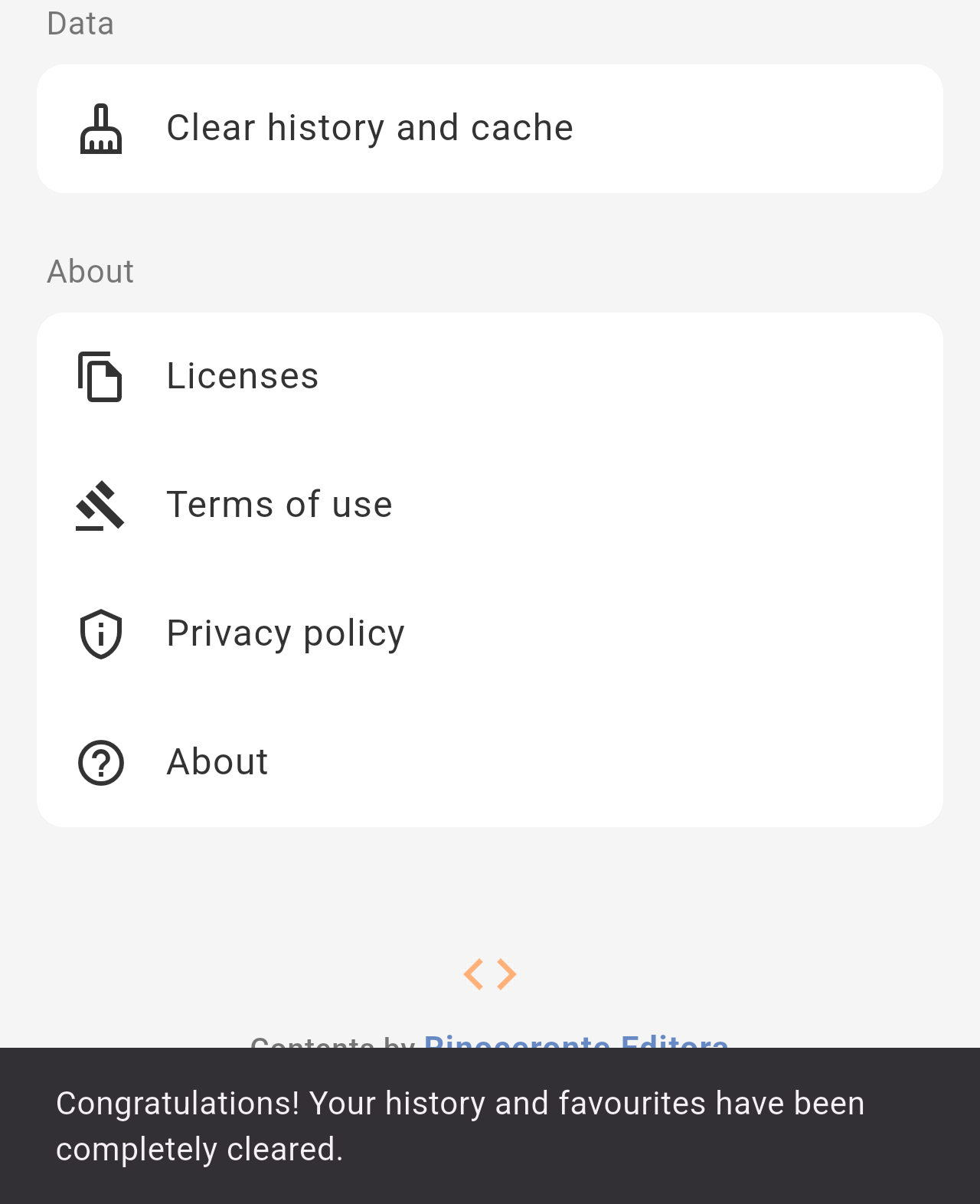
*The **Clear history and cache** option and the message shown after tapping it.*
Tap **Clear history and cache** to delete the recent searches of all the dictionaries **and all your favorites**.
> **Warning:** The data is deleted as soon as you tap the option, without asking for confirmation, and it can't be recovered. If you want to keep your favorites, don't use this option.
## About
The last group has information about the app and its contents.
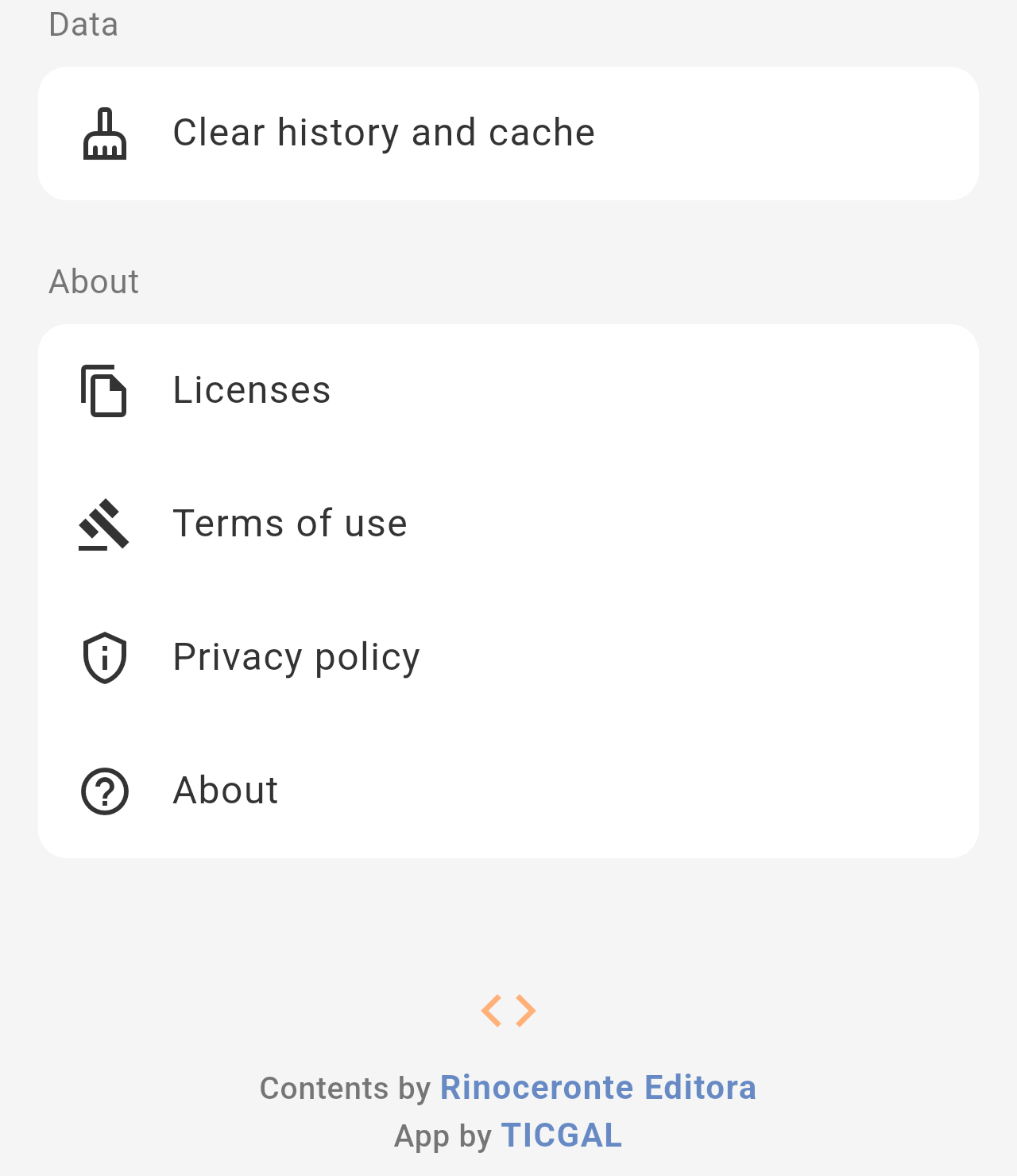
*The About group and the credits at the bottom of Settings.*
- **Licenses:** The open-source licenses of the components used by the app.
- **Terms of use** and **Privacy policy:** Open the documents in your browser.
- **About:** Shows the version of the app, the credits and links to more information.
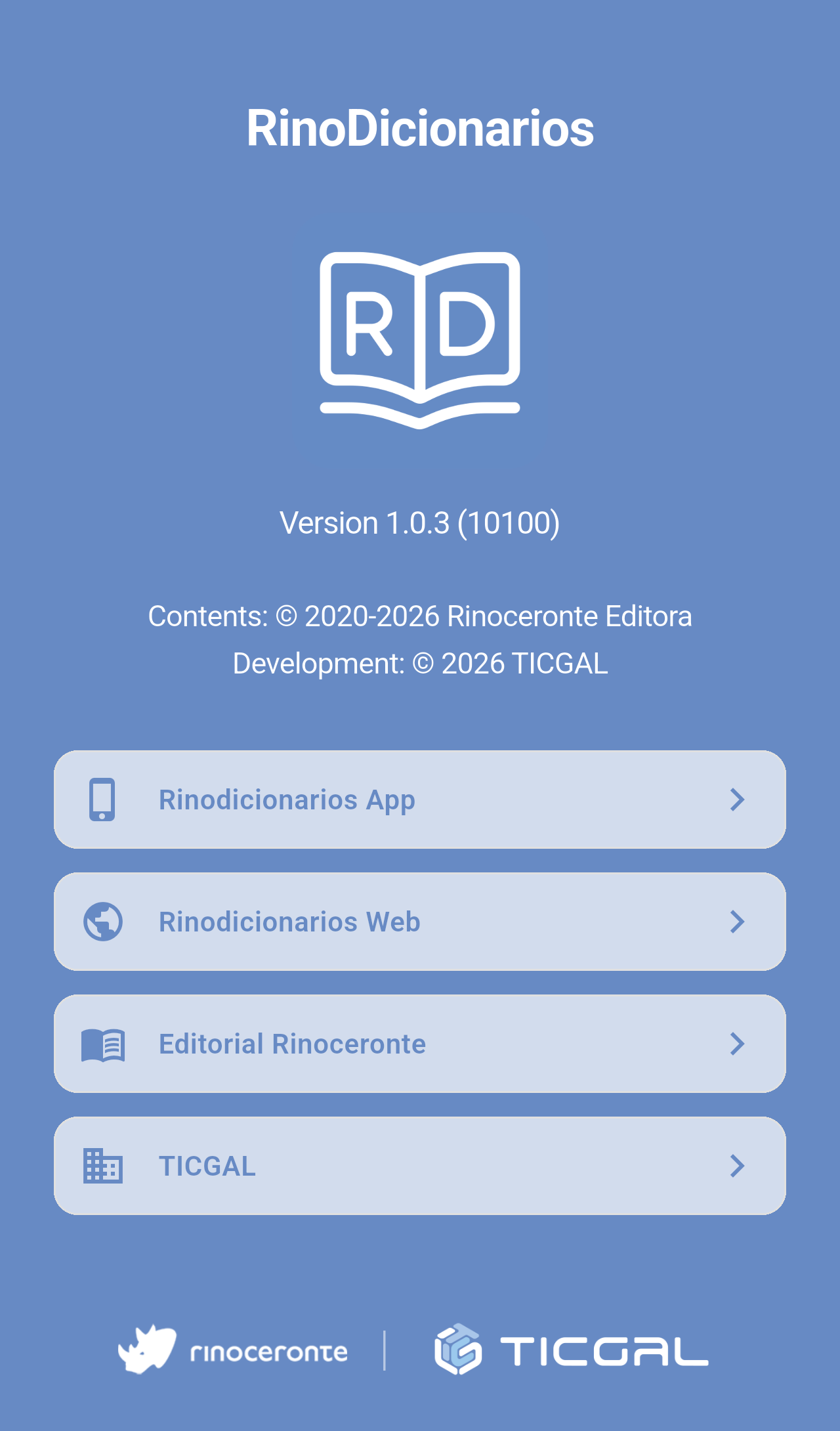
*The About screen. Tap any of the buttons to open the website in your browser, or tap anywhere else on the screen to close it.*
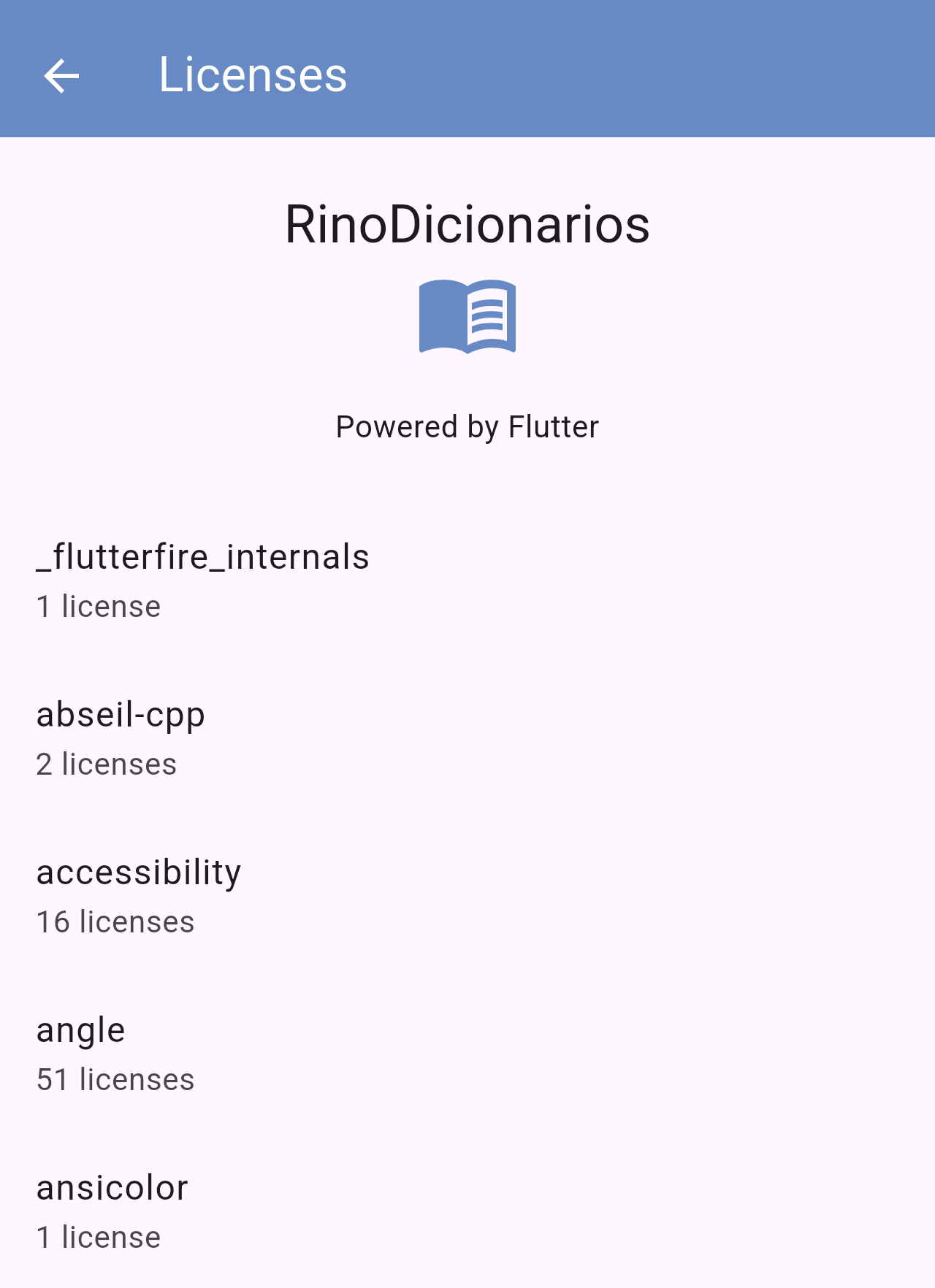
*The Licenses screen.*
> **Note:** The version shown on the About screen is useful when you contact support.
## Related pages
- [Home screen](/books/rd-getting-started/page/home-screen)
- [Word of the day](/books/rd-core-features/page/word-of-the-day)
- [Favorites](/books/rd-core-features/page/favorites)
- [FAQ / Troubleshooting](/books/rd-faq-troubleshooting/page/faq-troubleshooting)