# Access Transparency
Access Transparency provides full visibility and traceability of user activity in GLPI.
# 1. Introduction

*Part of the **Access Transparency** manual — see also [2. What's New](https://docs.tic.gal/books/access-transparency/page/2-whats-new), [3. Scope](https://docs.tic.gal/books/access-transparency/page/3-scope), [4. Setup](https://docs.tic.gal/books/access-transparency/page/4-setup), [5. Usage](https://docs.tic.gal/books/access-transparency/page/5-usage), [6. Troubleshooting](https://docs.tic.gal/books/access-transparency/page/6-troubleshooting).*
## 1.1 What Access Transparency does
Access Transparency provides full visibility and traceability of user activity in GLPI. The plugin tracks and displays detailed user actions and object interactions across the system, with dedicated tabs on User and Document pages showing filterable, paginated activity logs and exportable CSV records.
## 1.2 Pain points it addresses
GLPI's core logging is comprehensive but scattered: the Historical tab on an item shows what changed on *that item*, but there is no single view answering "what has this user done?" across the whole instance. This plugin closes that gap with a User-centric tab and Document-centric tab, reconstructing a user's activity from GLPI's own log tables, document-open events captured by the plugin's JS tracker, and system events.
## 1.3 Features
- **Centralized user activity log** showing actions performed by a user across all GLPI items
- **Document view tracking** recording file opens (via the plugin's JS tracker)
- **Filterable and paginated views** to locate specific actions by date, event type, field, or change
- **Exportable activity logs** from both full and filtered User/Document views as CSV
- **Dedicated History tabs** on User and Document pages, matching GLPI's native Historical tab styling
- **Readable event-type labels** (e.g. "User", "Profile", "Document") instead of raw internal names — a document open specifically shows as Event type "Document", Field "Current file", Update "File open"
- **Automatic log retention** with a configurable cron task to purge logs older than a set cutoff
- **Excluded logins** for service/system accounts (e.g. `inventory`, `ocsinventory`, `glpi-agent`) to prevent tracking noise
- **No additional database fields required** — the plugin leverages GLPI's existing `glpi_logs` and `glpi_events` tables plus a custom `glpi_plugin_accesstransparency_userinteractions` table for document opens
> Generated for **Access Transparency 1.2.0-beta3** on GLPI 11.0.8 — 2026-08-24.
# 2. What's New

*Part of the **Access Transparency** manual — see also [1. Introduction](https://docs.tic.gal/books/access-transparency/page/1-introduction), [3. Scope](https://docs.tic.gal/books/access-transparency/page/3-scope), [4. Setup](https://docs.tic.gal/books/access-transparency/page/4-setup), [5. Usage](https://docs.tic.gal/books/access-transparency/page/5-usage), [6. Troubleshooting](https://docs.tic.gal/books/access-transparency/page/6-troubleshooting).*
## Unreleased
### New
- [5.1 Viewing a User's Access Transparency tab](https://docs.tic.gal/books/access-transparency/page/5-usage) — redesigned to match GLPI's native Historical tab with clearer columns (ID, Date, User, Event type, Field, Update), a real page-by-page navigator, native-styled Filter/Export buttons, and human-readable event-type labels instead of raw internal names.
- [5.2 Viewing document access](https://docs.tic.gal/books/access-transparency/page/5-usage) — new "Access Transparency" tab on Document pages showing which users opened that document, with the same filtering, pagination, and CSV export as the User tab.
### Fixed
- User's Access Transparency tab no longer fails with a database error when that user has activity history.
- Profile's "Access Transparency" tab now displays the correct icon (window icon).
- Configuration page title shortened and "Log retention" field styling improved to match the rest of the page.
> Generated for **Access Transparency 1.2.0-beta3** on GLPI 11.0.8 — 2026-08-24.
# 3. Scope

*Part of the **Access Transparency** manual — see also [1. Introduction](https://docs.tic.gal/books/access-transparency/page/1-introduction), [2. What's New](https://docs.tic.gal/books/access-transparency/page/2-whats-new), [4. Setup](https://docs.tic.gal/books/access-transparency/page/4-setup), [5. Usage](https://docs.tic.gal/books/access-transparency/page/5-usage), [6. Troubleshooting](https://docs.tic.gal/books/access-transparency/page/6-troubleshooting).*
Reference only — see [4. Setup](https://docs.tic.gal/books/access-transparency/page/4-setup) for how to configure each of these.
## 3.1 Assets, management & administration items
**New itemtypes**
- **Document opens** — every time a user opens or previews a document through GLPI's normal UI, that event is recorded so it can show up on the document's and the user's "Access Transparency" tabs.
**Modified itemtypes**
- **User** — a new "Access Transparency" tab (requires the `plugin_accesstransparency_view` READ right to see)
- **Document** — a new "Access Transparency" tab showing which users opened that document (same right required)
- **Profile** — a new "Access Transparency" tab for granting/revoking the view right
- **Config** — a new "Access Transparency" tab for configuring log retention and excluded logins
**Permissions**
- **Historical** — a single Read-only permission that controls whether a profile can see the "Access Transparency" tabs on User and Document pages. Grant or revoke it under Administration → Profiles → *profile* → "Access Transparency" tab. There's no separate right for exporting: anyone who can see the tab can also export it as CSV, for the same items they're already allowed to view.
**Automatic Actions**
- **Purge old interaction logs** — a scheduled task (Setup → Automatic actions) that automatically removes old document-open records once they pass the retention period you choose on the "Access Transparency" configuration page (Setup → General → "Access Transparency" → "Log retention"). It runs on its own; no action needed unless you want to change how long records are kept, or want to trigger a purge immediately by running the task by hand.
## 3.2 Automatic actions
**Purge old interaction logs** (Setup → Automatic actions) automatically deletes old document-open records once they're older than the retention period configured on the "Access Transparency" configuration page (Setup → General → "Access Transparency" → "Log retention"):
- **Keep all** — nothing is ever deleted.
- **Delete all** — every document-open record is removed each time the task runs.
- **A number of months** — only records older than that cutoff are removed; recent ones stay.
---
See [4.2 Configuration](https://docs.tic.gal/books/access-transparency/page/4-setup).
## 3.3 Notifications
_None._
## 3.4 Rules
_None._
## 3.5 Permissions
Seeing the "Access Transparency" tab on a User or Document page requires the **Historical** permission on the logged-in user's profile (Administration → Profiles → *profile* → "Access Transparency" tab). It's Read-only — there's nothing to grant beyond "can see it or can't." CSV export uses the same permission: if you can see the tab, you can export it, and only for Users/Documents you're otherwise allowed to view.
See [4.3 Permissions](https://docs.tic.gal/books/access-transparency/page/4-setup).
> Generated for **Access Transparency 1.2.0-beta3** on GLPI 11.0.8 — 2026-08-24.
# 4. Setup

*Part of the **Access Transparency** manual — see also [1. Introduction](https://docs.tic.gal/books/access-transparency/page/1-introduction), [2. What's New](https://docs.tic.gal/books/access-transparency/page/2-whats-new), [3. Scope](https://docs.tic.gal/books/access-transparency/page/3-scope), [5. Usage](https://docs.tic.gal/books/access-transparency/page/5-usage), [6. Troubleshooting](https://docs.tic.gal/books/access-transparency/page/6-troubleshooting).*
## 4.1 Installation
## 4.2 Configuration
### 4.2.1 Automatic actions
**Purge old interaction logs** (Setup → Automatic actions) automatically deletes old document-open records once they're older than the retention period configured on the "Access Transparency" configuration page (Setup → General → "Access Transparency" → "Log retention"):
- **Keep all** — nothing is ever deleted.
- **Delete all** — every document-open record is removed each time the task runs.
- **A number of months** — only records older than that cutoff are removed; recent ones stay.
---
## 4.3 Permissions
Seeing the "Access Transparency" tab on a User or Document page requires the **Historical** permission on the logged-in user's profile (Administration → Profiles → *profile* → "Access Transparency" tab). It's Read-only — there's nothing to grant beyond "can see it or can't." CSV export uses the same permission: if you can see the tab, you can export it, and only for Users/Documents you're otherwise allowed to view.
## 4.4 Configuring Access Transparency
Access Transparency adds one configuration page (log retention and excluded logins) and one permission (granted per profile) that controls who can see the "Access Transparency" tabs.
### 4.4.1 Log in to GLPI
Open GLPI and log in with an administrator account.
### 4.4.2 Open the Access Transparency configuration page
Go to **Setup → General**, then open the **Access Transparency** tab.
### 4.4.3 Set log retention and excluded logins
**Log retention** controls how long document-open records are kept: **Keep all** never deletes them, **Delete all** removes them immediately on the next scheduled purge, or pick a number of months to delete anything older than that. **Excluded logins** is a comma-separated list of accounts (e.g. service/cron accounts like `inventory` or `ocsinventory`) whose document views are never tracked. Save to apply either setting.
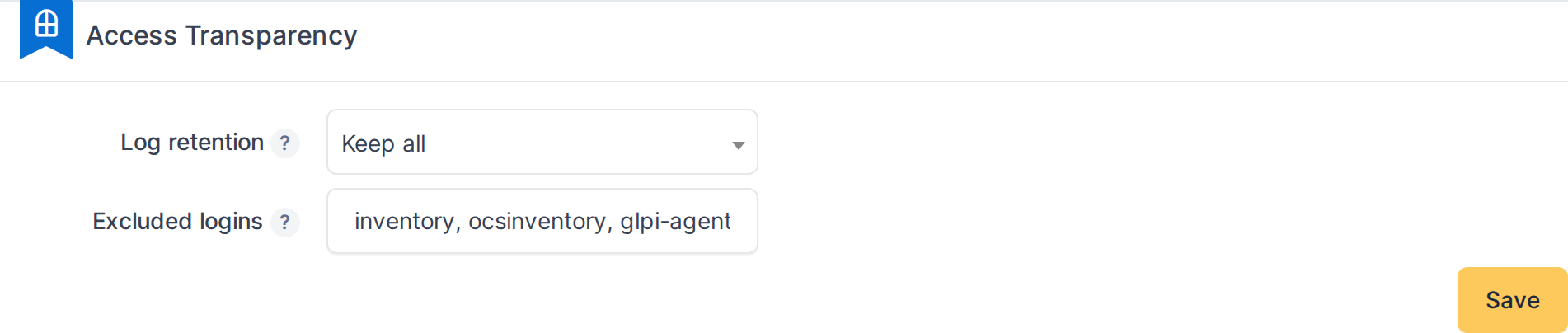
*The Access Transparency configuration page: log retention and excluded logins.*
### 4.4.4 Open a profile's Access Transparency tab
Go to **Administration → Profiles**, open a profile, then click its **Access Transparency** tab to grant or revoke the permission for that profile.
### 4.4.5 Grant or revoke the Historical permission
The tab shows a single **Historical** row with a **Read** checkbox. Check it to let this profile see the "Access Transparency" tabs on User and Document pages (and export their CSV); uncheck it to hide them. Click **Save** to apply the change.

*Granting the Historical permission on a profile.*
> Generated for **Access Transparency 1.2.0-beta3** on GLPI 11.0.8 — 2026-08-24.
# 5. Usage

*Part of the **Access Transparency** manual — see also [1. Introduction](https://docs.tic.gal/books/access-transparency/page/1-introduction), [2. What's New](https://docs.tic.gal/books/access-transparency/page/2-whats-new), [3. Scope](https://docs.tic.gal/books/access-transparency/page/3-scope), [4. Setup](https://docs.tic.gal/books/access-transparency/page/4-setup), [6. Troubleshooting](https://docs.tic.gal/books/access-transparency/page/6-troubleshooting).*
## 5.1 Viewing a User's Access Transparency tab
Once the plugin is installed and activated, every User in GLPI gains an "Access Transparency" tab showing a centralized history of that user's actions and document opens. The tab displays activity from GLPI's own audit logs, system events, and the plugin's document-open tracker, with native filtering, pagination, and CSV export.
### 5.1.1 Log in to GLPI
Open GLPI and log in with an account that has the **Historical** right enabled (check your profile's "Access Transparency" tab to confirm).
### 5.1.2 Open a user's page
From the main menu, choose **Administration → Users**, then open the page of a user with some recorded activity.
### 5.1.3 Click the "Access Transparency" tab
On the user's page, a row of tabs appears below the user name and profile information. Look for the "Access Transparency" tab (with a window icon) and click it to switch to that tab.
### 5.1.4 View the activity table
The "Access Transparency" tab displays a table with six columns: **ID**, **Date**, **User**, **Event type**, **Field**, and **Update**. Rows are listed newest first, showing each action or event this user has performed. The table includes filters (accessed via the **Filter** button) and a page navigator at the bottom.
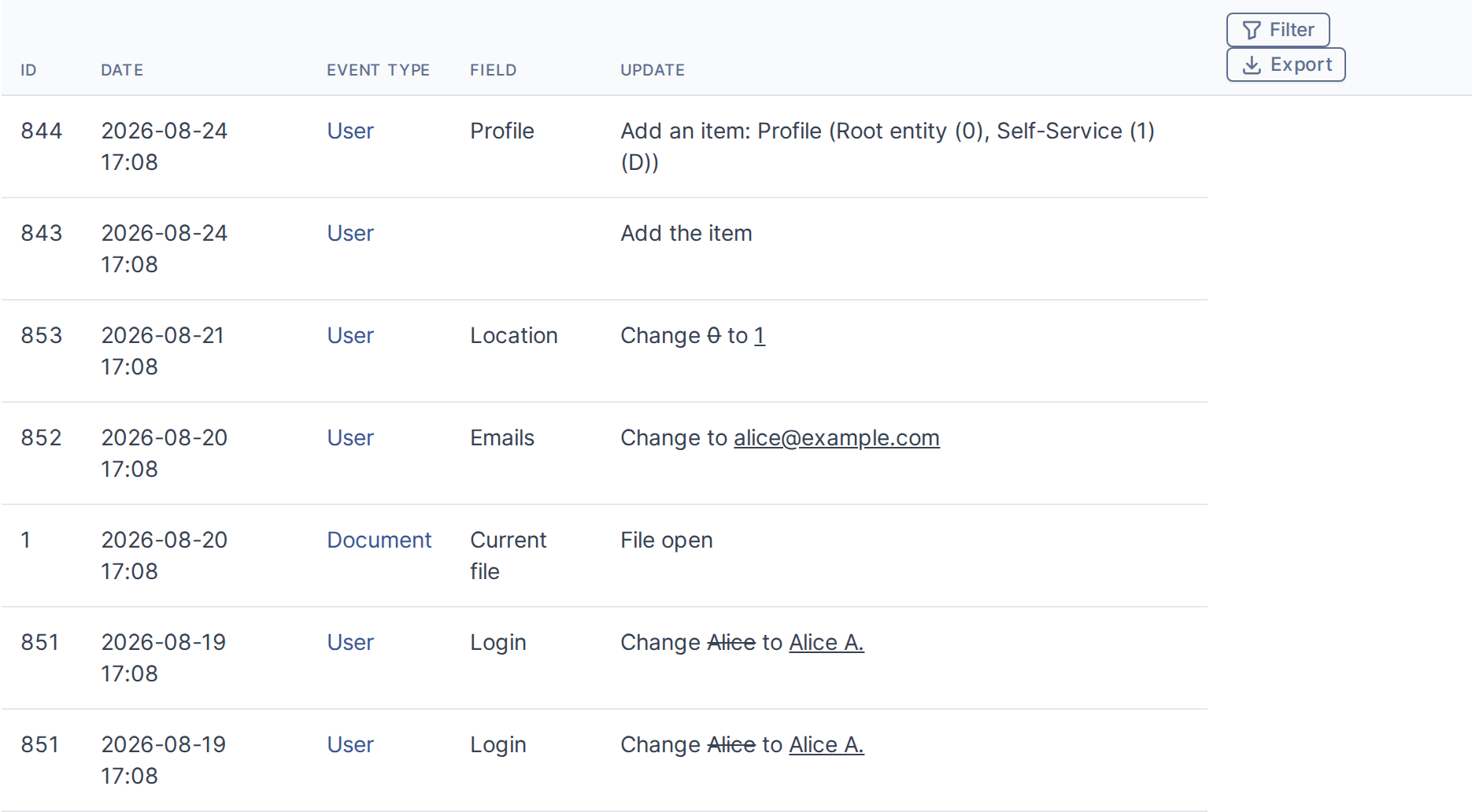
*The Access Transparency tab shows a table of the user's activity. Each row includes the action ID, date, related user (for multi-user operations), a readable event type (e.g. "User", "Profile", "Document"), the field affected (if applicable), and the change made (e.g. "added", "updated", or, for a document open, "File open").*
### 5.1.5 Use filters to narrow the list
Click the **Filter** button (on the right side of the table header) to reveal a second header row with filter fields. You can filter by date, event type (e.g. "User", "Document"), field name, or the type of change. The list updates to show only matching rows. Clearing a filter restores the full list.

*The filter row allows you to narrow the activity list by date, event type, field name, or type of change. Leave a field empty to skip filtering by that column.*
### 5.1.6 Export the activity as CSV
Click the **Export** button (next to the **Filter** button) to download a CSV file containing the currently displayed activity records (filtered or unfiltered). The CSV has six columns (ID, Date, User, Event type, Field, Update) and can be opened in a spreadsheet editor.
> **Note:** The CSV file is downloaded directly to your computer. The filename depends on your browser settings. A typical name might be `activity.csv` or similar. You can then open it in Microsoft Excel, Google Sheets, or any spreadsheet editor.
### 5.1.7 Navigate through pages
If the activity list is longer than one page, a page navigator appears at the bottom right of the table. Use the **Previous**, **Next**, and page-number buttons to move through the results. You can also change **Entries to show** to display more rows per page.
> **Note:** Pagination appears only if the activity list is longer than one page. If all records fit on a single page, no navigator is shown.
> **Note:** Tip: The Access Transparency tab is available on every User's page (not just certain profiles). If you don't see the tab, ask your GLPI administrator to grant you the **Historical** right under Administration → Profiles.
> Generated for **Access Transparency 1.2.0-beta3** on GLPI 11.0.8 — 2026-08-24.
# 6. Troubleshooting

*Part of the **Access Transparency** manual — see also [1. Introduction](https://docs.tic.gal/books/access-transparency/page/1-introduction), [2. What's New](https://docs.tic.gal/books/access-transparency/page/2-whats-new), [3. Scope](https://docs.tic.gal/books/access-transparency/page/3-scope), [4. Setup](https://docs.tic.gal/books/access-transparency/page/4-setup), [5. Usage](https://docs.tic.gal/books/access-transparency/page/5-usage).*
## Access Transparency tab doesn't appear on a User's page
**Check these in order:**
1. **You have the right permission** — your profile must have the **Historical** right enabled. Ask your GLPI administrator to check Administration → Profiles → *your profile* → "Access Transparency" tab, and confirm the **Historical** row is checked.
2. **The plugin is activated** — your administrator should confirm Setup → Plugins → "Access Transparency" shows as enabled (green icon).
3. **You are not excluded** — if you are a service account (e.g. `inventory`, `ocsinventory`, `glpi-agent`), your login might be in the excluded list. Ask your administrator to check Setup → General → "Access Transparency" → "Excluded logins" and verify your login is not listed there.
## CSV export fails with "Access refused"
**The export URL is rights-gated and visibility-gated:**
1. **You must have the Historical right** — same as viewing the tab itself. If you cannot see the "Access Transparency" tab, you cannot export.
2. **You must be able to view the user/document** — if you cannot normally access that User or Document via GLPI's standard visibility rules (entity restrictions, profile rights, etc.), the export is blocked. Ask your administrator if you should have access to this item.
## No activity appears in the Access Transparency tab for a user with a long history
**The tab displays activity from GLPI's own log tables plus document-open events.** If a user has been active for a long time and the tab shows nothing or very few rows:
1. **The log retention may have purged old records** — activity older than the configured retention period (Setup → General → Access Transparency → "Log retention") is automatically deleted by the cron task. The older the retention setting, the more history you will see.
2. **Document opens require the tracking JS** — the plugin only records document opens if they were routed through the normal GLPI UI (preview, inline view) with the tracking JS loaded. API calls, CLI access, and bulk operations do not create tracking records.
## Document open tracking stopped working
**Document opens are only tracked for non-excluded users:**
1. **Check that your login is not in the excluded list** — if you were recently removed from the "Excluded logins" setting, you may need to log out and back in. The tracking JS is loaded at login time; if it was not loaded when you logged in, reloading the page will not turn it on.
2. **You must be logged in** — the tracking JS is only injected for authenticated users. If you access a document without logging in, no tracking happens.
3. **The document must be accessed via the normal UI** — the JS tracker only fires on document preview/view from within GLPI. Downloads via API or bulk export operations bypass the tracker.
## The "Automatic actions" task isn't purging old logs
**The cron task `PurgeInteractionLogs` is hourly by default.** If logs aren't being deleted:
1. **Check the retention setting** — go to Setup → General → "Access Transparency" → "Log retention". If it is set to "keep all", no logs are ever deleted. Change it to a specific number of months (e.g. "12 months") or "delete all" to enable purging.
2. **Check the task is enabled** — go to Setup → Automatic actions, search for "PurgeInteractionLogs", and confirm its status shows as enabled (green) and the "Last run" timestamp is recent.
3. **Check GLPI's cron is running** — if GLPI's automatic actions are not running (e.g. cron job not set up on the server), no tasks will execute. Ask your system administrator to verify the cron job exists and is active.
## Profile rights tab shows the wrong icon
The "Access Transparency" tab on a Profile page should show a window icon (✓). If it shows a different icon or no icon, ask your administrator to confirm the plugin is fully installed and activated (Setup → Plugins), then reload the page.
## Configuration changes don't save
**The config page requires the "config" UPDATE right:**
1. **You must be an administrator** — only users with the **config** UPDATE right (usually administrators) can save configuration changes. Ask your GLPI administrator to make the change.
2. **Excluded logins field is case-insensitive but exact** — when entering login names, match them exactly as they appear in GLPI (spaces are significant; `inventory` and `Inventory` are treated differently in matching, though the matching itself is case-insensitive). Separate multiple logins with commas or newlines.
3. **Reload the page after saving** — to confirm the change took effect, reload the page. The saved value should appear in the field.
## Export file is empty or has only the header row
This usually means the applied filters excluded all records. Try exporting without filters:
1. Click the **Filter** button to show/hide the filter row.
2. Clear all filter fields (date, event type, field, change).
3. Click **Export** again.
If the unfiltered export is also empty, the user or document may genuinely have no activity in the configured retention window (see "No activity appears..." above).
> Generated for **Access Transparency 1.2.0-beta3** on GLPI 11.0.8 — 2026-08-24.